Desktop icons disappear in batches, crowd the screen, or leave one stubborn system icon behind. Windows separates those jobs across a few controls: one switch for every desktop icon, one panel for built-in icons, and separate paths for shortcuts, apps, websites, and managed devices.
Start with the fix that matches what changed on your desktop, then move down only if that control does not cover the icon you are trying to show, hide, add, or remove.
Hide or show every desktop icon
Use this when every desktop icon needs to disappear for a cleaner screen, or when the whole set of desktop icons is missing and you want it back. Right-click an empty area of the desktop, point to View, and select Show desktop icons to show your icons.
To hide them again, right-click an empty area of the desktop, point to View, and clear Show desktop icons. This hides the desktop icons from view. It does not remove the shortcuts, files, or folders themselves.
Restore icons that suddenly disappeared
The most common cause is that Show desktop icons was turned off from the desktop menu. Right-click a blank area on the desktop, open View, and turn Show desktop icons back on. Look at the desktop again. If nothing changes, the missing item is a specific system icon, shortcut, file, folder, Windows Spotlight icon, or organization-managed desktop setting.
Choose which default icons appear
Open Settings, go to Personalization, and open Themes. Select Desktop icon settings.
Select or clear the default icons you want on the desktop, including This PC, Recycle Bin, Network, or User's Files. Select OK. Use Allow themes to change desktop icons in the same dialog when Windows themes should control those system icons.
Remove one desktop item
When one icon is the problem, remove that item instead of hiding the whole desktop. Select the icon and press Delete, or right-click the icon and choose Delete.
For a shortcut, this removes the shortcut from the desktop. For an actual file or folder stored on the desktop, deleting it deletes that item.
For default system icons such as Recycle Bin, use Desktop icon settings instead of Delete.
If this method fails, go to Settings > Personalization > Themes > Desktop icon settings, clear the system icon there, and select OK.
Add a new shortcut
Use this when you want a new desktop icon for a file, folder, installed app, or web page instead of changing which existing icons are visible. To create a shortcut manually, right-click an empty area of the desktop, open New, choose Shortcut, and follow the prompts for the file, folder, or web page you want.
For an installed app, open Start.
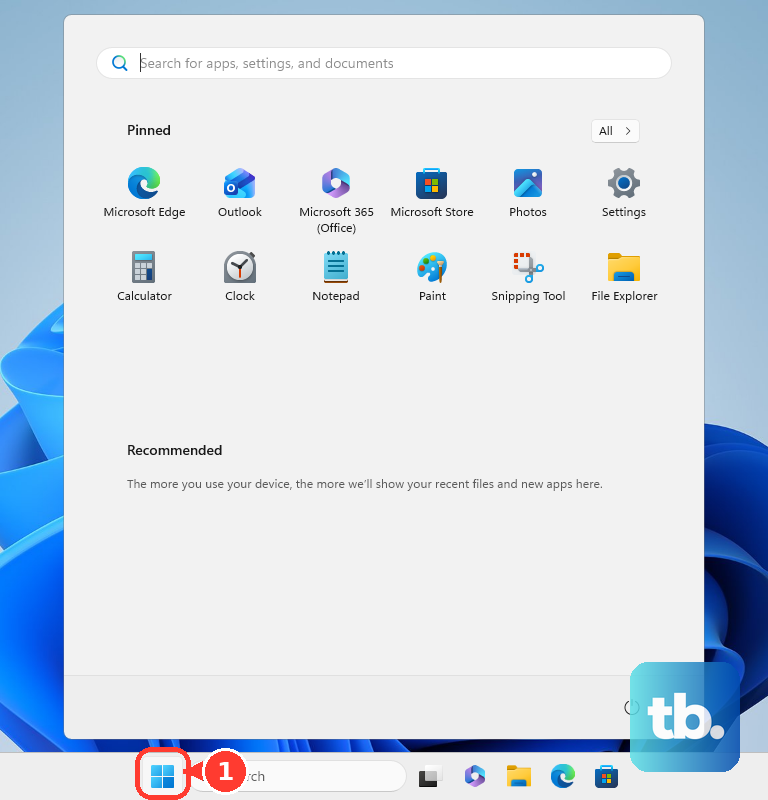
Choose All, find the app, and drag and drop the app onto the desktop. For a file or folder, open File Explorer and navigate to the item.
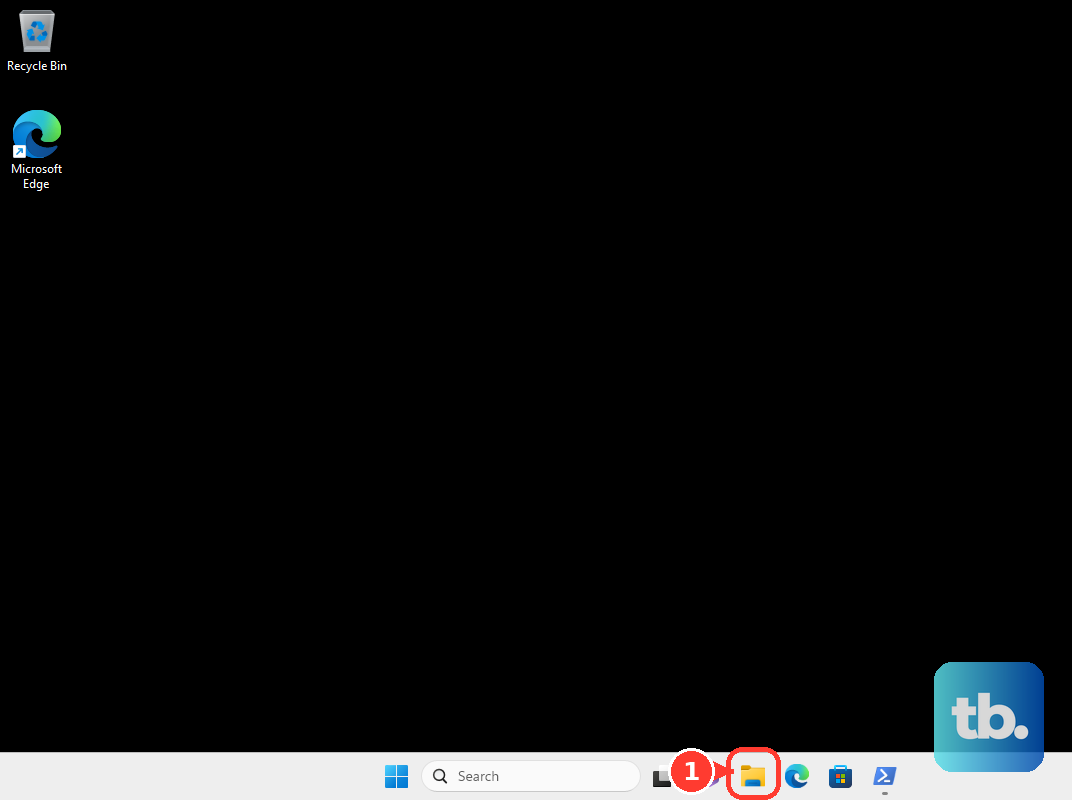
Right-click the file or folder, choose Show more options, open Send to, and select Desktop (create shortcut). If your menu shows Send to right away, open Send to and select Desktop (create shortcut) without using Show more options.
For a web page, open the page in your browser. Drag the View site information icon beside the URL to the desktop. The icon appears as a padlock or sliders icon depending on the browser.
Uninstall app shortcuts that return
Some desktop icons are maintained by the app that installed them. Deleting the shortcut removes it from the desktop; uninstalling the app removes the program when you no longer want it.
Open Settings > Apps > Installed apps, find the app, open More, and choose Uninstall.
For classic desktop programs, search the taskbar for Control Panel, open Programs, then open Programs and Features. Right-click the program and choose Uninstall or Uninstall/Change.
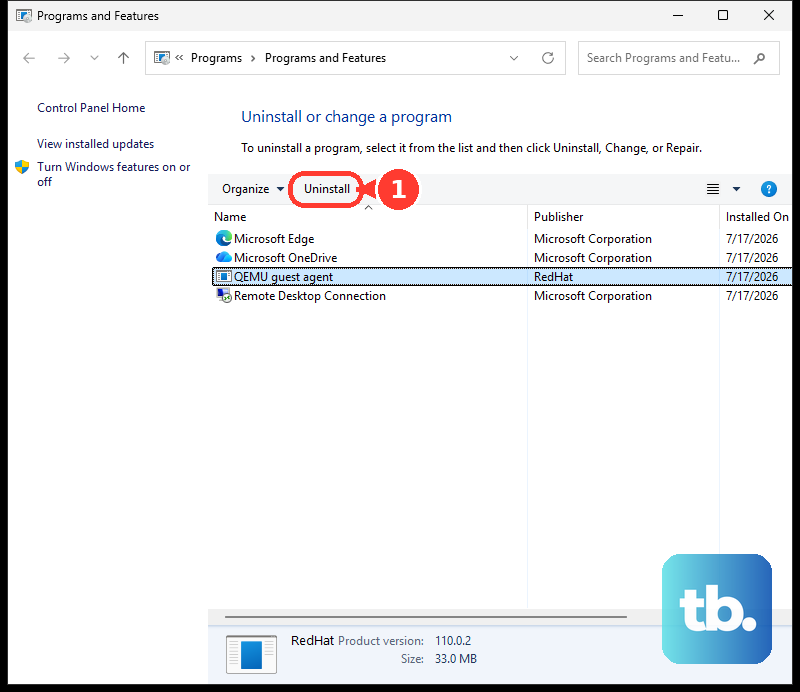
If this method fails, the app may be one that Windows cannot uninstall from Settings right now, so use the Control Panel > Programs > Programs and Features steps above instead. Some apps are built into Windows and do not uninstall at all, and a desktop item that is only a shortcut comes off with Delete.
Create browser website icons
Chrome creates a website desktop icon from the browser menu. Open the website in Chrome, select More, open Cast, save, and share, choose Create shortcut..., edit Name when needed, and select Create.
Microsoft Edge creates desktop shortcuts for installed web apps from its apps page. In Microsoft Edge, open edge://apps, choose Details on the app card, and select Create Desktop shortcut.
A regular browser shortcut uses the address bar instead. Open the web page, drag the View site information icon beside the URL to the desktop, and release it there.
Hide the Windows Spotlight picture icon
Change the desktop background when the Learn about this picture icon appears.
- 1.Right-click the desktop and choose Personalize.
- 2.Open Background.
- 3.Under Personalize your background, choose Picture, Solid Color, or Slideshow instead of Windows spotlight.
Handle work or school desktop rules
This fixes desktops where all items are hidden by an organization policy. On work, school, or organization-managed Windows devices, administrators set policies that hide and disable all items on the desktop. When that policy is active, the desktop View menu and Desktop icon settings do not restore the icons. Contact your organization's IT administrator and ask whether desktop items are being hidden by device policy.
Older Windows guides mention the Desktop Cleanup Wizard or unused desktop icon cleanup. That is a legacy setting, not a current Windows 11 consumer method for showing or hiding desktop icons.
Frequently Asked Questions
Does hiding desktop icons delete anything?
No. Turning off Show desktop icons only hides the icons from view. Shortcuts, files, and folders remain in place.
Why can't I delete Recycle Bin from the desktop?
Recycle Bin is a default system icon. Remove it from Settings > Personalization > Themes > Desktop icon settings instead.
What is the fastest way to bring back missing desktop icons?
Right-click the desktop, open View, and turn on Show desktop icons.
Can Windows key + D show hidden desktop icons?
No. Windows key + D shows or hides the desktop by minimizing or restoring windows. It does not toggle desktop icon visibility.