Trying to scroll on your MacBook, but the page won’t move or goes the wrong way? Start with a two-finger swipe, no clicking needed. Here’s how to use the trackpad, keyboard, or mouse, and change the settings that control direction and speed.
Start with a two-finger swipe
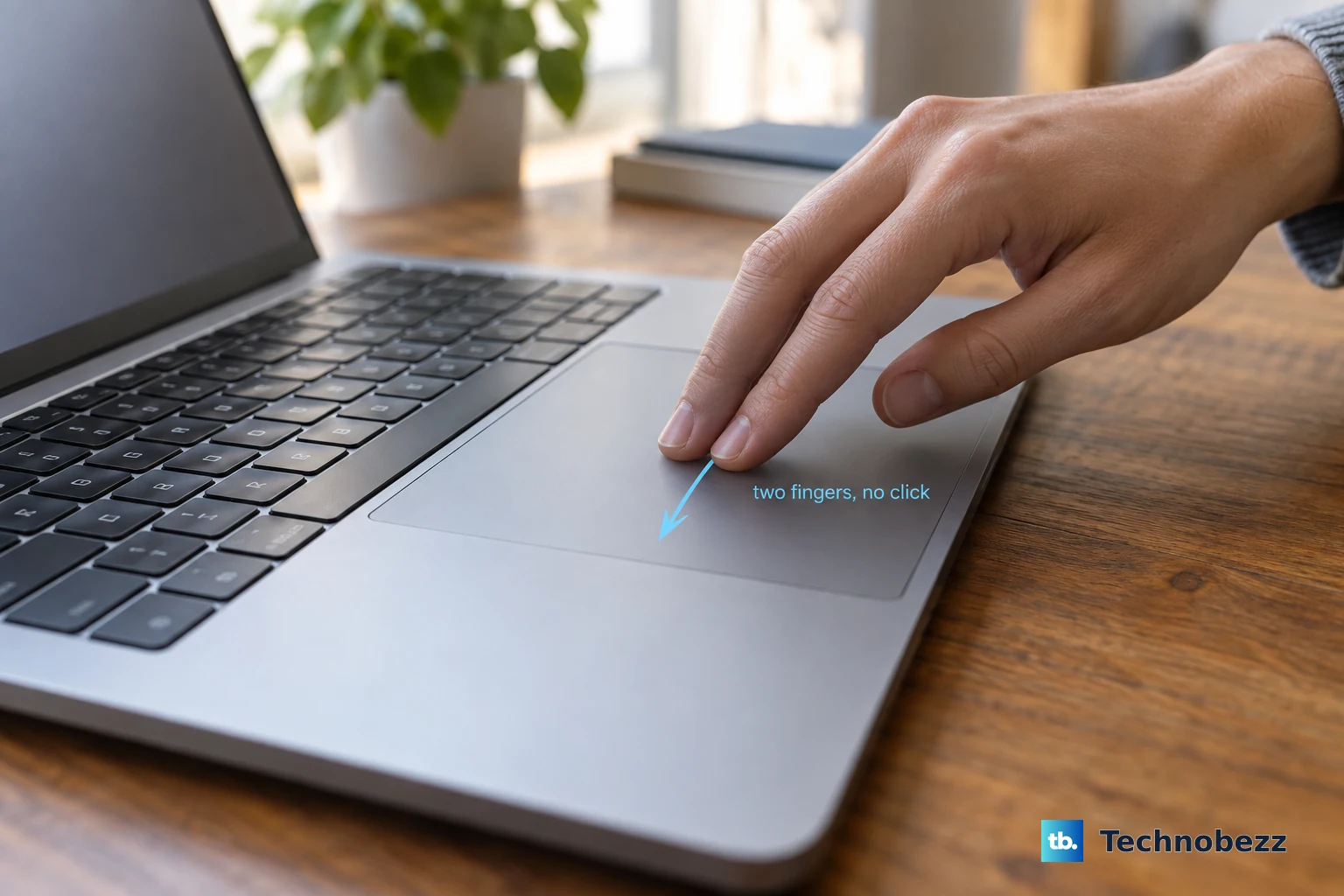
Place two fingers on your MacBook’s trackpad.
Slide both fingers up or down to scroll. You don’t need to press down or click.
With Natural scrolling enabled, slide upward to move the content upward and reveal what’s farther down the page.
The same two-finger gesture works on a connected Magic Trackpad.
Reverse scrolling when it feels backward
Changing Natural scrolling reverses the trackpad’s scrolling direction.
The System Settings paths in this guide apply to macOS Ventura 13 or later. On macOS Monterey 12 or earlier, open System Preferences instead and follow Apple’s instructions for that macOS version.
Open the Apple menu.
Choose System Settings.
Select Trackpad.
Click Scroll & Zoom.
Turn Natural scrolling off to reverse the direction, or on to make content follow your finger movement.
Navigate pages with keyboard shortcuts
Want to move through a long page without touching the trackpad? Keyboard shortcuts handle that, but their behavior depends on the app or control that has focus.
Press Fn + Down Arrow to scroll down one page.
Press Fn + Up Arrow to scroll up one page. On an external keyboard, dedicated Page Up and Page Down keys perform those actions.
Press Fn + Left Arrow to scroll to the beginning of a document in apps that support that behavior.
Press Fn + Right Arrow to scroll to its end.
In Safari, Chrome, or Microsoft Edge, press Space to move down one screen. Webpage content must have focus, rather than a text-entry field.
Press Shift + Space to move up one screen in those browsers.
In Safari, press an Arrow key for a smaller movement in that direction, with webpage content focused.
Hold Option while pressing an Arrow key to move in larger increments in Safari.
Press Command + Up Arrow to reach the top-left of a Safari webpage.
Press Command + Down Arrow to reach the bottom-left of a Safari webpage. Keep webpage content focused for both shortcuts; in text editing, these combinations move the insertion point.
Scroll with an external mouse
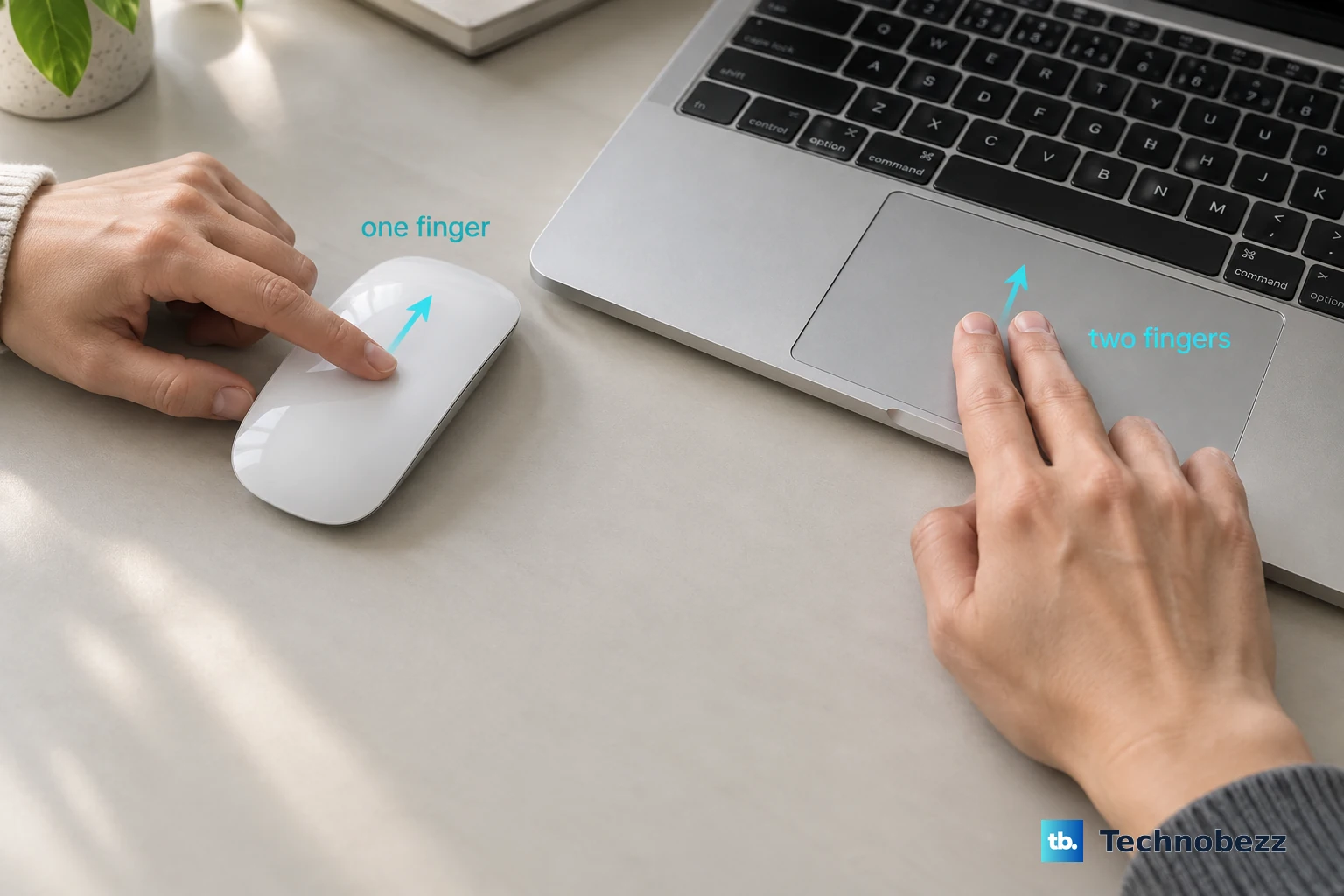
On a connected Magic Mouse, slide one finger up or down along its top surface. Magic Mouse models with a USB-C port require macOS Sequoia 15.1 or later.
With a compatible mouse that has a scroll wheel, roll the main wheel to scroll vertically.
To change direction on a supported wireless mouse, open the Apple menu.
Choose System Settings.
Select Mouse.
Open Point & Click.
Change Natural scrolling. The settings shown depend on your mouse.
Remember the finger count: one for Magic Mouse scrolling, two for ordinary trackpad scrolling.
Make scroll bars easier to find
Keeping scroll bars visible gives you a handle to drag through content that extends beyond the window.
Open the Apple menu.
Choose System Settings.
Select Appearance.
Set Show scroll bars to Always.
Point at the movable, usually darker handle inside the scroll bar.
Press and hold the mouse or trackpad button.
Drag the handle to move through the content.
Release the button when you reach the position you want.
For another way to navigate, set Click in the scroll bar to in Appearance to Jump to the next page or Jump to the spot that’s clicked.
Click the scroll-bar track outside its handle to use your chosen behavior in apps that follow the system setting.
Hold Option while clicking the track to temporarily use the other behavior.
Adjust scrolling speed and momentum
Open the Apple menu.
Choose System Settings.
Open Accessibility.
Select Pointer Control.
Click Trackpad Options for your trackpad or Mouse Options for your mouse.
Adjust Scroll speed to change how quickly content moves.
On a supported trackpad or mouse, change Use inertia when scrolling to control whether scrolling gradually slows after you lift your fingers. Available options depend on your device.
Use speed to control how fast you travel through a page and inertia to control how scrolling finishes.
Restore trackpad scrolling
If two-finger scrolling does nothing, check whether scrolling is enabled. Open Apple menu > System Settings > Accessibility > Pointer Control.
Open Trackpad Options.
Enable Use trackpad for scrolling on a supported trackpad.
If the built-in trackpad stops responding while a mouse or wireless trackpad is connected, return to Pointer Control.
Turn off Ignore built-in trackpad when mouse or wireless trackpad is present. Apple notes that some third-party mouse drivers affect this setting.
If scrolling still fails, try the keyboard shortcuts above or drag a visible scroll-bar handle to navigate the content.
Enable continuous scrolling for PDFs in Preview
For a multipage PDF in Preview, continuous scrolling lets you move through the document with two-finger swipes.
Open your PDF in Preview.
Choose View > Continuous Scroll.
Swipe up or down with two fingers on the trackpad to move through the PDF.
To make this the initial layout for newly opened documents, choose Preview > Settings. On macOS Monterey 12 or earlier, choose Preview > Preferences instead.
Open PDF.
Under Opening for the first time, select Continuous Scroll.
Frequently Asked Questions
Can I scroll on a MacBook using voice commands?
Yes. Open Apple menu > System Settings > Accessibility > Voice Control. Turn on Voice Control. With a supported language and microphone, say “Scroll down” or “Scroll up.” Say “Show commands” to see commands available for the current context.
How can I scroll sideways with a mouse wheel?
In Firefox, position the pointer over the page or scroll bar. Hold Shift while rolling the wheel down to move right, or up to move left. This works when the desktop environment doesn’t intercept the combination. On a Logitech MX Master 3S, rotate the thumb wheel to scroll sideways.
Can a PDF scroll automatically on a MacBook?
Yes, in Adobe Acrobat. Open a PDF. Choose View > Page display > Automatically scroll. Choose it again to stop. Press a number from 0–9 to select the speed, with 9 fastest. Press the minus (-) key to reverse direction.
Does VoiceOver use the same two-finger scrolling gesture?
VoiceOver uses different gestures. With VoiceOver trackpad gestures enabled, flick up, down, left, or right with three fingers to scroll one page. VoiceOver also scrolls automatically as its cursor navigates content.