You open an app, but the task you need to complete requires administrator access. Windows 11 and Windows 10 let you request that access from the app’s search result, shortcut, or taskbar icon. Start with a single administrator launch, then save the setting if you need it every time.
Start with Windows search
An app running with ordinary permissions cannot complete a task that requires administrator access. Select Start.
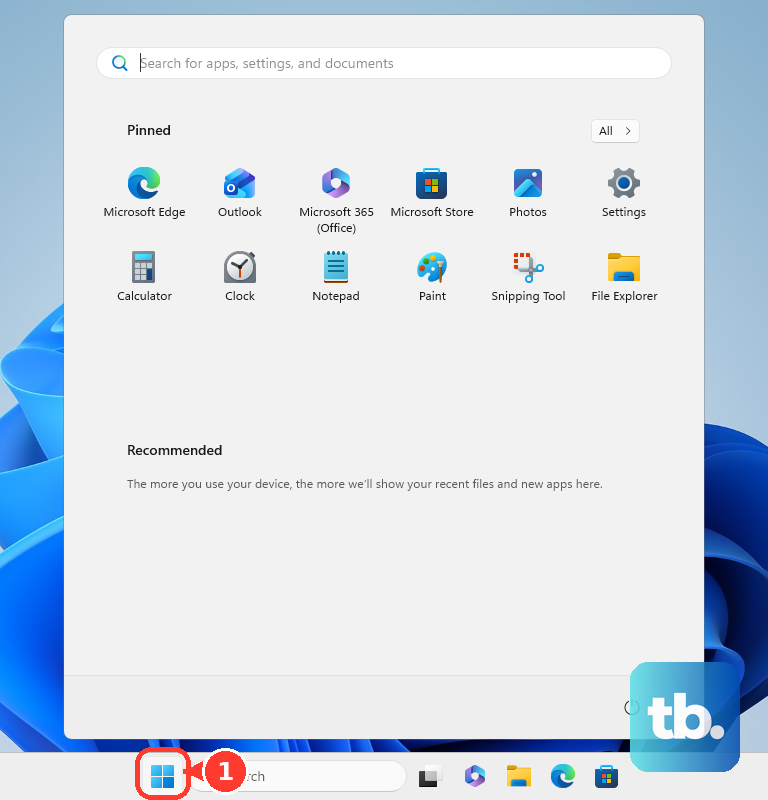
Type the app’s name. Next, right-click its search result and select Run as administrator. This command works for desktop applications that support elevation, Windows’ process for granting administrator permissions to a launch.
Complete the Windows permission prompt. If you use a standard account, enter administrator credentials when requested. Selecting the command alone does not grant those rights.
Open an app from its shortcut or executable
Use this route when you already have a desktop shortcut or know where the program’s executable file is stored. Both offer a direct way to request administrator access when the application supports it.
For a desktop shortcut, right-click it and select Run as administrator. For the executable instead, locate the program’s file in File Explorer. Then right-click that file and select Run as administrator. Complete the elevation prompt to authorize the launch.
Use the taskbar for a quicker launch
For a desktop app with the administrator command in its taskbar menu, right-click its taskbar icon. Right-click the application’s name in the resulting menu and select Run as administrator. Complete the Windows elevation prompt.
For a faster alternative with eligible taskbar apps, hold Ctrl+Shift while selecting the app’s taskbar icon. Complete the permission prompt for that launch, too. If neither taskbar method works for your app, right-click its search result or its executable in File Explorer and select Run as administrator.
Make a shortcut request administrator access every time
For an eligible desktop application shortcut, save the administrator setting once and use that shortcut for future launches.
- 1.Right-click the application shortcut and select Properties.
- 2.Open the Shortcut tab.
- 3.Select Advanced.
- 4.Check Run as administrator.
- 5.Select OK, then select OK again to save.
- 6.Launch the app through that shortcut and complete the elevation prompt. The saved setting still requires authorization.
Set administrator access through Compatibility
Use this persistent setting when the application’s executable has a Compatibility tab. Availability depends on the app; Epic Games documents this method for Steam.
Right-click the application’s executable and select Properties. Open the Compatibility tab. Check Run this program as an administrator.
Select Apply. Then select OK to close the properties window. If the executable has no Compatibility tab, configure an eligible shortcut using the previous section.
Complete the administrator prompt
Authorization lets Windows proceed with the administrator launch. Approve the elevation request when Windows asks for your consent.
Enter administrator credentials if you use a standard account and Windows requests them. Complete the Windows Hello authorization if Administrator protection is enabled on your device. Ask the PC’s administrator to authorize the launch if you do not have the required credentials. A saved shortcut setting still requires that authorization.
Frequently Asked Questions
Why do I need to choose Run as administrator when my account is already an administrator?
Administrator account membership and an app’s running permissions are separate. Having an administrator account does not automatically give every app you open administrator permissions.
Can changing User Account Control settings make an app run as administrator?
No. User Account Control settings control elevation notifications. They do not launch an app as administrator or grant administrator rights to a standard user.
What should I do on a work or school PC?
On devices configured with Microsoft Intune Endpoint Privilege Management, right-click the application file and select Run with elevated access. Complete the confirmation, justification, authentication, or support-approval process required by your organization.
Do apps that automatically request administrator access need a shortcut setting?
No. Some desktop apps are configured by their publisher to request administrator access when opened normally. Complete the Windows elevation prompt; no extra shortcut setting is required.