Trying to move a file, but it stays put? Whether Finder has stopped responding, your trackpad opens previews, or one app ignores your drops, start with the fix that matches what you see. The steps below cover basic dragging, device settings, file restrictions, and persistent software problems.
Start with a simple click-and-hold drag
Use this test when you cannot pick up an item or your usual dragging gesture isn't working. Ordinary dragging works with a mouse or trackpad, provided the destination accepts the item.
Select the item you want to move.
Hold down the mouse button, or press and hold the trackpad, while moving the item to its destination.
Release the button or lift your finger to drop it.
If a Force Touch trackpad opens or previews the file instead, retry with lighter pressure. Pressing too firmly triggers Force Touch instead of the drag you intended.
Relaunch Finder or reopen the affected app
Relaunching targets an unresponsive Finder; reopening targets a failure in one app.
For dragging that has stopped on the desktop or in Finder, press Option-Command-Esc.
Select Finder.
Click Relaunch.
Try the same drag again.
For a problem limited to another app, press Command-Q while that app is active.
Reopen the app.
Retry the drag.
If the app will not quit, press Option-Command-Esc. Force quitting risks losing unsaved changes.
Select the unresponsive app.
Click Force Quit.
Open the app again.
If dragging remains unresponsive across apps, choose Apple menu > Restart.
Turn on three-finger dragging
On a supported Force Touch trackpad, three-finger dragging lets you move items without pressing and holding.
- 1.Open Apple menu > System Settings > Accessibility > Pointer Control.
- 2.Click Trackpad Options.
- 3.Turn on Use trackpad for dragging.
- 4.Choose Three Finger Drag under Dragging style.
- 5.Click OK.
- 6.Drag an item with three fingers, then lift them to drop it.
Adjust how your trackpad handles dragging
Prefer a double-tap gesture? On supported trackpads in macOS 27, open System Settings > Accessibility > Pointer Control > Trackpad Options and enable Use trackpad for dragging.
Under Dragging style, choose Without Drag Lock to release an item when you lift your finger. Choose With Drag Lock to keep dragging until you tap again.
Double-tap the item, keeping your finger down on the second tap as you move it. Release it using the gesture for your selected dragging style.
If your built-in trackpad stops responding when a mouse or wireless trackpad is connected, open System Settings > Accessibility > Pointer Control. Turn off Ignore built-in trackpad when mouse or wireless trackpad is present to restore the built-in trackpad.
Reconnect a mouse or trackpad that cuts out
These checks address disconnections, erratic tracking, and an unresponsive pointer.
For a Magic Mouse or Magic Trackpad, switch the accessory off.
Switch it back on so green is visible.
Turn on Bluetooth in System Settings > Bluetooth if it is off.
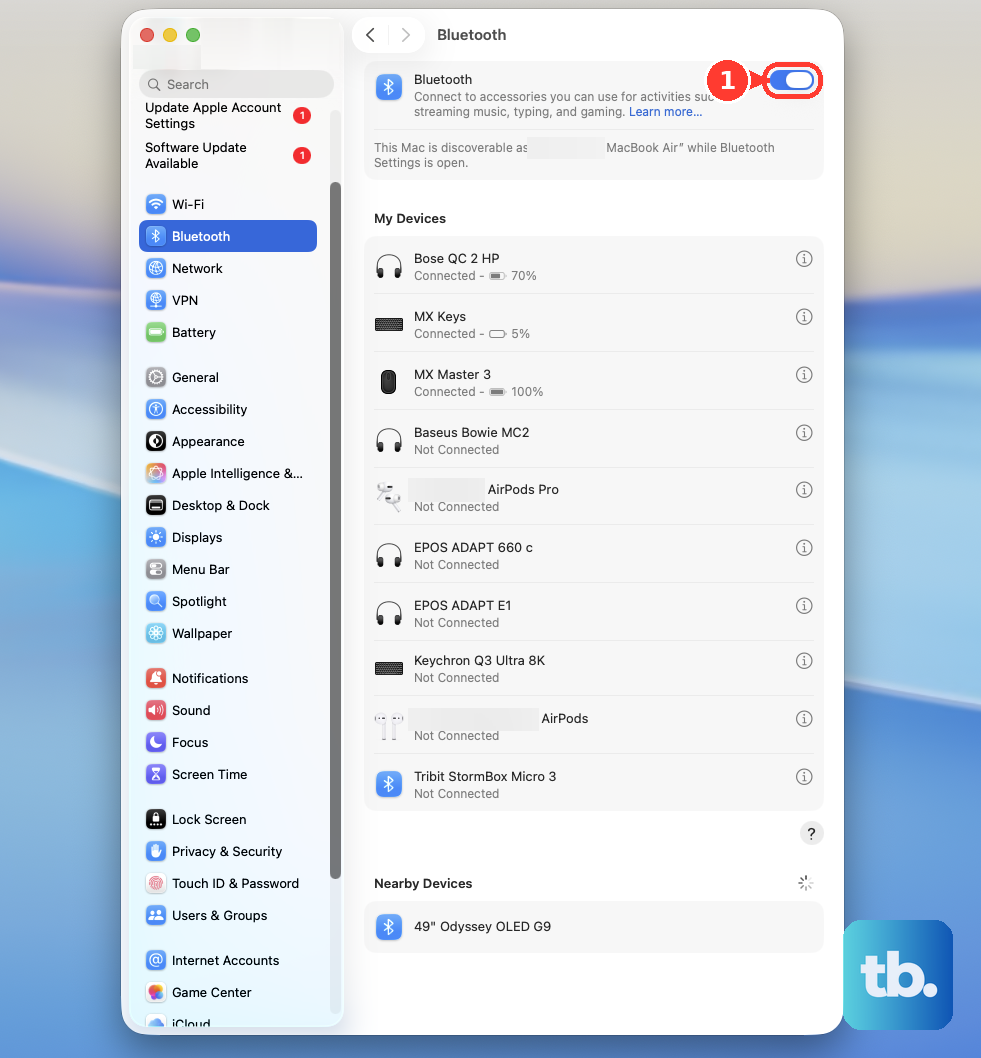
For a rechargeable Magic accessory, connect its compatible charging cable to your Mac for one minute.
Disconnect the cable.
For an earlier model with replaceable batteries, replace the batteries instead.
Test dragging again.
If a Magic Mouse tracks erratically or responds late, clean the sensor underneath with a cloth or compressed air, keeping the can upright.
Move USB 3 or Thunderbolt 3 equipment and hubs away from your wireless mouse or trackpad to reduce interference.
If a wired mouse or receiver is unresponsive on an Apple silicon Mac laptop, unlock the Mac.
Reconnect the accessory.
Click Allow in the connection alert.
For a completely unresponsive built-in laptop trackpad, connect the Mac to power. Apple identifies an unseen low-battery alert as one cause of this symptom.
Check files and destinations that refuse a move
If the pointer moves normally but a particular file refuses to move, check the document and its destination. A document lock or unwritable drive needs a different fix from an unresponsive pointer.
Close the file in any app currently using it.
Check that the destination has enough free space for the file.
To inspect a document lock, select the document in Finder.
Open File > Get Info.
Under General, clear Locked if it is selected. Unlocking a document does not override filesystem permissions.
For a permissions problem, select the affected item or destination in Finder.
Open File > Get Info > Sharing & Permissions.
Unlock the permissions control if necessary.
Set your account's privilege to Read & Write where you are authorized to change it.
Ask the owner or administrator for access if you cannot change the permissions.
For an external drive, check its filesystem. macOS writes to APFS, Mac OS Extended, and exFAT, but it does not natively write to NTFS.
Try a writable destination if the drive uses NTFS. Reformatting erases the drive and requires a separate backup.
Resolve a failure in one app or website
If Finder works but another app rejects a drop, check that app's access and dragging controls. Folder permissions apply to specific locations; they are not a global drag-and-drop switch.
For an app that cannot access the source folder, open Apple menu > System Settings > Privacy & Security > Files & Folders.
Enable the required location for that app.
For cell dragging that has stopped in Excel for Mac, open Excel > Preferences > Edit > Edit Options.
Enable Allow fill handle and cell dragging and dropping, also called Allow fill handle and cell drag-and-drop.
For a failure limited to a Safari webpage, press Command-R to reload it.
If reloading does not help, open Safari > Settings > Extensions.
Deselect extensions.
Test the site's drop area again.
Try the website in another browser if it still does not respond. There is no universal browser setting that enables every website's drop targets.
If these changes fail, update the affected app and macOS next.
Install updates for macOS and the affected app
Back up your Mac before installing a macOS update. Updating is a troubleshooting step, with no guarantee that it will resolve dragging.
Open Apple menu > System Settings > General > Software Update. This also supplies updates for bundled apps such as Safari.
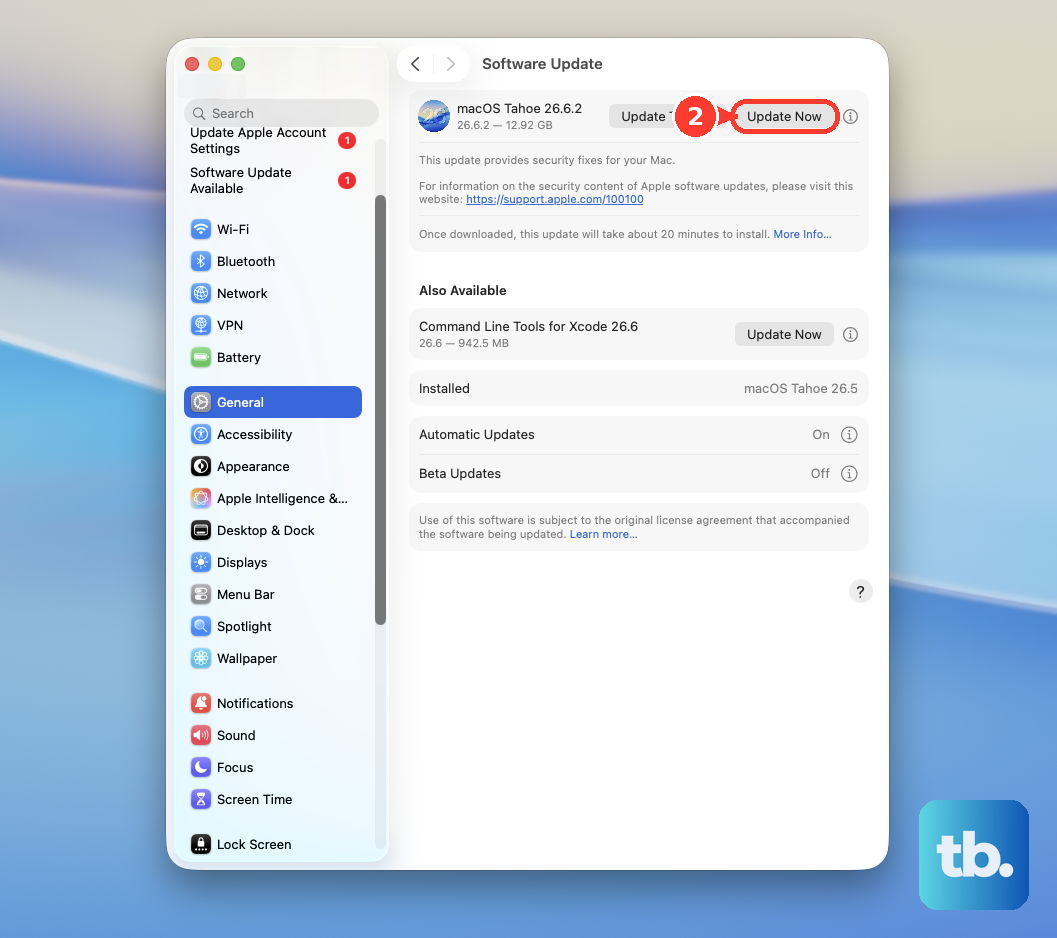
Install the offered compatible update. Restart when prompted.
For an App Store app, install its available update through App Store > Updates. For apps obtained elsewhere, get updates from the developer's official website.
Use safe mode to narrow down a persistent failure
Shut down your Mac to prepare for a safe mode test. This test helps identify interference from software that loads at startup.
On an Apple silicon Mac, hold the power button until startup options appear.
Select your startup disk.
Hold Shift while clicking Continue in Safe Mode.
On an Intel Mac, instead start the Mac while holding Shift until the login window appears.
Test the same basic drag operation in safe mode.
Choose Apple menu > Restart to leave safe mode.
If dragging works in safe mode but fails after a normal restart, open System Settings > General > Login Items & Extensions.
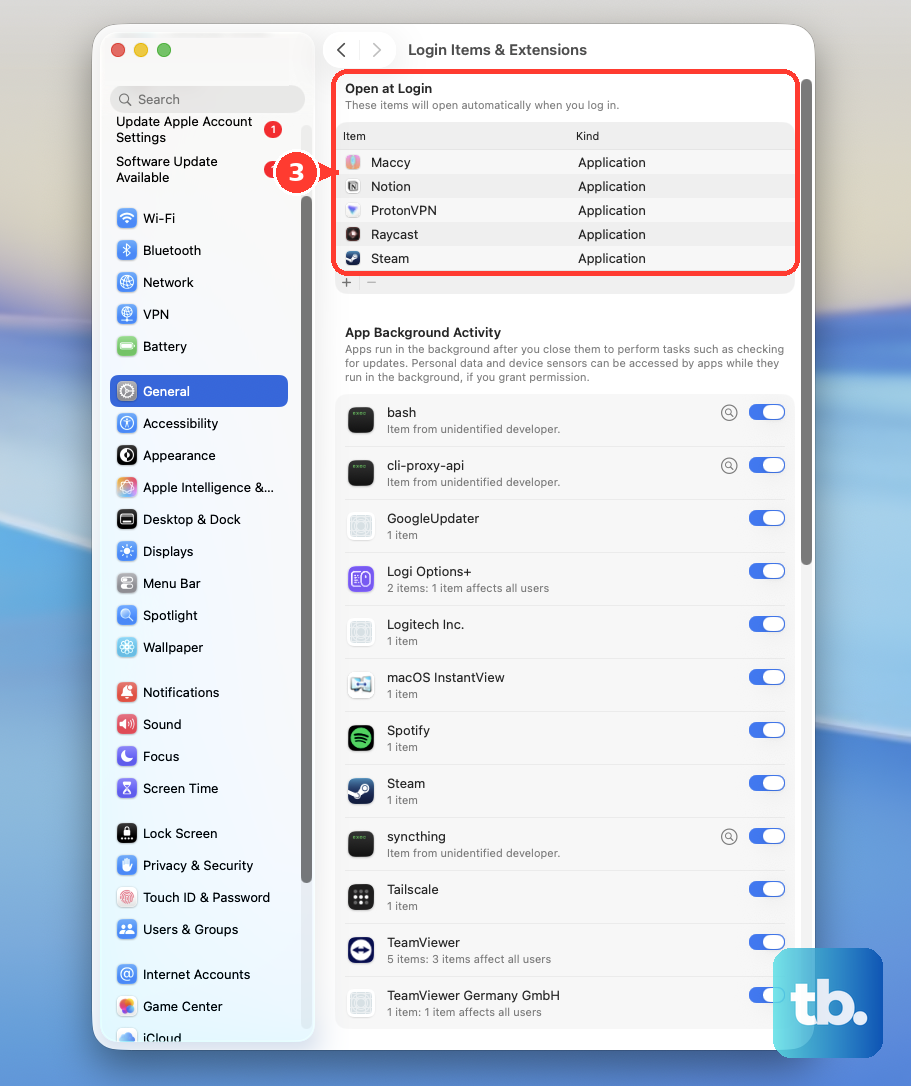
Select a suspect item under Open at Login.
Click Remove.
Restart your Mac.
Test dragging again.
If the failure persists, create a test account in System Settings > Users & Groups.
Restart your Mac.
Sign in to the test account.
Try the same drag there. Success points toward software or settings specific to your original account; you do not need to abandon that account.
Tip: To move files while troubleshooting, select them in Finder, press Command-C, open the destination, and press Option-Command-V; use Command-V instead to copy them.
Frequently Asked Questions
Why do desktop icons snap back after I drag them?
Automatic sorting controls their placement. Click the desktop, then choose View > Sort By > None in Finder. If that option is unavailable, deselect View > Use Stacks first.
How do I make folders open while I drag a file over them?
In macOS 27, open System Settings > Accessibility > Pointer Control. Enable Spring-loading, then adjust Spring-loading speed to control how quickly folders open during a drag.
How can I turn Bluetooth on without a working mouse?
With a working keyboard, press Command-Space. Type Bluetooth File Exchange and press Return. Press Return again to enable Bluetooth when prompted.
Why does dragging work on my Mac but not between my Mac and iPad?
Universal Control has separate requirements: compatible devices using the same Apple Account with two-factor authentication, plus Wi-Fi, Bluetooth, and Handoff enabled. On the Mac, open System Settings > Displays > Advanced and enable Allow your pointer and keyboard to move between any nearby Mac or iPad. On the iPad, enable Cursor and Keyboard under Settings > General > AirPlay & Continuity. Keep the devices nearby and drop into a compatible app, such as Files. On a managed Mac, ask your administrator to review the Universal Control restriction.