Deleted an app from your iPhone and want it back? Start with your App Store history to download it again using the Apple Account that originally acquired it. If only the icon disappeared, you can bring it home without reinstalling anything.
Redownload the app from your App Store history
Open App Store.
Tap your photo, initials, or the My Account button.
Choose Apps & Purchase History.
Tap Your Apps.
Select Not on this iPhone.
Find the app you want back.
Tap its Redownload button, shown as a cloud with a downward arrow.
Use the Apple Account that originally acquired the app, and check that the app is still available for redownload.
Bring a missing icon back to the Home Screen
Choosing Remove from Home Screen leaves the app installed in App Library, so a missing icon doesn't always mean a deleted app.
Swipe left past all your Home Screen pages to reach App Library.
Find the app using the search field.
Drag its icon to the Home Screen page you want by touching and holding it.
Tap Done.
Just want to open it? Swipe down from the middle of the Home Screen to open Search.
Enter the app's name.
Tap its icon to open it. Hidden apps don't appear in these results.
For an app you've hidden, open the Hidden folder in App Library.
Authenticate with Face ID, Touch ID, or your passcode.
Touch and hold the app.
Tap Don't Require Face ID, Don't Require Touch ID, or Don't Require Passcode, whichever appears.
Authenticate again. The app returns to App Library.
Drag its icon to your Home Screen if you want it there.
A hidden Home Screen page also hides its icons. To reveal it, touch and hold an empty Home Screen area.
Choose Edit > Edit Pages.
Tap the unchecked circle beneath the page you want to show.
Tap the cloud icon to reinstall an offloaded app
A cloud beside the retained icon identifies an offloaded app. Offloading removes the app itself while keeping its documents and data on your iPhone.
Tap the icon to download the app again. Once installed, it reconnects to those retained documents and data; the app must still be available in the App Store.
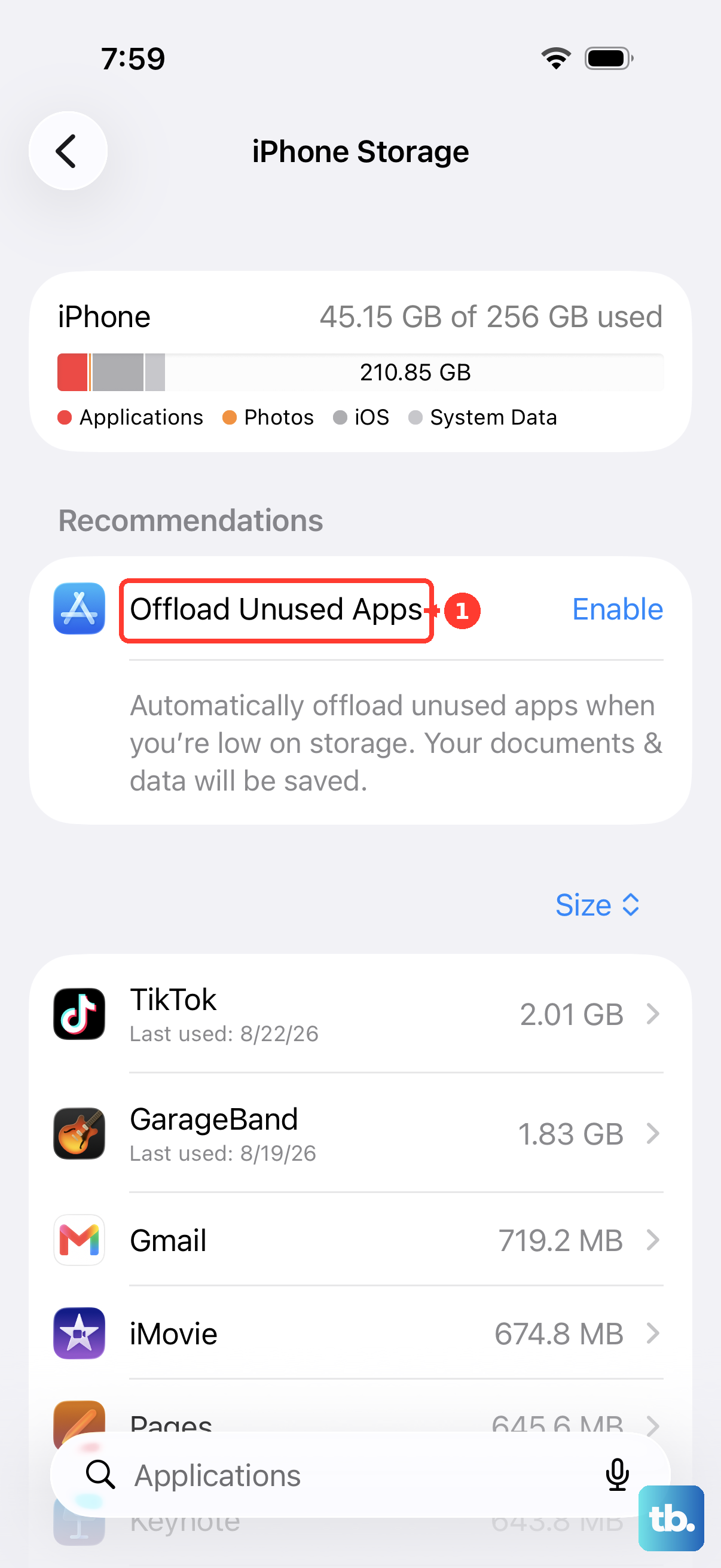
To prevent future automatic offloading, open Settings > Apps > App Store.
Turn off Offload Unused Apps. This controls future offloading and doesn't reinstall an app that's already been offloaded.
Search for the app when you know its name
Remember the name? Head straight to its listing. Open App Store > Search.
Enter the app's name or its developer's name.
Open the correct listing.
Tap Redownload for a previous acquisition, Get for a free app you haven't acquired, or the displayed price for a new paid purchase.
Authenticate if requested.
For a deleted built-in Apple app, search using its exact name.
Choose Apple's listing.
Tap Redownload. Restoring a supported app on your paired iPhone also restores its Apple Watch counterpart.
On eligible EU iPhones, this also restores deleted Camera, Photos, Messages, and Safari apps. Safari can also be deleted and restored on eligible Japanese iPhones.
Apple Arcade games don't appear in the ordinary purchase list. Search for the game in the App Store.
Download it again with an active Apple Arcade subscription. The game must still be available.
If search turns up nothing, try your App Store history next: removal from public sale or search doesn't necessarily end redownload access for previous customers.
Track down an app missing from your history
To check for a hidden purchase, open App Store.
Tap your photo, initials, or the My Account button.
Tap your name.
Open Hidden Purchases.
Find the app you want back.
Tap Unhide.
Redownload it from the App Store. Unhiding a purchase doesn't install it automatically.
Forgotten the name? Open App Store > My Account > Apps & Purchase History > Purchase History; your photo can appear in place of My Account.
Tap Last 90 days to change the date filter and find older acquisitions.
If another Apple Account acquired the app, open Settings > your name > Media & Purchases > Sign Out.
Confirm the sign-out.
Tap Media & Purchases > Not [your name]?.
Sign in with the purchasing Apple Account.
Retry the redownload from your app history.
For an eligible Family Sharing purchase, open App Store > My Account > Apps & Purchase History > Your Apps, using your photo if it appears instead of My Account.
Select the family member who acquired the app.
Find the app.
Tap Redownload.
Keep in mind that hidden purchases and purchases that aren't shareable are excluded from family redownloads.
Clear whatever is blocking the download
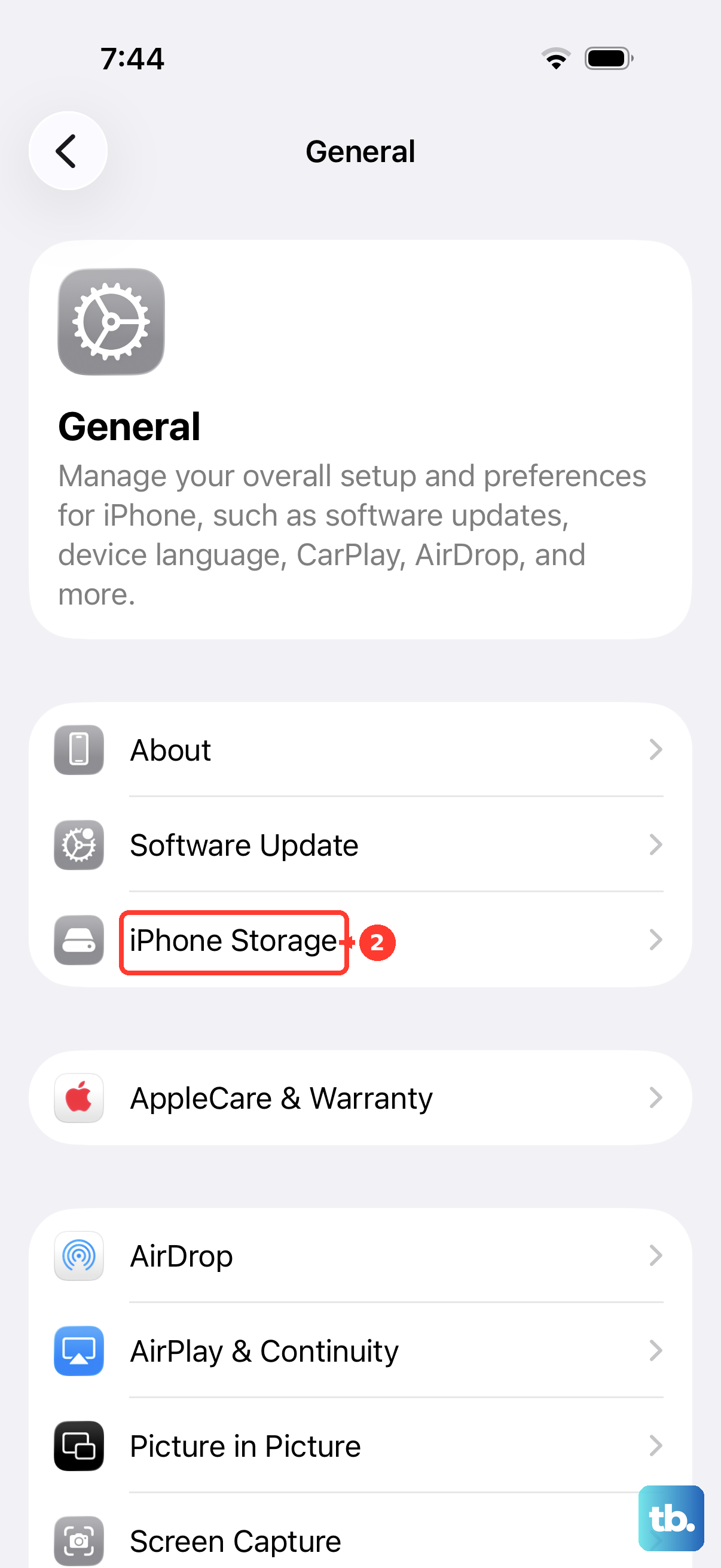
For a storage warning, review the recommendations in Settings > General > iPhone Storage. To free space while retaining another app's data, select an unnecessary app and use Offload App. Retry the download.
For a cellular restriction, connect to Wi-Fi or enable Cellular Data in Settings > Apps > App Store. For a download already in progress, touch and hold its Home Screen icon. Tap Prioritize Download.
A billing issue can block downloads, including free apps. To add valid payment details, open Settings > your name > Payment & Shipping > Add Payment Method. Enter your details and tap Done, resolving any account billing issue before retrying.
For local Screen Time restrictions, the authorized passcode holder must permit installation under Settings > Screen Time > Content & Privacy Restrictions > iTunes & App Store Purchases. Families using upgraded iOS 27 controls instead use the parent's Settings > Family > child's name > Apps & Websites > App Store > Installing Apps > Allowed. The upgraded controls require every family device to meet Apple's version-27 requirements.
Reconnect the app's data and purchases
The app is back, but its contents aren't? Deleting an app can remove its local data. Reinstalling it alone doesn't guarantee recovery.
For an app that supports iCloud, sign in with the same Apple Account after reinstalling.
Open Settings > your name > iCloud.
Tap See All or Show All if you need to reveal additional app switches.
Select the app or feature.
Enable Sync this iPhone or Use on this iPhone, whichever appears. This reconnects surviving synchronized data; it doesn't recreate deleted data that existed only on your iPhone.
For eligible in-app purchases, open the reinstalled app while using the same purchasing Apple Account.
Look for its purchase-restoration option in its store, main menu, Settings, or Options. The location and label vary by app.
Use that option to restore eligible purchases or subscriptions. Spent game currency isn't restored this way.
If your data is still missing, the next option is a suitable backup from before deletion. Restoring a backup is a whole-device operation that can roll back other information, and an iCloud-backup restore requires erasing an already configured iPhone first. A backup supports recovery of eligible app data, but the app itself must remain available for redownload.
Frequently Asked Questions
What if I deleted the App Store itself?
On an eligible EU iPhone where the App Store was actually deleted, open Settings > Apps > App Installation. Tap Restore App Store at the bottom of the page.
Can I reinstall an older version if the latest app isn't compatible?
Retry the redownload from your app history using the original purchasing Apple Account. If the App Store offers a compatible earlier version, accept that offer. Availability depends on the versions the developer keeps available to existing customers.
How do I restore a deleted app on a work or school iPhone?
Ask your device administrator to check installation permissions and redeploy the managed app. Your organization controls its app assignments and device restrictions.
How do I put a deleted website icon back on my Home Screen?
Open the original website in Safari. Open Page Menu > Share, or tap the direct Share button if your layout shows it. Tap Add to Home Screen. Enable Open as Web App. Tap Add. This recreates the website icon without guaranteeing recovery of local web-app data.