Your ASUS laptop usually restarts from one quick Windows or ChromeOS control. Start with the normal restart option, then use keyboard shortcuts, update prompts, recovery startup, or the power button when the laptop will not cooperate.
Restart From the Windows Start Menu
Select Start on the taskbar.
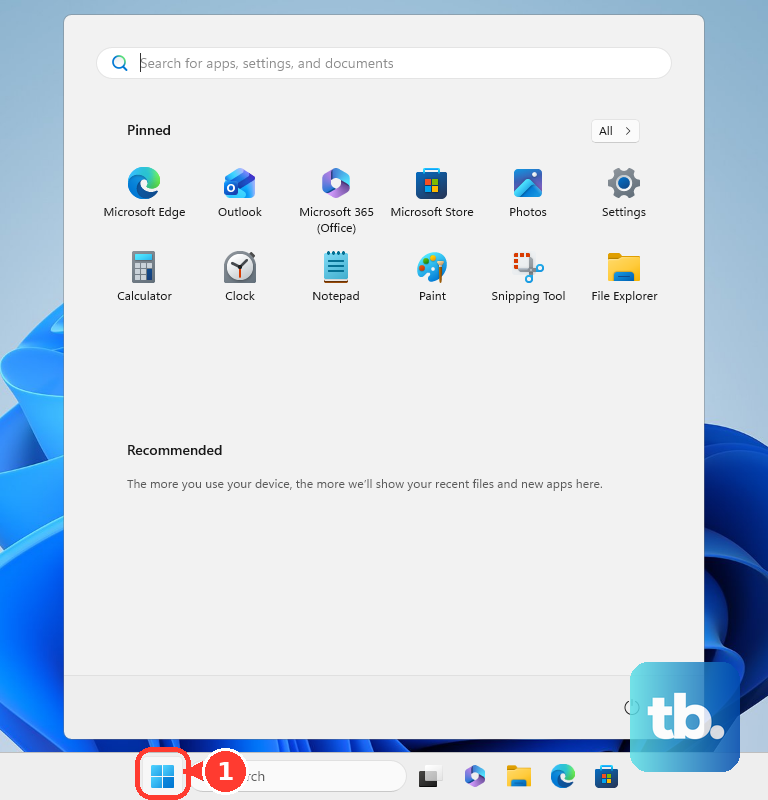
Select Power, then select Restart. Save open work first, because apps may close during the reboot.
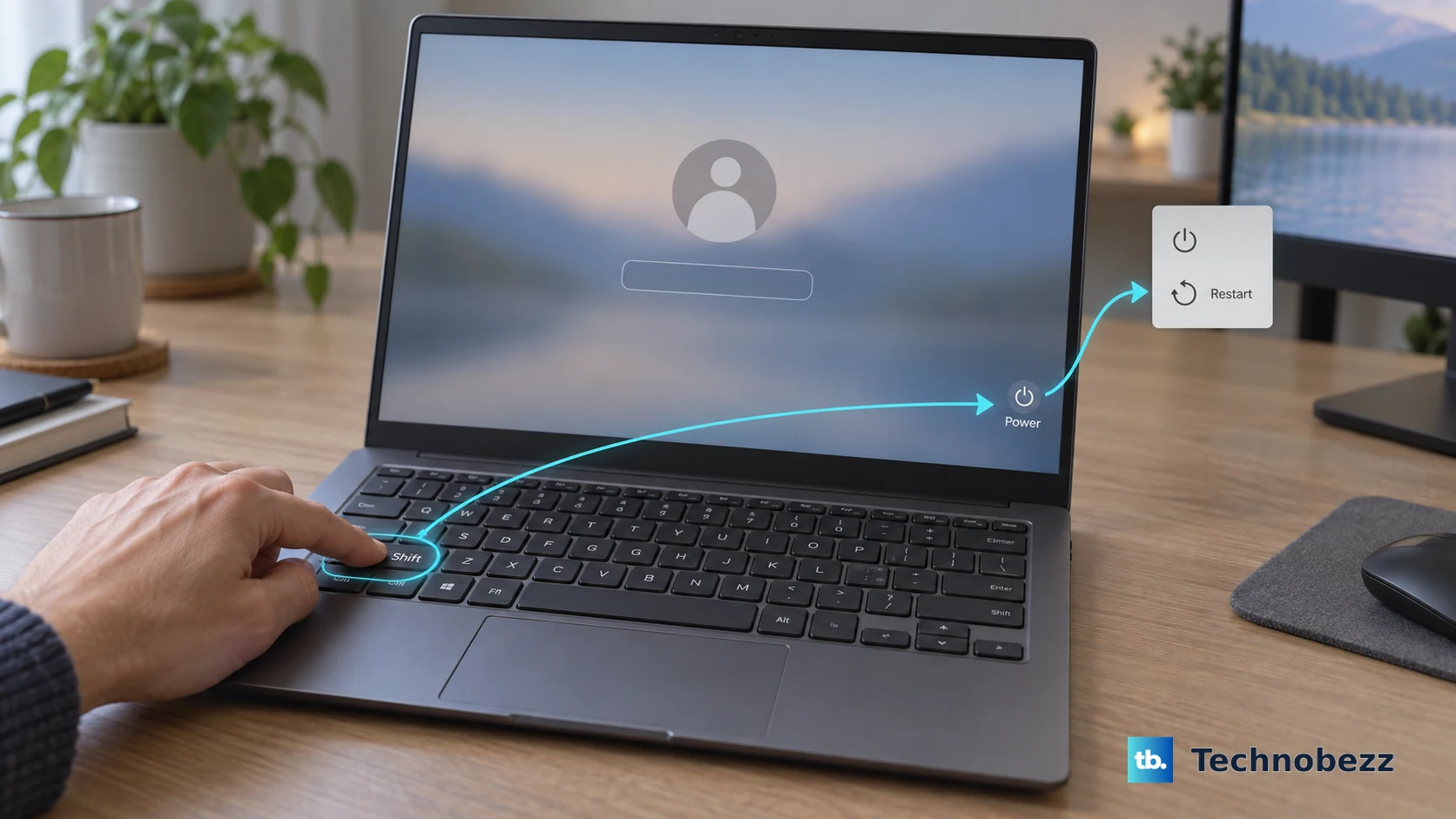
Restart From the Lock Screen
Use this when the ASUS laptop is sitting at the sign-in screen or lock screen.
- 1.Select Power.
- 2.Select Restart.
- 3.For recovery startup, press and hold Shift while selecting Power > Restart.
Use Keyboard Shortcuts When Windows Still Responds
This fixes a Start menu you cannot reach while Windows still accepts keyboard input. Press Ctrl + Alt + Del, select the Power icon on the security screen, then select Restart.
Or press Windows + X. Open Shut down or sign out, then select Restart.
Another option is to close or minimize open windows until the desktop has focus. Press Alt + F4, choose Restart in the Shut Down Windows dialog, then select OK.
Restart for Windows Updates
Use this when Windows Update says the laptop needs a restart. You can restart right away or pick a better time.
Open Start > Settings > Windows Update. When Windows shows Restart required, select Restart now.
To choose a time instead, open Start > Settings > Windows Update > Schedule the restart. Pick a convenient time. On Windows 10, use Start > Settings > Update & Security > Windows Update > Schedule the restart.
Restart Into Recovery or Safe Mode
Recovery startup is for repair tools, boot options, and troubleshooting when a normal restart is not enough. On Windows 11, open Settings > System > Recovery, then select Restart now next to Advanced startup.
On Windows 10, open Settings > Update & Security > Recovery > Restart now. You can also press and hold Shift while selecting Power > Restart on Windows 11 or Windows 10.
For ASUS Safe Mode startup on Windows 11, select the Start icon on the taskbar, then open Settings > Recovery > Restart now. Select Restart now again, then in Windows Recovery Environment choose Troubleshoot > Advanced options > Startup Settings > Restart.
Force Restart When the ASUS Laptop Is Frozen
When Windows is stuck and will not shut down normally, press and hold the Power button until the power light goes off. Press the Power button again to turn the ASUS laptop back on. This forced shutdown can lose unsaved work, so use it only when the normal Windows restart controls will not respond.
If the freeze points to a hardware or power problem, remove all external devices, turn off the laptop, connect the power adapter, then press and hold the Power button for 40 seconds and turn it on again. The hold time depends on the model: if yours uses the 20-second design, the power indicator flashes rapidly for about 3-5 seconds once you pass 15 seconds, and you release the Power button after the flashing stops.
Restart an ASUS Chromebook
Use these steps only for an ASUS Chromebook running ChromeOS, not a regular Windows ASUS laptop. ChromeOS uses its own restart and update controls.
For a simple restart, hold the Power button until the Chromebook turns off. Press the Power button again to turn it on.
When ChromeOS downloads an update, look at the bottom right next to the date for the Update device notification. Select Restart.
If other fixes fail on most ASUS Chromebooks, power off the Chromebook. Press and hold Refresh, then click Power. Release Refresh when the Chromebook restarts. On ASUS Chromebook Tablet models, press and hold Volume up and Power for at least 10 seconds, then release them.
Check Work or School Restart Rules
The most common cause of surprise restarts, blocked restart choices, or fixed restart times on a managed ASUS laptop is an update policy set by your organization.
On Windows 11 or Windows 10 Pro, Enterprise, or Education devices, administrators can control restart behavior after updates with scheduled update installation, active hours, deadlines, and restart notifications.
If your work or school laptop will not let you change the restart schedule, contact your IT team. Skip older registry or policy fixes that claim to control Windows Update restarts, because Microsoft marks several of those settings as legacy, not applicable, or not implemented for current Windows 10 and Windows 11 restart control.
Frequently Asked Questions
What is the fastest way to restart an ASUS laptop?
On Windows, select Start > Power > Restart. On an ASUS Chromebook, hold Power until it turns off, then turn it on again.
How do I restart an ASUS laptop without using the Start menu?
Press Ctrl + Alt + Del, select the Power icon, then select Restart. You can also press Windows + X and use Shut down or sign out > Restart.
Will a forced restart delete my files?
A normal Windows restart should not delete files. A forced shutdown can lose unsaved work, and an ASUS Chromebook hardware reset may delete files in Downloads.
How do I restart an ASUS laptop into recovery mode?
On Windows 11, go to Settings > System > Recovery, then select Restart now next to Advanced startup. You can also hold Shift while selecting Power > Restart.