Windows 11 network problems can leave Wi-Fi or Ethernet connected on paper but useless in real life. Microsoft lists a full network reset as the last step to try, so work through the smaller resets below first when only Wi-Fi, DNS, an adapter, or your router needs attention, and use the built-in Network reset when nothing else gets the whole connection working.
Reset Windows 11 networking in Settings
Use this when Wi-Fi or Ethernet problems keep coming back after the basic fixes. Microsoft documents network reset as the last step to try, so run the troubleshooter and the smaller fixes below first. Windows removes and reinstalls your network adapters, restores adapter settings to their defaults, and restarts the PC.
After a network reset, you may need to reinstall and set up other networking software you use, such as VPN client software or virtual switches from Hyper-V. Windows may also set each of your known network connections to the public network profile, so turn network discovery and file sharing back on for the networks you trust.
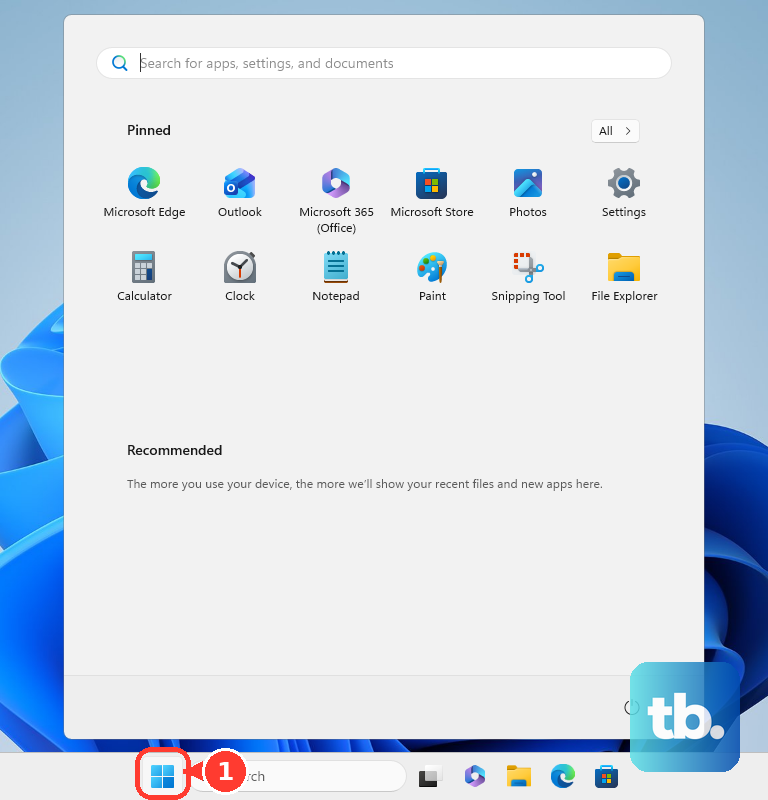
Select Start, open Settings, then go to Network & internet, Advanced network settings, and Network reset.
On the Network reset screen, select Reset now, then choose Yes.
Wait for Windows to restart, then reconnect to your network.
Open Network reset faster from Run
Press the Windows logo key and R to open Run.
Enter ms-settings:network-advancedsettings, then select OK.
In Settings, select Network reset.
Select Reset now, then choose Yes.
Wait for the PC to restart.
Use this shortcut when Settings opens normally but you want to skip straight to the right page.
Run the Windows network troubleshooter first
This automatically runs network diagnostics and attempts to fix most network problems before you do a full reset.
Open the Get Help app.
In the Search bar, enter connect to network and internet.
Select Run network diagnostics.
Complete the troubleshooting steps Windows gives you.
Use Other troubleshooters when it appears
Some Windows 11 PCs still show the network troubleshooter inside Settings. Open Start, then Settings, System, Troubleshoot, and Other troubleshooters.
Select Network Adapter, then choose Run. On PCs that show Network and Internet instead, select Run beside that entry. Microsoft now redirects these entries to the Get Help troubleshooter, so this opens the same automated diagnostics as the method above rather than a separate repair tool inside Settings.
Follow the prompts until Windows finishes the repair. If the Other troubleshooters entry is not there, use the Get Help method instead.
Forget and reconnect to one Wi-Fi network
A bad saved Wi-Fi profile is the most common reason to reset only one wireless network instead of all networking.
Open Start, go to Settings, then select Network & internet, Wi-Fi, and Manage known networks.
Select the Wi-Fi network that is causing trouble, then select Forget.
Reconnect to the network and enter the Wi-Fi password again.
Reset DNS TCP/IP Winsock and DHCP from Command Prompt
Use these commands when Windows connects but network name resolution, IP address assignment, or the network stack still needs a reset.
- 1.Select Search on the taskbar, type Command prompt, then select Run as administrator and Yes.
- 2.Run netsh winsock reset.
- 3.Run netsh int ip reset.
- 4.Run ipconfig /release, then ipconfig /renew.
- 5.Run ipconfig /flushdns.
Restart or reinstall the network adapter
Select Search on the taskbar, enter Device Manager, and open Device Manager from the results.
Select the arrow next to Network adapters.
Double-click the network adapter and select the Driver tab.
Select Disable Device.
In the warning box, select Yes.
Select Enable Device.
If the adapter still fails, right-click the Ethernet or Wi-Fi adapter and select Uninstall device.
Choose the Attempt to remove the driver for this device check box, then select Uninstall.
Restart from Start, Power, and Restart.
Have backup drivers from your PC manufacturer before uninstalling a network adapter driver.
Reset the router or modem
Use this when other devices on the same home network are also offline or unstable. This resets the network equipment, not Windows 11, and all connected devices disconnect while it restarts.
Unplug the power cable for the Wi-Fi router.
Unplug the power cable for the modem. If the modem has a backup battery and the lights stay on, remove the battery.
Wait at least 10 seconds.
Reinsert the battery if you removed one.
Plug the modem back in and wait for the lights to stop blinking.
Plug the router back in and wait for it to fully power on.
Handle a missing Network reset on a work PC
A managed device policy is the most common reason the Windows 11 network reset page is unavailable on a work or school PC.
Some organizations hide or allow specific Settings pages, including the pages that expose Network reset. That policy does not reset networking by itself; it only controls whether the reset surface is visible.
Contact your IT administrator if Network reset is missing or blocked on a managed device.
Older Windows guides may point you to Settings, Network & internet, Status, and Network reset. That is the Windows 10 path; in Windows 11, use Network & internet, Advanced network settings, and Network reset.
Frequently Asked Questions
Does Network reset delete my files in Windows 11?
No. Microsoft’s Network reset removes and reinstalls network adapters, restores adapter settings to defaults, and restarts the PC. It is not a file reset.
Is forgetting a Wi-Fi network the same as Network reset?
No. Forgetting a Wi-Fi network only resets the saved profile for that one network. It does not reset Ethernet, adapters, Winsock, TCP/IP, or DNS.
Should I use netcfg /d for a normal home network problem?
Not first. Microsoft documents netcfg /d as a networking-device cleanup command, but it is more forceful than ordinary consumer troubleshooting and requires a reboot.
Can Copilot or a Microsoft account web page reset Windows 11 networking?
No supported Microsoft method is published for resetting Windows 11 networking through Copilot, a Microsoft account web portal, a browser, or a companion app.