
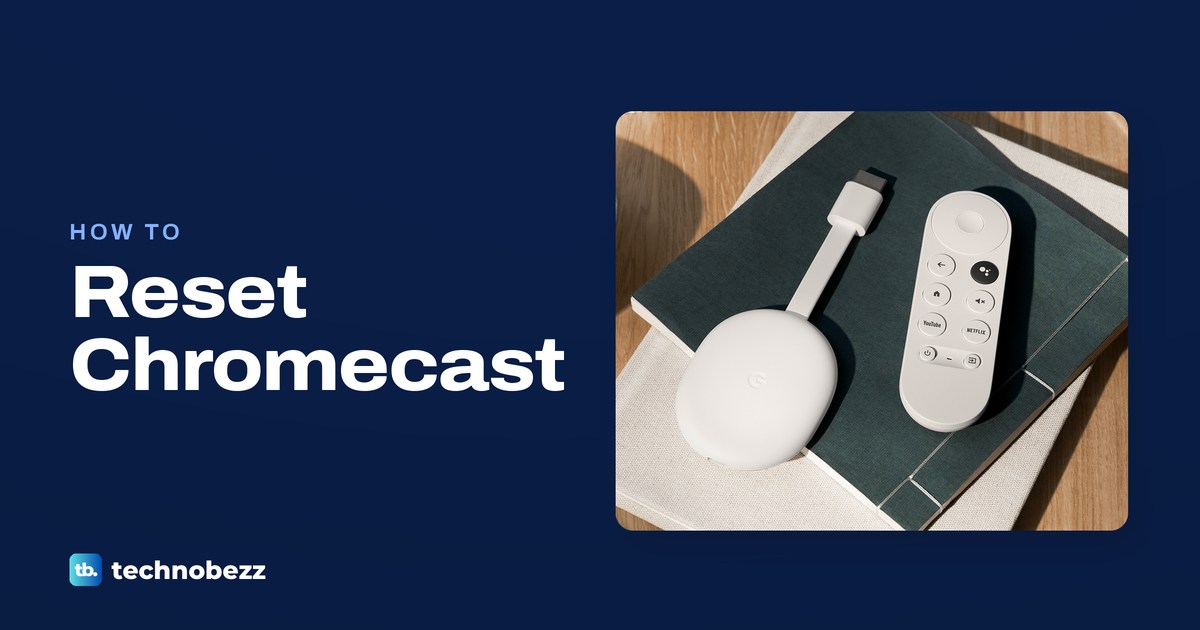
To factory reset Chromecast with Google TV, select your profile, then All settings > System > About > Factory Reset; if settings will not open, use the device button. Older Chromecast models can use Google Home or their physical button.
The short version
- On Chromecast with Google TV or Google TV Streamer, reset through the TV settings when you can reach them.
- The physical button works without opening settings, but the light colors and release point depend on your model.
- Older Chromecast models can reset through Google Home when your phone is on their existing network.
- A factory reset clears device data and cannot be undone. Try a restart first if you only need to fix a temporary problem.
- Reset the Voice Remote separately if the remote is the problem.
| Method | What it does | Time | Use it when |
|---|---|---|---|
| TV settings | Starts a device factory reset | Under a minute to select | Google TV menus still open |
| Device button | Starts a device factory reset | Under a minute to initiate | You cannot open settings |
| Google Home | Resets an older Chromecast | Under a minute to select | Your phone shares its network |
| Android recovery | Retries startup or erases data | 3 seconds per selection, plus restart | Chromecast shows recovery options |
| Voice Remote reset | Resets the remote | A few minutes with pairing | The remote will not work |
| Remove all accounts | Triggers a device factory reset | A few minutes to remove accounts | You need to disconnect accounts |
| Forget Wi-Fi | Changes the saved network | A few minutes with setup | The old network still works |
| Restart | Reboots the device | One minute unplugged, then startup | You want to try rebooting first |
The table estimates cover the actions shown, rather than a guaranteed time for the entire reset and setup. Allow a few minutes for a factory reset to finish, and set aside extra time if you plan to use the device again afterward.
Reset through the TV settings
Use this path on Chromecast with Google TV or Google TV Streamer when the TV menus still respond. A factory reset returns the device to its factory settings, clears its data, and cannot be undone.
At the top right of the TV screen, select your profile, then All settings. Open System, choose About, and select Factory Reset.
If you are returning the device or giving it away, complete a factory reset before handing it over. Removing its tile from Google Home is a separate action, so use the reset procedure rather than treating the missing tile as proof that the device has been erased.
Use the button on your Chromecast
Keep the device connected to the TV and powered on while using its reset button. Choose the paragraph for your model before holding the button, because a first-generation Chromecast uses a different sequence from later models.
Chromecast with Google TV
On Chromecast with Google TV, press and hold the button on the back. The LED begins blinking yellow; release the button when it turns solid white, and the Chromecast should reset.
Google TV Streamer
On Google TV Streamer, press and hold the button on the back for 10 to 12 seconds. The LED begins blinking yellow, then turns solid white; release the button at solid white to start the reset.
Chromecast 2nd gen and 3rd gen and Ultra
On Chromecast 2nd gen, Chromecast 3rd gen, or Chromecast Ultra, hold the button on the side while the device remains powered and connected to the TV. The light begins blinking orange, and you release the button when it turns solid white so the Chromecast can restart.
Chromecast 1st gen
For Chromecast 1st gen, hold its button for at least 25 seconds or until the solid LED flashes red. Release the button once the LED blinks white and the TV goes blank; the device should restart.
First-generation Chromecast support has ended, including software updates, security updates, and technical support. Its reset procedure is still documented, but resetting it does not restore that support.
Reset older models with Google Home
Use Google Home for Chromecast 2nd gen, Chromecast 3rd gen, Chromecast Ultra, or Chromecast 1st gen. Your phone or tablet must be on the same network the Chromecast was set up on for this reset option to be available.
Open Google Home, tap Home, then All devices, and touch and hold your device's tile. At the top right, tap Settings, choose More, select Factory reset, then tap Factory reset again.
If you have already changed networks and cannot reach the Chromecast on its original network, use its physical button instead. The button procedure lets you reset the device without finding its tile or opening the app's reset menu.
Recover from the Android recovery screen
If Chromecast with Google TV opens its Android recovery screen, try restarting it before erasing its data. Use the button on the back of the Chromecast for these recovery options, because the Chromecast Voice Remote cannot control this screen.
Press the device button to move through the options near the bottom of the screen. Press and hold it for 3 seconds to select Try again, which restarts the Chromecast and may fix the problem.
If the device returns to the recovery screen after restarting, use the same button controls to select Factory Data Reset. This erases saved user data, and you will need to set up Chromecast with Google TV again afterward. Once it is set up, you can Chromecast from a laptop to a TV to check that casting works.
For Google TV Streamer, use the TV settings reset if you can reach that menu, or its back-button reset described above. Keep the two models' procedures separate; the recovery option controls here are for Chromecast with Google TV.
Reset and pair the Voice Remote
A Voice Remote factory reset returns the remote to its own factory settings. Use the remote procedure when its controls are the problem, before choosing a reset that clears the streaming device's data.
Reset the remote
For the Chromecast Voice Remote, remove its batteries and press and hold Home. Reinsert the batteries while holding Home, keep holding while the LED is solid, then release the button when the light starts pulsing.
For the Google TV Streamer Voice Remote, hold Mute and Center (Select) together. Keep holding through the countdown sound until the LED turns solid white; it usually takes no more than 12 seconds to initiate the reset.
Pair the remote again
If the Chromecast Voice Remote does not pair automatically afterward, hold Back and Home for 3 seconds. If pairing still fails, use a phone remote to choose Pair remote or accessory on the TV, reset the remote again, wait for it to appear, and select it using the phone.
For Google TV Streamer, wait for the remote to pair automatically. If the TV shows Start pairing, hold Back and Home until the light on the remote starts to pulse.
To control the TV from your phone, open Google Home and tap the streaming device. On Android, this toggles the virtual remote; on iPhone, tap Open remote to use it.
If the remote remains unresponsive, reboot the streaming device and use the phone remote to open your profile, Settings, and Remotes & Accessories. Select Voice Remote, choose Forget, confirm with Yes, and reset the remote again; Google's Voice Remote troubleshooting steps cover the remaining pairing checks.
Remove accounts from the streaming device
On Chromecast with Google TV and Google TV Streamer, removing every Google Account triggers a factory reset. If you only intend to disconnect one account, check which accounts you are removing before you proceed.
On the TV, select your profile, then All settings, and open Accounts & Sign In. Choose the Google Account, select Remove, then Remove account; removing the last account causes the device to reset.
To disconnect an account through a browser, go to myaccount.google.com/device-activity and sign in with the same Google Account used on the streaming device. Select the Google TV device, choose Sign out, then confirm with Sign out again.
That browser action disconnects the account you selected, so do not assume signing out once removes every account on a shared device. If you can access the device and want to erase it before giving it away, use the TV menu or physical reset button.
Change Wi-Fi without a factory reset
If the Chromecast is still connected to its existing Wi-Fi network, you can forget that network and set it up on another one. If you already changed networks and the device is no longer connected to Wi-Fi, use a factory reset, then set it up on the new network.
On Chromecast with Google TV or Google TV Streamer, select Settings at the top right of the TV. Choose Wi-Fi network, select the network name, choose Forget network, then set up the device on the new network.
For Chromecast 3rd gen or older, Chromecast Ultra, or Chromecast Audio, use the same Google Account in Google Home as the streaming device. Tap Home, then All devices, touch and hold the device tile, and open Settings > Device information > Wi-Fi > Forget this network.
Afterward, the app returns to its Home screen. Complete setup on the new network, and if it will not join, follow the steps for when Chromecast cannot connect to Wi-Fi.
Restart before erasing your setup
A reboot may fix a device problem before you need a factory reset. Choose the restart command when you want to reboot, and reserve the factory reset methods for clearing device data or a problem that persists.
Unplug the power cable from the Chromecast or Google TV Streamer, leave it unplugged for one minute, then reconnect it. Removing the device from the TV's HDMI port does not reboot it; disconnect its power source instead.
On Chromecast with Google TV, open Settings at the upper right of the TV, then select System > Restart > Restart. On Google TV Streamer, choose All settings at the top right, then System > Restart.
Frequently Asked Questions
Can I factory reset Chromecast by voice?
Use a menu or button reset rather than relying on a voice request. Google's reset instructions cover TV settings, Google Home, and physical buttons for the models described here.
Does removing Chromecast from Google Home erase it?
Removing a streaming device from Google Home unlinks it from your Google Account and the accounts of other home members, and deletes associated device data. Complete a factory reset before returning or giving away the device.
Can I use the Voice Remote on the Android recovery screen?
On Chromecast with Google TV, use the physical button rather than the Voice Remote. Press to move between recovery options and hold for 3 seconds to select one.
Where do I get Google Home for reset steps?
Download Google Home from Google Play or the App Store for a compatible Android device, iPhone, or iPad. Open Google's Google Home app page to reach the official download options.
Will a factory reset remove my device data?
Yes, a factory reset clears device data and returns the settings to their factory defaults. You cannot undo it, so use a restart first when erasing data is not your goal.
Can I reset Chromecast without the remote?
Yes, use the reset button on the streaming device and follow the light sequence for your model. Older Chromecast models also have a Google Home reset option when your phone shares their existing network.