If your Apple TV remote needs a new battery, check the model before reaching for a tool. Older white and aluminum Apple Remotes have replaceable coin batteries, but Siri Remote and Apple TV Remote generations 1 through 3 have internal batteries that aren't user replaceable. Here's how to identify yours and choose the right battery, charging cable, or service option.
Identify your remote first
Compare your remote with Apple's identification photos to distinguish between the designs.
Look for dedicated Menu and Play buttons on the older aluminum Apple Remote. This model takes a CR2032 or BR2032 lithium 3V coin battery.
Match the white Apple Remote to its identification photo. It takes a CR2032 lithium 3V coin battery.
Check whether yours is a Siri Remote or Apple TV Remote, generation 1, 2, or 3. All three have rechargeable internal batteries. Silver casing alone doesn't identify a removable-battery model.
Choose the correct battery for an older Apple Remote
The white and older aluminum Apple Remotes have replaceable batteries. The compartment design determines how you reach the coin battery inside.
Choose a CR2032 or BR2032 lithium 3V coin battery for the older aluminum Apple Remote.
Choose a CR2032 lithium 3V coin battery for the white Apple Remote.
The aluminum model has a rear battery door, while the white model has a bottom tray. These removable battery compartments belong to the older remotes and don't apply to rechargeable Siri Remote or Apple TV Remote models.
Remove the battery from the aluminum Apple Remote
Locate the round battery door on the back of the older aluminum Apple Remote. This is the model originally supplied with Apple TV second and third generation.
Use a coin in the battery door's slot to turn the door counterclockwise until it opens.
Take the old battery out of the open compartment.
Insert a CR2032 or BR2032 lithium 3V coin battery with its positive (+) face toward you. The positive face should remain facing you as you place the replacement in the compartment.
Refit and secure the battery door. The replacement is a physical operation at the back of the remote, with no on-screen settings required.
Remove the battery from the white Apple Remote
Locate the battery compartment on the bottom edge of the white Apple Remote. This model originally came with Apple TV first generation.
Press the compartment's round release button with a paper clip or similar object while sliding the battery tray out.
Take the old battery out of the tray.
Fit a new CR2032 battery with its positive (+) face toward you. The white remote uses this battery type, while the older aluminum model also accepts a BR2032.
Push the battery tray back into the remote until it clicks. No on-screen settings are required to complete the battery replacement.
Check a rechargeable remote's battery level
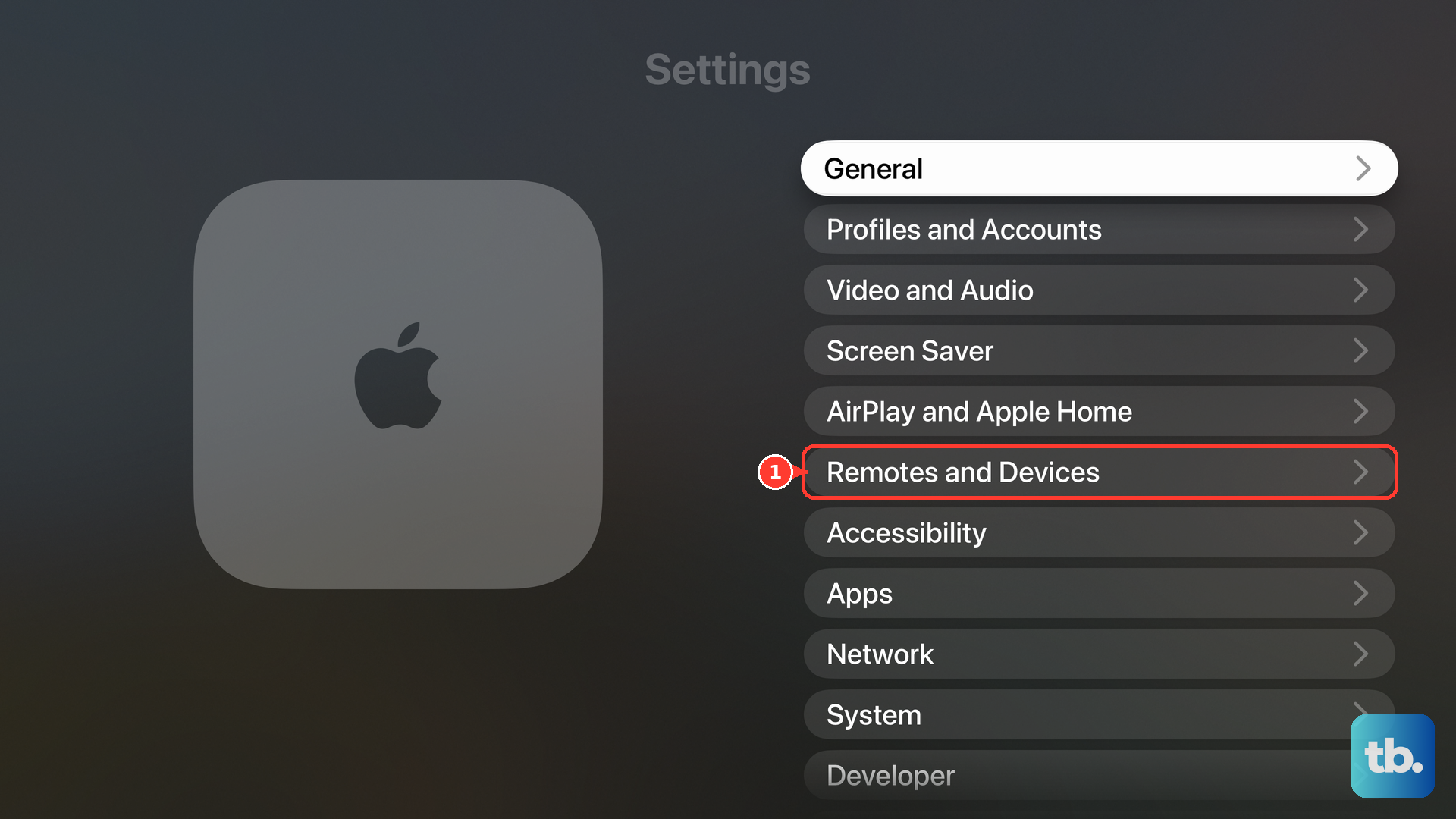
Open Settings on your Apple TV.
Select Remotes and Devices.
Choose Remote.
Read Battery Level to see the remaining charge.
This display shows the charge in a rechargeable remote's internal battery. It doesn't remove or replace the battery.
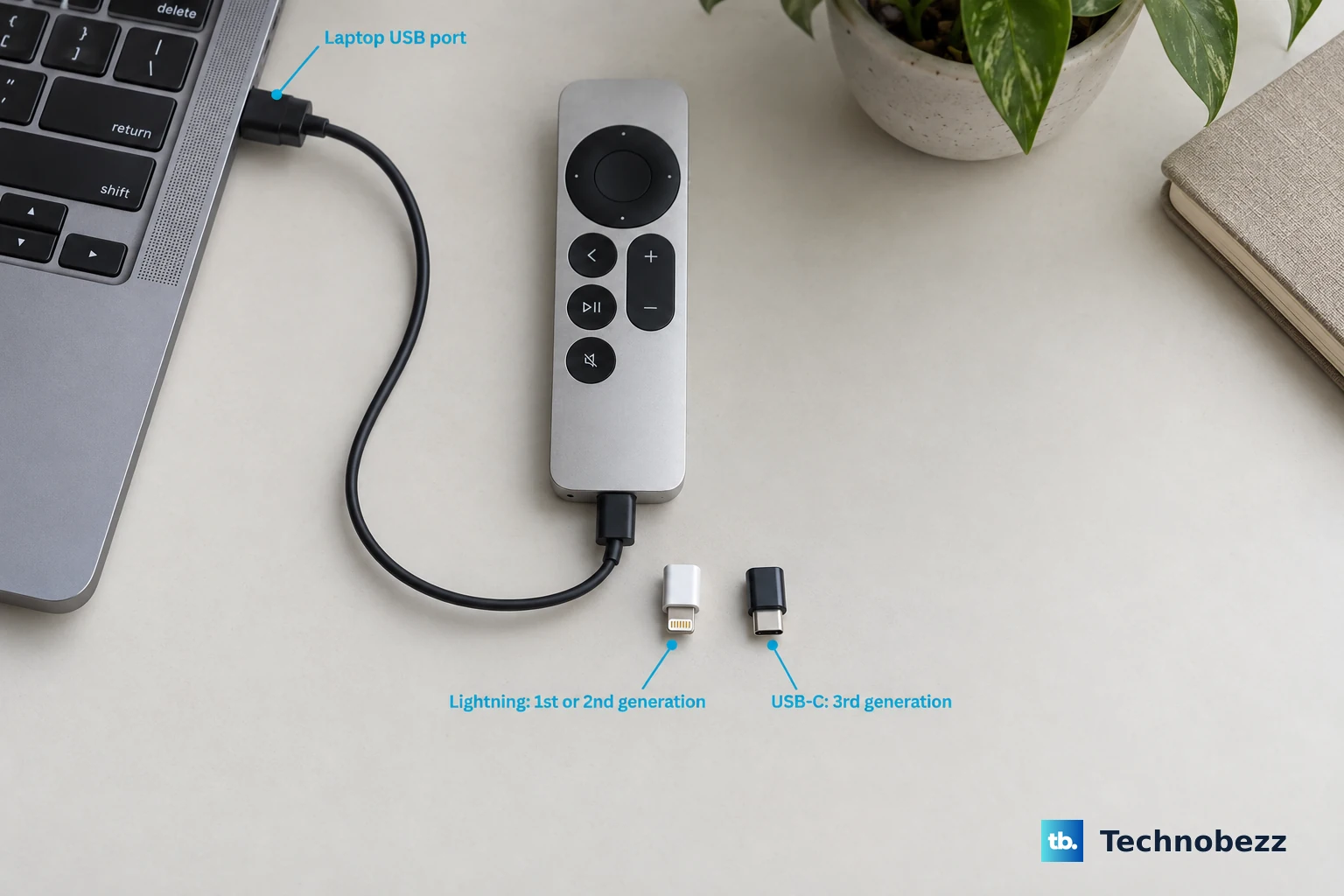
Recharge through the bottom port
A depleted rechargeable battery needs power through the remote's bottom charging port.
Connect a Lightning cable to the bottom port on a first- or second-generation Siri Remote or Apple TV Remote, or a USB-C cable on a third-generation model.
Plug the other end into a computer USB port or an Apple USB power adapter.
Allow approximately three hours for a full charge. This restores charge to the existing battery; it doesn't replace it.
Arrange service for an internal battery
Professional service handles internal battery replacement for rechargeable remotes.
Open Apple's Apple TV service and repair page.
Select Get started.
Describe the remote's battery problem.
Choose an available service option for your product and location. Apple lists in-person assistance through a Genius Bar or Apple Authorized Service Provider. Its mail-in option is described for sending in an Apple TV, so the Get started flow shows which options apply to your remote.
Frequently Asked Questions
Can an older Apple Remote work with a newer Apple TV?
Apple lists the white and aluminum Apple Remotes as compatible with any Apple TV, with potentially limited functionality.
Where can I find my rechargeable remote's serial number?
On Apple TV, open Settings > Remotes and Devices > Remote. The serial number appears there for rechargeable Siri Remote and Apple TV Remote models.
Which Apple TV models originally came with the older remotes?
The white Apple Remote originally came with Apple TV first generation. The aluminum Apple Remote originally came with Apple TV second and third generation.
Can an Apple TV setting remove or replace the remote's battery?
No. Battery replacement is a physical operation. The rechargeable remote's Battery Level setting only shows its remaining charge.