Wallpaper can hang around on a Lock Screen, Home screen, desktop, virtual desktop, or inside an app like WhatsApp. The fastest fix depends on what you want gone: delete the saved wallpaper set, replace the visible image, or stop a slideshow or app wallpaper from taking over. Use the steps below for the device you have.
1. Delete an iPhone Lock Screen wallpaper
Press the side button to wake your iPhone and go to the Lock Screen. Next, touch and hold the Lock Screen. Authenticate with Face ID, Touch ID, or your passcode. Swipe to the wallpaper you want to remove.
Then swipe up on the wallpaper. Tap the trash icon. Tap Delete This Wallpaper. This removes a saved iPhone Lock Screen wallpaper from the gallery on iOS 16 or later.
2. Replace the current iPhone or iPad wallpaper
This fixes the wallpaper you still see when you want a plain color, default image, or different photo instead. Open Settings. Tap Wallpaper. Tap Add New Wallpaper.
Choose Photos, Emoji, Color, or a featured wallpaper set. Tap Add. Choose Set as Wallpaper Pair, or tap Customize Home Screen and pick a color, photo, or Blur. On iPad, use Settings > Wallpaper > Add New Wallpaper, then choose a built-in option, photo, or color.
3. Remove an iPad Lock Screen wallpaper
Press the top button on your iPad. Touch and hold the Lock Screen until Customize appears. Swipe to the Lock Screen wallpaper you want to delete. Swipe up.
Tap the trash button. Tap Delete This Wallpaper. This deletes a saved custom Lock Screen wallpaper on current iPadOS.
4. Switch away from a wallpaper without deleting it
On iPhone, use side button > touch and hold Lock Screen > Customize > swipe to another Lock Screen > tap it. This keeps the old wallpaper saved but stops using it right now. If that Lock Screen is linked to a Focus, switching Lock Screens can also switch Focus.
5. Set Windows wallpaper to a solid color
Open Start.
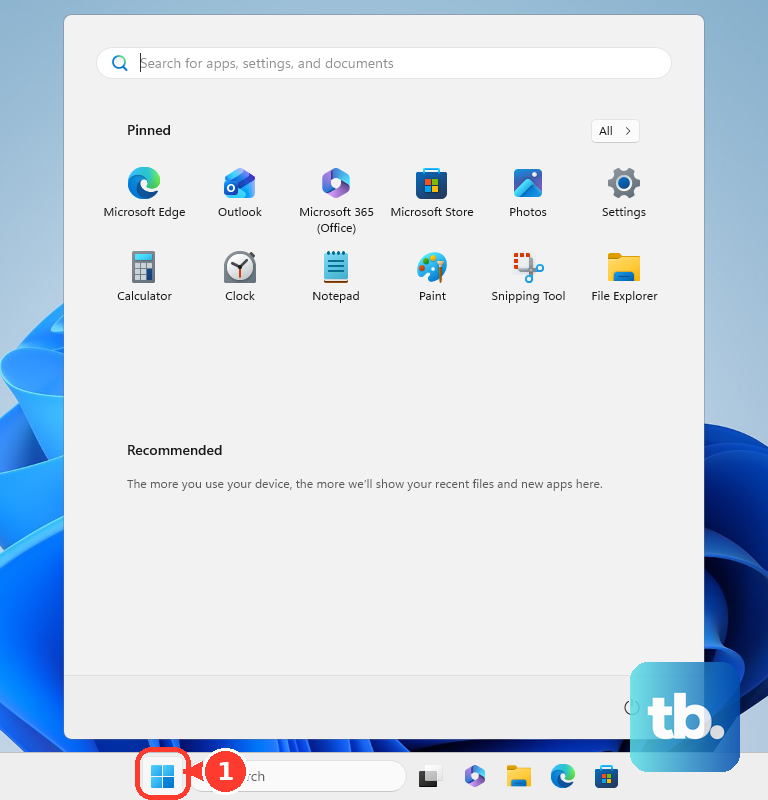
Go to Settings > Personalization > Background. Open Personalize your background. Choose Solid Color. Pick the color you want.
To replace the wallpaper with another picture, right-click an image in File Explorer and choose Set as desktop background. In the Photos app, open the picture, select the three-dot More menu, then choose Set as > Background.
6. Stop a Windows slideshow or Lock Screen image
Open Start. Go to Settings > Personalization > Background. Open Personalize your background.
Choose Picture, Solid Color, or Windows spotlight instead of Slideshow. For the Lock Screen, go to Settings > Personalization > Lock screen. Under Personalize your lock screen, choose Windows spotlight, Picture, or Slideshow.
Turn Show the lock screen background picture on the sign-in screen off if you do not want that image reused there. Set Lock screen status to None to remove app info from the Lock Screen. For a Windows virtual desktop, press Windows key + Tab, right-click the desktop, choose Choose background, then select a picture.
7. Change Mac wallpaper back to something built in
Open System Settings. Click Wallpaper. Choose a category such as Dynamic Wallpapers, Pictures, or Colors. Select the wallpaper or color you want.
Set any options shown on screen. To remove a custom source from Wallpaper settings, hover over the photo, folder, or album you want to remove. Click the remove button. Apple notes that a photo cannot be removed from Your Photos while it is currently selected as the wallpaper.
8. Remove wallpaper on Android phones and tablets
This fixes Pixel Daily wallpaper, Samsung wallpaper services, live wallpaper, and third-party wallpaper app takeovers by replacing the active wallpaper first. On a Google Pixel, touch and hold an empty space on the Home screen. Tap Wallpapers & style, labeled Wallpaper & style on some Pixel versions. Tap Change wallpaper.
Choose Lock screen or Home screen when prompted. Choose a photo or a preset wallpaper. Tap Preview. Tap Apply.
On a Samsung Galaxy phone or tablet, touch and hold the Home screen, then tap Wallpaper and style > Change wallpapers. Choose an available category, such as Featured, Gallery, Creative (One UI 6.1 devices), Colors, or Wallpaper services. Select the image, video, or color. Tap Done, choose Lock screen, Home screen, or both, then tap Next and Done.
After switching to a built-in or static wallpaper, open Google Play Store. Tap your profile icon, then go to Manage apps & devices > Manage. Select the wallpaper app and tap Uninstall. Some preinstalled or system apps cannot be permanently removed.
9. Clean up Chromebook and app wallpapers
On a Chromebook, right-click the desktop. Choose Set wallpaper & style. Click Wallpaper. Select one of the built-in images, or choose My Images for a downloaded .png or .jpg file.
To stop wallpaper-based colors on Chromebook, right-click the desktop and choose Set wallpaper & style. Under Accent colors, turn Use color sets that match your wallpaper off.
To replace WhatsApp chat wallpaper, open More options > Settings > Appearance > Default chat theme > Wallpaper. Select a wallpaper. Tap Done. Tap Set theme.
If your phone, tablet, or computer is managed by work or school, wallpaper changes can be restricted by the organization. Ask the administrator to remove the enforced wallpaper or allow wallpaper changes.
Skip older fixes that tell you to delete the source photo on iPhone or use Windows 7 Control Panel slideshow settings. Current iPhone wallpaper removal uses the Lock Screen gallery, and current Windows wallpaper changes use Settings > Personalization.
Frequently Asked Questions
Can I remove wallpaper without deleting the original photo?
Yes. Replace the wallpaper with a built-in image, plain color, or another photo. That changes the screen without deleting the photo from your library.
Why did my wallpaper come back after I changed it?
On iPhone, another saved Lock Screen can still use that wallpaper. On Windows, a slideshow, saved theme, or managed policy can bring a wallpaper back.
How do I remove wallpaper from only one Windows virtual desktop?
Press Windows key + Tab, right-click the desktop you want to customize, choose Choose background, then select a picture for that desktop.
Does removing device wallpaper also remove WhatsApp wallpaper?
No. WhatsApp chat wallpaper is separate from your phone Home screen or Lock Screen wallpaper. Change it inside WhatsApp under Appearance and Default chat theme.