You want a user off your PS4, but deleting their console profile and closing their online account have different consequences. Local deletion removes their data from that console; account closure affects the account used across PlayStation devices. Here’s how to choose and complete the right option on a PS4, PS4 Slim, or PS4 Pro.
Delete a user from your PS4
Deleting a local user removes their saved data, screenshots, and video clips while leaving their online PlayStation account open.
- 1.Back up anything you want to keep.
- 2.While logged into your PS4, open Settings.
- 3.Select Login Settings, then User Management.
- 4.Choose Delete User.
- 5.Select the user you want to remove and follow the confirmation prompts.
Close your online PlayStation account
Want the online account closed too? PlayStation App has a closure option. Final closure removes access to the content and data associated with your account.
Sony applies a 30-day freeze starting when it receives your request. During that period, contact support to cancel closure and reopen the account.
Sign into PlayStation App with the account you want to close.
Open Settings at the top of the home screen.
Select Close Your Account at the bottom.
Complete the closure prompts.
PlayStation Family app offers the same option. Closing a family manager’s account also closes every child account in that family.
To use that route, sign into PlayStation Family app with the account you want to close.
Open Settings at the bottom of its home screen.
Select Close Your Account.
Complete the closure prompts.
For browser-based support in the US, open PlayStation’s Contact Support page. Regional contact options differ.
Select Account & Security.
Select Change online ID & other account questions.
Under the account-closure guidance, open PlayStation Assistant using the bot button at the bottom right.
Request account closure.
Provide your online ID and sign-in ID when asked.
Complete support’s account verification process.
If you cannot complete closure through either app, use the browser support route above to request it through PlayStation Assistant.
When a family profile cannot be deleted
A family member’s previous PlayStation Network sign-in makes them ineligible for Delete User Profile in Family Management.
For a member who has never signed in, open Settings > Parental Controls/Family Management > Family Management as the family manager.
Complete any sign-in prompts.
Select the family member.
Choose Delete User Profile. This also deletes their local saves and captures.
For someone who has already signed into PlayStation Network, open Settings > Login Settings > User Management > Delete User instead.
Select their local console profile.
Follow the confirmation prompts.
To remove an adult’s family membership, select that adult in Family Management.
Choose Remove from Your Family. Their account and local user storage remain intact. Removing a parent or guardian also removes their parental-control authority.
Children cannot simply be removed from a family. Deleting a child’s local PS4 profile does not close their online account or remove their family membership.
Erase all users before handing over your PS4
Before transferring or disposing of your PS4, use full initialization to erase every console user and all internal-storage data; online accounts stay open, and connected USB storage is not erased.
- 1.Back up anything you want to keep.
- 2.Open Settings > Account Management > Activate as Your Primary PS4.
- 3.Select Deactivate, then Yes to remove primary-console activation.
- 4.Go to Settings > Initialization > Initialize PS4.
- 5.Select Full and follow the prompts.
If normal settings are inaccessible
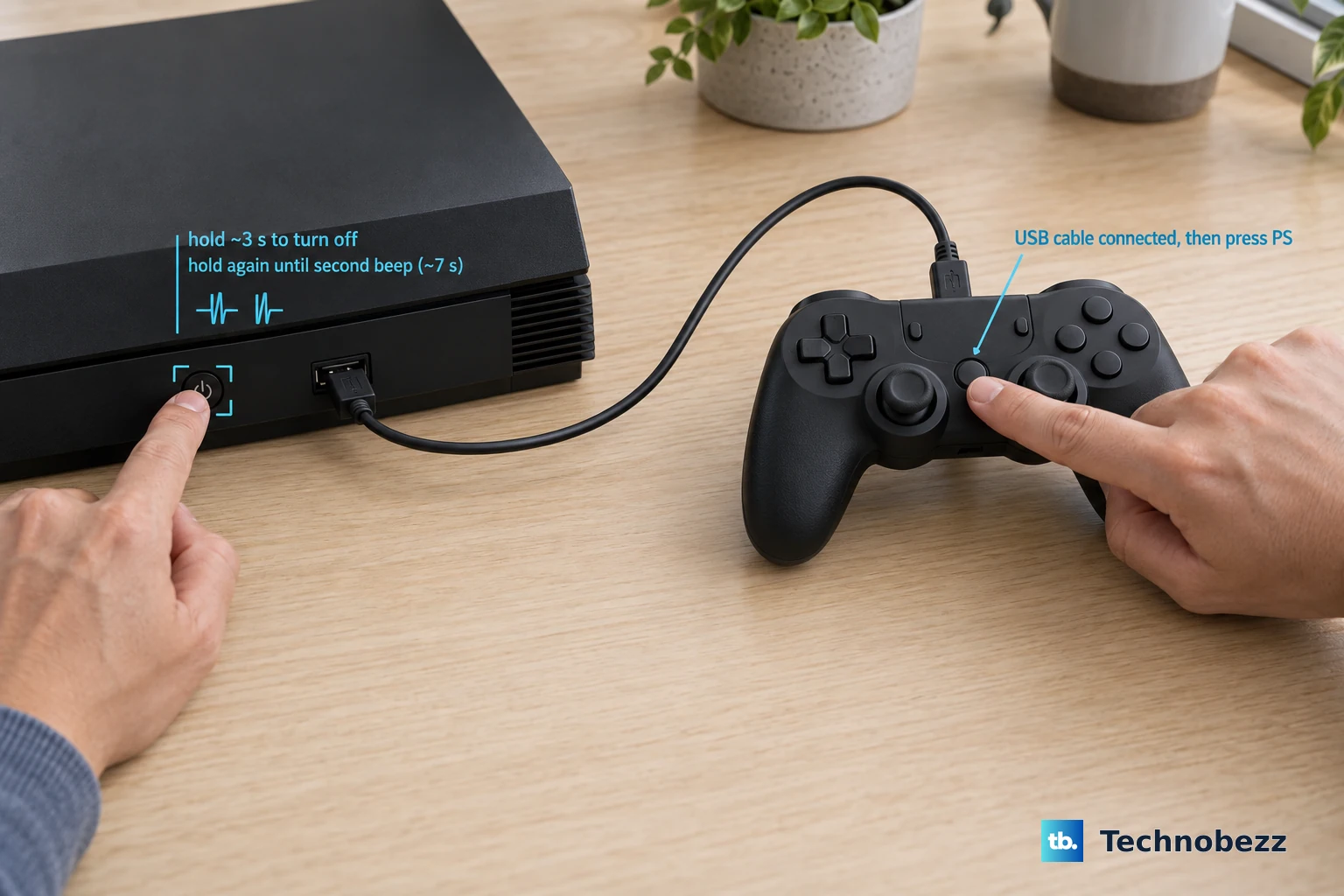
Safe Mode gives you a hardware-button route to initialization. It erases all user data, so stick with the regular deletion menu when you only need to remove one person.
Hold the console’s power button for three seconds to turn it off.
With the console off, hold the power button again until the second beep, approximately seven seconds after the first, then release it.
Connect the controller using a USB cable.
Press the PS button.
Select 6. Initialize PS4.
Follow the confirmation prompts.
If initialization fails and you need to reinstall the system software, follow Sony’s PS4 system-software reinstallation instructions. This recovery procedure requires Sony’s reinstallation file on a USB drive and deletes all users, data, and existing firmware.
Remote sign-out leaves the console profile intact
A profile stays on the PS4 after remote sign-out or deactivation because those actions change account access or console activation without erasing local users.
To end your account sessions when you cannot access the PS4, sign into Account Management in a browser.
Select Security in the sidebar.
Select Sign Out on All Devices at the bottom.
To remove console activation remotely, open Device Management > PlayStation Consoles in Account Management.
Select Deactivate All Devices. Remote deactivation is limited to once every six months and cannot target an individual console.
Neither action deletes local PS4 profiles or closes your online account. Use local user deletion or initialization on the console to erase those profiles.
Frequently Asked Questions
Does logging out delete a guest’s PS4 data?
Yes. In an existing guest session, open Power from the function screen or quick menu. Select Log Out of PS4. Guest-session saved data is deleted at logout. This does not delete a permanent registered user or close an online account.
Can I sign out on my PS4 without deleting the user?
Yes. Open Settings > Account Management > Sign Out. Your local user and online PlayStation account remain available.
Will Restore Default Settings delete PS4 users?
No. Restore Default Settings preserves user and game data. To erase profiles, use Delete User for one local user or Initialize PS4 for all console users.
Can I leave a PlayStation family without deleting my account?
Yes, if you are an adult family member. On PS4, open Settings > Parental Controls/Family Management > Family Management. Complete any sign-in prompts. Select yourself. Choose Leave Family. Your account stays open. Family managers and children cannot leave.