You've removed the printer, but its driver package is still there. Windows treats those as separate removals, so deleting the printer entry doesn't finish the job. Start with the manufacturer's uninstaller, then use Print Server Properties to clear a leftover driver and its package.
Start with the printer software uninstaller
This removes the manufacturer's driver package when it has a registered uninstaller. Follow your manufacturer's connection instructions first: HP directs you to disconnect the printer, while supported Brother Utilities procedures require USB printers to stay powered on and connected until uninstalling finishes.
Open Start > Settings > Apps > Installed apps in Windows 11 and find the printer manufacturer's driver or software package that matches your printer. Open its More menu, then select Uninstall.
Complete the manufacturer's uninstall prompts. Removing a companion app alone isn't proof that its driver is gone.
Check Control Panel for an uninstaller
Can't find the package in Settings? Check Control Panel for a traditional desktop driver or software package with a registered uninstaller. This route works in Windows 11 and Windows 10.
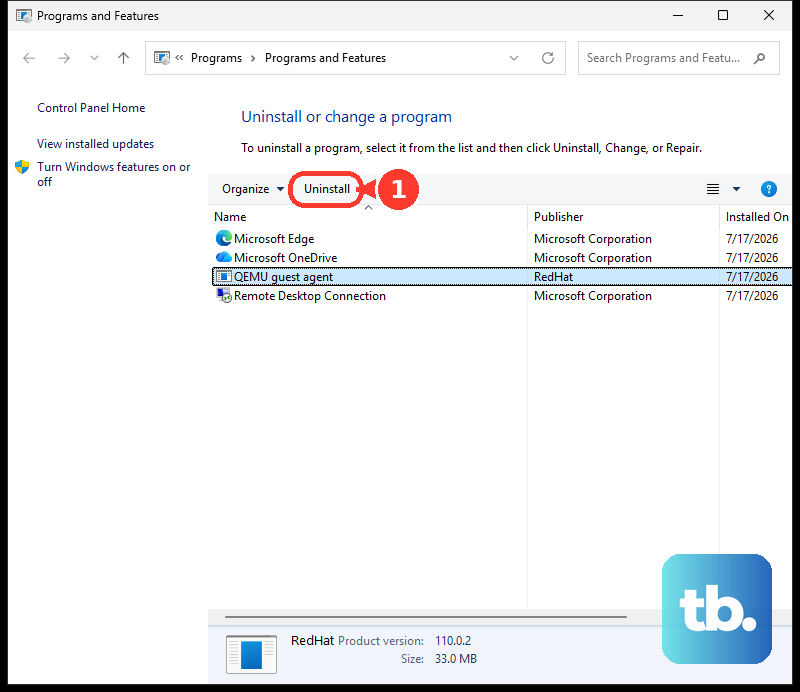
Search Windows for Control Panel and open Programs > Programs and Features. Right-click the printer driver or software package and select Uninstall or Uninstall/Change, whichever appears for that package. Complete the manufacturer's prompts. If the uninstaller fails or leaves the driver behind, try Print Server Properties next.
Remove the package through Print Server Properties
Open Start > Settings > Bluetooth & devices > Printers & scanners in Windows 11, then select the printer you want to remove. Click Remove. This removes the printer entry; it doesn't guarantee deletion of its driver package. Repeat those steps for other printer queues using the same driver, but only if you intend to remove those printers too.
Open Run from Windows search. Run rundll32 printui.dll,PrintUIEntry /s to open Print server properties, then select the Drivers tab. This command works in Windows 11 and Windows 10 and bypasses differences in Control Panel navigation.
Click Change Driver Settings and approve the administrator prompt if it appears. Select the target printer driver and click Remove.... Select Remove driver and driver package, then click OK. Complete the confirmation prompts.
Tip: Match the driver carefully, because one package can serve more than one printer.
Use PnPUtil for a remaining Driver Store package
PnPUtil deletes third-party driver packages from the Windows Driver Store on Windows 11 and Windows 10 version 1607 or later.
- 1.Search Windows for Command Prompt and select Run as administrator.
- 2.Run
pnputil /enum-driversto list third-party driver packages. - 3.Identify the printer's package and note its Published Name, such as
oem42.inf. Match the package to your printer before continuing. - 4.Check whether another printer or device you want to keep uses the same package. The
/uninstalloption uninstalls the package from every device using it, so continue only if that's acceptable. - 5.Run
pnputil /delete-driver oem42.inf /uninstall, replacingoem42.infwith that package's actual Published Name. - 6.Restart the computer if Windows requests it to complete removal.
Free a driver that's still in use
A remaining printer queue using the driver blocks its removal. Open Start > Settings > Bluetooth & devices > Printers & scanners. Select a remaining printer that uses the unwanted driver. Another printer can share the package even after you've removed the original entry.
Click Remove only if you intend to remove that printer too. Repeat for each remaining queue using the driver that you intend to remove. Restart your computer after removing those queues. HP's Universal Print Driver removal guide recommends rebooting or restarting the Print Spooler when Windows reports that the driver is still in use; neither action uninstalls the driver by itself.
Retry removal in Print server properties using Remove driver and driver package. Leave PnPUtil's /force option out of routine cleanup. It permits package deletion while devices are still using the package.
Try PowerShell as an alternative
PowerShell provides another route on Windows installations with the PrintManagement module. Open Windows PowerShell using Run as administrator.
Run Get-PrinterDriver to find the exact installed driver name. Next, run Remove-PrinterDriver -Name "Exact Driver Name" -RemoveFromDriverStore, substituting the name you found. The -RemoveFromDriverStore option requests removal from the Driver Store too.
Without that option, Remove-PrinterDriver removes the registered printer driver without explicitly requesting Driver Store removal. Choose this as an alternative to the earlier methods; there's no need to run every method for the same driver.
Frequently Asked Questions
Why does the printer driver come back after I remove it?
Windows reinstalls needed drivers when you reconnect a printer or through Windows Update. A driver returning doesn't prove that the earlier removal failed.
What should I use if Brother Utilities fails?
For supported models, Brother recommends its standalone Uninstall Tool. On your printer model's Downloads page, select your Windows version and look for Uninstall Tool. Run it as administrator and follow the model-specific instructions. Brother also recommends this tool for drivers installed with the Add Printer Wizard or Found New Hardware Wizard, and for removing drivers that failed to install.
Should I enable Windows protected print mode to remove one driver?
No. Windows protected print mode changes the whole printing configuration. On Windows 11 version 24H2 and later, it removes printers using third-party drivers and deletes their drivers from the print driver store. Incompatible printers, scanners, and virtual printers are affected, and turning the mode off doesn't automatically restore removed printers.
Can I remove a printer driver without administrator access?
PnPUtil package removal and Remove-PrinterDriver require administrator access. Print Server Properties also requests administrator approval when required. If you don't have those credentials on a managed PC, ask your administrator to perform the removal.