You want to play Fortnite without a download, but account setup, missing progress, or a cloud error is getting in the way. Xbox Cloud Gaming runs Fortnite without a local game installation or a paid Game Pass subscription. Start with the browser launch, then follow the section that matches what is stopping you.
Start playing in your browser
Check your region on Xbox’s supported countries and regions page. You need a Microsoft account, but you do not need an Xbox console. If you do not have an Xbox profile, select CREATE YOUR XBOX PROFILE on that page to complete setup.
Open xbox.com/play in a supported browser. Safari, Chrome, and Edge support depends on your operating system.
Select Sign in to sign in with your Microsoft account. Then select Fortnite and launch the game from its product page.
Free sessions run up to one hour at a time, and a countdown warns you before one ends. Start another session afterwards; players without an Xbox Game Pass subscription wait the longest for a slot.
Before troubleshooting an older device, check Xbox’s general minimums: Windows 10 20H2, macOS 14.1.2, Android 12, iOS/iPadOS 14.4, or ChromeOS 85, plus a supported browser.
If your skins or progress are missing
Linking the correct Epic and Microsoft accounts brings your existing progress into your cloud session. Sign in to the Epic account that holds the progress you want. Open Linked accounts and select Link under Xbox.
Complete Microsoft authentication with the account you will use for cloud gaming. Then sign in at xbox.com/play with that same Microsoft account.
If Epic says the Xbox account is already linked, sign out of Epic. Select the Xbox icon on Epic’s sign-in page. Authenticate with the Xbox account concerned to identify the Epic account attached to it.
Complete Finish Setting Up Your Account if prompted. This applies to automatically created accounts after initial linking was skipped.
For a confirmed wrong connection, open Epic’s Xbox linking instructions before changing the link. Separate progress cannot be merged. Cancel any active Fortnite Crew subscription on that account before unlinking.
Select Unlink under Xbox in Linked accounts. Do not launch Fortnite until you finish linking the correct account. Sign out of Epic, then sign in to the Epic account whose progress you want.
Select Link under Xbox in Linked accounts. Complete authentication with the correct Microsoft account.
If Epic reports that a different Xbox account was previously linked, use the restriction-removal link in Epic’s platform-account instructions. Restriction removal is limited to once every 365 days and cannot be bypassed. After removing the restriction, return to Linked accounts > Link an account. Select Xbox and confirm the correct account.
Choose controls that work on your device
On a supported phone or tablet, launch Fortnite and use its touchscreen controls. You do not need to buy a controller for touch play.
For controller play, connect a compatible controller through USB or Bluetooth before launching Fortnite. Pairing menus depend on the device and controller; Xbox supports its own controllers and verified third-party models.
For mouse and keyboard, launch Fortnite at xbox.com/play in Edge or Chrome on a supported computer. Put the stream in full screen and click the game screen. In a browser, mouse and keyboard input only registers in full screen mode, and press and hold ESC to leave it.
Press a keyboard key during play to switch to keyboard input. Press the controller’s Xbox button to switch back to controller input.
Insider enrollment and Preview features are unnecessary for mouse and keyboard. Xbox released the feature to all players. Older mobile instructions to download the separate Xbox Game Pass app are also outdated; cloud streaming uses xbox.com/play in a supported browser.
If mouse and keyboard do not work on your phone or tablet, switch to touch controls or a compatible controller, or use a supported computer browser. Epic does not support mobile mouse and keyboard, including through Xbox Cloud Gaming.
Add a phone shortcut for faster launches
On an iPhone running iOS 26, open xbox.com/play in Safari. Tap More if you use Safari’s compact tab layout. Then tap Share. With the Top or Bottom tab layout, use the Share button directly.
Select Add to Home Screen and enable Open as Web App. Tap Add, then open the new Home Screen icon.
Sign in with your Microsoft account. Select Fortnite to launch it.
On Android, open xbox.com/play in Chrome. Open More > Install and create shortcut. Select Install to begin the web-app installation, then complete the installation prompts.
Keep using xbox.com/play directly if you prefer, since the shortcut is optional and installs the website rather than Fortnite’s native game files.
When the cloud page is blank or keeps crashing
These checks address loading and performance problems caused by the browser. In desktop Edge, open Settings and more > Settings > About Microsoft Edge. Apply any available update, then close unrelated browser tabs.
Close unrelated apps and pause active downloads. Then reload xbox.com/play.
For a blank or malfunctioning page in desktop Chrome, open Settings > Privacy and security > Site settings > Javascript. Select Sites can use Javascript. Open the cloud website in a New Incognito Window.
If it works there, return to your normal Chrome window. Open Extensions > Manage extensions. Disable extensions one at a time to identify the one interfering with the page.
For persistent problems, open More > Delete browsing data. Clearing cookies signs you out of websites. Choose the time range for the cleanup and select Cached images and files.
Select Cookies and other site data, then select Delete data. Sign back into Xbox Cloud Gaming.
Reduce lag and blurry streaming
An unstable network connection causes poor streaming quality and delayed responses.
Connect through Ethernet where your device supports it, or use your router’s 5 GHz Wi-Fi network. Xbox recommends at least 20 Mbps on computers, consoles, and tablets, and lists 10 Mbps for mobile devices. Supported mobile devices also support cellular service.
If browser games fail to load over your home connection, turn off your computer. Unplug the modem and any separate router, then wait about one minute.
Reconnect the modem and wait for it to initialize. Reconnect the router, then start your computer.
Retry xbox.com/play. If connection changes do not help, check the Epic Games Server Status link in Epic’s Cloud Download Failure support page. Restarting your router does not resolve a service outage.
Match a launch error to its specific fix
Use the wording on screen to choose the next step.
- 1.Check the Epic Games Server Status link in Epic’s Cloud Download Failure support page for a Fortnite incident before changing account settings.
- 2.For ESP-MAN-ARCHIVE, restart Fortnite and your device. If the error persists, sign in to Xbox Cloud Gaming and open Settings > Manage Games > Fortnite. Follow Epic’s error-specific procedure to delete the associated storage and saved items. Sign out, sign back in, and restart Fortnite. Use this deletion procedure only for this error.
- 3.For Cloud Download Failure, restart the device. Contact Epic Support through its support page for this error if the failure persists and the account’s stored settings remain corrupted.
- 4.For This title is not supported with Xbox Cloud Gaming, contact Xbox Support as directed by Epic’s instructions for this message. Epic provides no local reinstall or account-unlinking remedy for this error.
Get voice chat working again
Select your Fortnite profile icon. Choose Party chat or Game chat. Game chat requires an island that supports it. Use the voice controls to unmute yourself or stop deafening.
Open profile icon > Settings > COMMUNICATION. Choose a permitted audience instead of Off. Communication defaults to Off for players who indicate they are under 18, and parental restrictions limit the available choices.
On Windows 11, open Start > Settings > Privacy & security > Microphone. Enable Microphone access.
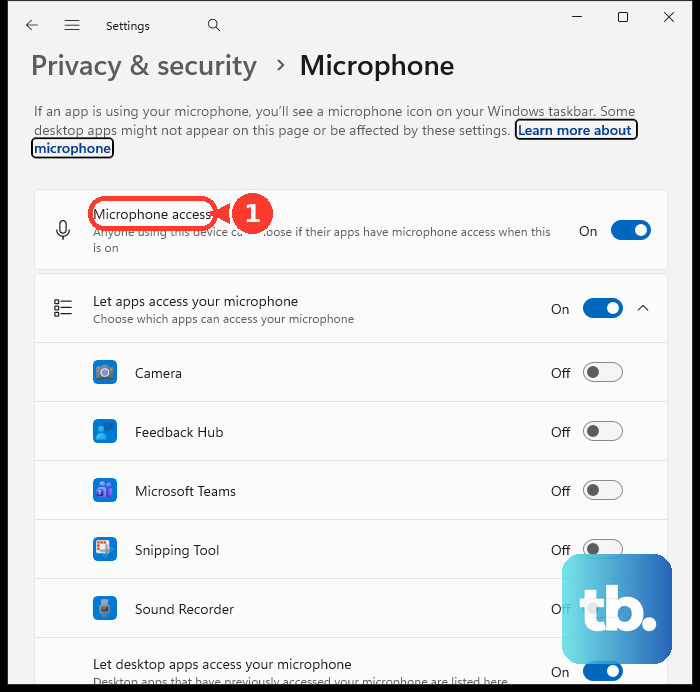
Enable Let desktop apps access your microphone. In Edge, allow the cloud website’s microphone request. In Chrome, open Settings > Privacy and security > Site settings > Microphone.
Select the microphone you intend to use. Allow microphone access for the Xbox cloud site. Check your headset’s physical mute switch.
If parental restrictions still block chat, have a parent review Epic Voice Chat Permission under Parental Controls in the child’s Epic Account Portal; age-based maximum permissions still apply. If microphone permissions are locked in a managed work or school browser, contact its administrator.
Frequently Asked Questions
Can I play Fortnite on Xbox Cloud Gaming on a TV?
Yes. Compatible Samsung TVs and supported Amazon Fire TV devices offer free Fortnite through the Xbox app with a Microsoft account and a compatible Bluetooth controller. Supported Fire TV models include the Fire TV Stick 4K Max (2023) and Fire TV Stick 4K (2023). These are examples, not a complete hardware list; device and regional eligibility apply.
Why is Save the World missing on my phone or tablet?
Epic excludes mobile devices from Save the World, including through cloud gaming. Use a supported nonmobile platform for that mode. Its absence on mobile is not an installation failure.
Why can my friends not join my Fortnite party?
Open your Fortnite profile tab and check Party Joinability. Joinable allows friends and connections to join; Invite Only requires an invitation or approved request. Invite Only is the default for players who indicate they are under 18, and parental restrictions limit changes.
How do I remove the Xbox web app from Android?
Open Android Settings > Apps > See all apps. Select the Xbox web app’s icon. Tap Uninstall. Manufacturer settings differ, and browser access at xbox.com/play remains available after removal.