FaceTime on iPhone does not have one universal Pause button for a normal call. Most pauses come down to stopping your camera, muting your mic, leaving the call, or limiting FaceTime later. Here are the current iPhone options that match each situation.
Turn Off Your Camera First
Most people asking how to pause FaceTime on iPhone want their video to stop while the call keeps going.
During the FaceTime call, tap the screen to show the controls.
Tap the Camera button. Your video turns off, but the call stays connected.
When you are ready to be seen again, tap the Camera button once more.
Mute Your Microphone When You Need Quiet
Use mute when you want the other person to stop hearing you while you stay in the call.
During the FaceTime call, tap the screen to show the controls, then tap the Microphone button.
Tap Microphone again when you want to speak.
If muting is not enough, turn off the camera too or leave the call entirely.
Leave The Call Instead Of Pausing It
When you need to be fully out of the conversation, FaceTime treats that as ending or leaving the call, not pausing it.
During the FaceTime call, tap the screen to show the FaceTime controls. Tap the End button.
In a group FaceTime call, the call can keep going for everyone else as long as one or more participants remain.
Put A FaceTime Audio Call On Hold
Stay on your current FaceTime audio call when another FaceTime audio call comes in.
When the incoming FaceTime audio call appears, tap Hold & Accept. Apple's iPhone User Guide shows this as the Accept button. It holds your current call only when both calls are FaceTime audio calls; otherwise, accepting the new call ends the current one.
Continue the new call while the first FaceTime audio call stays on hold.
Use the camera or microphone buttons for regular video-call pauses.
Stop FaceTime From Being Available On Your iPhone
The most common reason to disable FaceTime is that you want a longer break from incoming and outgoing FaceTime calls.
Open Settings and tap Apps.
Tap FaceTime, then turn off FaceTime.
If you are signed in to your Apple Account, tap your Apple Account in FaceTime settings, then tap Sign Out.
Use Screen Time For A Scheduled Pause
Screen Time fits when you want FaceTime hidden, limited by time, or restricted to certain contacts. These steps apply to iOS 26.
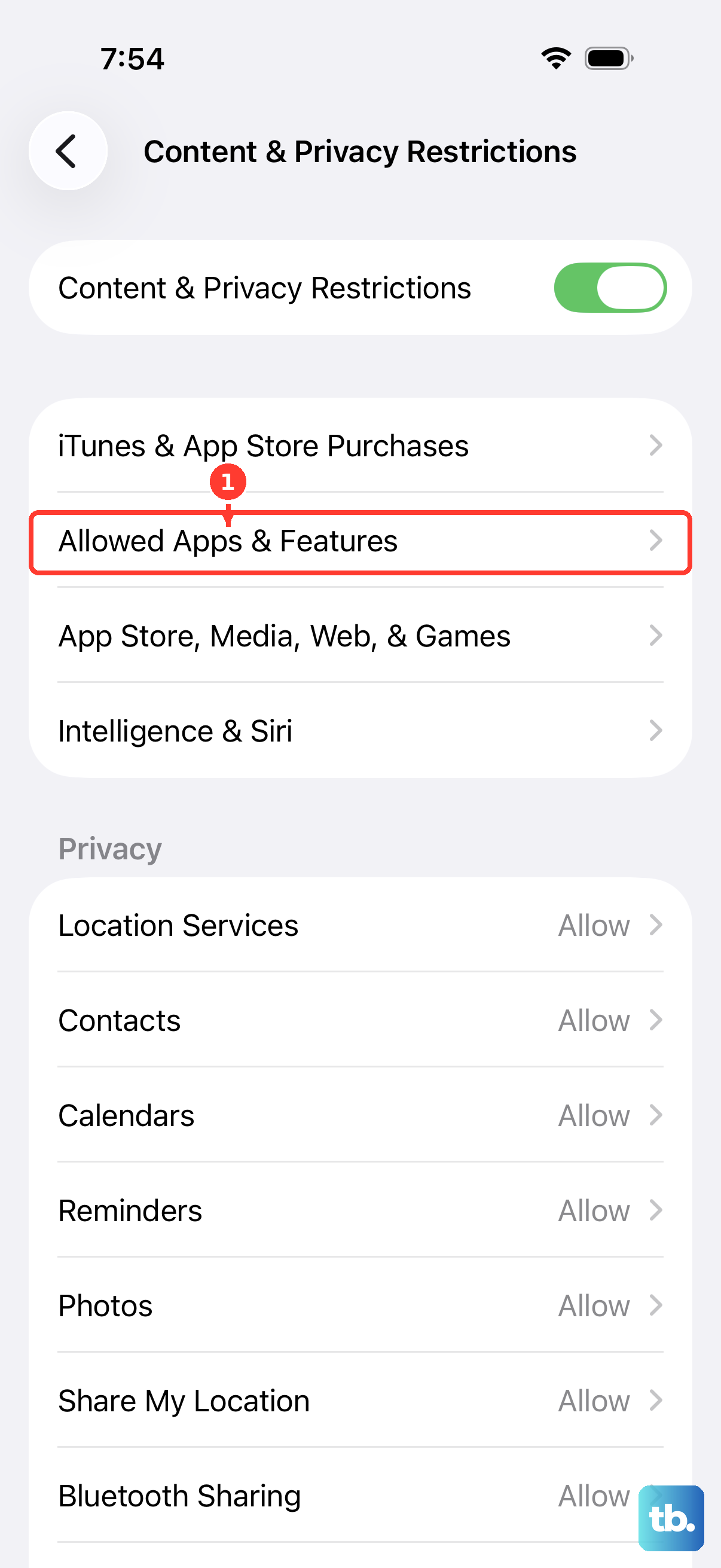
- 1.Open Settings, tap Screen Time, tap Content & Privacy Restrictions, then turn on Content & Privacy Restrictions.
- 2.Tap Allowed Apps & Features, then turn off FaceTime to temporarily hide the built-in app.
- 3.For contact limits, go to Settings > Screen Time > Communication Limits > During Screen Time, then choose Contacts Only, Contacts & Groups with at Least One Contact, or Everyone.
- 4.Tap Back, tap During Downtime, then choose the allowed contacts option.
- 5.For time limits, go to Settings > Screen Time > App Limits > Add Limit, select FaceTime or its category, tap Next, set the time, then tap Done.
On iOS 27, Screen Time is organized differently. In Communication Limits, choose who you can communicate with under During Screen Time and When Device Paused or Unavailable. Time limits now use Time Allowances, which apply to app categories such as Entertainment, Games, and Social Media.
Pause FaceTime When iPhone Is A Mac Webcam
Use this only when your iPhone is acting as the camera or microphone for FaceTime on a Mac.
On your iPhone, tap Pause.
To continue, tap Resume and mount your iPhone again.
To pause another way, unlock the iPhone while it is being used as the Mac webcam or microphone.
To resume, lock and mount the iPhone again; you may need to stop and restart video or audio in the Mac app.
For a longer stop, open Settings, tap General, tap AirPlay & Continuity or AirPlay & Handoff, then turn off Continuity Camera.
Manage FaceTime Links And Web Callers
This applies when someone joins your FaceTime call from Android or Windows through a FaceTime link. Web callers use the same basic camera and microphone controls after joining.
On iPhone, open FaceTime, tap New Call, then tap Create Link and share it. FaceTime links are not supported in China mainland, and iPhone models purchased in China mainland cannot create them.
On Android or Windows, the participant opens the FaceTime link in the latest Google Chrome or Microsoft Edge.
They enter a name, select Continue, allow microphone and camera access when prompted, then select Join.
Once they are in the call, they use Camera to turn video on or off and Microphone to mute or unmute.
Skip The Old Home Screen Pause Trick
The most common outdated advice is to press the Home button or swipe to the Home Screen to pause FaceTime video.
Use the in-call Camera button instead. That is the current control for stopping FaceTime video while keeping the call connected.
Leaving FaceTime to use another app is not a reliable pause method, because iPhone supports using other apps during a FaceTime call with Picture in Picture.
Frequently Asked Questions
Can you pause FaceTime on iPhone without ending the call?
Yes, for video or audio separately. Tap Camera to stop video, tap Microphone to mute audio, or use both controls to stay connected without being seen or heard.
Can Siri pause a FaceTime call?
Siri can end a FaceTime call when you say “Siri, hang up.” On iOS 26, first turn on Call Hangup in Settings > Accessibility > Siri. To pause your video or sound and stay connected, use the on-screen Camera or Microphone controls.
Does deleting the FaceTime app turn FaceTime off completely?
On iOS 17.4 and later, it stops FaceTime on that iPhone. Apple says the iPhone can't make or receive FaceTime calls or use SharePlay until you redownload the app, and cellular calls stop relaying to your iPad, Mac, or Apple Watch. On earlier iOS versions, deleting the app still left FaceTime calls available in Contacts and the Phone app.
Can I block FaceTime only on cellular data?
Yes. Open Settings, tap Cellular, then turn off FaceTime under Cellular Data. FaceTime can still work over Wi-Fi.