To pair Beats headphones, hold your model's power or system button until its light flashes, then select your Beats in your phone or computer's Bluetooth settings. For earbuds, use the case or earbud button described below; on iPhone or iPad, you can also open the case nearby and follow the setup animation.
The short version
- On iPhone or iPad, hold your powered headphones or open earbud case nearby and follow the setup animation.
- For manual pairing, use the button for your model and wait for its flashing light or repeating tone.
- On Android, Mac, or Windows, select your Beats in Bluetooth settings.
- For Beats already paired, try reconnecting before removing the saved connection.
- If pairing keeps failing, use your model's reset sequence and pair again.
| Method | What it does | Time | Use it when |
|---|---|---|---|
| iPhone or iPad setup | Pairs through the nearby prompt | A few minutes | Setting up with an Apple mobile device |
| Model pairing button | Makes Beats discoverable | Under a minute | The prompt or device name is missing |
| Android setup | Pairs through Bluetooth or a prompt | A few minutes | Connecting an Android phone |
| Mac setup | Pairs and selects audio output | A few minutes | Listening on a Mac |
| Windows setup | Adds Beats to a PC | A few minutes | Connecting a Bluetooth PC |
| Other device setup | Pairs a Chromebook, Watch, or TV | A few minutes per device | Listening away from your phone |
| Reconnect or forget | Uses or replaces a saved pairing | A few minutes | Previously paired Beats will not connect |
| Hardware reset | Resets Beats before pairing again | A few minutes | Pairing still fails after reconnecting |
Pair with an iPhone or iPad
These instructions cover Beats Fit Pro, Flex, Solo 4, Solo Buds, Studio Buds +, Studio Pro, Beats 360, Powerbeats Fit, and Powerbeats Pro 2. If you own another model, use its specific pairing and reset instructions.
Use the latest available version of iOS or iPadOS before setup. Open Settings > Bluetooth and turn on Bluetooth. For earbuds, keep both earbuds in their case and open the lid next to your unlocked iPhone or iPad. For headphones, turn them on and hold them beside the device, then follow the setup animation.
For Beats Flex, press the power button on the right control module for one second to turn them on for initial setup. Keep them near your unlocked device and complete the onscreen instructions. Solo 4 and Studio Pro enter pairing mode automatically the first time you turn them on.
If the animation does not appear, use your model's pairing button in the next section. Return to Settings > Bluetooth and tap your Beats in the device list. Keep your phone connected to Wi-Fi or cellular data during setup so Find My features are available.
Find the pairing button for your Beats
Earbuds with a case button
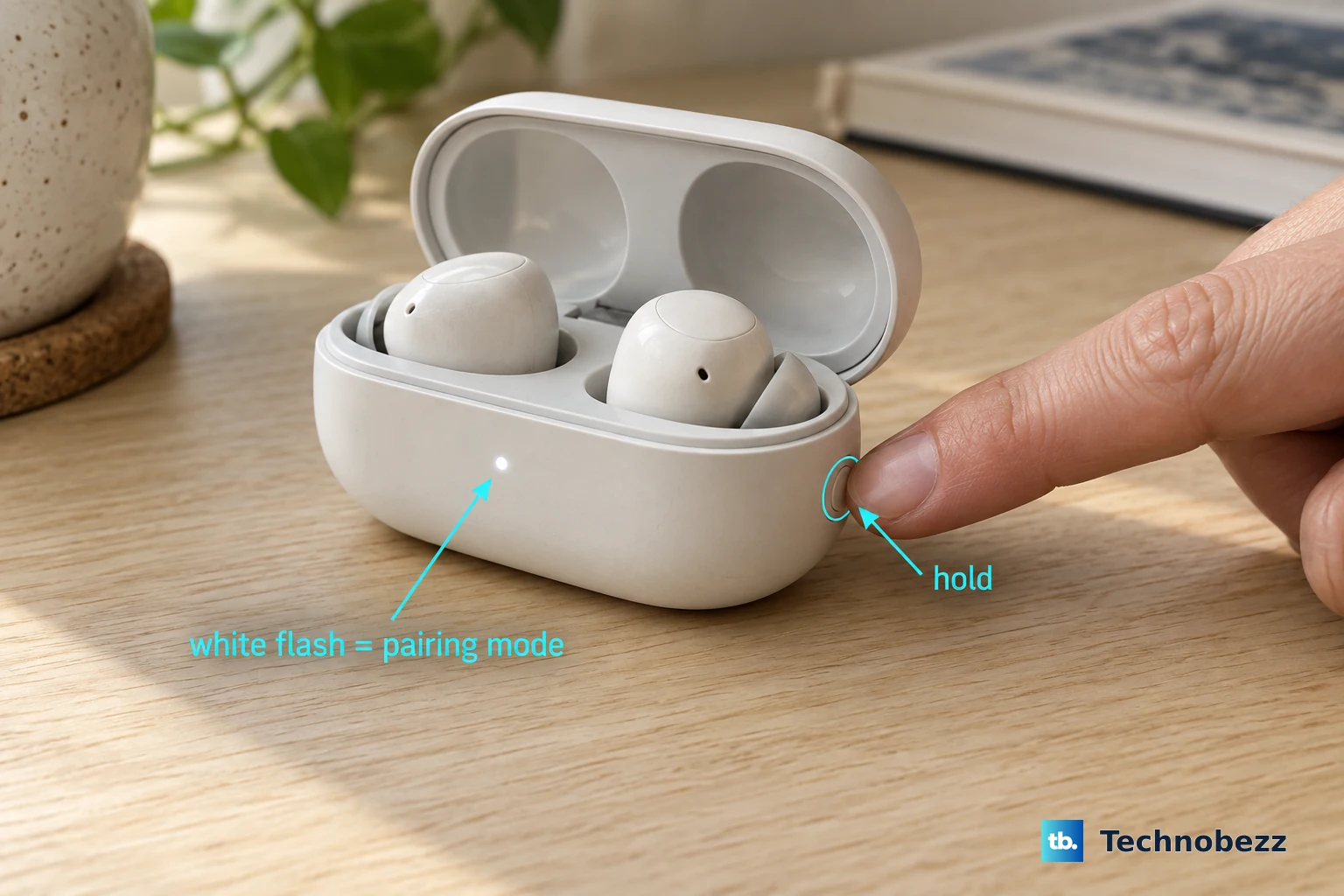
For Beats Fit Pro, Studio Buds +, Powerbeats Fit, and Powerbeats Pro 2, put both earbuds in the case and leave the lid open. Hold the system button on the case until the light flashes white. Select your Beats in the receiving device's Bluetooth menu once you see that cue.
Solo Buds
For Beats Solo Buds, leave both earbuds seated in the open case. Hold the button above the b logo on either earbud until a tone repeats. Use that sound as your pairing cue before selecting Solo Buds on your phone or computer.
Headphones and Flex
For Beats Solo 4, hold the power button on the right earcup until the light on the left earcup blinks white. For Beats Studio Pro, hold the system button on the right earcup until the fuel-gauge lights flash. These are the sequences to use when pairing with another device after initial setup.
For Beats Flex, hold the power button on the right control module for three seconds until the light blinks. For Beats 360, hold the power button on the back of the left earcup until the status light flashes white. Follow the cue for your model rather than applying one button-hold time to every pair of Beats.
Connect to an Android phone
Manual Bluetooth pairing
Put your Beats in pairing mode, then swipe down from the top of your phone's screen. Touch and hold Bluetooth, turn it on if needed, and tap Pair new device. Select your Beats and finish the onscreen pairing prompts.
If Pair new device is missing, look under Available devices or tap More > Refresh. Some phones use Settings > Connections > Bluetooth instead. Choose your Beats there and tap Pair if prompted.
Fast Pair
Fast Pair is another option for Solo 4, Solo Buds, Studio Buds +, Studio Pro, and Beats 360. Turn on Bluetooth and Location, then hold your Beats near the phone in pairing mode. Tap Connect in the notification and complete any further prompts, including Set up if it appears.
Studio Pro's Fast Pair setup requires a compatible phone running Android 8.0 or later with Google Play Services enabled. If the nearby notification does not appear, use the manual Bluetooth route above. You do not need to keep waiting for a notification to select your Beats from the device list.
Beats app setup
For Powerbeats Fit or Powerbeats Pro 2, open the Beats app on your unlocked Android phone. Hold the open case nearby with both earbuds inside and follow the setup prompts. Both models also support pairing through the phone's standard Bluetooth menu if app setup does not connect.
Use Bluetooth settings on a Mac
Put your Beats in pairing mode and open the Apple menu > System Settings > Bluetooth. Turn on Bluetooth, hold the pointer over your Beats in the device list, and click Connect. Keep the headphones or open earbud case near the Mac while you pair.
If you already set up your Beats on another Apple device signed in to the same Apple Account, their pairing is shared with your other supported Apple devices. Try selecting them from Control Center > Bluetooth before starting a new pairing. A saved pairing and the current audio destination are separate things to check.
If Beats connect but sound still comes from the Mac, open System Settings > Sound. Click Output and select your Beats for listening. To use the Beats microphone as well, click Input and select them there.
Add Beats to a Windows PC
On Windows 11, put your Beats in pairing mode, then click the taskbar's Network, Sound, or Battery icon to open Quick Settings. Turn on Bluetooth and select the Manage Bluetooth devices chevron beside it. Choose your Beats under New devices, follow any prompts, and select Done. If the Bluetooth tile is missing or will not turn on, follow the steps for turning on Bluetooth in Windows 11 first.
You might need to scroll through Your devices before New devices becomes available. If your Beats are connected but you cannot hear them, check the PC's sound settings and select Beats as the playback device. Check their selection as the recording device too if you want to use their microphone.
On Windows 10, open Start > Settings > Devices > Bluetooth & other devices. Select Add Bluetooth or other device, choose Bluetooth, then select your discoverable Beats and finish with Done. The Beats pairing-button sequence is the same; the Windows menu differs.
Set up a Chromebook or another Apple device
Chromebook
Put your Beats in pairing mode, then select the time at the bottom right of your Chromebook screen. Select Bluetooth, turn it on, and choose + Pair new device. Select your Beats and complete the onscreen instructions.
To check the result, select the time and open Bluetooth again. Look for your Beats under Currently connected. Use this check if you have completed the prompts but are unsure whether the connection finished.
Apple Watch and Apple TV
Use the latest available version of watchOS before pairing. On Apple Watch, put your Beats in pairing mode and open Settings > Bluetooth. Make sure Bluetooth is on, then tap your Beats to connect. Keep the Beats nearby while you select them on the watch.
On Apple TV 4K, headphones associated with the same Apple Account can be selected through Control Center. Hold the TV button on the remote, select Audio Controls, and choose your Beats. This lets you select the headphones without starting a separate manual pairing.
For manual pairing on Apple TV HD or Apple TV 4K, put your Beats in pairing mode. Open Settings > Remotes and Devices > Bluetooth, then select your Beats. After connecting, they should appear under My Devices.
Reconnect Beats or replace a failed saved pairing
Reconnect before removing anything
Wear your Beats near the device you want to use. On iPhone or iPad, tap Playback Destination from Now Playing, the Lock Screen, or Control Center, then select your Beats. On Mac, choose them in Control Center > Bluetooth.
On Android, make sure Bluetooth is on and touch and hold Bluetooth in Quick Settings. Select your Beats under Saved devices; the device shows as Connected when the connection succeeds. Use this route for a saved pairing before trying to add the same Beats as a new device.
Forget the connection and pair again
If a saved pairing still fails, remove it and repeat setup. On iPhone or iPad, open Settings > Bluetooth, tap the Info button beside your Beats, and select Forget This Device. This also removes their pairing from other devices signed in to the same Apple Account.
On a Mac, open System Settings > Bluetooth. Hold Control, click your Beats, then choose Forget. Put the Beats back in pairing mode before connecting them again.
On Android phones with a Connections menu, open Settings > Connections > Bluetooth. Tap the Settings button beside your Beats, choose Unpair, and confirm with Unpair. On phones using Google's Bluetooth layout, open the accessory's settings and tap Forget instead.
Before moving on to a reset, make sure your Beats and receiving device are charged and turned on. You can check the battery level on your Beats before trying again. Move them away from nearby electronics that may cause interference, such as wireless routers or microwaves. Apple's Beats connection troubleshooting steps also help you check sound settings and volume when pairing succeeds but audio does not.
Reset your Beats if pairing still fails
Use the reset sequence for your exact model after checking the saved connection. Pairing mode and a reset use different button combinations or hold times, so choose the matching instructions below. After the reset, repeat the pairing steps for the phone or computer you want to use.
Reset earbuds or Beats Flex
For Fit Pro, Studio Buds +, Powerbeats Fit, or Powerbeats Pro 2, seat both earbuds in the case and leave the lid open. Hold the system button for 15 seconds until the light flashes red and white, then release it. Pair your earbuds again after completing the reset.
For Solo Buds, leave both earbuds in the open case. Hold the buttons above the b logo on both earbuds for at least 10 seconds. For Flex, hold the left control module's volume button and the right control module's power button for 15 seconds until the light flashes, then release both.
Reset headphones
For Solo 4, hold volume down on the left earcup and the power button on the right earcup together for 10 seconds. Release them when the light flashes red and white. For Studio Pro, hold the right earcup's system button for 10 seconds, then release it; the white and red light sequence repeats three times.
For Beats 360, hold the power button and listening mode button on the left earcup for 10 seconds until the status light flashes five times. Release both buttons, then pair again. If the sequence does not match your model, check Apple's model-specific Beats reset instructions before repeating it.
Update after you can connect
If you can connect again but the trouble returns, check for a firmware update. On Android, connect your Beats, open their screen in the Beats app, and tap Update when that button appears. Keep the Android device connected to Wi-Fi and follow the onscreen instructions.
Beats 360 update automatically through the Android app by default. For a manual update, turn off Update device automatically on the My Beats screen, then use the update steps above. An update requires a working connection, so return to pairing troubleshooting if the app cannot connect to your Beats.
On an iPhone, iPad, or Mac, install the latest available system software and connect the device to Wi-Fi. Turn on Bluetooth, connect your Beats, and fully charge them or connect them to power. Put both earbuds in their case and close the lid, or turn off headphones and Flex using their power or system button.
Keep your Beats within Bluetooth range of the iPhone, iPad, or Mac for at least 30 minutes. Reconnect afterward and check the firmware version. On iPhone or iPad, open Settings, tap your Beats name near the top, and look under About; on Mac, open System Settings and click your Beats in the sidebar to find the version number.
Frequently Asked Questions
Do I need the Beats app to pair with an iPhone?
No, there is no Beats app for iOS or iPadOS. Use the nearby setup animation, or put your Beats in pairing mode and select them through Settings > Bluetooth.
Can I connect Beats with a cable instead of Bluetooth?
Solo 4 and Studio Pro support wired audio through USB-C or a 3.5 mm audio cable connected to a compatible source. Their 3.5 mm connection does not need headphone battery power. Choose the cable connection your audio source supports.
Why do my Beats switch to another Apple device?
By default, Fit Pro, Powerbeats Fit, Beats 360, and Powerbeats Pro 2 can switch automatically between supported devices signed in to the same Apple Account. To limit it on iPhone or iPad, open Settings > Bluetooth and your Beats settings, then select Connect to This [device]. Tap Audio & Routing first if needed, then choose When Last Connected to This [device].
Can I pair Beats with a PC that doesn't have Bluetooth?
Yes, you can plug a USB Bluetooth adapter into a USB port to add Bluetooth to the PC. Then put your Beats in pairing mode and use the Windows pairing steps above.
Do I need to reset Beats every time I change devices?
No, use pairing mode to add a new device, or select Beats from an existing saved connection. Keep the reset sequence for connection problems that persist after reconnecting and replacing the saved pairing.