Your Logitech keyboard is ready, but the computer, tablet, or phone still does not see it. The fix is usually simple: put the keyboard into pairing mode first, then choose the right Bluetooth, receiver, or Logitech app path for your device.
Start with the keyboard pairing button
This applies to current Logitech Bluetooth keyboards with Easy-Switch keys, including MX and Ergo models. Use it before opening Bluetooth settings on Windows, macOS, ChromeOS, iPadOS, iOS, Android, or Linux.
Turn the keyboard on with its power switch.
Press and hold an Easy-Switch key for 3 seconds, until the LED blinks rapidly.
Open the Bluetooth settings on the computer, tablet, or phone you want to use, then select the Logitech keyboard when it appears.
If a code appears on the screen, type it on the Logitech keyboard and press Enter or Return.
Finish by choosing Connect or Pair.
Pair on Windows
Open Start, then open Settings.
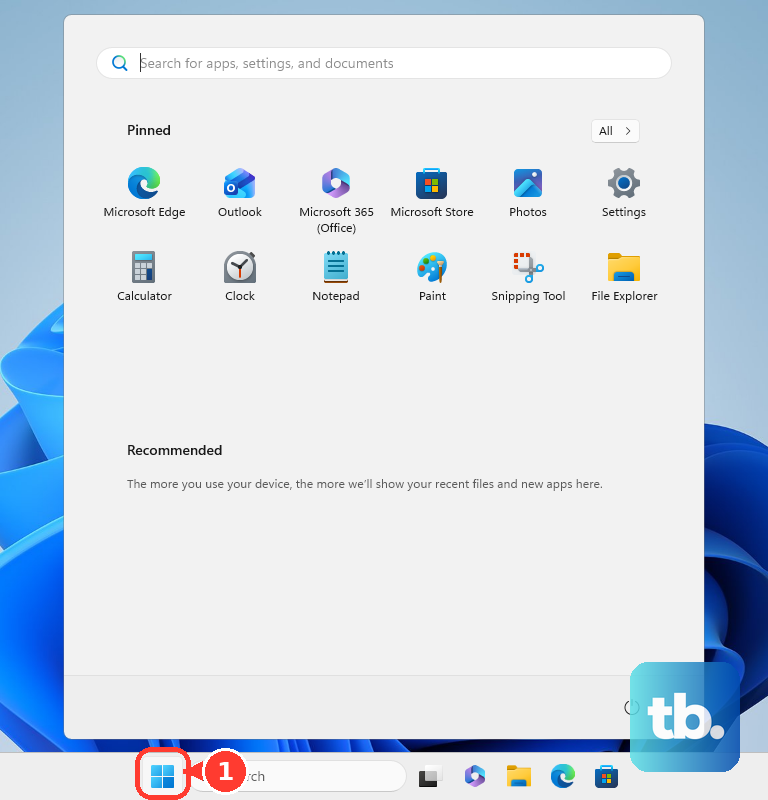
Go to Bluetooth & devices and turn on Bluetooth.
Select Add device, then choose Bluetooth.
Put the Logitech keyboard in pairing mode by holding its Easy-Switch or Connect button for 3 seconds, until the light flashes quickly.
Select the Logitech keyboard when Windows lists it.
If Windows shows a PIN, type the numbers on the keyboard and press Enter, then finish with Done.
For Logi Bolt keyboards, use the Swift Pair notification and choose Connect when Windows shows it.
Connect it to a Mac
Once the keyboard LED is blinking quickly, pair it from macOS Bluetooth settings.
- 1.Open the Apple menu and choose System Settings.
- 2.Select Bluetooth.
- 3.Hold the pointer over the Logitech keyboard name in the device list.
- 4.Click Connect.
- 5.If macOS shows numbers, type them on the Logitech keyboard and press Enter or Return.
Use a pre-paired USB receiver
This applies when your Logitech keyboard came with a USB receiver already paired at the factory. It is the simplest path when you want the receiver connection instead of Bluetooth.
Plug the receiver into a USB port on the computer.
Remove the keyboard battery pull-tab if one is present.
Turn the keyboard on.
Wait for the keyboard to connect automatically through the receiver.
On supported Logitech setup flows, press and hold fn + O for 3 seconds for macOS, or fn + P for 3 seconds for Windows, Linux, or ChromeOS.
Pair a Logi Bolt keyboard with Logi Options+
Open Logi Options+ on a Windows PC or Mac.
Click Add Device in the upper-right corner.
Choose Logi Bolt receiver.
Press and hold the keyboard Connect button for 3 seconds, until the light blinks rapidly.
Click CONNECT next to the keyboard.
Type the verification numbers on the keyboard, press Enter, then click Continue.
Download Logi Options+ from Logitech before pairing a Logi Bolt receiver.
Pair on iPad, iPhone, Android, or Chromebook
On iPhone or iPad, put the keyboard in pairing mode, then open Settings and Bluetooth. Turn on Bluetooth, tap the Logitech keyboard name, and enter the PIN or passcode if prompted.
On Android, put the keyboard in pairing mode, swipe down from the top of the screen, then touch and hold Bluetooth. Tap Pair new device, select the Logitech keyboard, and follow the onscreen instructions.
On Chromebook, put the keyboard in pairing mode, select the time in the bottom-right corner, then select Bluetooth. Turn on Bluetooth, choose + Pair new device, select the Logitech keyboard, and follow the onscreen instructions.
Forget the old pairing and reconnect
This fixes a Logitech keyboard that was already paired but no longer reconnects cleanly.
On Windows, open Settings, then Bluetooth & devices.
Select the Logitech or Logi Bolt keyboard name.
Choose Remove device, then confirm with Yes.
On macOS, open the Apple menu, then System Settings and Bluetooth.
Control-click the keyboard name and choose Forget.
On iPhone or iPad, open Settings, then Bluetooth.
Tap the More Info button next to the keyboard, choose Forget This Device, then pair the keyboard again.
Use G HUB for Logitech G LIGHTSPEED keyboards
For supported Logitech G LIGHTSPEED wireless gaming keyboards, use G HUB's Device Pairing Tool.
- 1.Connect the keyboard with its USB charging cable.
- 2.Open G HUB and plug in or replug the LIGHTSPEED receiver.
- 3.Click the gear icon for G HUB Settings.
- 4.Click Device Pairing Tool.
- 5.Choose keyboard, confirm the receiver is detected, and follow the onscreen instructions.
Avoid older tools and check managed devices
Skip Logitech Unifying Software, the standalone Logi Bolt app, Logitech Connection Utility, SetPoint, Logitech Control Center, Logitech Preference Manager, and Logitech Firmware Update Tool as first-line pairing methods. Logitech says the Unifying Software, Logitech Connection Utility, SetPoint, Logitech Control Center, Logitech Preference Manager, and Logitech Firmware Update Tool are no longer supported or maintained. The standalone Logi Bolt app is a different case: Logitech has moved its features into Logi Options+, so that is where you manage Logi Bolt pairing now.
ChromeOS receiver pairing can use Logi Web Connect: open Continue, choose Select Receiver, click Add Device, select the receiver, put the keyboard in pairing mode, click CONNECT if shown, type the passphrase, press Enter, and choose Continue.
On a school or work device, Bluetooth pairing can be blocked by management settings on Windows, ChromeOS, iPhone, iPad, or Mac.
If this method fails, remove the old pairing and use the current path that matches your keyboard: OS Bluetooth settings, Logi Options+ for a Logi Bolt receiver, Logi Web Connect on ChromeOS, or G HUB for supported Logitech G LIGHTSPEED keyboards.
Frequently Asked Questions
How do I know my Logitech keyboard is in pairing mode?
The LED blinks rapidly after you hold the Easy-Switch or Connect button for 3 seconds.
What should I do when the computer shows a code?
Type the displayed numbers on the Logitech keyboard itself, then press Enter or Return.
Can I pair a Logitech keyboard without Bluetooth?
Yes. If your keyboard came with a pre-paired USB receiver, plug the receiver into a USB port, turn the keyboard on, and it should connect automatically.
Which app should I use for a Logi Bolt receiver?
Use Logi Options+ on Windows or macOS for current Logi Bolt receiver pairing and device management.