Someone with an iPhone, iPad, or Mac just sent you a spreadsheet, and Windows refuses to open it. That .numbers file is created in Apple's Numbers app, and Microsoft Excel does not recognize the format. The good news is that you do not need a Mac to read it.
Below are seven reliable ways to open a .numbers file on Windows, ranked from the easiest free option to last-resort workarounds. Some keep your formatting almost perfectly, some work offline, and one does not even need an Apple Account. Pick the method that matches what you have.
What a Numbers File Is
Numbers is Apple's spreadsheet app, the equivalent of Excel inside the iWork suite. It saves files with the .numbers extension, which is actually a compressed package containing the spreadsheet data, styles, and a preview.
Windows has no built-in app that reads this format, and there is no official Numbers app for Windows. To view or edit the data, you either open it through Apple's free web tools or convert it to a format Windows understands, such as Excel (.xlsx), CSV, or PDF.
Method 1 Open It Free in Numbers on iCloud
The fastest route is Apple's web version of Numbers, which runs in any modern browser and installs nothing. You will need a free Apple Account.
- 1.Go to iCloud.com and sign in with your Apple Account, or create one for free if you do not have it.
- 2.Open the Numbers app from the iCloud home screen.
- 3.Click the Upload button in the toolbar, or simply drag the .numbers file from your PC into the browser window.
- 4.Once it finishes uploading, double-click the file to open it.

The spreadsheet opens in the browser, where you can view it, edit cells, and make changes. Anything you edit stays in iCloud and syncs to any Apple devices signed in to the same account.

Method 2 Convert to Excel With iCloud
If you would rather work in Excel, iCloud can hand you a clean .xlsx copy. Because the conversion runs on Apple's own engine, it preserves formatting, formulas, and charts better than most third-party tools.
- 1.Open the .numbers file in Numbers on iCloud using the steps in Method 1.
- 2.Click the More button (the three dots) on the open spreadsheet.
- 3.Choose Download a Copy from the menu.
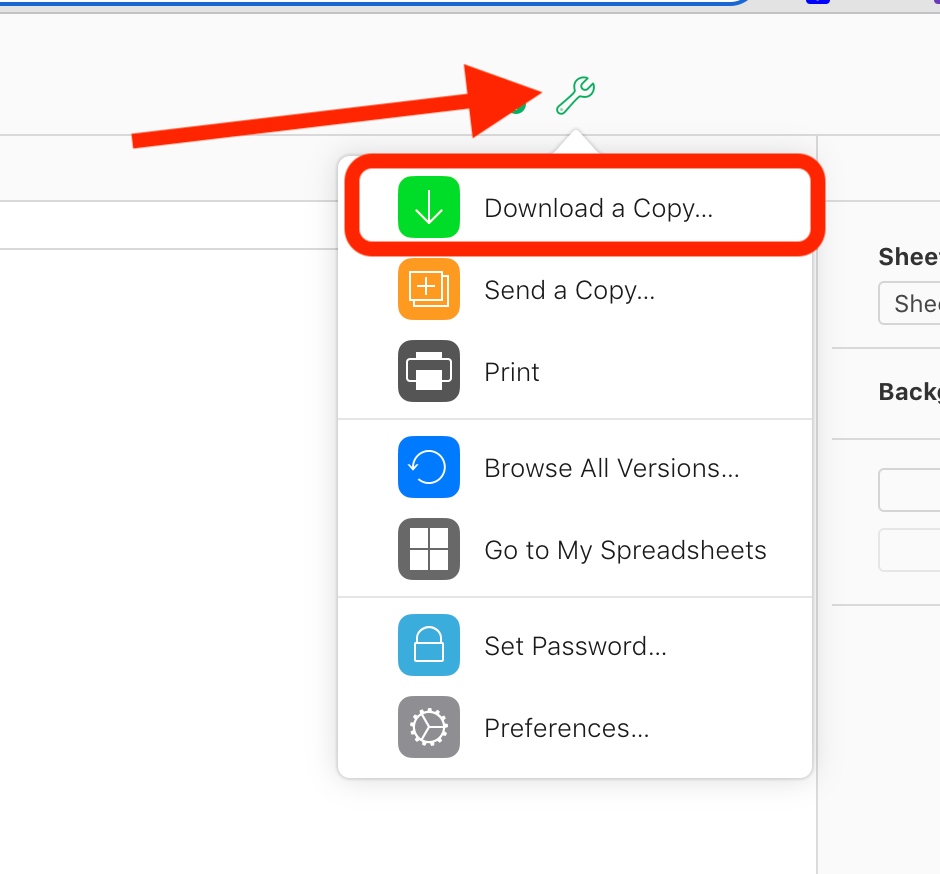
- 1.Select Excel as the format.
- 2.The file downloads to your PC as an .xlsx spreadsheet, ready to open in Excel.
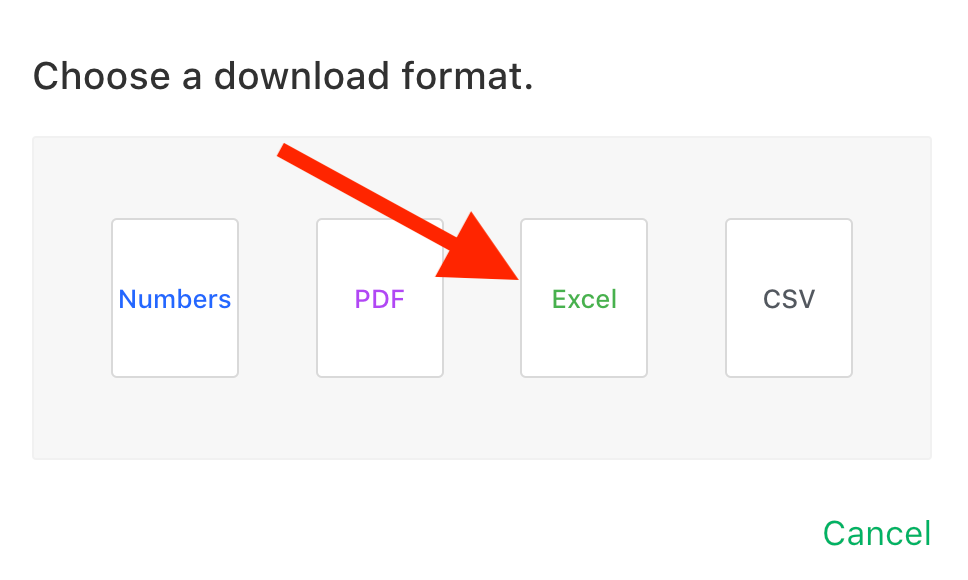
The original .numbers file stays untouched. You now have a Windows-friendly copy you can edit, save, and share.
Method 3 Import Into Google Sheets
Google Sheets is a free, browser-based option, but it cannot read the .numbers format directly. Uploading a raw .numbers file returns an error, so you have to convert it to Excel first.
- 1.Use Method 2, or one of the converters below, to turn the file into an .xlsx file.
- 2.Open Google Drive and upload that .xlsx file.
- 3.Double-click the uploaded file to open it in Google Sheets.
Once it is open, go to File and choose Save as Google Sheets to create a fully editable native copy. From there you can download it back to Excel format whenever you need it on your PC.
Method 4 Use a Free Online Converter
When you do not want an Apple Account at all, a web converter is the simplest path. Sites such as CloudConvert and Zamzar turn a .numbers file into .xlsx, CSV, or PDF in your browser, and CloudConvert does not require sign-up.
- 1.Open CloudConvert or Zamzar.
- 2.Upload your .numbers file from your computer or a linked cloud drive.
- 3.Choose XLSX as the output format and start the conversion.
- 4.Download the finished Excel file and open it in Excel, Google Sheets, or LibreOffice.
One caution: you are uploading your spreadsheet to a third-party server. Avoid online converters for files with sensitive or private data, and check each tool's free file-size and daily limits before relying on it.
Method 5 Open or Convert With LibreOffice Calc
LibreOffice is a free, offline office suite for Windows, and its Calc spreadsheet app can attempt to open .numbers files directly. Support is limited, though, so it works best for simple sheets and may drop complex charts or styling.
- 1.Download and install LibreOffice.
- 2.Open Calc, then go to File and choose Open.
- 3.Select your .numbers file and open it.
If the layout looks broken or the file refuses to open, convert it to .xlsx first using iCloud or an online converter, then open that .xlsx file in Calc. That two-step route is far more reliable and keeps everything offline once the file is converted.
Method 6 Peek Inside by Renaming to Zip
If you only need a quick read-only look and have no internet or Apple Account, you can sometimes extract the preview hidden inside the file. This works only when the .numbers file was saved as a single compressed package, and it gives you a preview image or PDF, not an editable spreadsheet.
- 1.Make a copy of the .numbers file so you keep the original intact.
- 2.In File Explorer, turn on file name extensions under the View menu if they are hidden.
- 3.Rename the copy's extension from .numbers to .zip.
- 4.Right-click the .zip file and choose Extract All.
- 5.Look inside the extracted folder for a Preview.pdf or a QuickLook image to view the contents.
Treat this as a last resort. You will see what the spreadsheet looks like, but you cannot edit the data or recover the live formulas this way.
Method 7 Ask the Sender to Export It
Often the cleanest fix is the simplest one. Whoever made the file in Numbers can export it to a universal format in seconds before sending it again.
On a Mac, iPhone, or iPad, they open the file, tap the Share button, choose Export and Send, then pick Excel, CSV, or PDF. On iCloud they use the More button and Download a Copy.
Ask for .xlsx if you need to keep editing in Excel, CSV if you only need the raw data, or PDF if you just need to read or print it. This skips every conversion step on your end and usually preserves formatting best.
Which Method to Choose
The right choice depends on whether you have an Apple Account, need offline access, and care about keeping the original formatting. The table below lines up the seven methods at a glance.
| Method | Needs Apple Account | Free | Works Offline | Keeps Formatting | Best For |
|---|---|---|---|---|---|
| Numbers on iCloud | Yes | Yes | No | Excellent | Quick view and light editing |
| Convert via iCloud | Yes | Yes | No | Excellent | Editing in Excel |
| Google Sheets | No | Yes | No | Good | Free cloud editing |
| Online converter | No | Yes | No | Good | No Apple Account, non-private files |
| LibreOffice Calc | No | Yes | Yes | Varies | Offline editing |
| Rename to .zip | No | Yes | Yes | Preview only | Read-only emergency view |
| Ask sender to export | No | Yes | Yes | Best | Recurring files |
Tips for Working With Numbers Files
Complex charts, conditional formatting, and advanced formulas do not always survive a format change. After converting, open the result and check that totals, dates, and charts look right before you rely on the data.
If you swap files with Apple users regularly, agree on a shared format up front. Asking for .xlsx exports, or working together in Google Sheets, saves a conversion every single time.
Frequently Asked Questions
Can I open a .numbers file without an Apple Account
Yes. A free online converter like CloudConvert or LibreOffice Calc opens or converts .numbers files with no Apple Account. You only need an Apple Account for the iCloud method.
Will Excel keep the original formatting after converting
Mostly. Converting through iCloud preserves formulas, charts, and styling best because it uses Apple's own engine. Some complex formatting may still shift, so review the converted file before depending on it.
Are online .numbers converters safe to use
Reputable tools like CloudConvert and Zamzar are widely used, but they upload your file to a remote server. Avoid them for confidential spreadsheets and use the iCloud or LibreOffice route instead for private data.
How do I open a .numbers file offline on Windows
Install LibreOffice and try opening the file in Calc, or convert it to .xlsx first and open that copy. Renaming the file to .zip also lets you view a read-only preview without internet.
Why will Excel not open a .numbers file directly
Excel does not support Apple's proprietary .numbers format. You must convert the file to .xlsx or CSV first, then Excel will open it normally.
First published October 13, 2025. Last updated June 4, 2026.