You open Spotify’s recent listening and find something you want gone, but there is no current in-app command to clear listening history or delete individual plays. That restriction applies to both Free and Premium accounts. You can clear visible searches, hide social activity, and reduce unwanted listening’s effect on recommendations, with separate account options for requesting data deletion.
Clear your visible recent searches
This clears entries from your search list, not the music you have played. Open Spotify’s search field. Select X beside the recent result you want to remove.
To clear the displayed list instead, select Clear recent searches at the bottom of the recent results. These steps apply wherever those controls appear. Clearing the displayed list does not guarantee deletion of every stored search record.
Use Private Session before your next listen
Turn on Private Session when you want your next listening session excluded from social updates and recommendation influence. It works while active and does not erase previous listening.
On mobile or tablet, tap your profile picture. Open Settings and privacy. Select Privacy and social. Under Listening activity, enable Private Session.
On desktop, click your profile picture. Select Private session.
The setting applies across your account, including connected TVs and speakers. It ends after six hours or an app restart. Turn it on again before another private listening session.
Private Session is not a data-deletion setting. Spotify’s extended streaming data includes an indicator of whether a stream occurred during a private session.
Limit who sees your listening activity
For ongoing control over social sharing, turn off Listening activity on mobile under your profile picture > Settings and privacy > Privacy and social. This hides social activity without erasing your listening history.
On desktop, click your profile picture > Settings, then switch off Listening activity under Listening Activity and insights. If your desktop settings show this under Social instead, switch off Share my listening activity on Spotify. The preference applies across devices.
For a smaller sharing audience, adjust access for followers and selected friends under Who can see your activity in those activity settings. Use mobile to select individual friends if desktop directs you there.
Recently played artists have a separate profile control. On mobile, disable Recently played artists under your profile picture > Settings and privacy > Privacy and social. On desktop, disable On your profile, people can see the artists that you recently listened to under your profile picture > Settings > Social. Some desktop versions label this toggle Show my recently played artists on my public profile.
Reduce unwanted listening’s effect on recommendations
Listening to a playlist or track feeds Spotify’s recommendation profile. Open the playlist or individual track you want to exclude. Open its three-dot menu. Select Exclude from your taste profile for a playlist, or Exclude track from your taste profile for a song.
Allow up to 48 hours for the change to take effect. Past and future listening to the excluded content has less influence on recommendations. The plays remain in your listening history, but excluded listening is omitted from Wrapped stories except for total listening time.
A playlist exclusion does not cover its songs when you play them elsewhere. For that coverage, apply Exclude track from your taste profile to the individual song.
Block someone who should not see your activity
Blocking prevents that account from following you or viewing your profile and listening activity. Open the person’s Spotify profile on mobile, tablet, or desktop.
Open the profile’s three-dot menu. Select Block. On mobile or tablet, tap the block icon in that menu.
Sign out devices that still have account access
A shared device left signed in gives another person continued access to your Spotify account. Open your Spotify Account page in a browser. Select Security and privacy. Select Sign out everywhere.
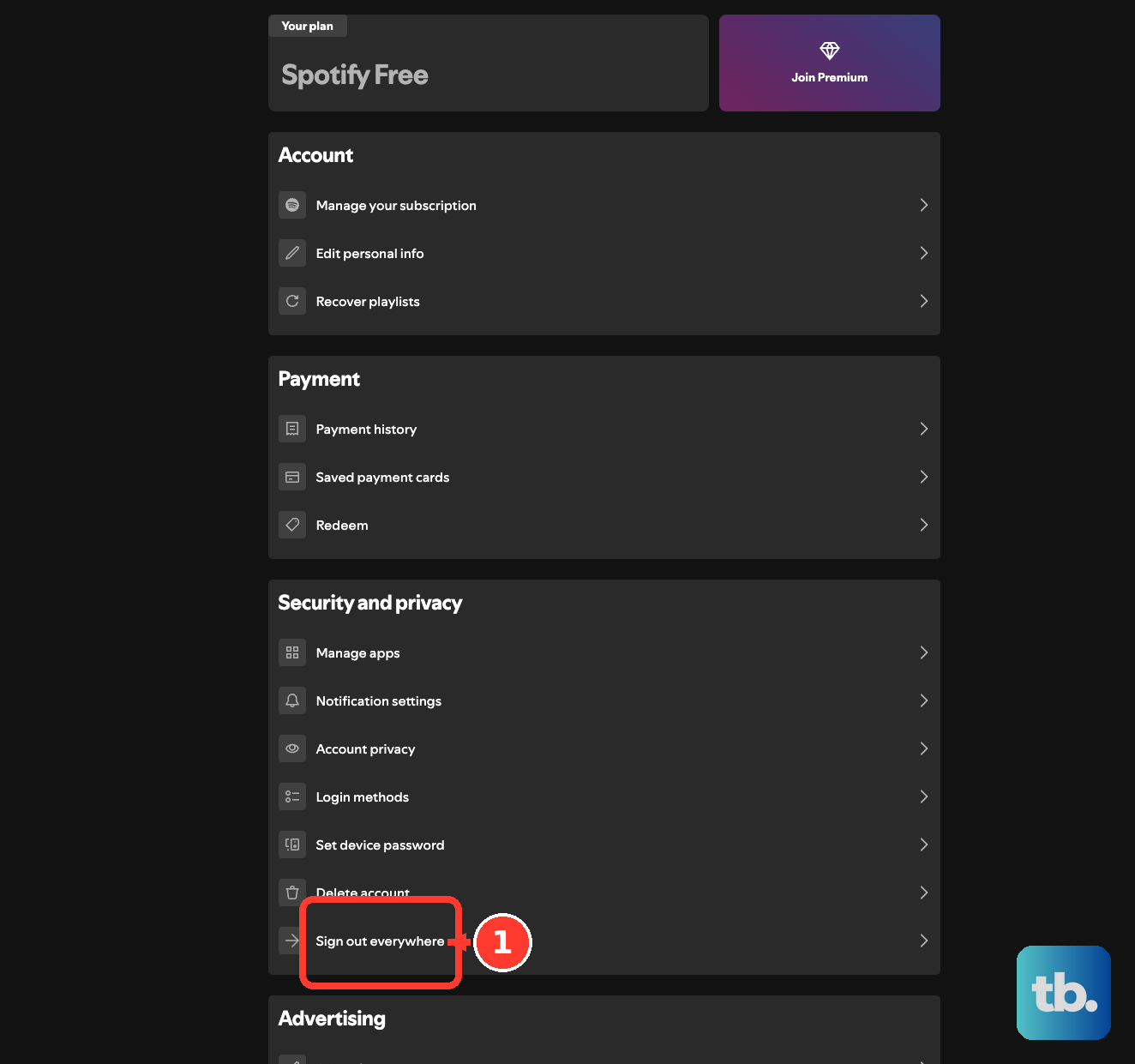
Confirm with Sign out everywhere. This signs out Spotify apps and browser sessions. Partner devices, including speakers, consoles, and TVs, are excluded.
For those devices, open your account’s Apps page. Select Remove Access beside the relevant integration. The same control revokes access for connected listening-statistics services.
Revoking access does not itself delete history already copied by another service, and signing out devices does not erase past listening.
Check what Recents actually shows
On mobile or tablet, open Home. Tap your profile avatar, then select Recents; use its content filters to narrow the display. On desktop, open Play Queue at the bottom of the app, then select Recents to view the last 50 songs.
These are viewing controls, with no supported command for deleting individual plays. The old desktop Remove from Recently Played command is no longer available.
Clearing the cache or reinstalling Spotify does not reset your account’s listening history. Making a playlist private or removing it from your profile changes its visibility without removing the plays. Privacy and taste-profile controls do not replace the removed deletion command.
Request a copy or deletion of your listening data
Use Spotify’s account privacy options when you want to inspect the listening records it holds or request deletion of particular personal data. These options address account data beyond the recent listening shown in the app.
Sign in to your account’s Account Privacy page. Select Download your data to request your account data, which includes the previous year’s streaming history. Request extended streaming history for records covering your account’s lifetime. For a deletion request, email [email protected] and identify the listening data you want removed.
A privacy-rights request does not guarantee a reset of selected history entries. Your rights depend on your jurisdiction, and Spotify’s policy allows it to retain information for permitted operational or legal purposes.
Close your account only if you want to leave Spotify
Account closure starts the process of deleting the account and its data. Open Spotify’s account-closure support page.
Select Close your account and delete your data. Sign in to the account you want to close. Complete the account-specific closure process.
Closing the account also removes access to purchased audiobooks and future-event tickets. Canceling Premium alone does not close your account.
If you change your mind, use the reactivation link Spotify emails you within seven days. Deletion begins after that seven-day window.
Frequently Asked Questions
How do I remove a Spotify follower without blocking them?
On mobile or tablet, select your profile picture. Open View profile, then followers. Open the three-dot menu beside the person and select Remove follower. Follower removal is mobile-only, and the person can follow you again.
How do I stop Spotify from showing what I play on Discord?
In Discord, open User Settings. Select Connections, then your Spotify connection. Turn off Display Spotify as your status. To hide the connection on your profile too, turn off Display on Profile. These settings control Discord visibility without deleting Spotify history.
Does removing a playlist from my profile make it private?
No. A public playlist remains accessible outside your profile. To change its privacy, open your playlist’s three-dot menu and select Make private. Review direct sharing and collaborative access separately.