Your iPhone screen looks too dark, even with brightness turned up. Start with the slider, then check the settings that dim the display independently. You can also adjust dark colors, stop idle dimming, and brighten books or videos using their own controls.
Turn up the brightness slider
Open Control Center by swiping down from the top-right corner on an iPhone with Face ID, or up from the bottom edge on an iPhone with a Home button.
Drag the brightness slider upward.
For the Settings route, open Settings > Display & Brightness.
Drag the brightness slider to the right.
If the slider is already at maximum, check the dimming settings below.
If brightness keeps changing on its own
Auto-Brightness lowers screen brightness in darker surroundings, including after you've raised it manually.
To keep manual control, open Settings > Accessibility > Display & Text Size.
Turn off Auto-Brightness.
Raise the brightness slider again in Control Center. This stops adjustments based on surrounding light; temperature-related brightness limits still apply.
For automatic brightening outdoors, turn Auto-Brightness on instead. The ambient-light sensor raises brightness in brighter surroundings.
If automatic brightness isn't adapting correctly, turn Auto-Brightness off.
Turn Auto-Brightness back on.
Remove accessibility settings that dim the screen
Check here when the screen still looks dark at full brightness. Reduce White Point reduces bright-color intensity, while Zoom's Low Light filter dims the view.
Open Settings > Accessibility > Display & Text Size.
Turn off Reduce White Point if it's enabled to remove that reduction.
For Zoom dimming, open Settings > Accessibility > Zoom > Zoom Filter.
Select None to remove the filter while keeping Zoom available.
Alternatively, open Settings > Accessibility > Zoom.
Turn off Zoom if you don't need magnification.
Check the battery-saving modes
Low Power Mode reduces display brightness. Turning it off removes that reduction.
On iPhone 15 and later, open Settings > Battery > Power Mode. On iPhone 14 and earlier, open Settings > Battery instead.
Turn off Low Power Mode. It also turns off automatically when you charge the iPhone to 80% or higher.
Adaptive Power also makes brightness adjustments. Apple lists support on iPhone 15 Pro and Pro Max; iPhone 16, 16 Plus, 16 Pro, 16 Pro Max, and 16e; iPhone 17, 17 Pro, and 17 Pro Max; and iPhone Air.
On those models, open Settings > Battery > Power Mode.
Turn off Adaptive Power. Switching off Adaptive Power Notifications alone doesn't stop its brightness adjustments.
If the screen stays dim after these changes, check for heat and let a hot iPhone cool using the advice below.
A hot iPhone needs time to cool
Temperature protection can dim the display or make it go black. Raising the brightness slider won't override that protection.
Move the iPhone out of direct sunlight and into a cooler environment.
If a temperature warning appears, turn the iPhone off and allow it to cool.
Make dark or warm colors look lighter
A dark interface or warm color balance is a separate issue from the brightness level. These settings change how the screen looks without unlocking a higher maximum brightness.
Open Settings > Display & Brightness.
Select Light for a lighter interface.
Turn off Automatic to prevent scheduled switches to Dark Mode.
If the screen looks too warm, open Settings > Display & Brightness > Night Shift.
Turn off Scheduled to prevent unwanted scheduled warmth.
To remove an active effect immediately, open Control Center.
Press and hold the brightness control.
Tap Night Shift to turn it off.
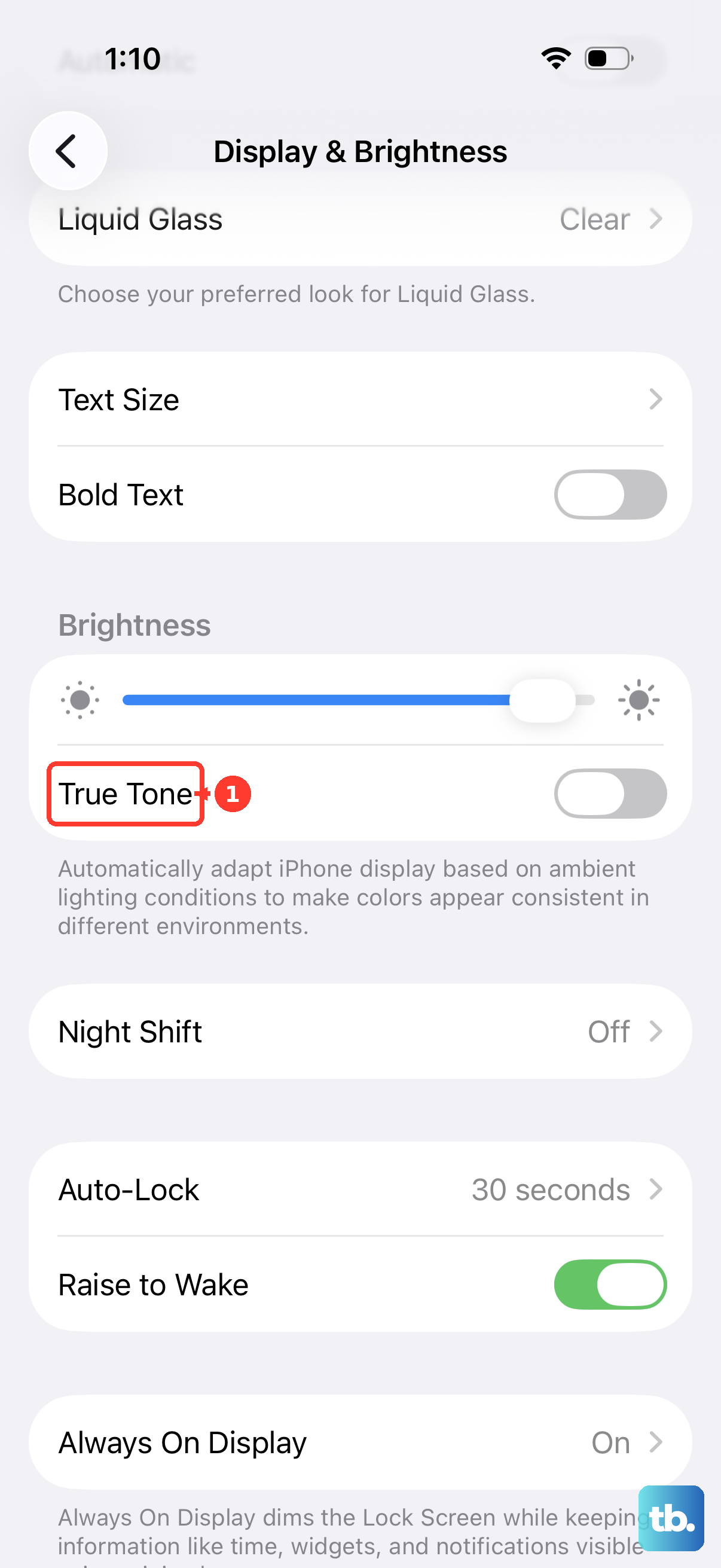
To compare the screen without True Tone, open Settings > Display & Brightness.
Turn off True Tone. Compare the result: disabling its adaptation doesn't guarantee a brighter screen.
For unwanted inverted colors or a tint, open Settings > Accessibility > Display & Text Size.
Turn off Smart Invert if enabled.
Turn off Classic Invert if enabled.
Open Color Filters.
Turn off Color Filters to remove an unwanted tint or grayscale effect. These changes restore normal colors; their effect on perceived brightness depends on the content.
If a book or video still looks dark, try its app's brightness control using the instructions below.
Keep the screen from dimming while you read
These settings delay idle dimming and locking.
Go to Settings > Display & Brightness > Auto-Lock.
Choose a longer available interval. This extends display-on time without raising brightness.
If Low Power Mode is limiting Auto-Lock to 30 seconds, open Settings > Battery > Power Mode on iPhone 15 and later, or Settings > Battery on earlier models.
Turn off Low Power Mode.
Return to Settings > Display & Brightness > Auto-Lock.
Choose your longer interval.
On an iPhone with Face ID, open Settings > Accessibility > Face ID & Attention. This feature doesn't apply to iPhone SE.
Turn on Attention Aware Features.
Look at the screen while reading to keep it from dimming.
When only a book or video looks dark
An app's own brightness setting explains dim content when that control is set too low.
In Books, open the book you want to read.
Tap the page if the reading controls are hidden.
Open Menu > Themes & Settings.
Drag the brightness bar toward the brighter end. The appearance control in that panel also changes the page background; reading controls differ for some fixed-layout documents.
In the Netflix app, tap the movie or TV show during playback to reveal its controls.
Slide the brightness indicator upward. Netflix's brightness control isn't available in web browsers or on TV displays.
Persistent dimness after a screen replacement
If brightness problems began after a screen replacement, check the display's service history. Apple identifies reduced maximum brightness and incorrect ambient-light behavior as possible problems with nongenuine displays.
On iPhone 11 and later, excluding iPhone SE, open Settings > General > About.
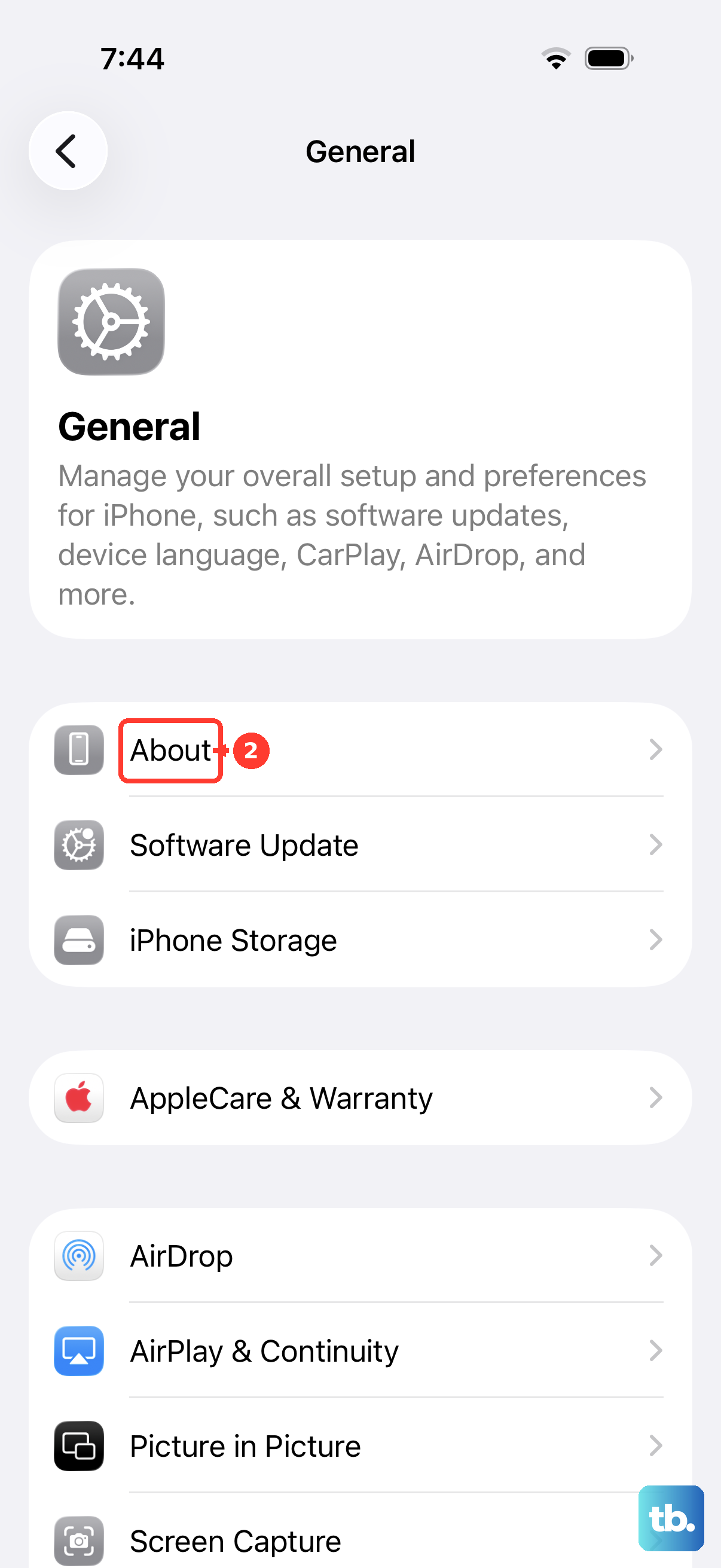
Check the Display entry under Parts and Service History when that section is present.
For persistent dimness after replacement, arrange a diagnosis through Apple or a repair provider using genuine Apple parts.
Frequently Asked Questions
Can I use a button shortcut to switch off Zoom dimming?
Yes. Open Settings > Accessibility > Accessibility Shortcut. Select Zoom. When Zoom's dimming filter is active, triple-click the side button on a Face ID iPhone or the Home button on other models to switch Zoom off. If you've selected multiple accessibility features, tap Zoom in the shortcut menu.
Why is only my Lock Screen dim?
An Always-On Lock Screen uses a dim idle presentation. On a Face ID iPhone, swipe up from the Lock Screen and authenticate to return to the active display. On a Touch ID model, press the Home button with a registered finger. If an active Focus is configured to darken the Lock Screen, open Control Center > Focus. Tap the active Focus to turn it off.
Why is the screen black while VoiceOver still works?
With Screen Curtain enabled, VoiceOver works while the display stays black. Wake the iPhone. Triple-tap with three fingers to switch Screen Curtain off, or quadruple-tap with three fingers if both VoiceOver and Zoom are enabled.
How do I change brightness while Assistive Access is active?
Triple-click the side button on a Face ID iPhone or the Home button on other models. Open Settings. Enter the Assistive Access passcode. Open Appearance. Adjust the screen brightness.