Opening a browser and typing the address every time you want Facebook adds up over a day. A desktop shortcut puts the site one click away, and Windows gives you several ways to make one depending on whether you want a plain link, an app-style window, or an icon pinned to the taskbar.
The six methods below all work on Windows 11 and Windows 10. Some create a simple shortcut that opens your default browser, while the browser-based options open Facebook in its own clean window without tabs or an address bar. Pick the one that matches how you like to work.
Which Method to Use
Each approach lands the shortcut in a different place and behaves a little differently. Plain shortcuts open your default browser, while installing Facebook as an app gives you a separate window and desktop notifications.
Use the table to choose, then jump to that section for the steps.
| Method | Where it lands | What you need |
|---|---|---|
| New Shortcut wizard | Desktop | Any Windows version |
| Drag from address bar | Desktop | Any browser |
| Chrome Install as app | Desktop, Start, taskbar | Google Chrome |
| Edge Install this site as an app | Desktop, Start, taskbar | Microsoft Edge |
| Pin to Start | Start menu | An existing shortcut |
| Change the icon | Applies to a desktop shortcut | A Facebook .ico file |
Create a Shortcut With the New Shortcut Wizard
This is the most reliable method because it does not depend on any browser. Windows builds a link that opens Facebook in whatever browser you have set as the default.
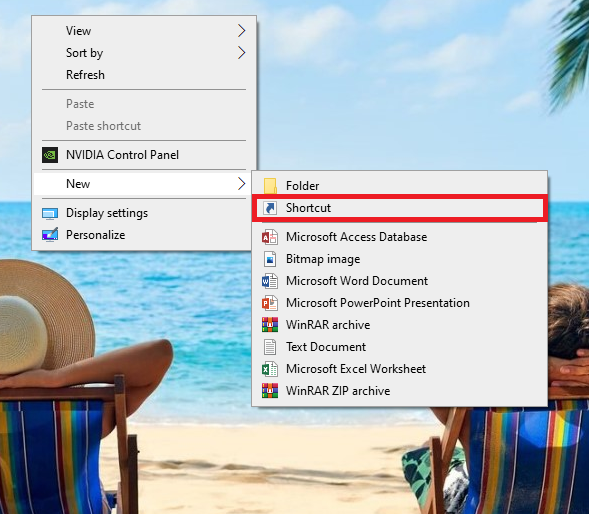
- 1.Right-click an empty area of your desktop.
- 2.Hover over New, then click Shortcut.
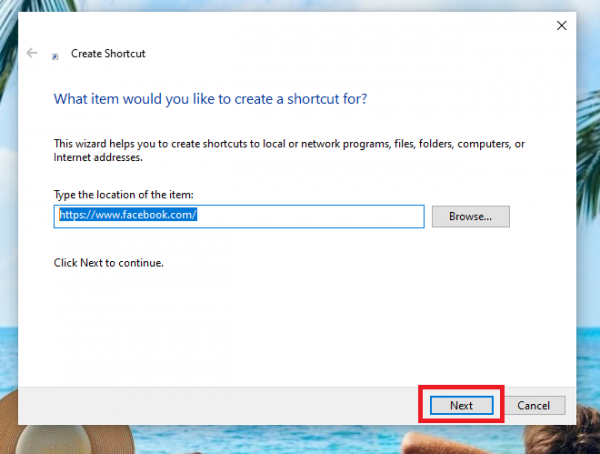
- 1.In the location field, type https://www.facebook.com/
- 2.Click Next.
- 1.Type Facebook as the name, or any label you prefer.
- 2.Click Finish.
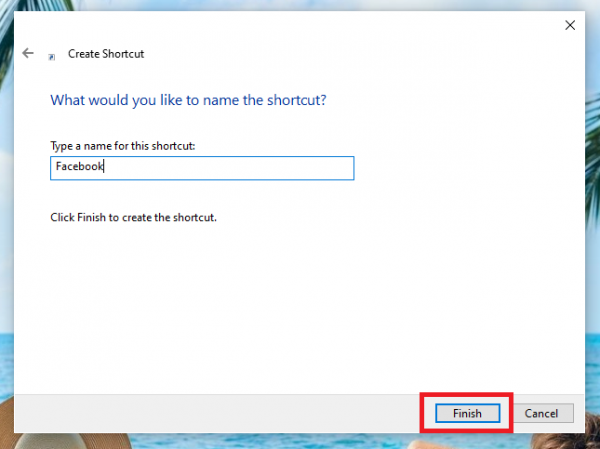
The shortcut appears on your desktop with your default browser's icon. One click opens Facebook in that browser. If you want the Facebook logo instead, see the section on changing the icon below.
Drag the Address Bar Icon to the Desktop
If Facebook is already open, you can pull a shortcut straight from the address bar. The result usually keeps the Facebook favicon, so you skip the icon step.
- 1.Open Facebook in your browser and sign in.
- 2.Resize the browser window so you can see part of the desktop behind it.
- 3.Click and hold the small site icon at the left edge of the address bar.
- 4.Drag it onto the desktop and release.
This creates a shortcut to the exact page you were viewing. The behavior can be inconsistent in Windows 11, so if nothing drops, make the window smaller first and aim for empty desktop space rather than the taskbar.
Install Facebook as an App in Chrome
Google Chrome can turn Facebook into a standalone app that runs in its own window, separate from your other tabs. This is the closest thing to a native desktop app and supports desktop notifications.
- 1.Open Facebook in Chrome and sign in.
- 2.Click the three-dot menu in the top right corner.
- 3.Choose Cast, save, and share, then Install page as app.
- 4.Edit the name if you like, then click Install.
Chrome adds the app to your desktop and Start menu and opens it in a clean window. If you only want a basic link that opens in a normal tab, choose Cast, save, and share then Create shortcut instead. The submenu wording varies by Chrome version, and older builds keep these options under More tools.
Install Facebook as an App in Microsoft Edge
Edge ships with Windows 11 and Windows 10, so this method needs no extra download. Like Chrome, it opens Facebook in its own app window and can pin straight to the taskbar.
- 1.Open Facebook in Edge and sign in.
- 2.Click the Settings and more menu (the three dots) in the top right corner.
- 3.Choose Apps, then Install this site as an app. On some Edge versions, Apps sits under More tools first.
- 4.Name it Facebook and click Install.
After it installs, Edge offers options to Pin to taskbar, Pin to Start, and Create Desktop shortcut. Tick the ones you want and confirm. To remove the app later, open edge://apps, select Details on the Facebook card, and choose Uninstall.
Pin the Shortcut to the Start Menu
Once you have a desktop shortcut from any of the methods above, you can pin it to the Start menu so it sits with your other pinned apps.
- 1.Right-click your Facebook desktop shortcut.
- 2.Click Pin to Start.
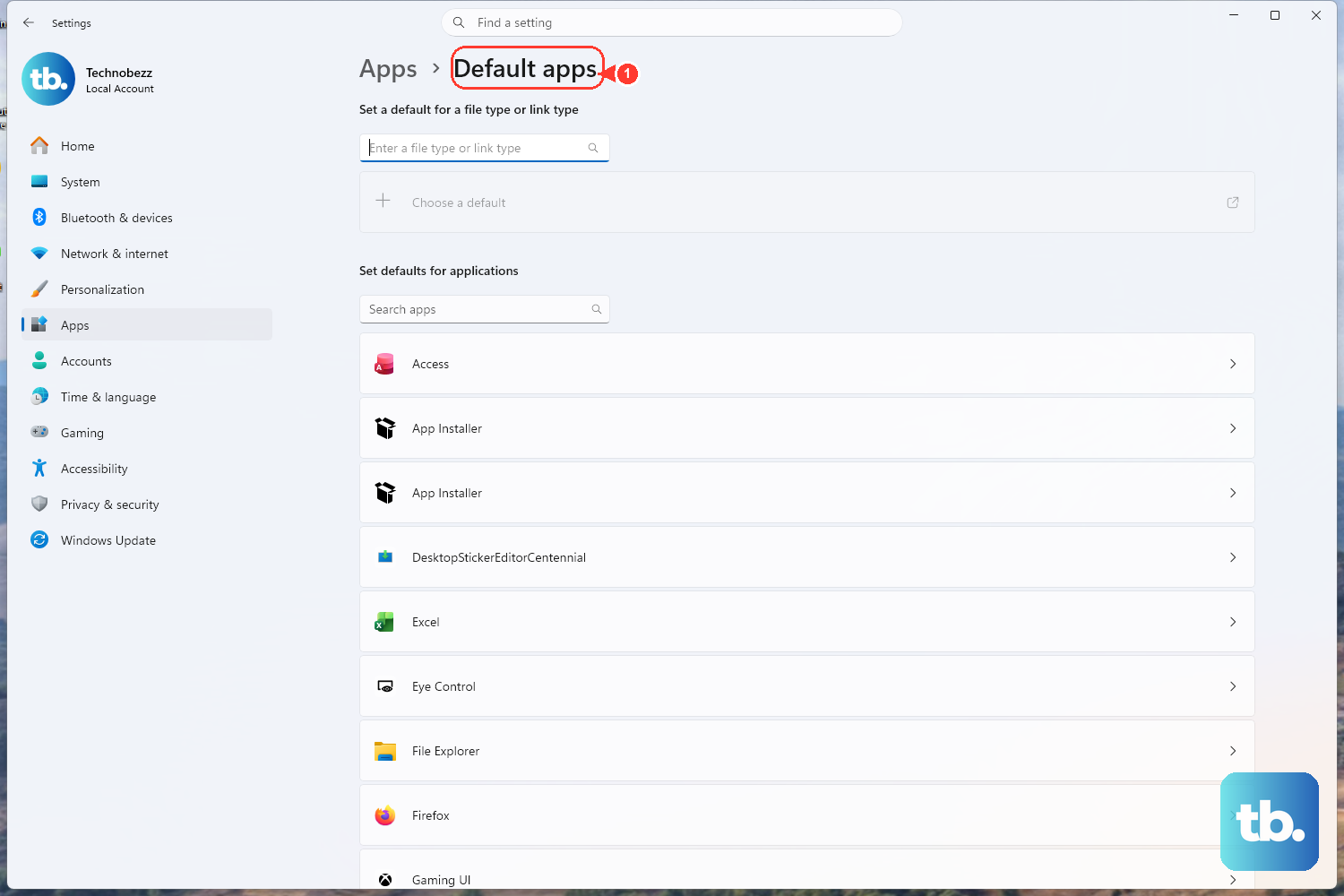
If Pin to Start is missing from the menu, move the shortcut into the Start menu programs folder first. Press Windows + R, paste the path below, press Enter, then drag the shortcut into that folder. Open Start, click All apps, find Facebook, right-click it, and choose Pin to Start.
%AppData%\Microsoft\Windows\Start Menu\Programs
Change the Shortcut to the Facebook Icon
A shortcut made with the New Shortcut wizard shows your browser's icon by default. You can swap it for the Facebook logo, but Windows needs the icon in .ico format.
First, download a Facebook icon in ICO format from a reputable icon site. Save the file somewhere you will remember, like your Pictures folder.
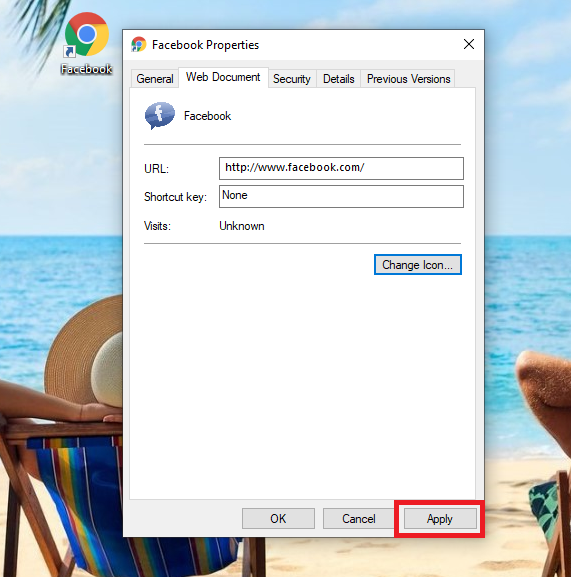
- 1.Right-click your Facebook shortcut and choose Properties.
- 2.Open the Web Document tab, then click Change Icon.
- 3.Click Browse, select your downloaded .ico file, and click Open.
- 4.Click OK, then Apply, then OK.
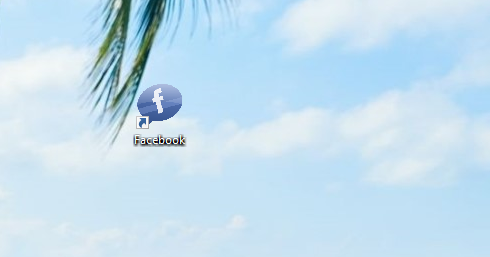
The shortcut now shows the Facebook logo, which is easier to spot on a crowded desktop. App-style shortcuts from Chrome or Edge already use the Facebook icon, so they do not need this step.
Frequently Asked Questions
How do I add a Facebook shortcut to the taskbar instead of the desktop?
The simplest route is the Edge app install. After choosing Install this site as an app, tick Pin to taskbar in the dialog that appears. You can also right-click an open app window and choose Pin to taskbar.
Can I create a shortcut for a specific Facebook page or group?
Yes. Open that page first, then use the drag-from-address-bar method or the New Shortcut wizard with the page's full URL. The shortcut will open to that exact page rather than the main feed.
How do I make a Messenger shortcut on the desktop?
Open messenger.com in Chrome or Edge, then follow the same install-as-app steps. Both browsers can install Messenger as its own windowed app, separate from the main Facebook shortcut.
My shortcut shows a blank or wrong icon. How do I fix it?
Windows only accepts .ico files for shortcut icons. A PNG or JPG will not display, so download a Facebook icon in ICO format, then set it through Properties and Change Icon. Refreshing the desktop afterward can clear a stuck icon.
How do I remove a Facebook shortcut or app?
For a plain desktop shortcut, right-click it and choose Delete. For an app installed through Edge, open edge://apps, click Details on the Facebook card, and choose Uninstall. In Chrome, open chrome://apps, right-click Facebook, and choose Remove from Chrome.
Will deleting the shortcut log me out of Facebook?
No. A shortcut is just a link, so deleting it does not touch your account or sign you out. Your Facebook session stays in the browser, and you can make a new shortcut any time.
First published October 15, 2025. Last updated June 4, 2026.