High ping makes online games respond late, especially when the connection is fighting Wi-Fi noise, background downloads, VPN routing, or the wrong game region.
The fastest fixes start close to home: Ethernet, stronger Wi-Fi, fewer background downloads, and router settings that give games priority.
Work through the quick wins first, then use the deeper Windows and router resets only when the lag keeps coming back.
1. Start with Ethernet before anything else
On PC, plug an Ethernet cable from the computer to the router or gateway.
On PS5, go to Settings > Network > Settings > Set Up Internet Connection > Set Up Wired LAN > Connect.
On PS4, go to Settings > Network > Set Up Internet Connection > Use a LAN Cable > Easy.
On Xbox, connect a LAN cable to the console and router, then test it from Profile & system > Settings > General > Network settings > Test network connection.
On Nintendo Switch OLED or Switch 2, connect Ethernet to the dock LAN port, then go to System Settings > Internet > Internet Settings > Wired Connection.
For an original Switch or Switch Lite, use a compatible licensed USB LAN adapter.
If Ethernet is not possible, move the router into the open, keep it close to your gaming device, and clear metal or electronic objects from the path.
2. Switch to the faster Wi-Fi band
Use 5 GHz or 6 GHz instead of 2.4 GHz when your device supports it and the signal is strong.
On Windows, select the Network, Sound, or Battery icons on the taskbar and choose the 5 GHz or 6 GHz network.
On Nintendo Switch or Switch 2, use System Settings > Internet > Internet Settings and select the 5 GHz network.
If the router uses one shared network name, split or name the bands separately in the router app or admin page.
On eero, use Settings > Advanced networking > Client steering and turn on Client Steering, which favors the faster band and the nearest eero but, in eero's own words, does not guarantee that a device will choose 5 GHz or 6 GHz.
3. Cut off background traffic before you queue
This fixes ping spikes caused by downloads, streams, cloud backups, and other devices sharing the same connection.
Pause large downloads, console updates, HD or 4K streaming, torrents, cloud backups, and other heavy activity before starting an online match.
Next, pause OneDrive by right-clicking or CTRL-clicking the OneDrive cloud icon, then choose Pause syncing and select 2 hours, 8 hours, or 24 hours.
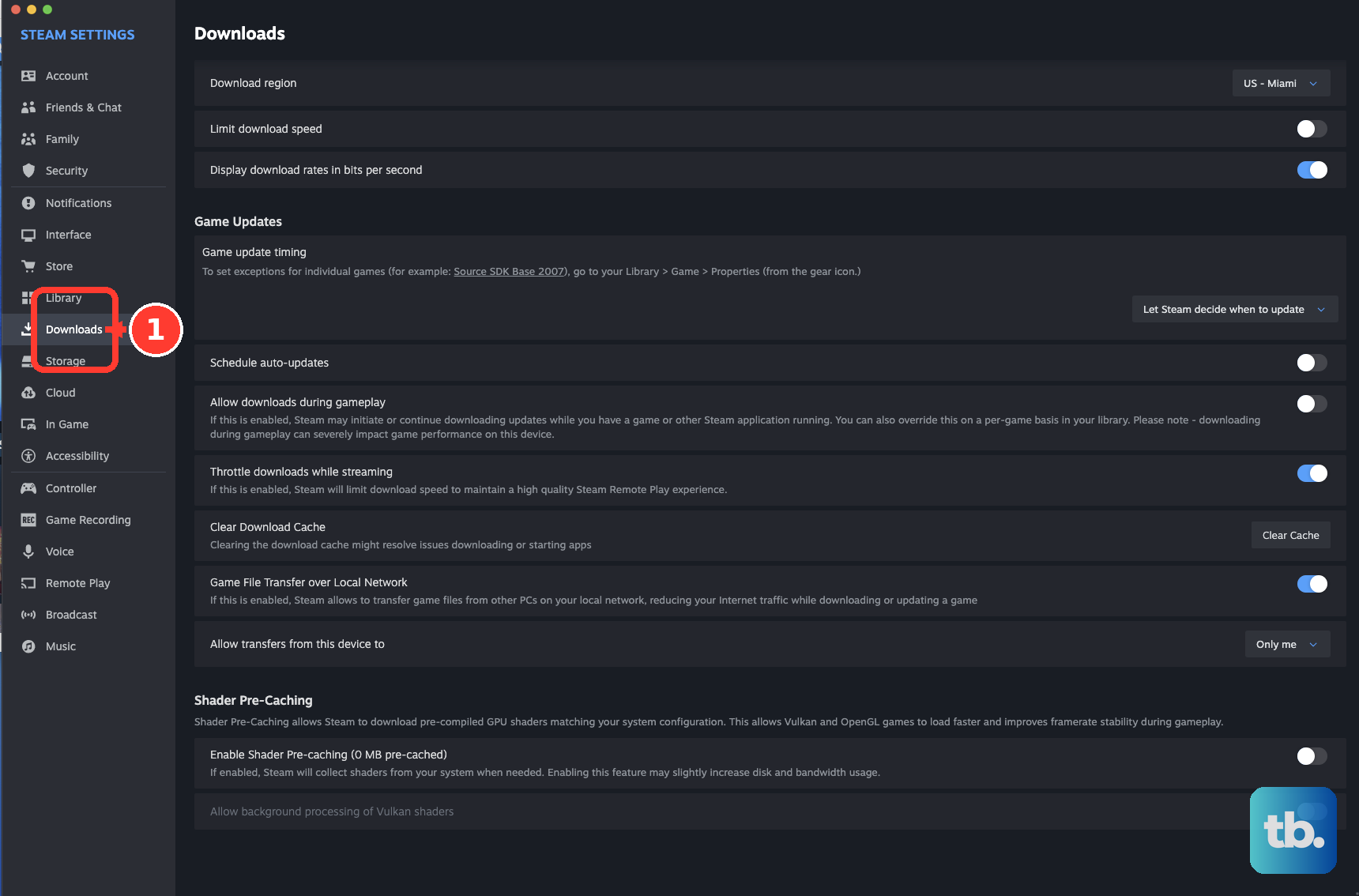
In Steam, go to Steam > Settings > Downloads, enable Limit Download Speed, and set a limit.
In Epic Games Launcher, open Download Manager > Download Settings > Download Speed, keep Limit download speeds on, and set a value that does not saturate the connection.
Finally, open Task Manager with Ctrl + Shift + Esc, check the Network column, and choose End task for nonessential apps you recognize.
4. Stop Windows from adding network load
For Wi-Fi, go to Settings > Network & internet > Wi-Fi > your connected network > Metered connection and turn it on.
For Ethernet, go to Settings > Network & internet > Ethernet > your connected network > Metered connection and turn it on.
Restrict background activity from Settings > Apps > Installed apps > the app's More options > Advanced options > Background app permissions > Never.
Then disable startup downloaders and sync tools from Settings > Apps > Startup, then switch each nonessential app to Off.
5. Disconnect VPN routing before playing
Turn off the VPN before gaming or cloud gaming.
On Windows, use the VPN app's disconnect control or go to Settings > Network & internet > VPN > your VPN > Disconnect.
On macOS, use Apple menu > System Settings > VPN and disconnect it.
On Android, use Settings > Network & internet > VPN and turn it off.
In GeForce NOW, set Settings > Server Location to Auto after the VPN is off.
6. Restart and update the router
- 1.Unplug router power.
- 2.Unplug modem power and remove the backup battery when the lights stay on.
- 3.Wait at least 30 seconds.
- 4.Reconnect the modem and wait for the lights to stabilize.
- 5.Reconnect the router, wait a few minutes, then reconnect your gaming device.
- 6.Open the router admin page or companion app, go to its Firmware or Software Update area, and install the latest firmware from the router vendor.
For a combined modem and router, restart the single gateway instead of looking for two separate devices.
7. Prioritize gaming traffic with QoS
Open the router admin page or companion app, find QoS or Quality of Service, turn it on, and prioritize the gaming device, gaming category, online gaming app, Ethernet port, or game ports.
On TP-Link routers with HomeCare, open Advanced > QoS > Application Priority or Device Priority, since some models show only one of the two, set Total Bandwidth, then choose Gaming or turn on priority for the gaming device.
HomeShield models use TP-Link's separate HomeShield QoS article instead, and routers with neither feature use Advanced > QoS > Settings, where you enter the bandwidth from your ISP and add rules By Device or By Application.
In the TP-Link Tether HomeCare app, use My Device > HomeCare > QoS > Gaming or Custom > Save.
On TP-Link Deco, use Deco app > More > QoS and set the total bandwidth.
HomeShield Deco models then show Scene Acceleration and Client Acceleration; HomeCare Deco models instead let you pick the priority devices and a High Priority Mode.
On the WiFi 5 Nighthawk models NETGEAR lists for this flow, meaning R6700, R6700v2, R6900, R7000, R7500, and R7500v2, use ADVANCED > Setup > QoS Setup > Upstream QoS > Setup QoS rule > Add Priority Rule, then choose Applications or Online Gaming and set Priority to High or Highest.
On any other Nighthawk, open the QoS section of your own model's interface or manual.
On NETGEAR Nighthawk Pro Gaming routers with DumaOS, use Dashboard > QoS > Congestion Control, choose Always or Auto-Enable, and set the Download and Upload sliders to 70 percent for gaming.
On ASUS ROG Gaming Series routers, these are two separate levels.
For gaming device and port prioritization, plug the gaming device into the router's labeled gaming port.
For game packet prioritization, enable Game Boost, which is the ASUS adaptive QoS layer on top of it.
On supported eero networks, use eero App > Settings > Advanced networking > SQM, then turn the toggle blue.
On Xbox, use Settings > General > Network settings > Advanced settings > QoS tagging settings and enable the applicable QoS tagging options shown by the console.
8. Pick the closest game server and verify it
This fixes avoidable latency when a game or cloud service connects to the wrong region.
In Apex Legends, open the game, do not select Continue, choose Data Center in the bottom-left, then select the closest data center with the best ping and packet loss.
In GeForce NOW, open the top-left menu, go to Settings > Server Location, then use Auto or choose a specific server location for testing.
Turn on Apex Legends ping display from Settings > Gameplay > Performance Display.
In EA SPORTS FC, use Customise > Settings > Game Settings > Visual > Connection Monitoring, then choose Ping only, Connection indicators only, Ping and connection indicators, or Off.
Use the EA Connection Quality Report web tool to review your Connection Score, ping, packet loss, jitter, ISP comparison, and recommendations.
It is not a real-time speed test: EA builds the score from online matches you played in the past 7 days and refreshes it within about five minutes of each new match ending, so play a few matches after a change before comparing.
For GeForce NOW, run the network test from Settings > Server Location > Auto > TEST NETWORK in the PC, macOS, or Android app.
NVIDIA has no network tester on iOS or iPadOS, so test from one of those three apps instead.
After a session, open Session report from the help icon in the top right, which is available on Windows PC, macOS, and the browser version.
9. Save resets and advanced tweaks for last
On Windows, check updates from Start > Settings > Windows Update > Check for updates.
Reinstall the network adapter driver from Search > Device Manager > Network adapters > your adapter > Uninstall device, check Attempt to remove the driver for this device, choose Uninstall, then restart from Start > Power > Restart.
Disable Wi-Fi adapter power saving from Device Manager > Network adapters > your Wi-Fi adapter > Properties > Power Management, then uncheck Allow the computer to turn off this device to save power.
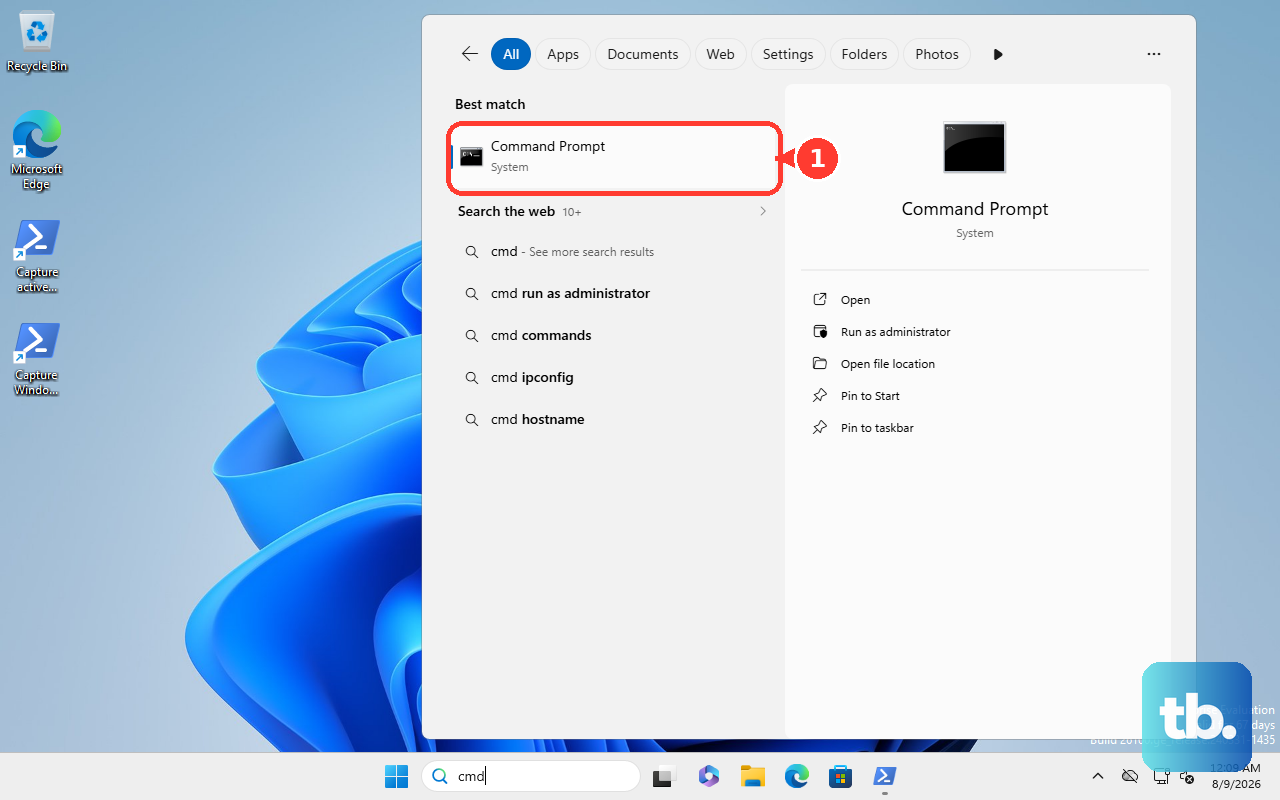
For Windows network repair, open Command Prompt as administrator, choose Yes, then run netsh winsock reset, netsh int ip reset, ipconfig /release, ipconfig /renew, and ipconfig /flushdns in that order.
Use Windows Network reset only as a last resort from Settings > Network & internet > Advanced network settings > Network reset > Reset now > Yes.
Leave DNS changes, random MTU values, Proxy tweaks, and gaming VPN advice alone unless your ISP, platform, or game support directs that specific change.
On Nintendo Switch or Switch 2, keep Proxy Settings off for most home networks and keep MTU at the default 1400 unless support gives you the exact value.
If a managed Windows PC has Metered connection greyed out, contact the device administrator because the setting is controlled by policy.
Frequently Asked Questions
Is Ethernet better than Wi-Fi for lowering ping?
Yes. Use Ethernet on PC, PlayStation, Xbox, and Nintendo docks when available. For the original Switch or Switch Lite, use a compatible licensed USB LAN adapter.
Should I forward ports to lower ping?
Use UPnP or port forwarding for NAT, matchmaking, or firewall problems, not as a general ping-lowering fix. Add manual rules only for the game or service ports your platform support provides.
Can changing DNS lower ping?
DNS handles name resolution; the verified vendor steps do not treat it as a universal ping fix. Keep DNS automatic unless you are fixing name resolution or following support instructions.
What connection should I use for Xbox Cloud Gaming on a TV or Fire TV Stick?
Use Ethernet where the device supports it. If you stay wireless, connect to 5 GHz Wi-Fi.