Getting into your Evolution Digital router’s settings starts with finding the login method for your model and internet provider. The EVO5000AP supplied through TOAST.net or BexFiber uses a browser login, while supported Plume installations use an account linked to your network. Match your equipment to the steps below to sign in and reach its controls.
Check your model before choosing a login
Evolution Digital routers do not share a universal login address or password. Start here to choose the route for your equipment.
Read the model number on your router’s label. For an EVO5000AP supplied through TOAST.net or BexFiber, use the browser steps below.
For Blue Stream Fiber’s Plume-managed Total Home WiFi service, including its announced Evolution EVO6700AP deployment, use Plume Home with the email address you gave the technician. Summit Broadband also supports Plume Home management for its Evolution routers and extenders. For other models or providers, get the login instructions from the internet provider that supplied your router.
Open the EVO5000AP browser login
Follow these steps for an EVO5000AP supplied through TOAST.net or BexFiber.
- 1.Power on the router.
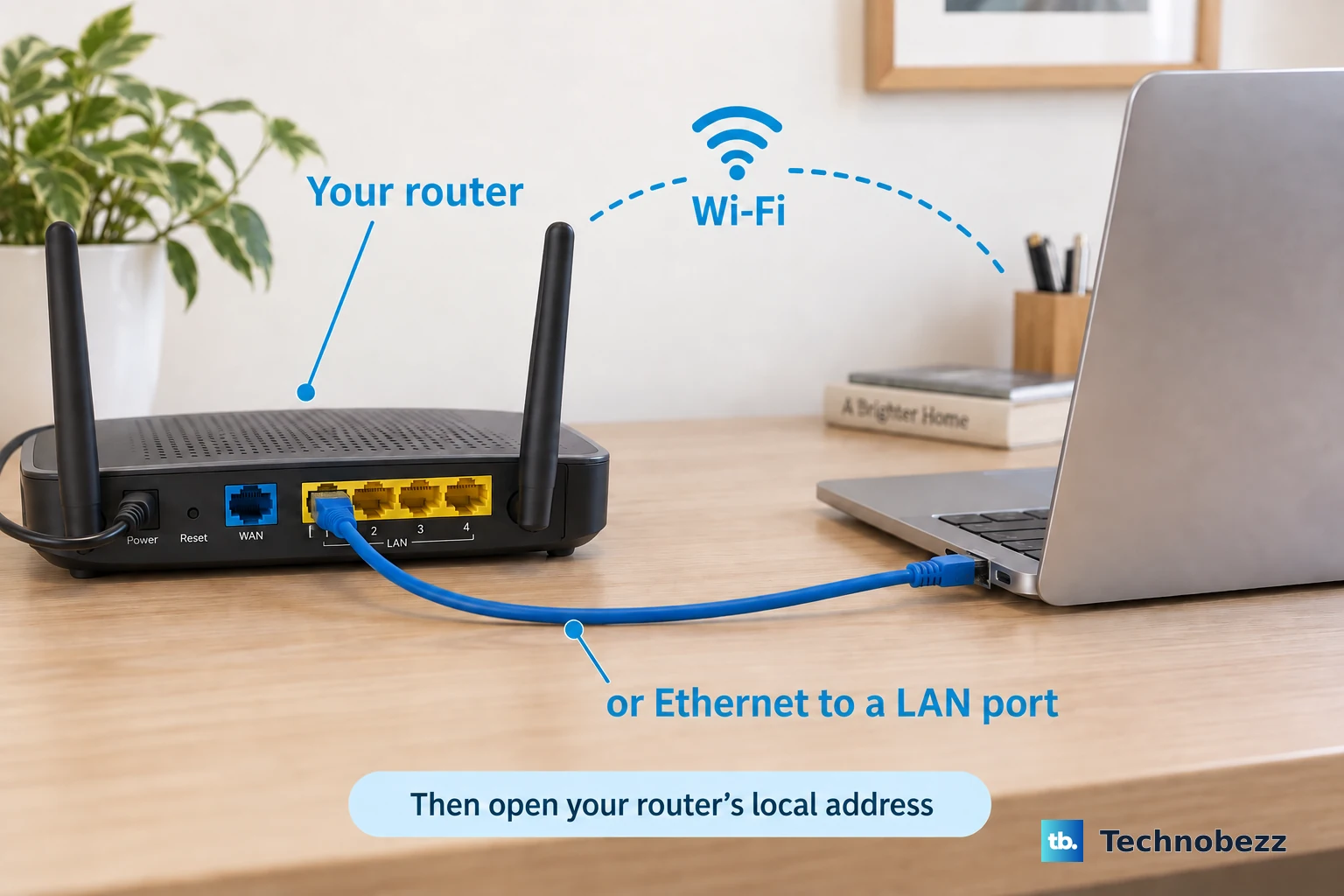
- 2.Connect your computer or phone to the router’s Wi-Fi, or connect a computer by Ethernet.
- 3.Enter 192.168.1.1 in your browser’s address bar.
- 4.Enter admin as the username and password as the password. If those defaults fail, enter the values labeled Username and Password on the router sticker.
- 5.Submit the credentials to sign in, then select Wireless to open wireless settings.
Sign into Blue Stream’s Plume Home account
For Blue Stream Fiber’s Plume-managed Total Home WiFi service, download the Plume Home app using your device’s app store. The technician creates your account and associates your equipment with your email address.
Open Plume Home. Enter the email address you supplied to the technician. Select next. Then select open email app.
Complete verification through the email to sign in. During initial installation, let the technician complete the network-connection step. Use the provider-created account associated with your installed network.
Use password sign-in when your provider enables it
Plume Home supports email-and-password authentication on accounts whose provider enables it. You need the credentials for the cloud account associated with your network.
Complete your provider’s emailed password-setup process if you have not already set an account password. Open Plume Home. Select Sign In. Choose Sign in with password.
Enter your account email address. Then enter your account password to sign in. If your account does not offer password authentication, follow your provider’s sign-in instructions.
Get help with a missing invitation or network
Your provider handles missing invitations and equipment that has not been linked to your account. Contact the internet provider that supplied your equipment when the invitation never arrives or your router is missing from the app. For a Wellcom-supplied EVO6700AP, call 281-747-5754.
Give Wellcom support the 12-digit MAC address printed on the underside of the device. Ask support to confirm that your EVO6700AP devices have been added to its cloud management interface. Once your equipment is registered, sign into the provider-associated app account.
Find your settings after signing in
In Summit Broadband’s Plume Home deployments, open Settings and tap the Network tile. The Networking mode setting includes Auto and Router only. Changing the operating mode is not required to sign in.
Router-specific controls are unavailable or grayed out when Plume operates in bridge mode because the upstream router handles those functions. Missing controls in that situation do not mean your login failed.
Blue Stream’s Plume-managed Total Home WiFi service supports monitoring and controlling your network at home and while away. Sign into the associated Plume Home account for remote access; Blue Stream’s instructions require no separate remote-access toggle.
Older Wellcom instructions name HomePass. Summit says that app has reached end of support and receives no further maintenance, updates, or bug fixes. Move to Plume Home using your provider’s account instructions.
Frequently Asked Questions
Is Plume’s website a router login portal?
No. The official Plume Home product page describes the companion app; it is not a router login portal. Download the app from your device’s app store, following your internet provider’s instructions.
Does the EVO6700AP have a browser interface?
Summit’s EVO6700AP specification lists WEB/UI support, but it supplies no browser address, credentials, or consumer browser-login procedure. That listing alone does not establish a browser login you can use.
What are the default logins for the EVO8000AP, EVO7000AP, EVO6022AP, and EVO6022GP?
Evolution lists all four in its current catalog as Plume-certified devices and publishes no login address or credentials for them. Get the access instructions from your provider; the EVO5000AP’s address and credentials do not establish defaults for them.
Does HomePass reaching end of support mean I need a new router?
No. The end-of-support notice applies to the older HomePass app, not the Evolution router hardware or Plume Home service.