Your TP-Link login page fails when the device is on the wrong network, the local address does not resolve, or the admin password is wrong. Start with the standard browser login, then switch to the exact fix that matches your router, Deco system, or modem router. The steps below use TP-Link’s current support guidance verified in August 2026.
1. Open the Router Page on Your TP-Link Network
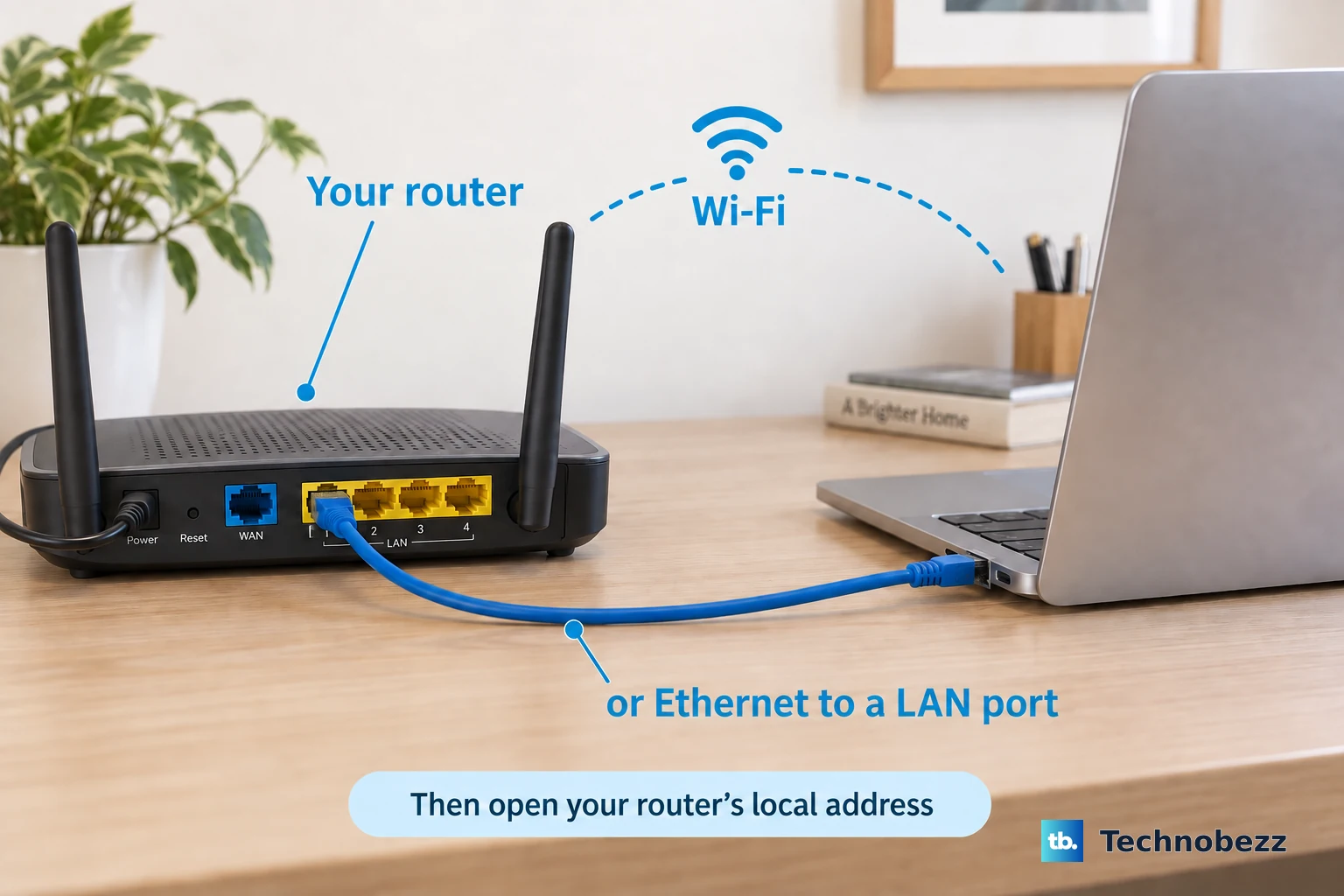
This fixes the standard TP-Link router login path for current Archer and Aginet routers. Connect your computer or phone to the TP-Link router by Ethernet or Wi-Fi, then open Chrome, Firefox, or Edge.
Type tplinkwifi.net in the browser address bar. When a privacy warning appears, choose Advanced, then choose Proceed to tplinkwifi.net unsafe.
Enter the local admin password. On first setup, create a secure admin password. Use the TP-Link ID toggle when the router has already been linked to a TP-Link ID.
2. Switch to the Router IP Address
Stay connected to the TP-Link router network and open Chrome, Firefox, or Edge. Enter 192.168.0.1 in the address bar, then try 192.168.1.1 when the first address does not load.
Find the current Default Gateway, Router, or Gateway address in your device network settings when both addresses fail. Enter that IP address in the browser.
Sign in with the router admin password or linked TP-Link ID credentials. Use the direct IP whenever tplinkwifi.net does not resolve or the router LAN IP was changed.
3. Read the Default Access Label
Turn the TP-Link device over. Look for Default Access, Default Settings, or Default Wireless Access on the back or bottom label.
Use the printed login URL, username, and password shown on that label. Check the included Quick Installation Guide when the label does not show the details clearly.
Connect to the device network, then open the printed URL in a browser. Use tplinklogin.net only when the device label or Quick Installation Guide lists it.
Try username admin and password admin only when the model shows username and password fields or the label lists those credentials.
4. Choose the Right Deco or Modem Login Page
This fixes login failures caused by using a regular router address on a different TP-Link product type. For a Deco mesh system, connect to the Deco network, then open tplinkdeco.net or 192.168.68.1.
TP-Link says not all Deco models support web management yet, so manage the system in the Deco app if that page never loads on your model. When the Deco IP was changed, open the Deco app.
Go to More, Advanced, then LAN IP. Sign in to Deco web management with the owner TP-Link ID password.
Switch to the owner account when a manager account fails. Manager accounts do not have Deco web management access.
For a TP-Link DSL modem router, connect by Ethernet or Wi-Fi. Open https://tplinkmodem.net or 192.168.1.1.
For a TP-Link 4G or 5G router, connect by Ethernet or Wi-Fi. Open tplinkmodem.net or 192.168.1.1.
For an ISP-customized 4G or 5G router, use http://tplinkmodem.net, http://192.168.1.1, or the specific address printed on the label.
5. Manage It Through Tether or Deco
Confirm your exact router model and hardware version appears on TP-Link’s Tether compatible products list. Connect your phone or tablet to the router’s main Wi-Fi network, then open the Tether app.
Select your TP-Link wireless router from the device list. Create a login password for first setup or enter the current device admin password.
For Deco, install the Deco app. Sign in with your TP-Link ID.
Tap Don’t have an account? in the Deco app when you need to create a TP-Link ID. Tap Forgot Password? when you forgot the TP-Link ID password.
Tether does not work from the Guest Network, so switch to the main Wi-Fi before opening the app.
6. Clear Browser and Network Blocks
This fixes browser cache, Secure DNS, VPN, proxy, firewall, and local network conflicts that block the TP-Link login page. Enter the direct IP in the browser address bar.
Use https://192.168.0.1/ for Archer, Aginet, and Mobile Wi-Fi devices. Use https://192.168.68.1/ for Deco. Use https://192.168.1.1/ for DSL, 4G, and 5G modem routers.
Use http://192.168.0.254/ for range extenders, access points, and powerline adapters, or the matching domain: tplinkrepeater.net for extenders, tplinkap.net for access points, and tplinkplc.net for powerline adapters.
On an extender or access point, also try 192.168.1.1 and 192.168.1.254, because TP-Link lists three possible defaults depending on the model. The label on the bottom of the device shows which one yours uses.
Clear the browser cache, cookies, and history when the browser says you are not connected to your TP-Link network or keeps opening the wrong page. Try a different browser or device.
Turn off Use Secure DNS in Chrome or Edge, or turn off DNS over HTTPS in Firefox. Restart the browser.
Disconnect VPN, proxy, and other active network connections except the Ethernet or Wi-Fi connection to the TP-Link device. Temporarily disable firewall or antivirus software.
Reload the login page, then turn protection back on after testing. Reboot the TP-Link router or modem, then restart your computer, phone, or tablet.
7. Recover the Password or Reset the Router
On supported routers where Password Recovery was already configured, open tplinkwifi.net. Select Forgot Password?, then follow the email verification or security question prompts.
For TP-Link ID recovery in the Deco app, log out first when you are currently signed in. On the Deco app login screen, tap Forgot Password?.
Enter the TP-Link ID email address, then tap SEND. Use the reset email to set a new password.
For TP-Link ID recovery on the web, open https://community.tp-link.com/en/forgetpw. Enter the registered email address, then click OK.
Open the reset email and click Click to Reset Password. Enter the new password, confirm it, then click Save.
When no router admin password is remembered and Password Recovery was not configured, keep the router powered on. Press and hold the hardware Reset button on the back or bottom for about 10 seconds.
Release it when the LEDs flash or the device power-cycles. Wait for reboot, then reconnect.
Open tplinkwifi.net or 192.168.0.1. Create a new admin password, then run setup again.
A factory reset erases internet, Wi-Fi, and admin settings, so use it after recovery options fail.
Frequently Asked Questions
Why does tplinkwifi.net show a privacy warning?
TP-Link says to open Advanced and proceed to the local TP-Link address. That opens the router management page on your own network.
Is the TP-Link router password the same as my Wi-Fi password?
No. The admin password for the web management page and the Tether app is separate from your Wi-Fi password. If the router is already linked to a TP-Link ID, you can toggle the sign-in screen over and use those account credentials instead, and Tether remote management always signs in with the TP-Link ID.
Can I manage my TP-Link router away from home?
Yes, on supported models. TP-Link recommends Tether with TP-Link ID remote management as the simpler and safer option than opening web remote management to the internet.
Why can I log in to the Deco app but not Deco web management?
Deco web management requires the owner TP-Link ID account. Manager accounts do not have access to the Deco web management page.