Trying to install Microsoft Edge Canary on Windows 10 can get messy fast if search results send you to random download sites. The clean path is Microsoft’s Edge Insider page, with winget as the command-line option if you already use Windows Package Manager.
Use Microsoft’s official download route, avoid outdated enterprise paths, fix a blocked setup, and remove Canary later without touching regular Microsoft Edge.
1. Check Your Windows 10 Version
Start with the supported Windows 10 range before downloading anything. Use Windows 10 SAC 1709 or later for Microsoft Edge support. Use Windows 10 version 1809 build 17763 or later if you plan to install with winget.
Expect Microsoft Edge updates on Windows 10 22H2 until at least October 2028. One more thing: Canary is the daily preview channel. It is for early builds, not Microsoft’s supported enterprise channel.
2. Download Canary From Microsoft
- 1.Go to https://explore.microsoft.com/en-us/edge/download/insider.
- 2.Under Insider channels, choose Canary Channel.
- 3.Select Download.
- 4.Open the downloaded Microsoft Edge Canary setup file.
- 5.If User Account Control appears, choose Yes.
- 6.Follow the installer until Microsoft Edge Canary opens.
This is the main install route for most people because it keeps you on Microsoft’s official Edge Insider path and avoids third-party download portals.
3. Reach Canary From the Edge Page
If you landed on Microsoft’s regular Edge download page first, Microsoft links the preview builds from there. Go to https://explore.microsoft.com/en-us/edge/download, then scroll to Download preview builds of Microsoft Edge. Select Download Insider Channels.
On the Insider page, choose Canary Channel. Next, select Download. Run the downloaded setup file.
4. Install With Winget
Open Command Prompt, PowerShell, or Windows Terminal. Run winget install --id Microsoft.Edge.Canary -e. Review any source or package prompts, and after that, choose the on-screen option to accept the prompts.
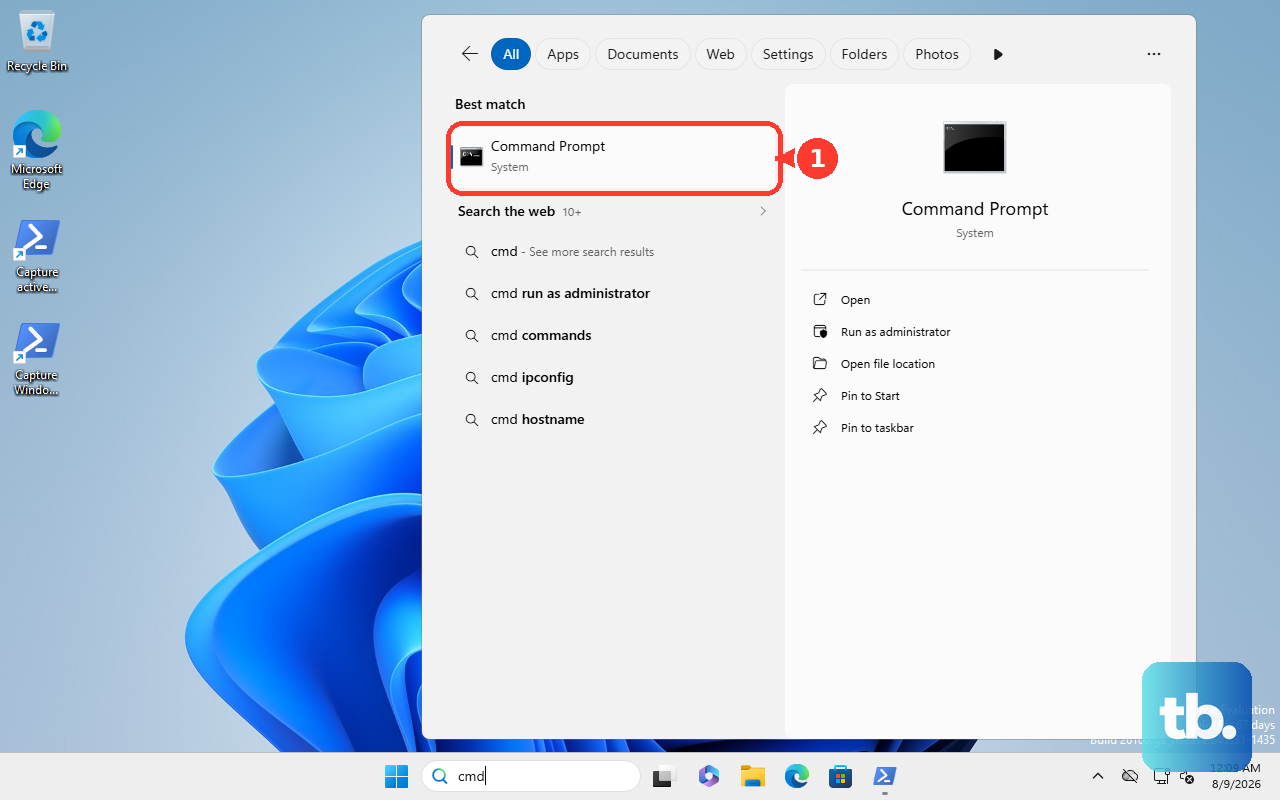
If User Account Control appears, allow elevation. Use this route when Windows Package Manager is already installed on your Windows 10 PC. The verified package ID is Microsoft.Edge.Canary.
5. Avoid Outdated Install Routes
Skip third-party software portals for this install; the current consumer route is Microsoft’s own Edge Insider page. Do not use a Microsoft Store route for Windows 10 Canary unless Microsoft shows it directly on your PC. A current Windows Microsoft Store listing for Microsoft Edge Canary is not documented.
Also skip old enterprise-style instructions that claim Canary installs through Microsoft Edge for Business, MSI downloads, or Configuration Manager’s built-in Edge Management flow. Microsoft’s Configuration Manager Edge Management path covers Beta, Dev, and Stable, and its dashboard excludes Canary Channel.
6. Fix a Blocked Install
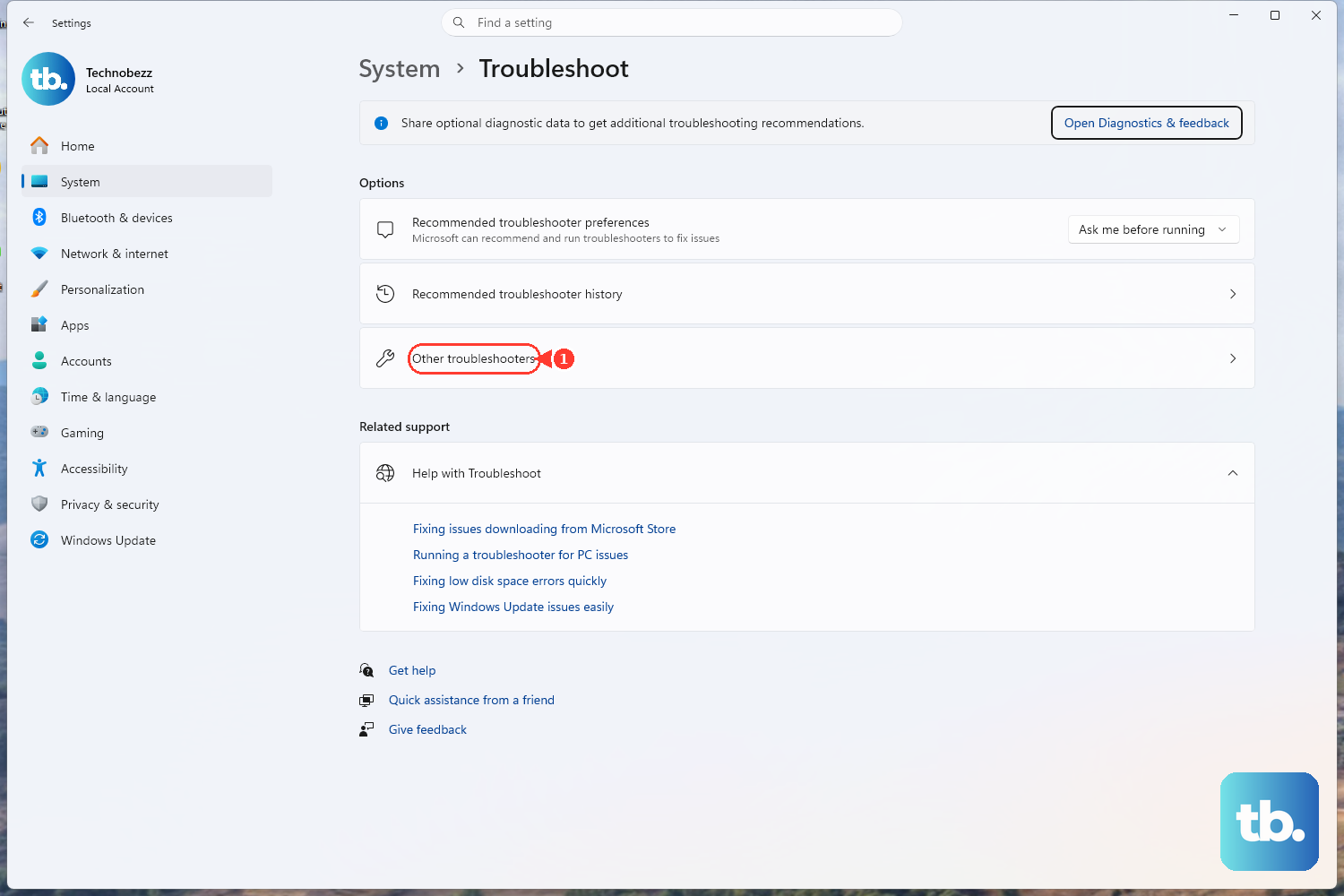
Open Microsoft’s Fix problems that block programs from being installed or removed page. Select Download troubleshooter. When prompted, choose Run or Open. Follow the troubleshooter steps for installing or uninstalling.
If the normal installer or uninstaller fails, use Microsoft’s Program Install and Uninstall troubleshooter. It is made for desktop programs blocked by corrupted registry keys or incomplete install and uninstall data.
7. Remove Edge Canary Later
Canary installs as its own app, so removing it does not remove regular Microsoft Edge. The Start menu is the fastest route. Select Start, then find Microsoft Edge Canary in the app list. Right-click Microsoft Edge Canary and select Uninstall.
Follow the on-screen instructions. You can also uninstall it from Windows 10 Settings by selecting Start, opening Settings, going to Apps, opening Apps & features, selecting Microsoft Edge Canary, choosing Uninstall, and following the prompts.
For Control Panel, use Control Panel > Programs > Programs and Features, right-click Microsoft Edge Canary, then choose Uninstall or Uninstall/Change. For winget, open Command Prompt, PowerShell, or Windows Terminal and run winget uninstall --id Microsoft.Edge.Canary -e.
Frequently Asked Questions
Is Microsoft Edge Canary supported for business deployment?
No. Microsoft lists Canary as a daily preview channel, not a supported enterprise channel. Configuration Manager’s built-in Edge Management path covers Beta, Dev, and Stable instead.
Do I need the Microsoft Store to install Edge Canary on Windows 10?
No. Use Microsoft’s Edge Insider download page or the winget package ID Microsoft.Edge.Canary. A current Windows Microsoft Store listing is not documented.
What Windows 10 version do I need for the winget method?
You need Windows 10 version 1809 build 17763 or later with App Installer or winget installed.
What should I do if Edge Canary will not uninstall?
Use Microsoft’s Program Install and Uninstall troubleshooter after the normal Start, Settings, Control Panel, or winget uninstall steps fail.