Ready to download games, but Steam isn’t set up on your PC yet? Start with Valve’s Windows installer, then sign in and install your first game. If Windows blocks setup, the app-permission steps below explain what to change.
Download and install Steam
Use a supported 64-bit Windows 10 or Windows 11 PC and sign into Windows with administrator access. Valve no longer supports Windows 7, 8, 8.1, or 32-bit Windows. If you’re using one of those systems, move to a supported 64-bit Windows version first.
Open Valve’s official Steam download page and select Install Steam. Open the downloaded SteamSetup.exe file.
Select Next >, choose your language, and select Next > again. At Choose Install Location, keep the Destination Folder or use Browse... to choose a dedicated Steam folder.
Select Install. Leave Run Steam selected and select Finish. Let Steam finish downloading its client updates before signing in.
Allow Steam through Windows app restrictions
A Windows setting that allows only Microsoft Store apps blocks Steam’s desktop installer.
On Windows 11 outside S mode, open Start > Settings > Apps > Advanced app settings.
Set Choose where to get apps to Anywhere.
On Windows 10 outside S mode, open Start > Settings > Apps > Apps & features.
Under Choose where to get apps, select the option allowing apps from anywhere. Depending on your Windows version, the label is Allow apps from anywhere or Turn off app recommendations.
For a PC in S mode, open Microsoft’s Switching out of S mode page. Switching is free and one-way.
Select Switch out of S Mode to open the Microsoft Store.
On the Switch out of S mode page, select Get.
After confirmation, run SteamSetup.exe again.
If a work or school PC restricts installation, ask its administrator to approve Steam. For a network that blocks Steam login or downloads, ask the network administrator to permit that traffic.
Create your account and sign in
Already have an account? Enter your Steam account name and password in the client’s sign-in form.
If email Steam Guard requests a code, enter the access code sent to your verified email address.
If you use mobile authentication, review and approve the sign-in notification in Steam Mobile.
Need a new account? Open Steam’s Create Your Account page. The minimum account age is 13, with additional age or parental-consent requirements in some countries.
Fill in Email Address, Confirm your Email Address, and Country of Residence.
Complete the displayed CAPTCHA.
Select the age and agreement checkbox.
Select Continue.
Verify your email address through the message Steam sends.
After verification, enter a Steam Account Name, fill in Choose Password and Confirm Password, and select Done.
Use those credentials to sign into the Windows client.
If mobile approval fails, try the code-entry alternative on the PC. In Steam Mobile’s authenticator page, select Show Steam Guard code and enter that code on the PC.
Install your first game
Once you’re signed in, choose a game your account owns or can access.
- 1.Add a game through a free-to-play download or a Steam Store purchase. For a Steam-compatible product key, open Games > Activate a Product on Steam... and complete the activation prompts. Skip this step if the game is already in your account.
- 2.Select Library in the Steam client.
- 3.Double-click the game title to begin installation.
- 4.Complete the installation prompts and let the download finish.
Protect sign-ins with Steam Guard
Email Steam Guard adds an access-code check when you authorize a new PC.
Verify your account’s email address before enabling email Steam Guard.
Open Steam > Settings > Security > Manage Steam Guard.
Select Get Steam Guard codes by email (will require you to re-login).
Adjust storage and everyday settings
Choose where games go, whether Steam opens with Windows, and whether supported games sync through Steam Cloud.
- 1.For another game installation location, open Steam > Settings > Storage and select +. Create a library location, then choose it when installing games. Game storage is separate from the Steam client’s installation folder.
- 2.To stop Steam opening with Windows, open Steam > Settings > Interface and disable Run Steam when my computer starts. Enable the same setting if you want automatic startup.
- 3.For cloud synchronization, open Steam > Settings > Cloud and turn on Enable Steam Cloud Sync for applications that support it. This applies only to games that support Steam Cloud.
Prepare for playing offline
First-time installation, authentication, and required updates need an internet connection. Sign in online with Remember me selected to prepare for offline play.
Fully update each game you intend to play offline. Launch each one once before disconnecting.
Open Steam > Settings > Security and ensure credential saving is permitted.
Select Steam > Go Offline... when you’re ready. Online-only games remain unavailable offline.
Repair an existing Steam installation
Steam already installed but needs repair? Download SteamSetup.exe again from Valve’s official download page.
Run the installer.
Choose the same folder where Steam is already installed. Valve recommends reinstalling into that folder to repair client and service files while preserving installed games.
If the client runs but downloads are unusually slow, open Steam > Settings > Downloads.
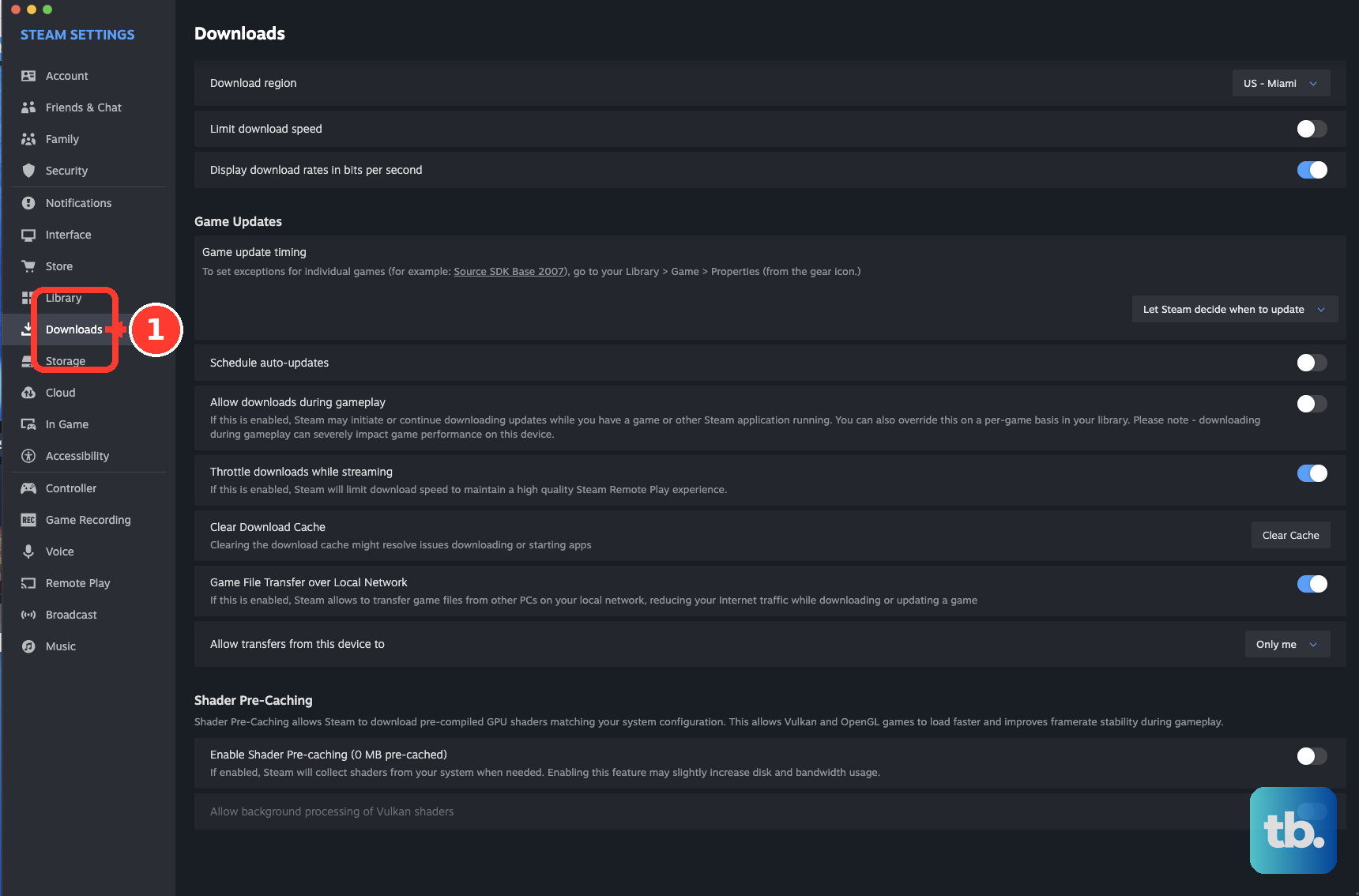
Under Download region, test another nearby region.
If the repair fails because Windows blocks the installer, try the app-permission or S mode steps above. On a managed PC, ask the administrator to approve the installation.
Frequently Asked Questions
Can I install Steam without using the download page?
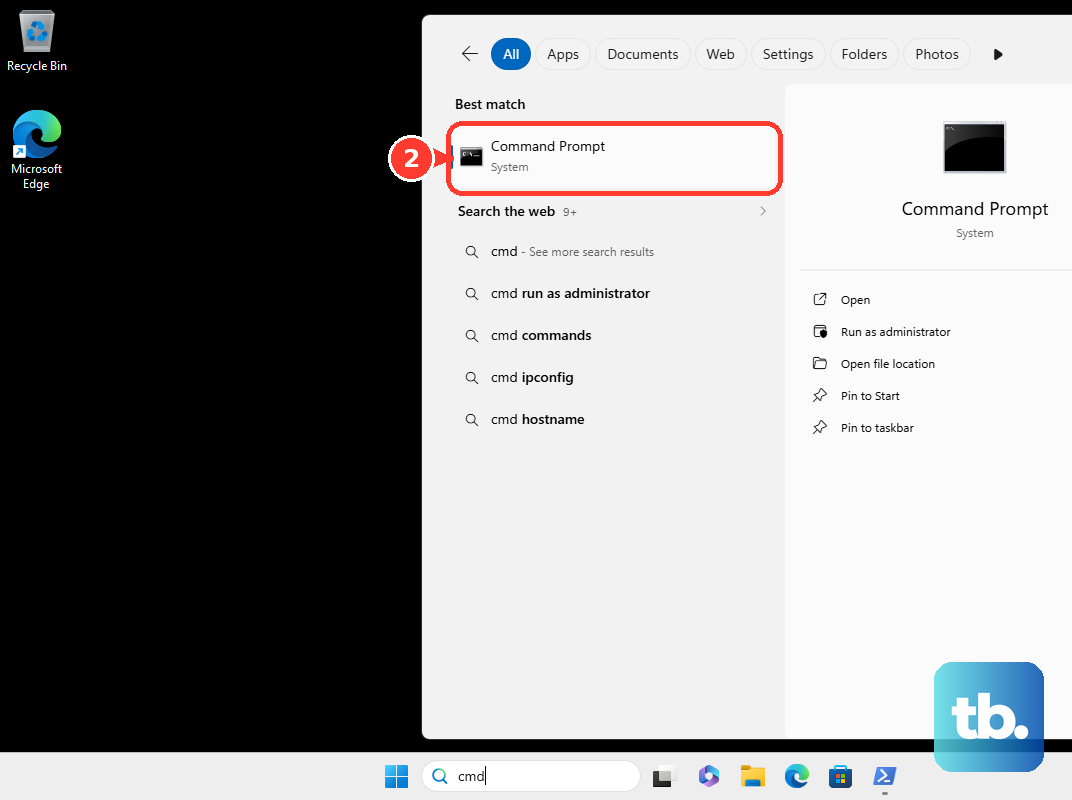
Yes. With WinGet available, open Command Prompt, PowerShell, or Windows Terminal and run winget install --id Valve.Steam --exact --source winget --interactive. Accept applicable agreements and the administrator prompt, then complete the installer and first-launch updates.
Can I sign into Steam by scanning a QR code?
Yes. With Steam Mobile already signed into your account, open its shield tab and select Scan a QR code. Scan the QR code on the PC’s sign-in screen, review the device and location details, and approve the sign-in.
Can I move installed games to another drive?
Yes. First create a destination library in Steam > Settings > Storage using +. Then select the source drive, select your games, and choose Move.
Will uninstalling Steam remove my games?
Uninstalling removes game and userdata content left inside Steam’s installation folder. Exit Steam and move the steamapps folder outside that folder before uninstalling to retain those game files. Preserve any other needed data separately.