Need to send a Gmail message to someone else without copying and pasting it? Gmail can forward one email, one message inside a conversation, a full thread, or future incoming mail automatically. The fastest path depends on where you are using Gmail and whether you want a one-time forward or automatic forwarding.
Forward One Gmail Email On A Computer
Open Gmail on your computer and open the email you want to forward. Go to the bottom of the email and click Forward. Add the people you want to send it to, then click Send. Tip: in a conversation thread, open the specific message, click More at the top right, then choose Forward.
Use The Gmail App On Android iPhone Or iPad
Open the Gmail app on your phone or tablet, then open the email you want to send on. At the bottom of the email, tap Forward, add your recipients, then tap Send.
When the email is part of a conversation, open the conversation and use the message's More menu. Tap Forward, add your recipients, then tap Send.
If the bottom Forward option is hard to find, open the individual message's More menu and choose Forward from there.
Send An Entire Gmail Thread
This fixes sending every message in a conversation instead of forwarding replies one by one. Turn on Conversation view first, then open the conversation you want to forward.
At the top of the email, click More in the toolbar. Choose Forward all. Add your recipients, then click Send.
Attach Gmail Messages To A New Email
Use this when you want the original Gmail message sent as an attachment inside a new email.
- 1.On your computer, open Gmail.
- 2.Right-click the message and select Forward as attachment.
- 3.Add your recipients.
- 4.Send the message.
Forward Several Gmail Messages At Once
Open Gmail on your computer and select the checkbox next to each email you want to forward. At the top, click More, then choose Forward as attachment. Add your recipients and send the message.
Tip: when Gmail's right-click menu is available in your inbox, you can right-click one message and choose Forward.
Automatically Forward All New Gmail Messages
The most common cause of confusion is that Gmail's automatic forwarding setup works from Gmail on a computer, not from the mobile app.
Open Gmail on your computer and sign in to the account you want to forward messages from. Go to Settings, then See all settings, then Forwarding and POP/IMAP or Forwarding.
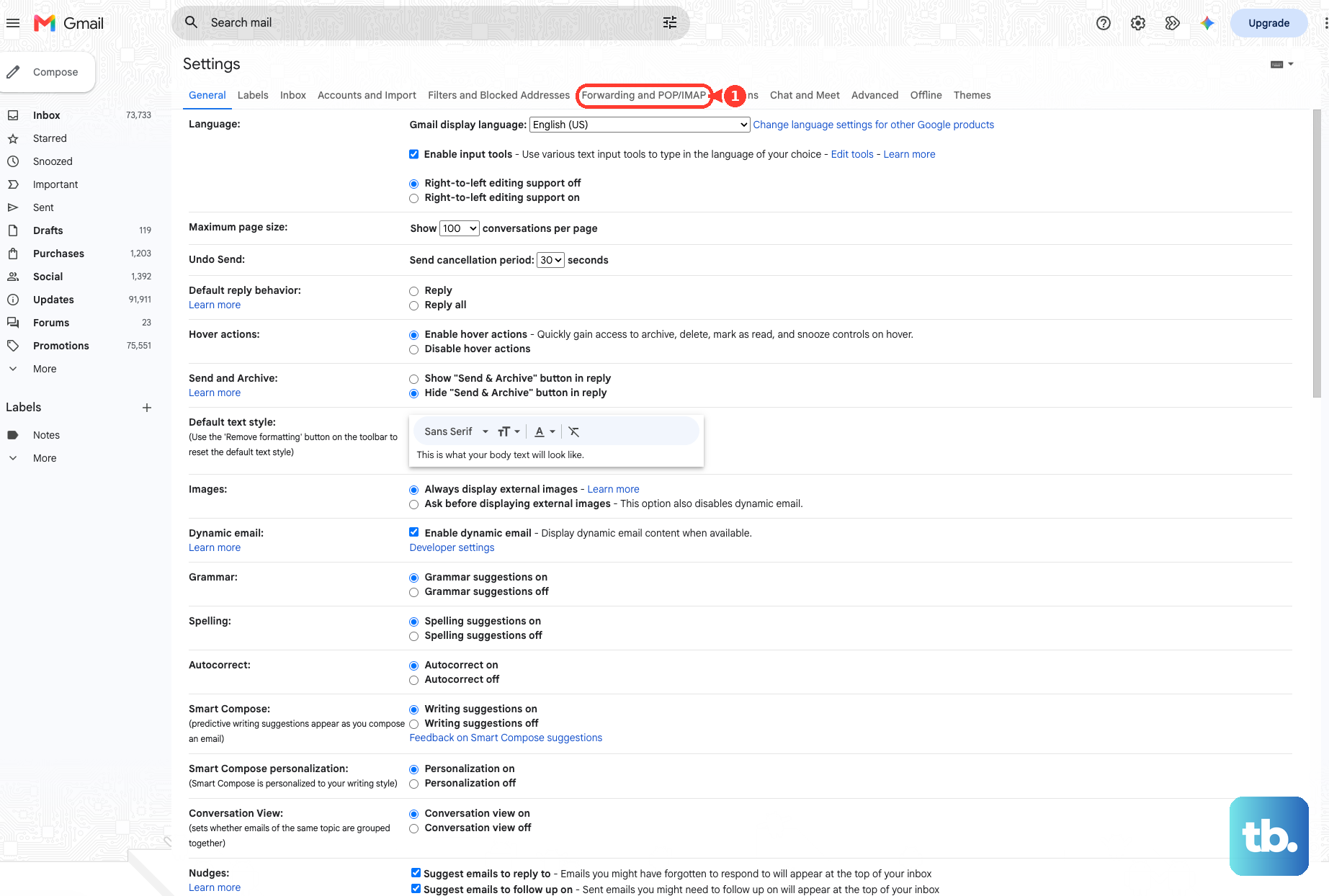
Click Add a forwarding address, enter the forwarding address, then click Next, Proceed, and OK. Open the other email account and click the verification link Gmail sends there. Return to Gmail settings and refresh your browser. Go back to Forwarding and POP/IMAP or Forwarding.
In Forwarding, select Forward a copy of incoming mail to. Choose what happens with Gmail's copy, such as Keep Gmail's copy in the Inbox. Click Save Changes. Account-level forwarding sends all new messages except spam, and it uses one forwarding address.
Filter Specific Gmail Messages Automatically
Use this when only certain new Gmail messages should be forwarded, such as mail from one sender or messages that match specific search terms. Gmail handles this with filters, and the forwarding address must already be available for forwarding.
On your computer, open Gmail and click Show search options in the search box. Enter the search criteria you want Gmail to match. Click Search to test the criteria, then click Create filter.
Choose Forward it. Select the forwarding email address, then click Create filter.
To start from an existing email, check the checkbox next to that email, click More, then choose Filter messages like these. Confirm the criteria, click Create filter, choose Forward it, select the forwarding address, then click Create filter.
Only new messages are affected by Gmail forwarding filters. To forward to multiple accounts, create one filter for each forwarding address.
Change Or Turn Off Gmail Forwarding
Open Gmail on your computer and sign in to the account that is forwarding mail. Go to Settings, then See all settings, then Forwarding and POP/IMAP or Forwarding. In Forwarding, click Disable forwarding, then click Save Changes.
To edit a forwarding filter, go to Settings, then See all settings, then Filters and Blocked Addresses.
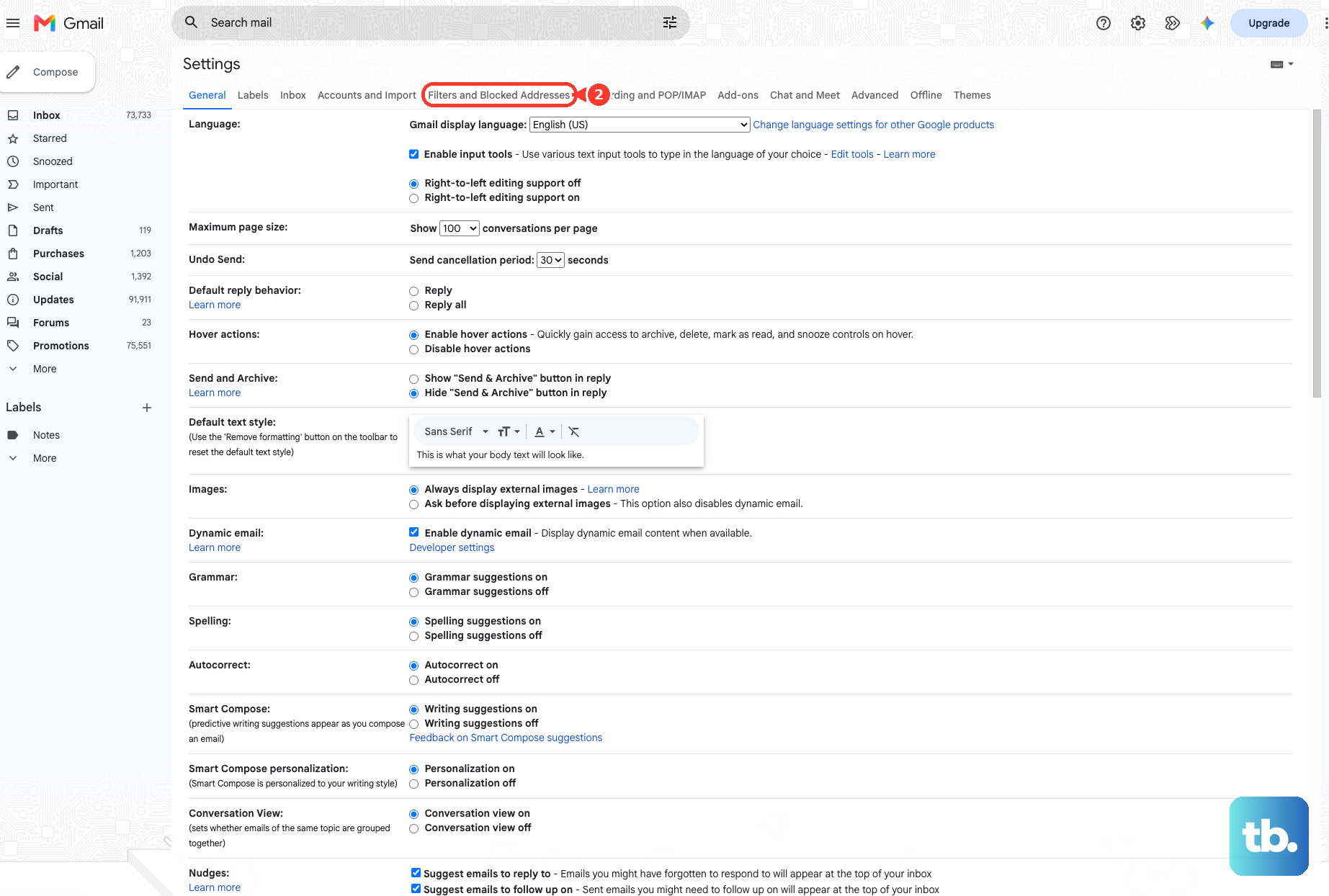
Find the filter and click Edit or Delete. When editing a filter, click Continue after changing it, then click Update filter; when deleting one, confirm with OK. Tip: account-level forwarding and filter-based forwarding are managed in different Gmail settings pages.
Fix Missing Forwarding Options In Work Or School Gmail
The most common cause of missing forwarding options in a managed Gmail account is that the organization's administrator controls whether users can set up automatic forwarding. If your Gmail account is managed by work or school and forwarding is blocked or missing, ask your administrator whether automatic forwarding is allowed for your account.
Administrators can allow or block user-created automatic forwarding from the Google Admin console under Apps, Google Workspace, Gmail, End User Access, and Automatic forwarding. Administrators can also use Gmail routing, recipient address maps, default routing, or Add more recipients rules to forward or redirect future mail for the organization. Some administrator routing changes can take up to 24 hours.
Older Basic HTML Gmail instructions do not apply to current Gmail. Gmail Basic HTML view for desktop web and mobile web was disabled starting in early 2024, and Gmail now sends users to Standard view.
Frequently Asked Questions
Can I automatically forward Gmail from the mobile app?
No. Gmail's automatic forwarding setup is done from Gmail on a computer.
Does Gmail automatic forwarding include spam?
No. Account-level automatic forwarding sends new messages except spam.
Can Gmail forward to more than one address automatically?
For account-level forwarding, Gmail uses one forwarding address. For filter-based forwarding, create one filter for each forwarding address.
Can I forward old Gmail messages automatically?
No. Gmail forwarding filters affect only new messages. Forward existing messages manually, or forward selected messages as attachments from Gmail on a computer.