Windows 11 saves Wi-Fi networks so it can reconnect later. That gets annoying when the saved password is wrong, the router is gone, or the PC keeps joining the wrong network.
Use Settings first for the cleanest fix. If that does not remove the profile, delete it with netsh from Command Prompt, Windows Terminal, or PowerShell.
Forget the network in Settings
The most reliable consumer method is the Settings app because it works from the saved network list, even when the Wi-Fi network is not nearby.
Open Start.
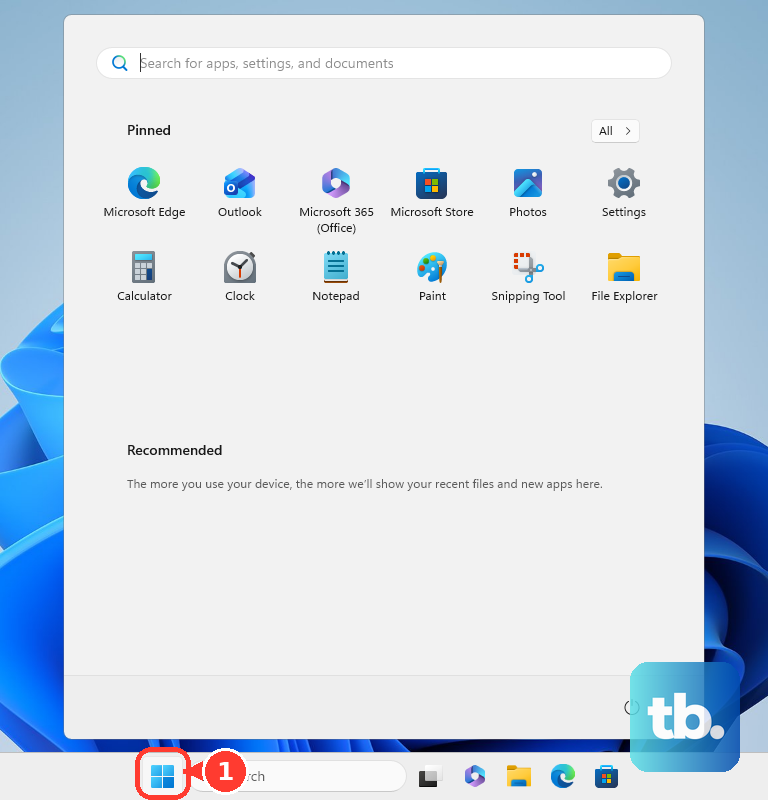
Go to Settings.
Select Network & internet.
Open Wi-Fi.
Choose Manage known networks.
Select the Wi-Fi network you want to remove.
Choose Forget.
Windows 11 deletes the saved Wi-Fi profile. The next time you connect to that network, enter its password again.
If this method fails, use the netsh command method below to remove the saved Wi-Fi profile from Command Prompt, Windows Terminal, or PowerShell.
Use the taskbar for nearby networks
The most common reason to use the taskbar method is that the saved network is in range and visible from the Wi-Fi menu.
Select the Network, Sound, or Battery icons on the taskbar.
On the Wi-Fi quick setting, select Manage Wi-Fi connections.
Find the saved network in the list.
Right-click it, or select and hold it.
Choose Forget or Forget this network.
This taskbar method only works for an in-range saved network. For an out-of-range network, use Manage known networks in Settings or delete the profile with netsh.
Remove a saved profile with netsh
Open Command Prompt, Windows Terminal, or PowerShell.
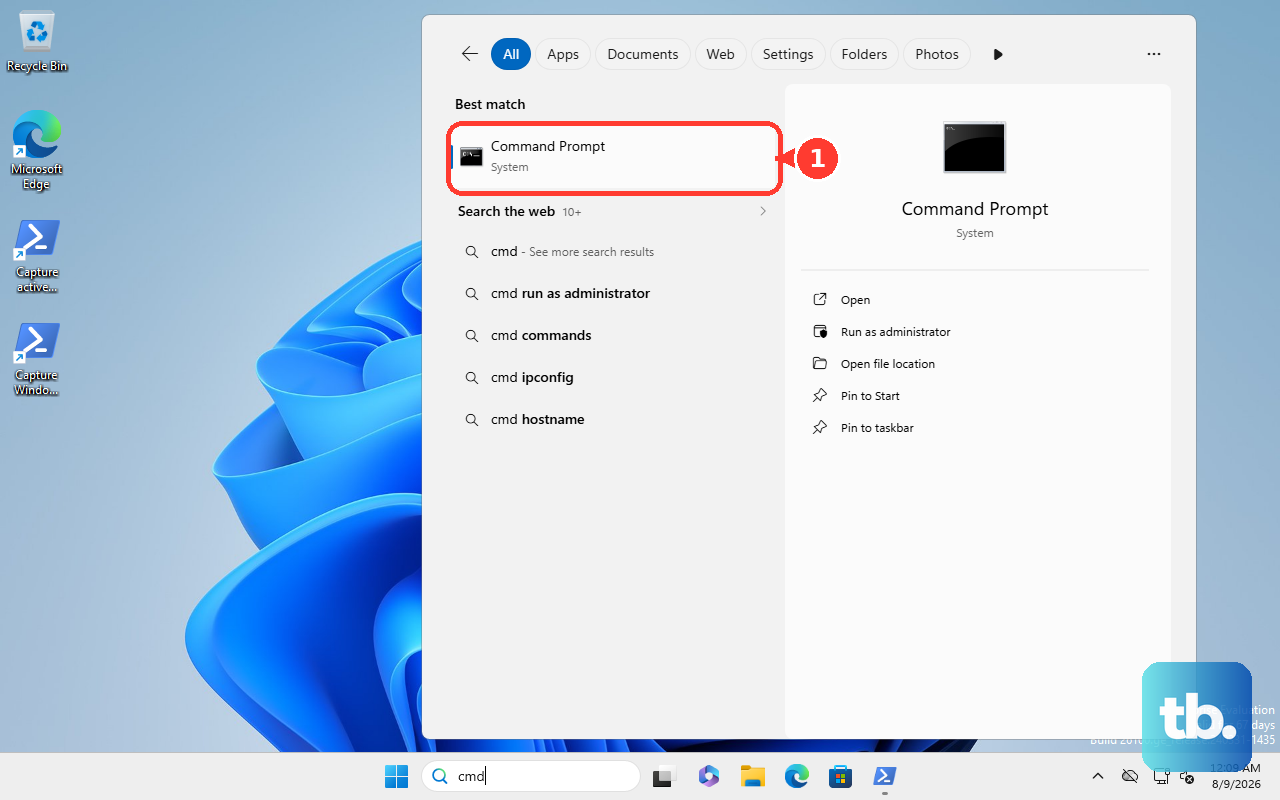
Run netsh wlan show profiles.
Find the profile name for the network you want to delete.
Run netsh wlan delete profile name="ProfileName".
Replace ProfileName with the saved Wi-Fi profile name.
Add interface="Wi-Fi" to remove the profile only from that Wi-Fi adapter. Wi-Fi is the default wireless adapter name in Windows 11. If yours was renamed, run netsh wlan show interfaces and use the interface name it lists.
Use the exact profile name shown by the first command, especially when the network name has spaces.
Delete every saved Wi-Fi profile
Use this only when you want Windows 11 to forget multiple saved Wi-Fi profiles at once. The wildcard command removes every matching profile, so it is much broader than deleting one network.
Open Command Prompt, Windows Terminal, or PowerShell.
Run netsh wlan delete profile name=*.
Add interface="Wi-Fi" when you want to target one adapter.
After deleting profiles this way, reconnect to the Wi-Fi networks you still use and enter their passwords again.
If this method removes more than you intended, reconnect manually to the networks you still use.
Fix a stubborn Forget button
The most common cause is trying to remove an out-of-range network from the taskbar Wi-Fi list.
Open Settings.
Select Network & internet.
Open Wi-Fi.
Choose Manage known networks.
Select the saved network and choose Forget.
If Settings does not remove the profile, open Command Prompt, Windows Terminal, or PowerShell and run netsh wlan delete profile name="ProfileName".
Check work or school management
This applies when the Wi-Fi network keeps coming back on a managed PC. Pro, Enterprise, Education, and IoT Enterprise devices can receive Wi-Fi profiles from device-management tools.
If your organization manages the computer, a Wi-Fi profile can be assigned through Microsoft Intune, another MDM server, or Group Policy.
Removing the profile from your own Windows settings is not permanent when a management policy adds it back.
Ask your IT admin to remove the Wi-Fi profile assignment, delete the managed Wi-Fi configuration, or remove the profile from the wireless policy.
For a personal Windows 11 PC, use Manage known networks, the in-range Wi-Fi list, or netsh instead.
Skip the old Control Panel path
Open Control Panel.
Go to Network and Sharing Center.
Choose Manage wireless networks.
Select a Wi-Fi profile.
Click Remove.
That path belongs to the Windows 7-era workflow, not the current Windows 11 method.
Use Settings, the taskbar Wi-Fi list for an in-range network, or netsh instead.
Know what forgetting changes
This removes the saved Wi-Fi profile so Windows 11 stops automatically reconnecting to that network.
Forget the network when Windows keeps joining the wrong Wi-Fi.
Use it when a saved password is outdated and Windows needs a fresh sign-in.
Remove old router names you no longer use.
Use netsh when the normal Windows settings path does not remove the profile cleanly.
Avoid tools that do not remove profiles
Use this section when a related Windows tool sounds like it should forget Wi-Fi but does a different job.
Credential Manager removes some saved credentials, but it is not a Windows Wi-Fi profile removal method.
Network reset resets network adapters and settings. It is not the precise method for forgetting one saved Wi-Fi network.
For this task, use Manage known networks, the in-range Wi-Fi list, or netsh.
Frequently Asked Questions
Will Windows 11 ask for the Wi-Fi password again after I forget the network?
Yes. Forgetting a Wi-Fi network removes the saved profile, so the next connection requires the Wi-Fi password again. An open network that uses no password connects without one.
Can I forget a Wi-Fi network that is not in range?
Yes. Use Settings > Network & internet > Wi-Fi > Manage known networks, or delete the profile with netsh.
Why does the network come back after I remove it?
On a work or school PC, the Wi-Fi profile can be managed by Intune, another MDM server, or Group Policy. Your IT admin has to remove the assignment or policy.
Can I remove all saved Wi-Fi networks at once?
Yes. Run netsh wlan delete profile name=* in Command Prompt, Windows Terminal, or PowerShell. Use it carefully because it removes every matching saved profile.