A frozen app leaves you staring at a screen that won't respond. Force-closing it through the App Switcher gives you a way to close and reopen it. Start with the steps for your iPhone's buttons, then use the restart options below if the problem continues.
You don't need to download a separate app or installer to force-close an app.
Force close an app without a Home button
Use the bottom-edge gesture to reach your app previews.
- 1.From the Home Screen, swipe up from the bottom edge and pause halfway up to open the App Switcher.
- 2.Swipe left or right through the previews to find the affected app.
- 3.Swipe that app's preview upward to close it. There's no need to hold the preview or wait for a minus button.
- 4.Tap the app's icon to reopen it.
If your iPhone has a Home button
The bottom-edge gesture won't open the App Switcher on a Home-button iPhone.
Press the Home button twice quickly to bring up your app previews. This works on iPhone SE models with a Home button, as well as iPhone 8 and earlier models running their supported software.
Swipe left or right through the previews to find the affected app.
Flick its preview upward to close it.
Tap the app's icon to open it again.
Use AssistiveTouch for another way to open app previews
AssistiveTouch gives you an onscreen alternative to the usual App Switcher gesture or button press.
This route works on current iPhones with or without a Home button. It opens the same app previews used by the gesture and button methods.
Open Settings > Accessibility > Touch > AssistiveTouch.
Turn on AssistiveTouch.
Under Customize Top Level Menu, assign App Switcher to a menu icon.
Open the floating AssistiveTouch menu.
Tap App Switcher to display the previews.
Swipe left or right to find the affected app.
Swipe its preview upward to close it.
You can also assign App Switcher to Single-Tap, Double-Tap, or Long Press in AssistiveTouch instead of using a menu icon.
Compatible pointer devices can operate AssistiveTouch too, giving you another way to use its configured App Switcher control.
To enable AssistiveTouch by voice, say “Turn on AssistiveTouch” to Siri. This enables the accessibility control; it does not directly close the app.
When closing the app doesn’t help
If the app still doesn't respond after reopening it, restart your iPhone. This restarts the entire device rather than closing just one app.
On a Face ID iPhone, hold the side button and either volume button until the shutdown slider appears.
On an iPhone SE second or third generation, hold the side button instead until the shutdown slider appears.
Move the shutdown slider to turn the phone off.
Wait approximately 30 seconds.
Hold the side button until the Apple logo appears.
If the phone won't respond and normal shutdown is unavailable, try the force-restart sequence below.
Force restart a completely unresponsive iPhone
When the phone won't respond and normal shutdown is unavailable, this sequence restarts the whole device on any iOS 27-compatible iPhone, including iPhone SE second and third generation; it isn't a shortcut for closing one app.
- 1.Quickly press and release the Volume Up button.
- 2.Quickly press and release the Volume Down button.
- 3.Hold the side button until the Apple logo appears, then release it.
Frequently Asked Questions
Should I force close apps to save battery life?
No. Apple recommends closing an app when it is unresponsive. Routinely quitting apps does not prolong battery life.
Can I close all iPhone apps at once?
Apple does not provide a current Close All control. Close apps individually by swiping their previews upward in the App Switcher.
Does turning off Background App Refresh force close an app?
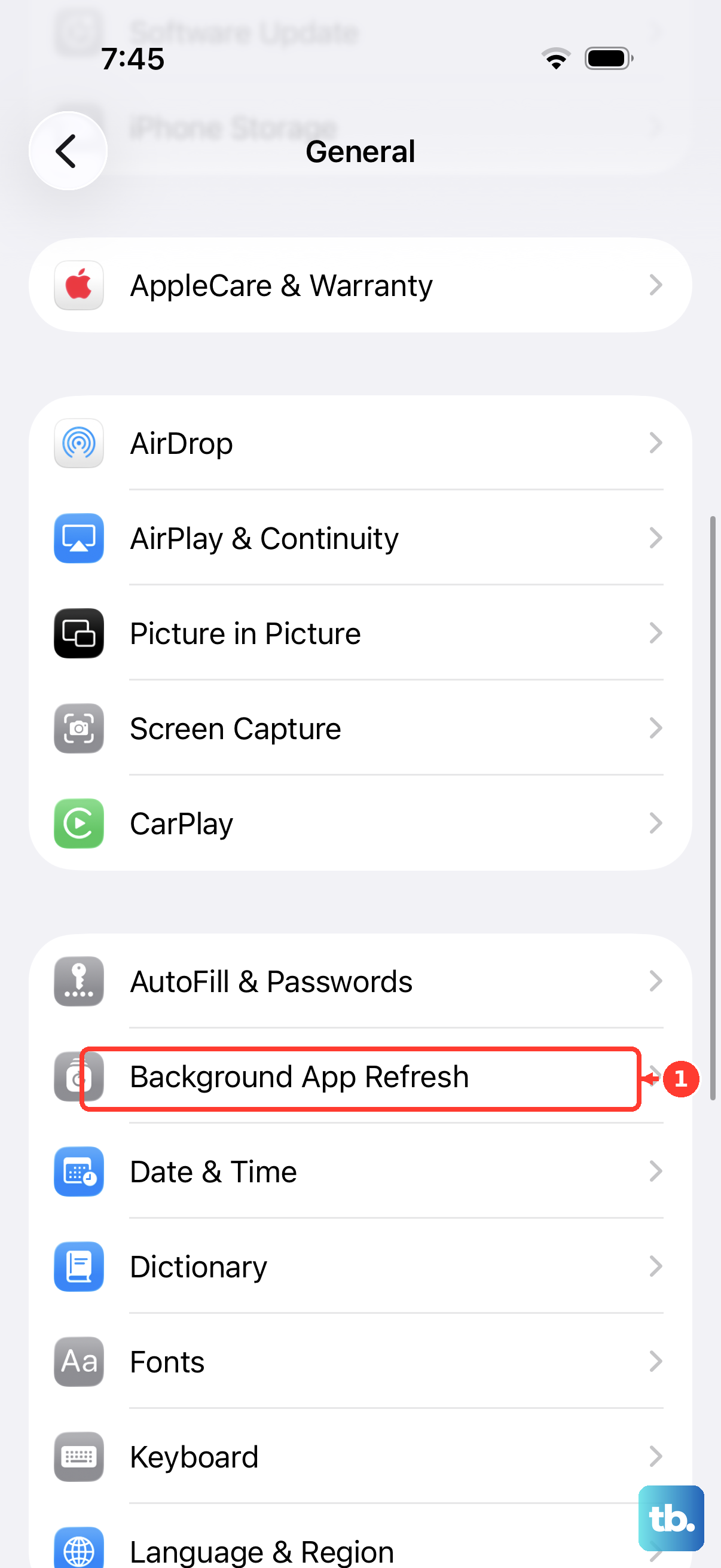
No. Background App Refresh controls background content updates. Returning to the Home Screen, locking the phone, or switching apps also does not perform the force-close gesture.
Can Siri force close an app for me?
There is no supported direct Siri force-quit command. Say “Turn on AssistiveTouch” to Siri, then open the AssistiveTouch menu. Tap its configured App Switcher control, find the affected app, and swipe its preview upward.