YouTube playback speed breaks in a few annoying ways. The menu disappears, the shortcut does nothing, the speed snaps back, or faster playback turns into buffering.
Start with YouTube’s own speed controls, then clear the app, browser, device, and connection problems that stop those controls from responding.
1. Pick the supported speed setting
On a computer: open a YouTube video, hover over the player, select Settings, select Speed, then choose the playback speed you want.
On Android, iPhone, or iPad: open a video, tap the video once, tap Settings, tap Playback speed, then choose a speed.
On a smart TV or streaming device: open the video watch page, select Settings, select Speed, then choose a speed. YouTube says playback speed is not available on every smart TV and streaming device.
2. Test the shortcut before digging deeper
- 1.Click or tap the video player so YouTube has focus.
- 2.On a computer, press > to speed up playback.
- 3.Press < to slow playback down.
Need a quick jump instead of a lasting speed change? Click and hold the video on desktop, or tap and hold the video on mobile. YouTube plays at temporary 2x speed until you release the click or lift your finger.
3. Restart YouTube and refresh the device
Close the YouTube app or browser tab completely, reopen YouTube, then replay the same video.
If the player still ignores the speed setting, restart the phone, tablet, computer, TV, streaming device, or game console. For a TV or streaming device, disconnect it from power, wait at least 30 seconds, reconnect power, then open YouTube again.
4. Update the YouTube app
Old app builds leave playback controls frozen or missing. Update YouTube from the official store for your device.
Android: open Google Play Store, tap your profile picture, tap Manage apps & device, tap Updates available, find YouTube, then tap Update.
iPhone or iPad: open the App Store, tap your profile picture, tap App Updates, then tap Update next to YouTube.
Apple TV: open the App Store, search for YouTube, select YouTube, then choose Update.
Android TV: press Home, open Apps, open Google Play Store, go to Settings, choose Auto-Update Apps, then select Auto-update apps at any time.
YouTube’s Android speed feature requires Android 5.0 or above. The current YouTube app install page requires Android 9.0 or later, and the iPhone and iPad app page requires iOS 16.0 or later (iPadOS 16.0 or later on iPad).
5. Clear the app cache or reinstall YouTube
On Android: open Settings, go to Apps or Applications, choose YouTube, tap Storage, then tap Clear cache. Android menu names vary by device maker.
On iPhone or iPad: touch and hold YouTube, tap Remove App, tap Delete App, confirm with Delete, then redownload YouTube from the App Store.
On Android, YouTube is preinstalled as a system app on some devices. When Android will not let you delete it, use Update and Clear cache instead.
6. Fix the desktop browser
If YouTube speed works on your phone and fails on your computer, repair the browser session next.
Update Chrome from More, Help, About Chrome, then relaunch when Chrome asks.
Use the newest version of Google Chrome, Firefox, or Safari.
Open Chrome’s clean session from More, New Incognito window, then test YouTube again.
Clear Chrome data from More, Delete browsing data, choose a time range, select the data types, then click Delete data.
Turn off extensions from More, Extensions, Manage extensions, then disable ad blockers, video extensions, and script blockers while you test.
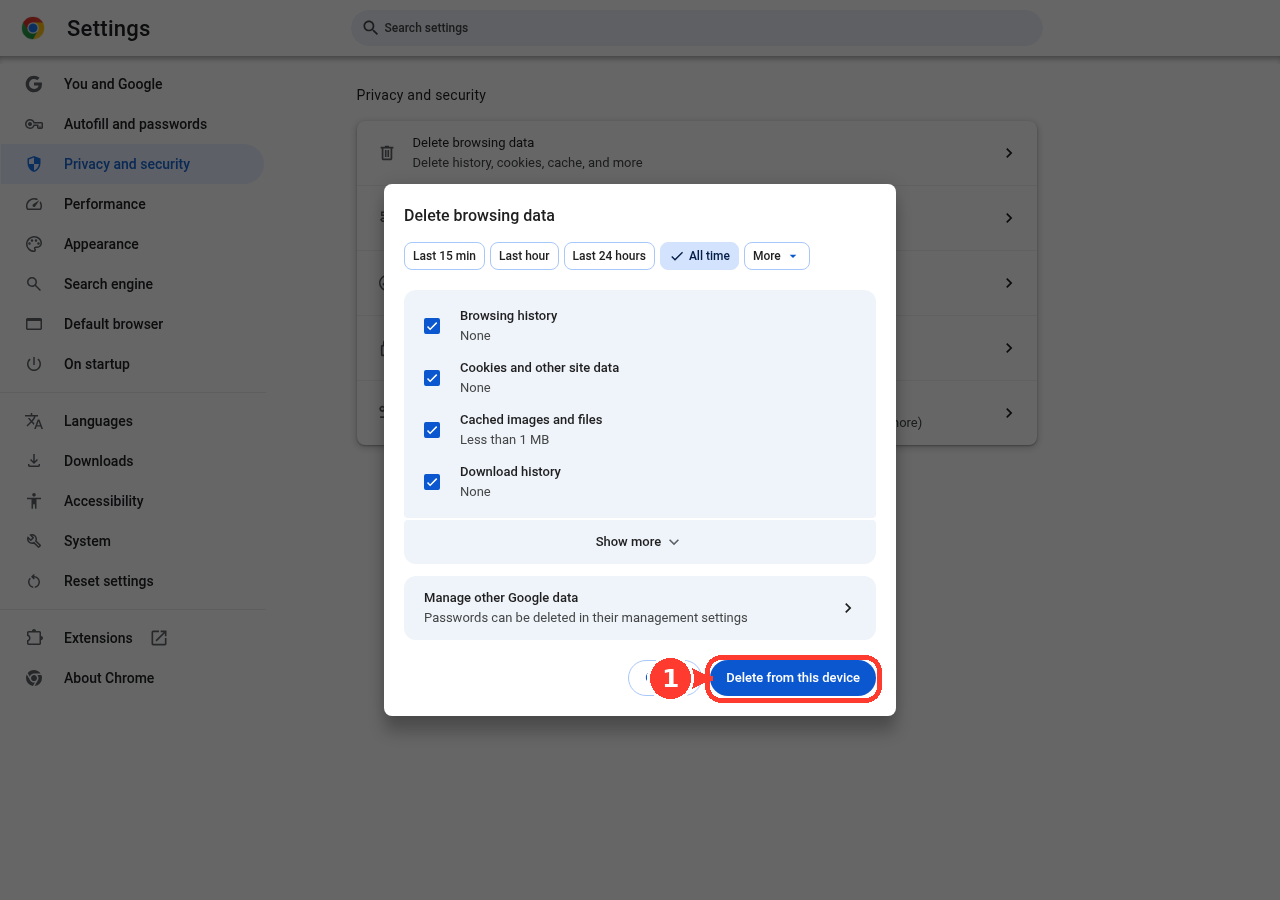
When speed works in an incognito window, the regular browser profile is carrying the bad data or extension conflict.
7. Stabilize buffering and account problems
When the speed option appears but faster playback stutters or buffers, treat it as a playback issue. Restart your internet connection, run a speed test, then lower the video from Settings, Quality.
On mobile, switch from Wi-Fi to mobile data, or from mobile data to Wi-Fi. If YouTube behaves oddly across browsers and apps on the same network, open your device network settings and confirm DNS or a third-party network app has not changed the connection settings.
Sign in as well. Select Sign in, use the Google Account you use for YouTube, then retry the video. YouTube says some features do not work correctly when you are signed out.
8. Remove managed device roadblocks
School, work, and family-managed browsers control extensions and private windows. If Chrome or Edge says it is managed and you cannot open New Incognito window, disable an extension, or change the browser setup, contact the administrator.
Tell them YouTube playback speed is not responding and ask them to check the managed extension or private browsing policy.
9. Skip old Flash fixes and report the bug
Do not use old fixes that tell you to enable Adobe Flash or switch YouTube from Flash to HTML5. YouTube uses modern HTML5 playback, and YouTube Flash/object embeds and Flash Player APIs were deprecated on January 27, 2015.
If the current controls still fail, send feedback to YouTube. On a computer, sign in, select your profile picture, choose Send feedback, describe the playback-speed problem, choose whether to include a screenshot, then select Send.
On a TV, Chromecast, or game console, open YouTube on a watch page, choose Settings, choose Feedback, pick a reason, then select Submit Report.
Frequently Asked Questions
Why is YouTube playback speed missing on my TV?
YouTube says playback speed is not available on every smart TV and streaming device. Update the YouTube app, update the TV or streaming-device software, then check Settings and Speed again.
Why does YouTube only speed up while I hold the video?
That is YouTube’s temporary 2x fast-forward gesture. For a speed that stays selected, use Settings and Playback speed on mobile, or Settings and Speed on desktop.
Do I need YouTube Premium to change playback speed?
No. YouTube does not list Premium as a requirement for the normal playback-speed control.
Why do YouTube keyboard shortcuts not change speed?
The YouTube player needs focus first. Click the player, then press > to speed up or < to slow down. If it still fails, open New Incognito window and turn off extensions from Manage extensions.