You open Xfinity Email, enter what looks like the right Xfinity ID and password, and the mailbox still will not load.
The fix depends on whether the block is the sign-in page, ID or password, verification, mailbox status, browser data, a mail app, or the Yahoo Mail migration.
Start at the top and work down; the early steps handle ordinary Xfinity email login problems, while the later ones cover inactive accounts, client settings, and migrated Comcast.net mailboxes.
One branch comes first: if you already accepted Yahoo's terms of service for this mailbox, skip to step 9, because Xfinity says that mailbox is reachable only through Yahoo Mail from then on, and its password reset and mail app settings are Yahoo's rather than Comcast's.
1. Start on the right Xfinity Email login page
This fixes sign-ins that fail because you are using the wrong Xfinity Email entry point.
Go to https://connect.xfinity.com/appsuite/.
Enter your Xfinity ID, then select Let's go.
Enter your password, then select Sign In.
Approve the sign-in attempt with a push notification, facial recognition, one-touch fingerprint ID, or a verification code.
2. Confirm the Xfinity ID before changing the password
Type the Xfinity ID and password carefully.
Turn off Caps Lock, because Xfinity passwords are case-sensitive.
When using a Comcast email address as the ID, enter the part before @comcast.net.
If you forgot the ID, go to https://xfinity.com/username or https://idm.xfinity.com/myaccount/lookup and follow the prompts.
If you are still signed in on the Xfinity app, open Account, then Account settings, then Xfinity ID and security, and check the ID under Personal Information.
You can use a mobile number, personal email, or Xfinity email as the Xfinity ID.
3. Reset the password when Xfinity rejects the login
- 1.Go to https://www.xfinity.com/password.
- 2.Enter your Xfinity ID, eligible recovery mobile number, or personal non-Xfinity email address.
- 3.Select Continue.
- 4.Choose a text message or email reset.
- 5.Enter the password reset code, then select Continue.
- 6.Create and confirm the new password, then select Continue.
After changing the password, update the saved password in Outlook, Apple Mail, Gmail, Samsung Email, or any other mail app that checks the Comcast.net account.
4. Change a password while access still works
On xfinity.com, sign in and use Account icon to Account and Identity to Xfinity ID and security to Change password.
Verify with an Xfinity app notification, email code, or text code, then enter and confirm the new password and select Save.
In the Xfinity app, use Account to Account Settings to Xfinity ID and security to Change Password, verify your identity, enter the current password and the new password twice, then tap Save.
5. Approve the two-step verification prompt
This fixes logins where the password is correct but Xfinity is waiting for account verification.
Approve the sign-in with the method shown on screen: yes/no push notification, biometric scan, text code, email code, or the Xfinity app Code generator.
Turn on notifications when using push notifications or biometrics.
If this device cannot approve sign-ins, open the Xfinity app on another device, go to the two-step verification page, and tap Register this device.
To turn on two-step verification in the app, tap Account settings, tap Account settings again, choose Xfinity ID and security, tap Two-step verification, add and verify a non-Xfinity email and mobile number if prompted, then choose Turn on.
To turn it on from the website, go to https://customer.xfinity.com/settings, choose Xfinity ID and Security, choose Two-step verification in Security, verify by email or text code, then choose Turn on.
6. Check whether the mailbox is inactive
For an existing Comcast.net mailbox, go to https://customer.xfinity.com/settings/xid/uidemail and use Your Information to Comcast email to check the mailbox status.
Xfinity says inactive status changes back to active when you log in to the email account.
If the mailbox is inactive and still inside the closure window, sign in at https://connect.xfinity.com/appsuite/ or https://xfinityconnect.email.comcast.net before the 90-day closure window expires; once closed, Xfinity says the contents are not recoverable.
7. Clear browser data that blocks webmail
This fixes Xfinity Email pages that spin, reload, or fail after the account details are correct.
Update your browser to the latest available version, because Xfinity Email is designed for the latest generation of internet browsers.
In Chrome, close all but one tab, open the three dots menu, choose Delete browsing data..., open Advanced, set Time range to All time, select Cookies and other site data and Cached images and files, then select Delete data and relaunch Chrome.
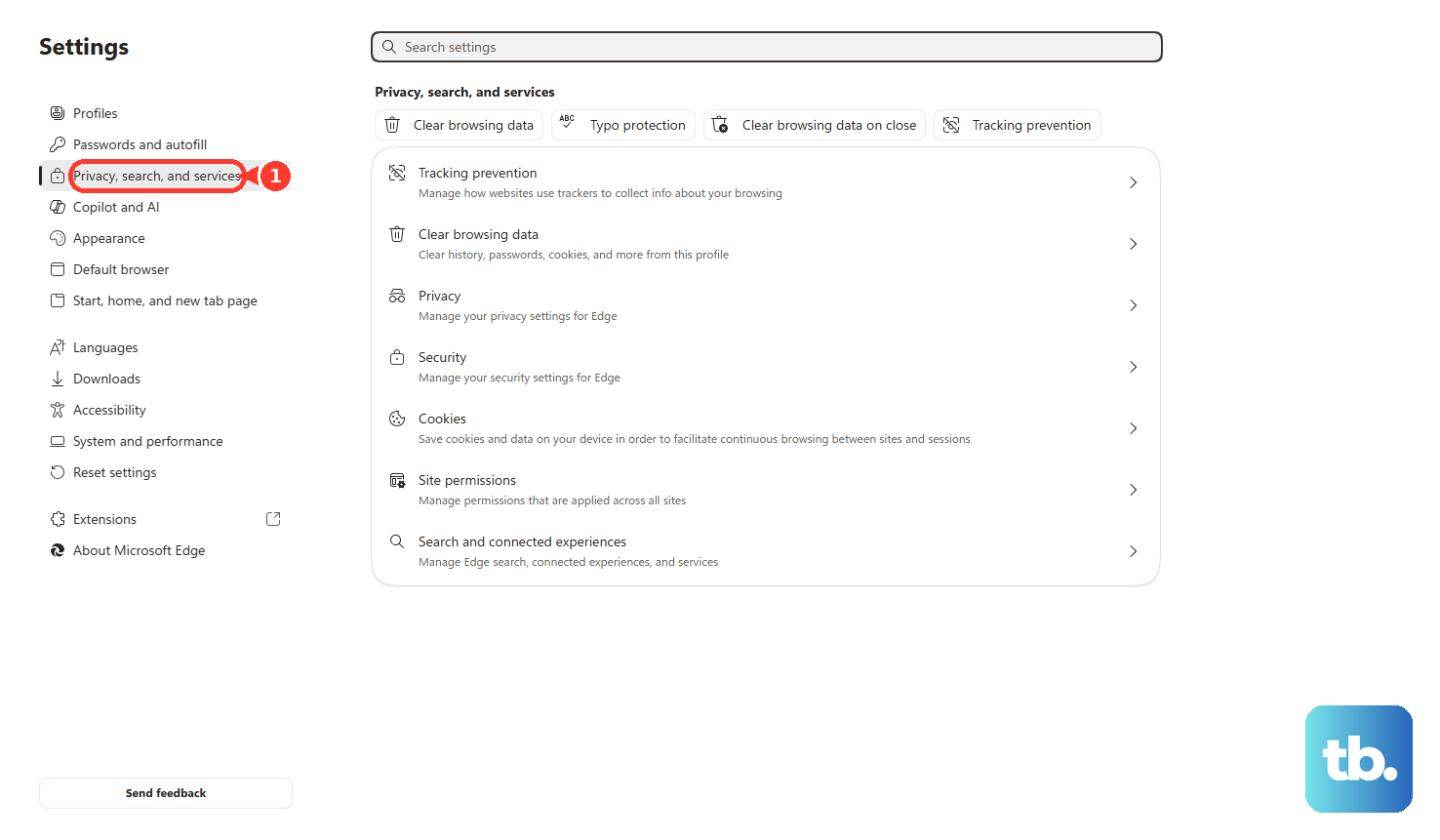
In Microsoft Edge, open Menu, select Settings, select Privacy, search, and services, choose Choose what to clear under Clear browsing data, set Time range to All Time, check Cookies and other site data and Cached images and files, then select Clear now.
In Firefox, open Settings, select Privacy & Security, choose Clear Data... under Cookies and Site Data, select Cookies and Site Data and Cached Web Content, then select Clear.
In Safari on Mac, open Safari, select Settings..., open Privacy, choose Manage Website Data..., select Remove All or choose specific items and click Remove, then choose Remove Now and Done.
8. Repair Outlook Apple Mail Gmail or another mail app
Sign in to https://connect.xfinity.com/ first.
Select the Gear icon, then Settings, then Security.
Under Third Party Access Security, check the box that allows third-party access.
For incoming IMAP mail, use imap.comcast.net, port 993 with SSL ON, and your Comcast.net email address for authentication.
If the app asks for an authentication method, choose STARTTLS.
For outgoing mail, use smtp.comcast.net, port 587 (SMTP), encryption TLS or SSL, and your Comcast.net email address for authentication.
Use POP only when you specifically need it, with pop3.comcast.net and port 995 (POP3 with SSL).
Remove old settings that use POP port 110, SMTP port 25, or the discontinued standalone Xfinity Connect email app.
9. Move migrated Comcast.net mailboxes to Yahoo Mail
Sign in securely at https://connect.xfinity.com.
When prompted, accept Yahoo's terms of service.
Treat this as a one-way move: Xfinity says that once you accept, Yahoo Mail becomes your email provider and you can only reach the comcast.net mailbox through Yahoo Mail, and email settings including filters and forwarding are not retained, so plan to rebuild them in Yahoo Mail settings.
If more than one Comcast.net mailbox is tied to the Xfinity account, sign in to each mailbox and accept Yahoo's terms for each one.
After accepting the terms, go to https://mail.yahoo.com and sign in to the Comcast.net mailbox through Yahoo Mail.
When password recovery is needed after migration, use Yahoo's Sign-in Helper at https://login.yahoo.com/forgot.
For Outlook, Apple Mail, iOS Mail, Gmail, Thunderbird, Samsung Email, or a similar app after migration, re-add the account using Yahoo Mail settings.
When the Comcast.net password does not work in a third-party email client after migration, use Yahoo's Comcast.net app-password guidance for that client.
New Comcast.net mailbox creation is not a workaround, because Xfinity states that customers cannot create new Xfinity Email or Comcast.net accounts as of June 2024.
Frequently Asked Questions
Can I still use Xfinity Email after leaving Xfinity?
Yes, when the existing Comcast.net mailbox is eligible. Xfinity says former customers can keep using Xfinity Email if they logged in through the Xfinity Email website in the 90 days before disconnecting service, then continue accessing it at least once every nine months.
What should I do if a secondary Xfinity email user cannot reset the password?
The Primary account holder can change a Manager, Member, or Viewer password from the account settings page by choosing the affected user, selecting Change Password under Xfinity ID, verifying, entering the new password, and saving it.
Can the Xfinity app open email?
Yes. Sign in to the Xfinity app, approve the sign-in attempt, then select Check email. The app requires Apple iOS 17.2 or later or Android 10.0 or later, and it does not work on Windows or Amazon phones.
Where do I get help when self-service does not restore access?
Use Xfinity Assistant at https://www.xfinity.com/xfinityassistant/ or choose Chat with an Agent at https://support.xfinity.com/chat/. Xfinity Assistant can also connect you to an online agent when the issue is not resolved.