Your Xbox One powers on, but the TV says no signal or stays black. Start with the HDMI path, then use Xbox display recovery, reset, and update tools to get the picture back.
These fixes follow current Xbox Support guidance checked in July 2026, with the older menu paths and old button names left out.
1. Check the HDMI path first
Start with the cable, input, and port. This is the fastest place to catch the problem. Turn on the TV or monitor, then press the console Power button.
Use the TV remote Input button and choose the HDMI input your Xbox uses. Unplug the HDMI cable from the TV and console, then reconnect both ends firmly.
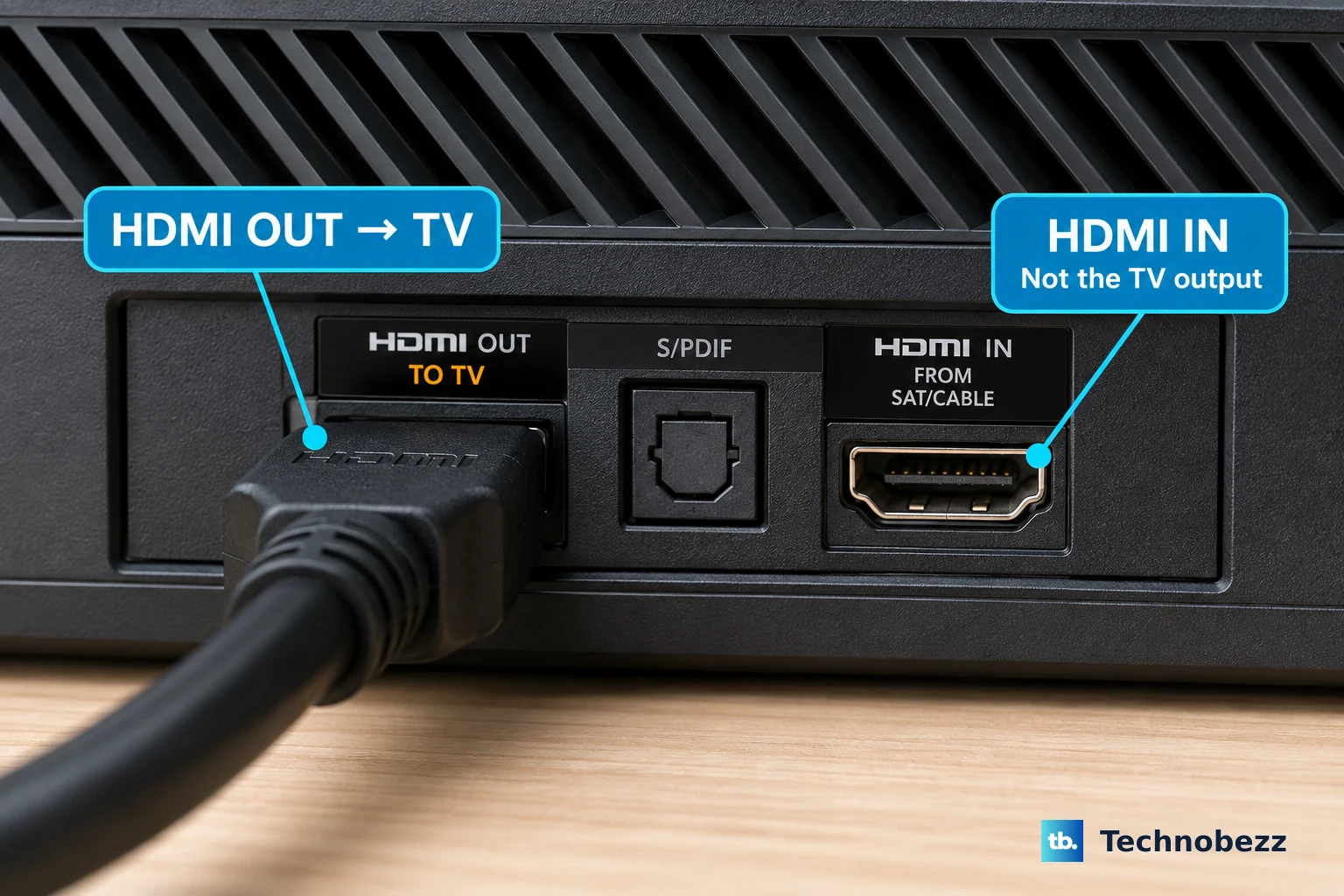
On Xbox One models with two HDMI ports, plug the cable into HDMI out, not HDMI in. Move the cable to another TV HDMI port, then test with another HDMI cable.
Connect the Xbox to another TV or monitor and choose that screen’s HDMI input. For Xbox One S and Xbox One X 4K or HDR setups, use the HDMI cable that came with the Xbox and a TV HDMI port that supports the full 4K and HDR feature set.
2. Restart the console from the hardware button
Hold the front Power button for about 10 seconds. Press the console Power button or the controller Xbox button to turn it back on. A hardware power cycle clears the console state without needing a working screen.
Do the full reset next. Hold the front Xbox button for about 10 seconds until the console shuts down, then unplug the Power cable. Wait 10 seconds, reconnect the Power cable, and press the console Xbox button.
3. Start low-resolution mode
Use low-resolution mode when the Xbox is sending a video setting your TV or monitor cannot display. On Xbox One, Xbox One S, and Xbox One X models with an Eject button, remove any disc, then hold Power for 10 seconds.
Hold Power and Eject until the second beep or until the console starts in low-resolution mode. On Xbox One S All-Digital Edition, hold the Xbox button and the Pair button instead.
When the picture returns, press the controller Xbox button. Open Profile & system > Settings > General > TV & display options. Choose a supported setting from Display.
4. Fix the display settings
Press the controller Xbox button. Open Profile & system > Settings. Select General > TV & display options, then choose the correct Resolution and refresh-rate settings for your TV or monitor.
After the screen comes back, set the console to a resolution and refresh rate your display supports. When Xbox One S or Xbox One X does not show the expected resolutions, open Video fidelity & overscan under Advanced. Set Display to Auto-detect.
When the Xbox needs low-resolution startup every time, or an AV receiver fails to detect the console correctly, open Video fidelity & overscan. Set Display to HDMI.
5. Bypass receivers and HDMI devices
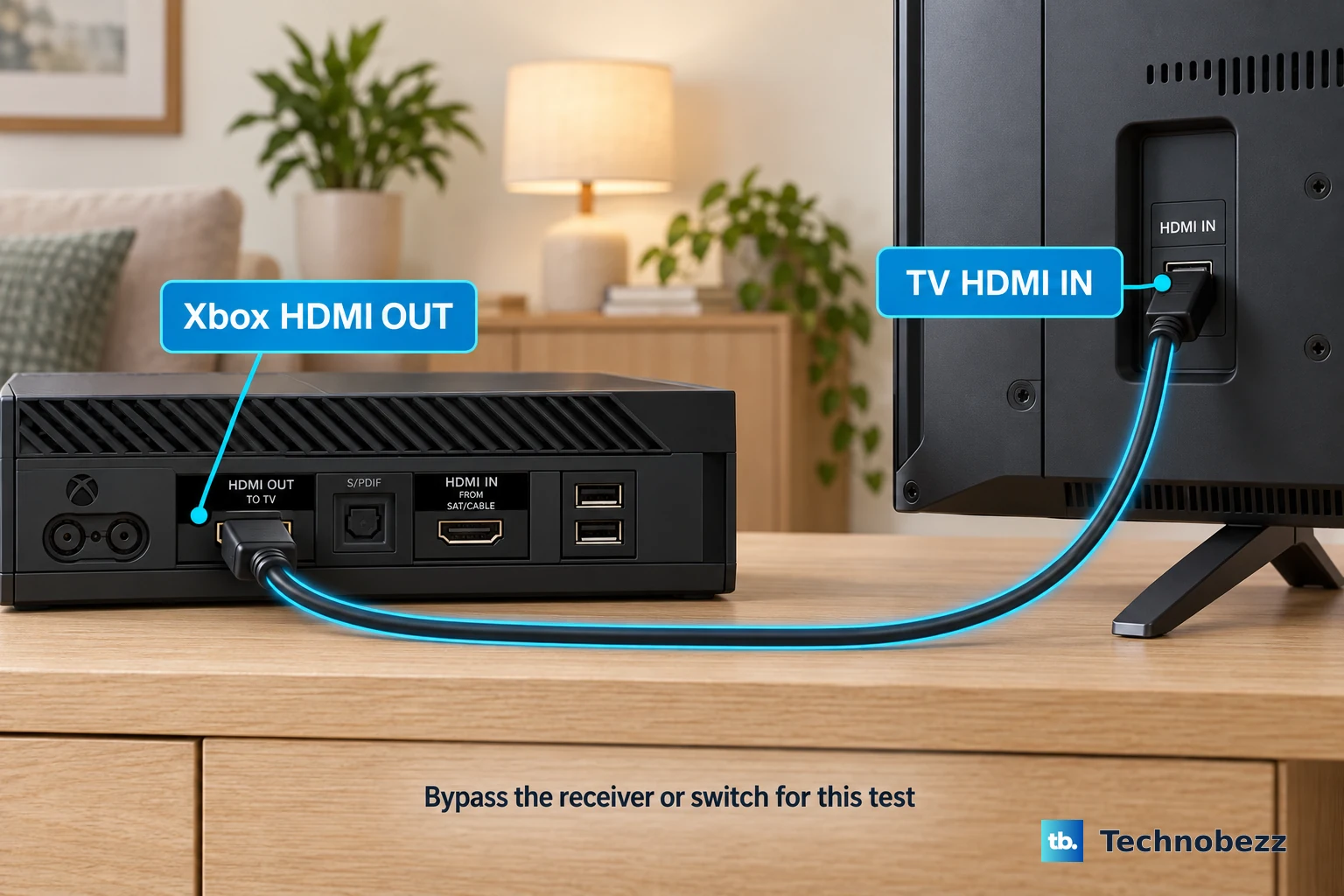
Anything between the Xbox and TV has to support the same video capabilities as the TV. Remove that extra link and test the console directly. Plug the Xbox directly into the TV with the Xbox HDMI cable, then choose the matching TV HDMI input.
Remove receivers, switches, capture devices, and other passthrough hardware while testing. For an AV receiver setup, turn on the TV first. When the TV shows a picture, turn on the receiver, then press the Xbox Power button.
Use the TV remote Input button to switch the receiver input away from the console and back. After that, restart the receiver.
6. Adjust 4K HDR Dolby Vision and Blu-ray settings
- 1.Open Profile & system > Settings > General > TV & display options.
- 2.Select 4K TV details to see the display capabilities the console detects.
- 3.Open Video modes.
- 4.Clear Allow 4K when 4K content causes a blank screen or errors.
- 5.Clear Allow 24Hz when the blank screen happens in the Blu-ray Player app.
- 6.Set Allow Dolby Vision to Off when Dolby Vision causes a blank screen.
Use these settings on Xbox One S and Xbox One X when 4K, HDR, Dolby Vision, or Blu-ray playback creates a blank screen. The original Xbox One does not support 4K gaming.
When the screen goes blank right after enabling Dolby Vision, unplug the HDMI cable. Reconnect the HDMI cable. When the screen stays blank, hold the controller Xbox button.
Choose Turn off console, or choose Restart console > Restart.
7. Clear update-related blank screens
During an Xbox update, strip the setup down to the required cables only: the HDMI cable, Power cord, and Ethernet cable. After the update finishes, reconnect storage devices, USB hard drives, charging stations, and other accessories.
When the console turns on to a black screen instead of the Xbox startup animation after an update, leave it on that black screen for at least 10 minutes. If it stays stuck, continue with Xbox system update troubleshooting.
Also update the TV or AV receiver firmware through the manufacturer’s settings or update process. Microsoft says firmware updates can resolve unsupported 4K and HDR feature behavior.
8. Reset Xbox and keep games
Use the reset option that keeps installed games and apps before wiping the console. If Settings opens, press Xbox. Go to Profile & system > Settings > System > Console info > Reset console.
Choose Reset and keep my games & apps. If Settings will not open, use the Xbox Startup Troubleshooter. Power off the console, then unplug the Power cord.
Wait 30 seconds, then plug it back in. Hold Pair and Eject, then press the console Xbox button. Keep holding Pair and Eject for 10 to 15 seconds, then release after the second power-up tone.
On Xbox One S All-Digital Edition, hold only Pair and press Xbox. In the troubleshooter, select Reset this Xbox. Choose Keep games and apps, and use Remove everything only after the keep-games reset fails.
9. Use offline update or Microsoft service
An Offline System Update is the final software repair path. Use a Windows PC and a USB flash drive with at least 6 GB formatted as NTFS. Download the Offline System Update file from the official Xbox Support page.
Extract it, then copy $SystemUpdate to the root of the USB drive. Open the Xbox Startup Troubleshooter, insert the USB drive, and choose Offline system update.
Use the official Xbox Support Offline System Update page for the download and model-specific sequence. Do not use third-party OSU downloads.
If the console is enrolled in the Xbox Insider Program and shows an Exxx system error, skip the OSU path. Microsoft says Offline System Update files will not resolve that issue. Select Reset this Xbox.
Choose Reset and keep my games & apps, and request service if the reset fails. When troubleshooting does not restore video output, use Microsoft Device services.
Sign in to the Microsoft account Devices portal. Select the Xbox, then choose Start order. If the console is missing, choose Register device first.
Frequently Asked Questions
Why does my Xbox One turn on but show no HDMI signal?
The signal path or display mode is failing. Check the TV input, reseat the HDMI cable, use HDMI out on the console, remove passthrough devices, and start low-resolution mode to change the display setting.
Which HDMI port should I use on Xbox One?
Use the Xbox One HDMI out port. HDMI in is for input to the console, not for sending video from the Xbox to your TV or monitor.
What should I do if my Xbox One keeps starting in low resolution?
Open Profile & system > Settings > General > TV & display options > Video fidelity & overscan, then set Display to HDMI. Xbox Support lists this for consoles that repeatedly need low-resolution startup.
Can I fix a broken Xbox One HDMI port myself?
Use Microsoft service or repair. The verified consumer path is to register the console in your Microsoft account Devices page and start a service order when troubleshooting does not restore video.