Xbox Cloud Gaming on PC breaks in familiar ways: xbox.com/play refuses to load, the Xbox app will not start a stream, sign-in loops repeat, the game freezes, or the controller never responds. Start with the service and account checks, then move through the browser, app, network, and input fixes that match the symptom.
Use the steps in this order. The early checks prevent wasted app resets, and the later fixes target the PC, browser, and network pieces that actually affect cloud streaming.
Check Xbox service status first
Open Xbox status and look under Cloud gaming & remote play. If Xbox shows an active alert there, the outage is on the service side, so local browser, app, and controller changes will not restore the stream.
Wait until the alert clears, then launch the same game again from the same browser or Xbox app. Keeping the same setup makes the status check meaningful.
If there is no active alert, check your account, plan, game, and region next, because eligibility failures often look like a broken launch button.
Confirm your account and game are eligible
Use Xbox's cloud gaming page to make sure the account and game qualify before changing Windows settings.
- 1.Go to xbox.com/cloud-gaming and open Get started or FAQs.
- 2.Select Sign in and use the Microsoft account you use for Xbox.
- 3.Confirm the account has Xbox Game Pass Essential, Premium, or Ultimate for paid cloud games.
- 4.For a free-to-play title, confirm the game is supported for cloud play.
- 5.Confirm Xbox Cloud Gaming is available in your region.
Open xbox.com play in Edge or Chrome
The most common browser-side cause is launching Xbox Cloud Gaming from an unsupported browser or an old PC path.
On Windows 10 version 20H2 or later, or on Windows 11, open Microsoft Edge or Google Chrome.
Go to xbox.com/play, select Sign in, choose a cloud-playable game, and select Play.
Do not use Internet Explorer for PC cloud gaming. Do not use Xbox Console Companion either; current PC cloud gaming runs through the Xbox app for Windows or xbox.com/play.
Update or repair the Xbox app
Use this method when the Xbox app will not open Cloud Gaming correctly, will not start a stream, or keeps failing while the browser works. The current Xbox app page lists Windows 10 and Windows 11 version 22H2 or higher for the PC app.
Open Microsoft Store, go to Library, and select Get updates. Install updates for Xbox, Gaming Services, and Microsoft Store, then close and reopen the Xbox app.
On Windows 11, open Start, Settings, Apps, and Installed apps. Choose Xbox, select the More icon, open Advanced options, and select Repair.
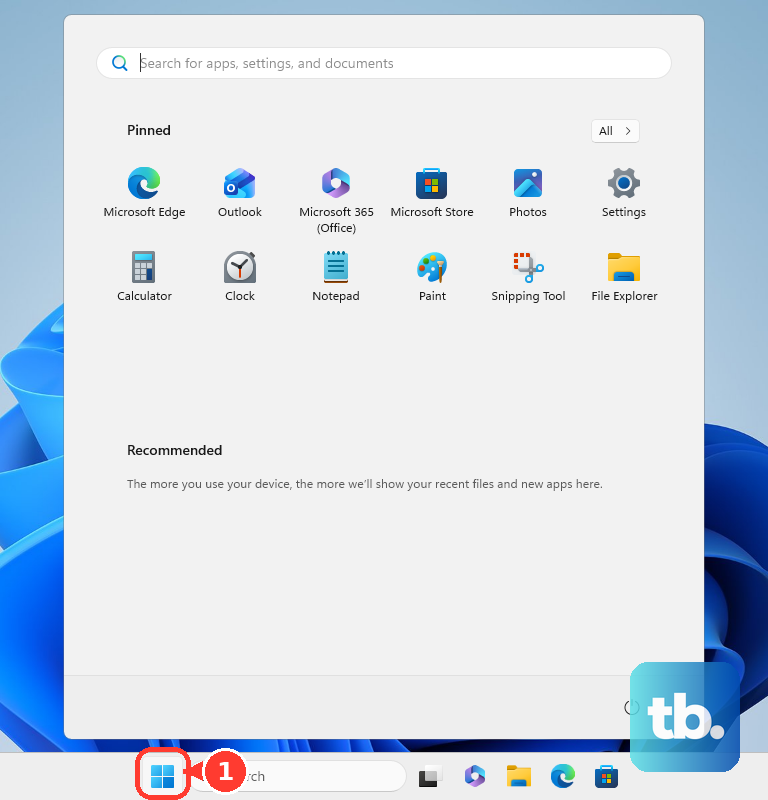
If Repair does not fix it, select Reset. Resetting the app signs you out or removes local app data.
On Windows 10, open Start, Settings, Apps, and Apps & features. Choose Xbox, open Advanced options, then select Repair or Reset.
If the Xbox app still fails, uninstall Xbox from Windows Settings when that option appears, then open Microsoft Store, search for Xbox, and install it again.
Repair Gaming Services and Store updates
Open the Xbox app and select your profile picture.
Go to Support, open Gaming Services Repair Tool, select Start troubleshooting, follow the prompts, and restart the app when requested.
If Store updates or the Xbox reinstall fail, press Windows logo key + R, type wsreset.exe, and select OK.
When Microsoft Store reopens, go back to Library and select Get updates.
For fewer repeat Store problems, open Microsoft Store, select your user profile icon, open Store settings, and turn App updates on.
Keep Store updates working, because the Xbox app depends on current Microsoft Store and Gaming Services components.
Refresh the browser session
Stale cookies, cached files, and outdated browsers break xbox.com/play sessions by causing sign-in loops, bad page loads, or stream startup failures. Update the browser first, then clear the session data that commonly gets stuck.
In Microsoft Edge, open Settings and more, go to Help and feedback, and open About Microsoft Edge. Install the offered update and restart Edge when prompted.
In Google Chrome, open More, go to Help, and open About Google Chrome. Let Chrome check for updates, then select Relaunch.
For Edge session problems, open Settings and more, Settings, Privacy, search, and services, Clear browsing data, and Choose what to clear next to Clear browsing data now. Choose a time range, select Cookies and other site data and Cached images and files, then select Clear now.
For Chrome, open More and Delete browsing data. Choose a time range, select Cookies and other site data and Cached images and files, then select Delete data.
If the browser still fails, switch surfaces: use the Xbox app if the web was failing, or use xbox.com/play in Edge or Chrome if the app was failing.
Improve the network before deeper changes
The most common cause of freezing, lag, pixelation, long load times, disconnects, and input delay is an unstable or slow connection.
Close extra browser tabs, restart the browser, and keep only the cloud gaming tab open. Close other apps running on the PC, then retry the game.
Restart Windows from Start, Power, and Restart. After the PC starts again, open only the browser or Xbox app and test cloud gaming.
Use wired Ethernet when it is available. On Wi-Fi, connect the PC to a 5 GHz network.
If your router is dual-band, enable or separate the 5 GHz signal, then connect the PC to that signal. Xbox lists 20 Mbps for PCs and tablets for best cloud gaming performance.
When the home network remains unstable, unplug the power cable from the router, modem, or gateway for 5 minutes. If you have both a router and modem, unplug both, plug them back in, wait for internet access to return, then test Xbox Cloud Gaming again.
Check controller mouse and keyboard input
Connect a supported controller by USB cable, Bluetooth, or the Xbox Wireless Adapter.
For Bluetooth, open Start, Settings, and Bluetooth & devices. Put the Xbox Wireless Controller in pairing mode, then add and pair it in Windows.
Update controller firmware from the Xbox Accessories app on the PC. Connect the controller by USB or Xbox Wireless Adapter, then install the update when the app offers one.
For mouse and keyboard play, start a supported cloud game in Microsoft Edge, Google Chrome, or the Xbox app. Select the game screen so the game switches to mouse and keyboard input.
In a browser, put the stream in full-screen mode. Press and hold Esc to exit full-screen mode.
If the game captures your pointer, press F9 in the browser to release it. In the Xbox app, open your gamertag, then Settings, Cloud gaming, and Keyboard shortcuts; while streaming, open More options, Menu, and Keyboard shortcuts.
For browser troubleshooting, use an Xbox Wireless Controller, because Xbox lists it as the officially supported controller for browser play.
Use stream tools for narrow problems
A blurry stream, one game that will not load, or a cloud save problem needs a targeted cloud-gaming tool instead of another full app reset.
In the Xbox app, select your profile picture, open Settings, go to Cloud Gaming, and turn on Network quality indicator. Start a cloud game and use the indicator icons to identify network-related stream problems.
While playing, press Win+G, open the Xbox Cloud Gaming widget, go to Settings, and enable Network quality indicator.
For a blurry stream in Microsoft Edge, start a game at xbox.com/play, open the stream's More actions menu, and select Enable Clarity Boost. This improves visual clarity; it does not fix service, account, or network failures.
When only one game has trouble loading or syncing, go to xbox.com/play, select your profile picture, open the settings icon, choose Manage games, then use the game or storage option shown there.
If the PC belongs to work or school and Xbox Cloud Gaming still fails only in Microsoft Edge, ask your administrator whether managed Edge settings are blocking real-time cloud streaming or Edge updates.
On a personal PC, use the consumer fixes above first; managed Edge policy changes apply to school and work PCs.
Frequently Asked Questions
Why does Xbox Cloud Gaming work in a browser but not in the Xbox app?
The Xbox app usually needs an app, Gaming Services, or Microsoft Store update. Use Microsoft Store Library updates, then Repair, Reset, the Gaming Services Repair Tool, or reinstall the Xbox app.
Why does xbox.com/play keep asking me to sign in?
The browser session is stuck. Update Edge or Chrome, clear cookies and cached files, then sign in again at xbox.com/play.
What internet speed do I need for Xbox Cloud Gaming on PC?
Xbox lists 20 Mbps for PCs and tablets for best cloud gaming performance. Wired Ethernet is the strongest option; 5 GHz Wi-Fi is the preferred Wi-Fi setup.
Can I fix Xbox Cloud Gaming on PC with Xbox Console Companion?
No. Xbox Console Companion is not the current PC cloud gaming path. Use the Xbox app for Windows or xbox.com/play in Microsoft Edge or Google Chrome.