Your Xbox 360 won't connect to Wi-Fi, and it's not clear what's stopping it. Start with the password and the console's connection test, then work through the settings for your router. The test separates trouble joining Wi-Fi from internet access and account sign-in problems.
Reconnect with the correct Wi-Fi password
Start here if your Xbox cannot join your network or you've changed its name or password. Use the network's Wi-Fi password, not your router administration password or Microsoft account password.
On the Xbox 360, open Settings > System > Network Settings.
Select your router's network name.
Enter its Wi-Fi password.
Select Done.
Find out where the connection fails
The connection test pinpoints which part of the connection needs attention.
Open Settings > System > Network Settings.
Select the network you want to use.
Choose Test Xbox LIVE Connection.
Read the Network, Internet, and Xbox LIVE results. A successful Network stage means the local wireless connection has passed. For a later-stage failure, check internet restrictions; for account sign-in trouble, use the app-password answer below.
Restart an eero network
In the eero app, open Settings > Advanced networking.
Open the more-options menu.
Select Restart Network.
Confirm the restart. Restarting the gateway temporarily interrupts the network.
Once the network has restarted, run Test Xbox LIVE Connection again on the console.
Keep the failed stage in mind as you continue, since joining the network and signing in to your account need different fixes.
Enable compatibility mode on BT Whole Home Wi-Fi
BT recommends Compatibility Mode for an Xbox 360 that cannot connect to Whole Home Wi-Fi. On another device connected to that network, open http://mybtdevice.home.
Enter the administration password and select Login. Use the password for managing Whole Home Wi-Fi here, rather than the wireless password you enter on the Xbox.
Open Settings > Wireless. Set Compatibility Mode to Enabled and select Save.
Reconnect the Xbox to your wireless network. To enable the same setting through the Whole Home Wi-Fi app, open Settings > Advanced settings > Compatibility Mode and turn it on.
Adjust eero's older-device settings
When an older device cannot connect using Hybrid or Enhanced encryption, eero recommends Standard (WPA2). This recommendation covers older devices generally, without certifying every Xbox 360 wireless configuration.
In the eero app, open Settings > Network settings > Encryption.
For the band your console uses, choose Standard (WPA2).
Retry the Xbox connection.
For a wireless configuration that needs 2.4 GHz, open Settings > Troubleshooting > My device won’t connect > My device is 2.4 GHz only.
Select Pause 5 GHz and 6 GHz.
Reconnect the console while the higher-frequency bands are paused.
If the connection still fails, contact eero Support to request Compatibility Mode. It disables WPA3, Client Steering, and DFS, with a risk of reduced speeds on some newer devices.
Separate bands and adjust security on Linksys Cognitive Mesh
Supported Linksys Cognitive Mesh routers offer separate band names and settings for older clients. Open myrouter.info, enter the router administration password, and select Sign In.
Select CA at the bottom-right, then Wi-Fi Settings. Give each band a distinct Wi-Fi name so you can identify the intended network on the console.
Save with Apply > Ok, then reconnect the Xbox to the appropriate network. Support for 5 GHz depends on the console's wireless hardware.
For continued trouble, return to CA > Wi-Fi Settings and select WPA2 Personal under Security mode. The Wi-Fi mode control also offers mixed wireless operation; change one setting at a time, save with Apply > Ok, and retest. Available modes depend on the firmware, and these controls carry no Xbox 360 compatibility guarantee.
Remove blocked or paused access on eero
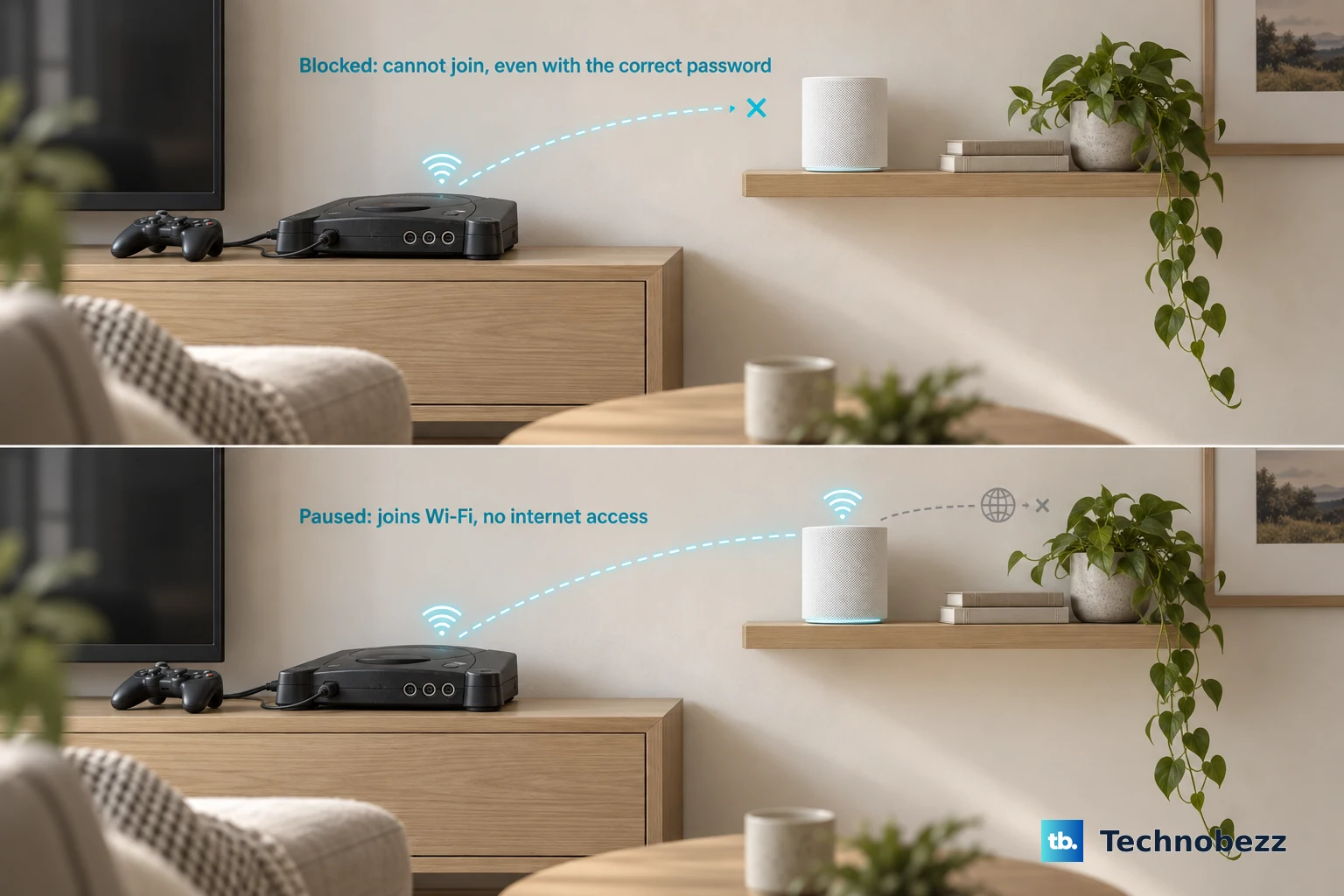
Using the network owner's access, open Devices > Blocked in the eero app. A blocked device cannot join even with the correct password; device blocking is unavailable in bridge mode.
Select the console from the blocked devices.
Open the more-options menu.
Select Unblock device.
For a console that joins Wi-Fi but cannot use the internet, locate it under Home or Devices.
Select Resume device.
If its household profile is paused, select that profile on Home.
Choose Resume profile.
Check the profile's recurring schedules if the restriction returns.
Match the restriction to the test result: blocking prevents joining Wi-Fi, while pausing prevents internet access.
Compare with an iPhone hotspot
Use an iPhone 12 or later with a hotspot-capable cellular plan to compare connections.
- 1.On the iPhone, open Settings > Personal Hotspot.
- 2.Enable Allow Others to Join.
- 3.Enable Maximize Compatibility and stay on that screen.
- 4.On the Xbox, open Settings > System > Network Settings and select the phone's wireless network.
- 5.Enter the hotspot password and select Done.
- 6.Run Test Xbox LIVE Connection. If the hotspot works while home Wi-Fi fails, that points toward home-network settings or compatibility. Treat the result as a diagnostic clue.
Frequently Asked Questions
Why does Wi-Fi work but my Microsoft account won't sign in?
For an Xbox 360 account with two-step verification enabled, use an app password. Open your Microsoft account's Advanced security options. Under App passwords, generate an app password. Enter it on the Xbox 360 in place of your normal account password, then select Sign In. This addresses account sign-in after the network connection works.
Will fixing Wi-Fi bring back the Xbox 360 Store?
No. New Xbox 360 Store and Marketplace purchases, along with playback in the console's Microsoft Movies & TV app, ended July 29, 2024. Don't use those functions as connectivity tests. Supported multiplayer remains separate from those retirements and depends on each game publisher's servers.
Where can I find my BT Whole Home Wi-Fi password?
Sign in to the Whole Home Wi-Fi web interface at mybtdevice.home or btwhole.home, depending on your product. Open Settings > WiFi. Select Show beside Security key to reveal the Wi-Fi password to enter on the Xbox.
What should I do on a managed accommodation network?
Ask the network operator whether your console needs registration or has an access restriction. To find its address, open Settings > System > Network Settings on the Xbox. Select the connection, then open Configure Network > Additional Settings > Advanced Settings. Give the displayed MAC Address to the operator. Managed-network changes require their authorization.