“Windows was unable to complete the format” leaves your SD card stuck when you need it ready for a camera, phone, or file transfer. Start with the lock switch and reader, then work through the formatting tools below. Back up important files first, because formatting destroys access to existing data.
Save your files and unlock the card
Copy readable files you want to keep to another drive. If you cannot copy important files normally, recover them before formatting. Remove the SD card from the reader.
Move the switch on the card’s left edge upward to the unlocked position. For microSD cards inside a full-size SD adapter, use the adapter’s switch. Reinsert the card into the reader. Tip: Replace an adapter whose loose switch keeps slipping back into the locked position.
Check the reader and connection
An incompatible reader prevents Windows from formatting the card. Connect your USB card reader to another USB port. Retry formatting.
Replace the reader’s cable if it uses a detachable one. Check that the reader explicitly supports your card’s SD, SDHC, SDXC, or SDUC standard. SDHC support does not automatically include newer standards.
Use a compatible reader if yours does not support the card. Test formatting on another computer if the error continues. After a successful format, copy a new file onto the card to confirm that it accepts writes.
Retry through File Explorer
Close files and applications using the SD card. This also prepares it for Disk Management, which cannot format a volume while it is in use. Open File Explorer and select This PC.

Right-click the SD card and select Format. Check that you selected the correct card before proceeding. Choose a file system compatible with the device that will use the card. Do not automatically select NTFS for a camera or phone.
Click Start. Click OK to confirm the erase operation. If Windows still cannot complete the format, try the SD Association’s dedicated formatter next.
Use SD Card Formatter
The SD Association’s formatter handles SD, SDHC, SDXC, and SDUC cards. Download version 5.0.4 from the official Windows download page. The SD Association lists Windows 10 22H2 and Windows 11 22H2, 23H2, and 24H2 as supported. Skip tutorials for version 4.0 or earlier: the SD Association no longer distributes those versions and warns of malfunctions on current operating systems.
Accept the license and install the formatter. Run it with administrator rights, which are required. Select the correct card and verify its identity. If it is missing, reinsert it and click Refresh.
If a compatible reader still does not detect the card, restart the computer and reopen the formatter. Choose Quick format. Click Format and confirm. This initializes the card’s file system.
If quick formatting fails, select Overwrite format. Click Format to start again. This overwrites the user-data area. Keep the computer powered and prevent sleep until it finishes.
Switch to Disk Management
An open file or application using the card blocks formatting in Disk Management. Close anything still using the card. Right-click Start and select Disk Management. Administrator access is required.
Identify the SD card by its capacity. Make sure you have the correct disk before changing anything. Right-click the card’s existing volume and select Format. Choose formatting settings compatible with the destination device.
Clear Perform a quick format to try a normal format. It takes longer and erases existing data, but it cannot repair physically failed flash memory. Click OK. Click OK again to confirm.
If the card instead has unallocated space, right-click that region and select New Simple Volume. Click Next. Accept the intended volume size. Choose a drive letter.
Configure a compatible file system. Finish the wizard. Creating a volume in unallocated space does not erase another allocated partition unless you separately delete it.
Clear a software lock or rebuild the partition
Back up your files before using DiskPart, because running clean on the wrong disk removes another drive’s partitions. Open Command Prompt as administrator.
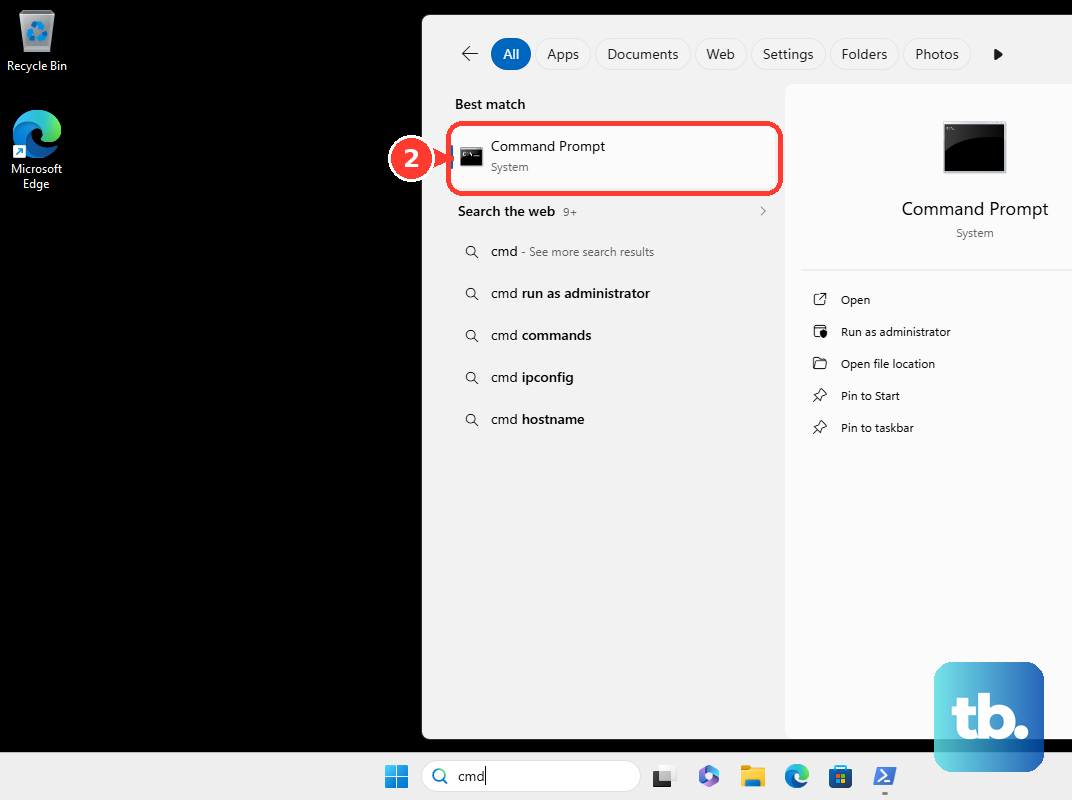
Enter diskpart. Then enter list disk. Enter select disk N, replacing N with the SD card’s disk number. Run detail disk and verify the card’s identity and capacity.
Run attributes disk. If the software read-only attribute is set, run attributes disk clear readonly. Retry formatting before continuing. This command cannot override a physical lock or failure-induced protection.
If formatting still fails, proceed only if Windows detects usable card capacity and you accept losing every partition on it. Select and verify the card again in DiskPart. Then run clean.
Run create partition primary. For an exFAT-compatible destination device, run format fs=exfat quick. Substitute format fs=fat32 quick only when FAT32 is appropriate for the card and device. Run assign.
Then run exit. After formatting succeeds, copy a new file onto the card to test that it accepts writes.
Know when the card needs replacing
Still unable to write to the card after connection tests and formatting attempts? SanDisk documents automatic write protection when storage blocks are exhausted or corrupted. Clearing a software attribute does not override that protection.
Preserve any files you can still read. A normal format or partition rebuild cannot repair physically failed flash memory. If these methods fail and the card still refuses new files, replace it and check its warranty eligibility with the manufacturer.
Frequently Asked Questions
What if the card’s volume has no drive letter?
In Disk Management, right-click the card’s accessible volume and select Change Drive Letter and Paths. Select Add, choose Assign the following drive letter, and select an unused letter. Click OK and confirm with Yes if prompted, then retry the formatter. This addresses letter assignment, not damaged flash memory.
Will CHKDSK fix an SD card shown as RAW?
CHKDSK repairs recognized file systems; it is not a RAW-card formatter or a repair for physically damaged flash memory. For a recognized file system, back up readable data and close files using the card. Open Command Prompt as administrator and run chkdsk X: /f, replacing X with the card’s verified drive letter. Retry formatting after repairs.
Does a BitLocker-encrypted SD card need to be unlocked first?
Yes. SD Card Formatter requires BitLocker-protected cards to be unlocked first. Open Command Prompt as administrator and run manage-bde -unlock X: -password, substituting the card’s verified drive letter for X. Enter its password, then retry formatting.
Why does the card format on my personal computer but not my work PC?
Managed Windows devices support policies that block removable-storage writes or require BitLocker protection before allowing writes. Ask your organization’s administrator to review those restrictions or use an approved computer.