Windows updates can stall before they download, fail during installation, or keep asking for a restart without finishing. Start with the Windows Update controls in Settings, then move through connection, storage, driver, and repair steps in the order that usually saves the most time.
1. Start with Windows Update again
This fixes paused updates, missed downloads, and updates that need a clean retry from Settings.
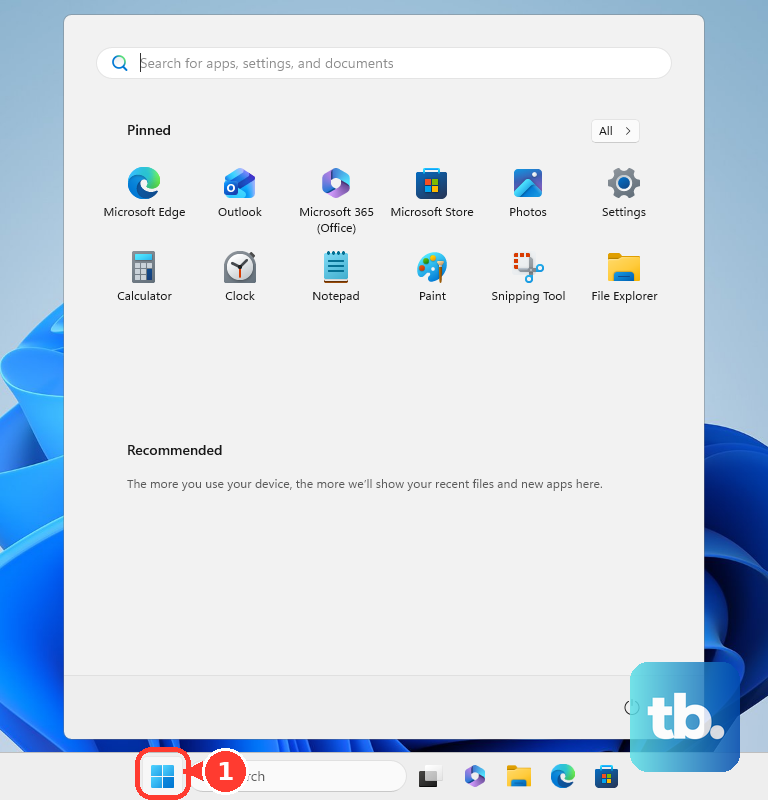
Select Start, then open Settings.
Select Windows Update.
Select Check for updates.
When updates are available, select Download & install.
If updates are paused, select Resume updates, then let Windows check again.
Restart the PC when Windows asks you to.
2. Restart and run the troubleshooter
Right-click Start, select Shut down or sign out, then select Restart.
After signing back in, open Settings, select Windows Update, then select Check for updates.
Open the Get Help app and run the Windows Update troubleshooter.
Follow the on-screen diagnostics and fixes.
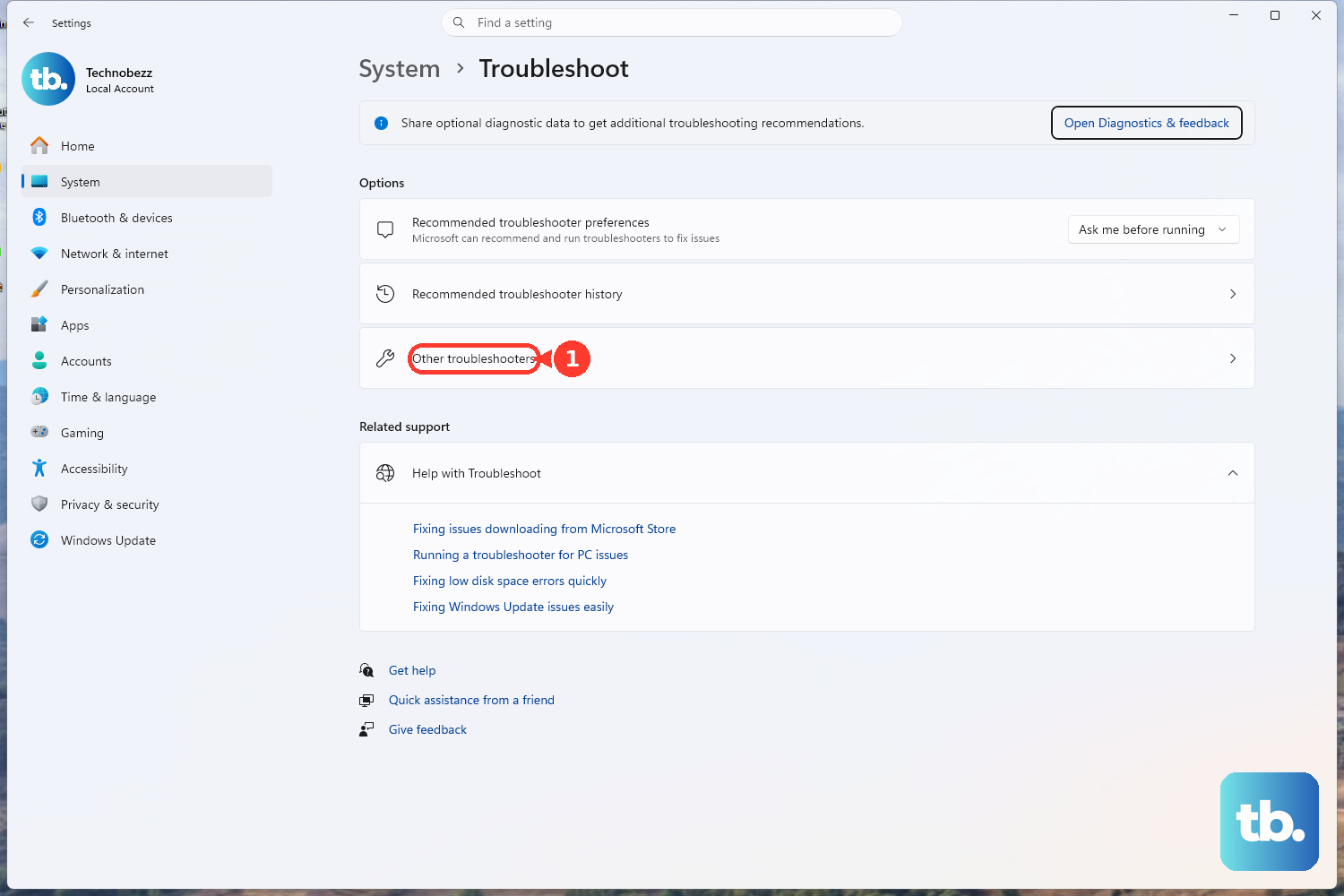
For the Settings troubleshooter, open Start > Settings > System > Troubleshoot > Other troubleshooters, then select Run next to Windows Update.
Return to Windows Update and select Check for updates.
3. Fix Wi-Fi metered connection settings
Select Start, open Settings, then select Network & internet.
Select Wi-Fi and confirm the PC is connected, or reconnect Wi-Fi or Ethernet before trying Windows Update again.
For a metered Wi-Fi network, select the Wi-Fi network, open Properties, then review Metered connection.
To allow updates over a metered connection, open Settings > Windows Update > Advanced options, then turn on Download updates over metered connections.
Return to Windows Update and select Check for updates.
Metered connections can hold back non-priority updates, so fix the network setting before repeating the same failed download.
4. Get optional updates sooner
Some Windows fixes, feature updates, controlled feature rollouts, and optional non-security updates use the Start > Settings > Windows Update > Get the latest updates as soon as they're available toggle.
Turn it on, then select Check for updates and restart when prompted.
Regular security updates still arrive whether this toggle is on or off.
On work or school PCs, your organization may control this setting.
5. Clear space for the update
This fixes update failures caused by low space on the system drive.
Select Start, open Settings, then select System.
Select Storage.
Turn on Storage Sense.
Select Cleanup recommendations, review the suggested files, then select Clean up.
Go back to Windows Update and try the update again.
When Windows shows Fix issues because storage is short, connect an external storage device with at least 10 GB free, select Fix issues, choose the external drive, select Next, and follow the prompts.
6. Remove devices and update problem drivers
Unplug nonessential hardware such as headphones, printers, scanners, speakers, USB flash drives, and external hard drives.
Undock the laptop when you use a laptop dock.
Retry Windows Update.
Right-click Start, select Device Manager, then expand the category for the device you want to check.
Right-click the device, select Update driver, then select Search automatically for updated driver software.
When Windows does not find a driver, select Search for updated drivers on Windows update and follow the Windows Update prompts.
For a device with a yellow exclamation mark, right-click the device and choose Update Driver Software or Uninstall.
For hardware that needs a manufacturer driver, use the manufacturer's official support site, install the driver that matches your device and Windows version, restart, then retry Windows Update.
Driver conflicts often show up during larger upgrades, so clear extra hardware first and fix Device Manager errors before running the failed update again.
7. Repair Windows system files
In the taskbar search box, type command prompt.
Right-click Command Prompt, select Run as administrator, then select Yes.
Type DISM.exe /Online /Cleanup-image /Restorehealth and press Enter.
After DISM completes, type sfc /scannow and press Enter.
After verification reaches 100 percent, type exit and press Enter.
Open Settings, select Windows Update, then select Check for updates.
When Windows Update errors point to the update service being stopped, press Win + R, type services.msc, press Enter, open Windows Update, set Startup type to Automatic, select Start, then select Apply and OK.
Use the SoftwareDistribution cache repair as an advanced step when the update cache is corrupt or an update download is missing or incomplete: stop the Windows Update service, delete the files and folders inside C:\Windows\SoftwareDistribution, start the service again, restart the PC, then retry Windows Update.
Frequently Asked Questions
Why are Windows updates not installing even after a restart?
Common causes include paused updates, a metered connection, low storage, damaged system files, driver conflicts, stopped Windows Update services, or an update that needs the Windows Update troubleshooter to finish repairing the issue.
Should I use the old Control Panel Windows Update troubleshooter?
No. Older guides may mention Control Panel, but Microsoft points Windows 11 and Windows 10 users to the Get Help Windows Update troubleshooter first, with the current Windows 11 Settings troubleshooter as another supported path.
Can I manually install a Windows update?
Yes. Use Microsoft Update Catalog when you know the exact KB number or matching Windows version, then choose the package that matches your device architecture and Windows version, install it, and restart when required.
What should I use instead of old Windows 10 update repair tools?
Windows 10 support ended on October 14, 2025, according to Microsoft. For current consumer repair and upgrade work, use Windows 11 Windows Update, the Windows 11 repair reinstall option at Settings > System > Recovery > Fix problems using Windows Update (it can be missing on work or school managed PCs, and needs Windows 11 with the 2022 annual update plus the February 2024 optional update or later), the Windows 11 Installation Assistant on x64 PCs (it does not run on Arm-based PCs and needs Windows 10 version 2004 or higher plus 9 GB of free space), or Windows 11 installation media from Microsoft. Microsoft still hosts Windows 10 installation media and the Media Creation Tool if you need to reinstall Windows 10 on a PC that was already activated, but that PC no longer gets free updates.