Windows Update opens to a blank page, keeps spinning, or shows a download that never moves. The next step depends on whether the page itself fails or an update gets stuck after it opens. Start with a restart and a direct shortcut, then follow the fixes for your symptom.
Restart to finish pending updates
A pending restart leaves update operations unfinished. Save your work. Select Start > Power > Restart, or Update and restart when offered.
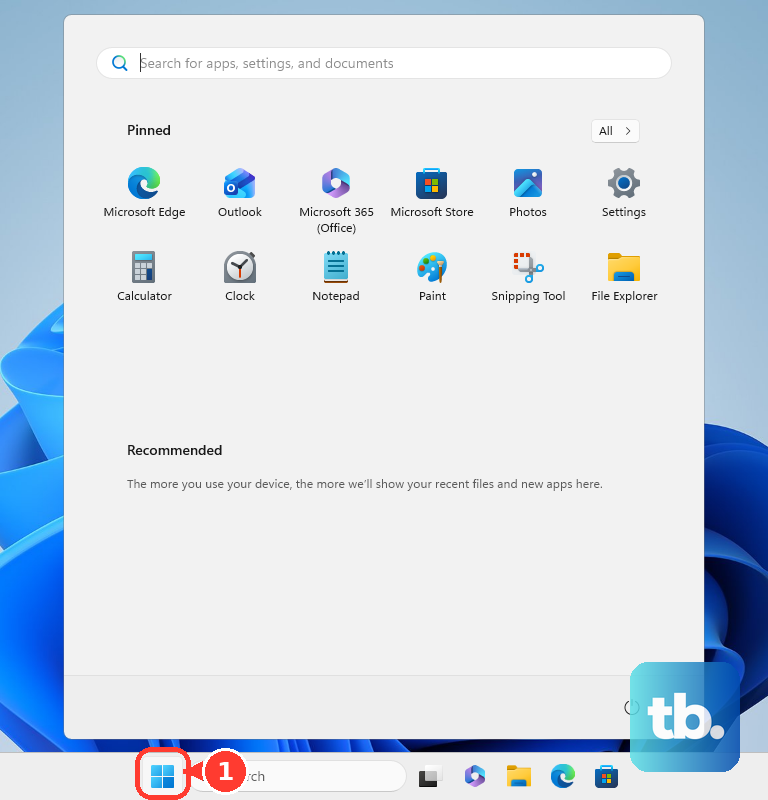
After signing in, open Start > Settings > Windows Update. On Windows 10, open Start > Settings > Update & Security > Windows Update. Select Check for updates.
Use the normal restart controls. Do not force the power off during an active update.
Open the update page directly
Press Windows+I to open Settings. Select Windows Update. On Windows 10, select Update & Security > Windows Update.
If navigation still fails, press Windows+R to open Run. Enter ms-settings:windowsupdate and press Enter. These shortcuts bypass navigation problems; a broken Settings app needs repair, and a page hidden by your organization needs the administrator checks at the end.
Let Get Help diagnose the problem
Microsoft's current Windows Update diagnostic runs through Get Help, giving you another route when the update page will not open. Open Get Help from Start. Enter windows update troubleshooter in its search field.
Follow the diagnostic prompts. On Windows 11, an alternative entry point is Settings > System > Troubleshoot > Other troubleshooters > Windows Update > Run. Restart after completing the diagnostic. Select Check for updates on the Windows Update page.
If the diagnostic does not resolve the problem, continue with the download checks below for a stalled update. If the page remains blank or crashes, skip to repairing Windows components and system files.
Check the connection and settings when downloads stall
A broken internet connection prevents Windows Update from downloading files even when its page opens normally. On Windows 11, open Get Help. Enter connect to network and internet in its search field. Select Run network diagnostics.
Follow the diagnostic results before retrying the update. For background downloads that still fail, search Get Help for Background Intelligent Transfer Service troubleshooter. Complete the offered diagnostic steps.
If updates are paused, select Resume updates on the Windows Update page. This starts another update check; it does not repair a blank page. For a metered connection, switch to an unmetered network.
To allow downloads on the metered connection instead, open Settings > Windows Update > Advanced options. On Windows 10, the path starts with Settings > Update & Security > Windows Update. Turn on Download updates over metered connections. Your network provider's data charges apply.
Connect the computer to its power supply before retrying an update that will not finish. Disconnect unnecessary external drives, docks, and other peripherals before another installation attempt. If Windows reports insufficient space, open Settings > System > Storage. Enable Storage Sense.
On Windows 11, open Cleanup recommendations from that storage page. Review the selections before removing anything. Select Clean up.
Repair Windows components and system files
Use this repair for corrupted Windows components or a malfunctioning Settings app. Search Start for Command Prompt. Open it through Run as administrator > Yes.
Run DISM.exe /Online /Cleanup-image /Restorehealth. Wait for it to finish successfully before continuing.
Run sfc /scannow. Let verification finish. Try opening Windows Update again.
If DISM cannot obtain repair files, use a compatible Windows repair source. The installation-media repair below provides another route when Settings or Windows Update cannot perform the repair.
Clear downloaded update files
For persistent update failures, use an administrator account to clear the downloaded Windows Update cache.
- 1.Press Windows+R, enter
services.msc, and press Enter. - 2.Find Windows Update. If it is already stopped, right-click it, select Start, and retry updating before continuing with the cache cleanup.
- 3.If the failure persists, right-click Windows Update and select Stop.
- 4.With the service stopped, open
C:\Windows\SoftwareDistributionin File Explorer and delete its contents. - 5.Return to Services, right-click Windows Update, and select Start.
- 6.Open the Windows Update page and select Check for updates.
Use a repair reinstall for persistent failures
A repair reinstall addresses Windows problems while retaining your files, applications, and settings. On Windows 11, open Settings > System > Recovery. The update-based repair requires Windows 11's 2022 annual update or later with the February 2024 optional update or later, plus functioning internet and update infrastructure.
For a direct route to recovery settings, press Windows+R. Enter ms-settings:recovery and press Enter. Select Reinstall now under Fix problems using Windows Update.
Choose your restart preference. Select OK. Restart when installation finishes.
If that option is missing or cannot complete, open compatible Microsoft installation media in File Explorer while signed in to Windows. Run setup.exe. Approve the prompt with Yes. Select Change what to keep.
Choose Keep personal files and apps. Select Next. Verify that the retention choice is Keep personal files and apps. Select Install only with that retention choice confirmed.
Ask your administrator about a missing update page
On a work or school computer, organization policies control whether the Windows Update page and update controls are available. A direct shortcut does not bypass a hidden-page policy. Managed devices also have restrictions on the availability of Fix problems using Windows Update.
Ask your IT administrator to inspect Settings Page Visibility, the policy controlling access to Windows Update features, and the device's update-server configuration. If a policy hides the page or blocks the controls, the administrator needs to correct that restriction.
Frequently Asked Questions
Why does Windows 10 no longer receive normal updates?
Windows 10 general support ended on October 14, 2025. Continued security servicing depends on Extended Security Updates (ESU) or an applicable LTSC lifecycle. On an eligible personal Windows 10 22H2 PC, open Settings > Update & Security > Windows Update > Enroll now. Sign in with an eligible administrator Microsoft account and complete an offered enrollment option. Enrollment addresses security-update eligibility, not a broken update page.
Can I install an update without using the Windows Update page?
Yes. Search the Microsoft Update Catalog for the required KB number. Select Download for the package matching your Windows version and processor architecture, then follow that KB article's installation instructions. On Windows 11 24H2 and later, updates with checkpoint prerequisites require those packages to be installed in the stated order before the target update.
Why is a feature update missing even though Windows Update works?
Microsoft withholds some feature upgrades because of known issues or safeguard holds. Open Windows release health, select your Windows release, and review its known and resolved issues. Follow the workaround or resolution for the matching issue.
Will resetting Windows keep my installed apps?
No. Reset PC with Keep my files preserves personal files but removes applications and settings. That differs from a repair reinstall, which retains files, apps, and settings when performed through Fix problems using Windows Update or compatible installation media with Keep personal files and apps selected.