You open an archive, and Windows stops you with “Windows cannot complete the extraction.” The problem comes down to the archive, its destination, or the tool opening it. Start by extracting the whole archive, then work through the checks that match your error.
Extract the archive before opening its files
If the error appears when you open a document or program inside an archive, extract everything first. In File Explorer, right-click the archive and select Extract All..., then follow the extraction prompts.
Open your document or program from the extracted folder.
If full extraction fails and you only need one item, open the ZIP in File Explorer and drag that item into a different folder. This retrieves accessible items without repairing damaged ones. If that also fails, try a shorter name and destination next.
Give the archive a shorter path
Rename the archive to something short, such as files.zip for a ZIP, while preserving its original extension.
Create a destination folder you own with a short name and fewer parent folders.
Retry Extract All... using that folder as the destination.
Choose another local location if Windows reports that the destination is protected or cannot be written to.
Ask the sender to shorten excessively long filenames inside the archive and recreate it if the shorter destination does not resolve the path problem.
Tip: Renaming the outer archive leaves its contents unchanged, so the creator must also correct Windows-incompatible names, including reserved characters, reserved device names, and trailing spaces or periods.
Try 7-Zip for encrypted or unsupported archives
Microsoft recommends 7-Zip or WinRAR for encrypted archives that File Explorer cannot process.
- 1.Install the current Windows release from 7-Zip’s official download page, choosing the package that matches your processor architecture.
- 2.Open the archive from inside 7-Zip File Manager.
- 3.Select Extract and choose your destination folder. Dragging files from 7-Zip into File Explorer first decompresses them into temporary storage; Extract avoids that extra staging.
- 4.Enter the correct password when prompted. The extractor must support the archive’s encryption method.
Check whether the archive is damaged
A fresh copy addresses archive corruption that changing folders cannot fix.
Open the archive in 7-Zip File Manager.
Choose Test. CRC or data errors indicate an integrity problem; testing does not repair it.
Obtain a fresh download or another copy if the test reports errors.
Run Test on the replacement archive.
Ask the sender to create a new archive if the replacement also fails the integrity test.
Check storage space and large-file limits
Check available drive space in File Explorer under This PC. The destination needs room for the uncompressed files, and the system drive needs room for any temporary data used during extraction.
To free space in Windows 11, open Settings > System > Storage > Cleanup recommendations. Review the proposed removals before choosing Clean up.
Another option is to extract to a drive with sufficient room. If an individual extracted file exceeds FAT32’s approximately 4 GiB limit, choose an existing NTFS or exFAT destination. More free space on a FAT32 drive does not remove that per-file limit.
Make a OneDrive archive available locally
This makes an online-only archive available for local extraction.
Right-click the archive in your OneDrive folder in File Explorer.
Select Always keep on this device.
Wait until the archive is locally available.
Retry Extract All.... Downloading the archive locally does not repair corruption.
For a fresh copy, select the archive on the OneDrive or SharePoint website.
Choose Download to save it locally.
If the failing ZIP came from downloading multiple files or folders together, download the original files individually using Download.
Unblock a trusted download
Unblocking removes a download-origin block; use it only for an archive you trust, because it does not fix corruption or encryption.
- 1.Right-click the archive in File Explorer and select Properties.
- 2.Select Unblock. If that control is absent, skip this method.
- 3.Apply the change with Apply.
- 4.Retry Extract All....
Recover a multipart or damaged archive with WinRAR
Install or update WinRAR using the current compatible Windows package from its official download page.
For a multipart RAR archive, obtain any missing or damaged volumes from the sender.
Place every volume in the same local folder.
Open the first volume in WinRAR, or open the single archive if it has no separate volumes.
Select the contents you want to extract.
Choose Extract To, or press Alt+E.
Choose a destination.
Select OK.
If a damaged RAR or ZIP still fails, select the archive in WinRAR.
Press Alt+R to attempt repair. Success depends on the damage and available recovery information.
Open the resulting repaired archive in WinRAR.
Choose Extract To.
Choose a destination.
Select OK.
Open the repaired archive in 7-Zip File Manager.
Choose Test to check its integrity.
Tip: RAR recovery records improve the prospects of a successful repair.
Troubleshoot Windows when several good archives fail
Use broader Windows troubleshooting when multiple known-good archives fail. Missing parts, an unknown password, and irrecoverably damaged data require replacement material, the correct password, or successful archive recovery.
Save your work.
Select Start > Power > Restart.
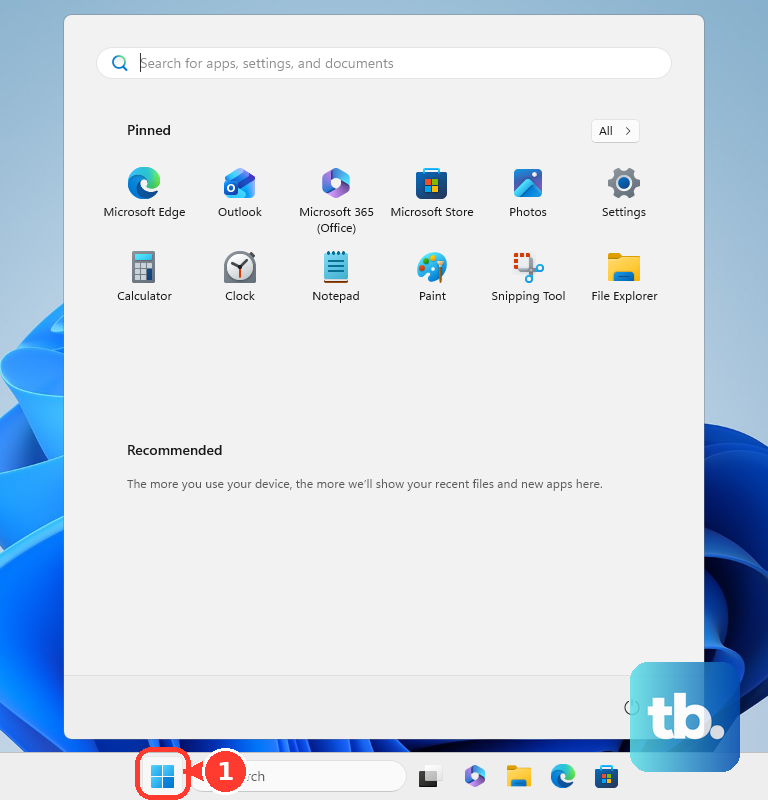
Retry Extract All... after signing in.
Open Start > Settings > Windows Update.
Select Check for updates.
Install applicable updates.
Complete any required restart.
Retry Extract All....
If the failures point to damaged Windows components, search for Command Prompt.
Right-click Command Prompt and select Run as administrator.
Select Yes at the confirmation prompt.
Run DISM.exe /Online /Cleanup-image /Restorehealth and wait for successful completion.
Run sfc /scannow and wait for the scan to finish.
For failures that began after an update, open Microsoft’s Windows release health page.
Select your Windows version’s Known issues or Resolved issues.
Follow the workaround for an issue that matches your failure.
If extraction still fails, open Get Help.
Describe the extraction error in Get Help.
Frequently Asked Questions
Can I extract a ZIP with PowerShell?
Yes. In Windows PowerShell, run Expand-Archive -LiteralPath 'C:\path\archive.zip' -DestinationPath 'C:\path\output', replacing both paths with your own. Use a new destination. Add -Force only when you intend to overwrite existing files. This command handles ZIP files, and Microsoft documents a 2 GB file-size limitation for its underlying API.
Will enabling long paths always fix File Explorer extraction?
No. Windows long-path support requires the application to opt in as well as the system setting to be enabled. Changing the registry or Group Policy setting does not provide a universal File Explorer extraction fix.
Does Windows 10 also have Extract All?
Yes. Microsoft documents Extract All and dragging individual items out of ZIP folders for Windows 10 as well as Windows 11.
Why does a Store extractor need file-system permission?
Windows controls file-system access for apps governed by that permission. Open Start > Settings > Privacy & security > File system, turn on Let apps access your file system, and enable the affected app in the list. Many traditional desktop programs are excluded, so this setting is not a general fix for File Explorer or desktop 7-Zip.