If your MacBook says “No hardware installed” or the Wi-Fi menu shows Wi-Fi as unavailable, start with a restart, then check whether the Wi-Fi network service is missing or macOS cannot detect the adapter. These checks help you decide what to fix in settings and when to arrange service.
Start with a restart and a quick Wi-Fi check
Try these checks before changing your network configuration. The steps in this article use System Settings in macOS Ventura 13 or later; on macOS Monterey 12 or earlier, the equivalent controls are in System Preferences and the menu paths differ.
- 1.Save your work, then choose Apple menu > Restart. On an Apple silicon MacBook, connect power first; Apple specifies no additional SMC key combination.
- 2.If the Mac is unresponsive, hold the power button until it switches off. Wait briefly, then press it again. On models with Touch ID, that is also the power button. A forced shutdown risks losing unsaved changes.
- 3.Open Apple menu > System Settings > Wi-Fi. Turn the Wi-Fi switch off, then on. If the switch is missing, continue to the next section.
- 4.Open Apple menu > About This Mac. Note the macOS name and version so you can match the instructions to your settings interface.
Restore a missing Wi-Fi service
A missing network service is different from an undetected adapter. To add a missing service, open Apple menu > System Settings > Network > Action and choose Add Service. Set Interface to Wi-Fi, enter a Service Name, and click Create.
If Wi-Fi is absent from Interface, adding a service cannot restore the hardware. Continue with the software and hardware checks below.
If only the menu bar icon is missing, select the Wi-Fi checkbox in System Settings > Menu Bar on macOS Tahoe 26 or macOS 27. This restores the visible menu, not an undetected adapter.
Try a fresh network location
A new network location gives you fresh network settings while keeping your previous configuration. Use this when Wi-Fi is available as an interface but its configuration needs troubleshooting.
On macOS Ventura 13 or later, open Apple menu > System Settings > Network. Choose More > Locations > Edit Locations. Click +. Enter a name for the new location.
Click Done. Exit Network settings to save the location.
On macOS Monterey 12 or earlier, choose Apple menu > System Preferences > Network, then choose Location > Edit Locations. Click +, enter a name, click Done, then click Apply.
Test Wi-Fi with the new configuration. To restore your previous configuration, select it through Apple menu > Location.
If Wi-Fi is still unavailable, test in safe mode next. A network location changes settings; it cannot repair failed hardware.
Check software that loads at startup
Software loaded during startup is a source of conflicts that safe mode helps isolate.
On an Apple silicon MacBook, choose Apple menu > Shut Down. Hold the power button until Loading startup options appears. Select your startup volume. Hold Shift while clicking Continue in Safe Mode.
On an Intel MacBook, turn on or restart while immediately holding Shift until the login window appears. Log in, completing a second login if prompted. On Intel, check for Safe Boot. Test whether Wi-Fi is available.
Choose Apple menu > Restart to return to normal startup. If Wi-Fi worked in safe mode, open System Settings > General > Login Items & Extensions.
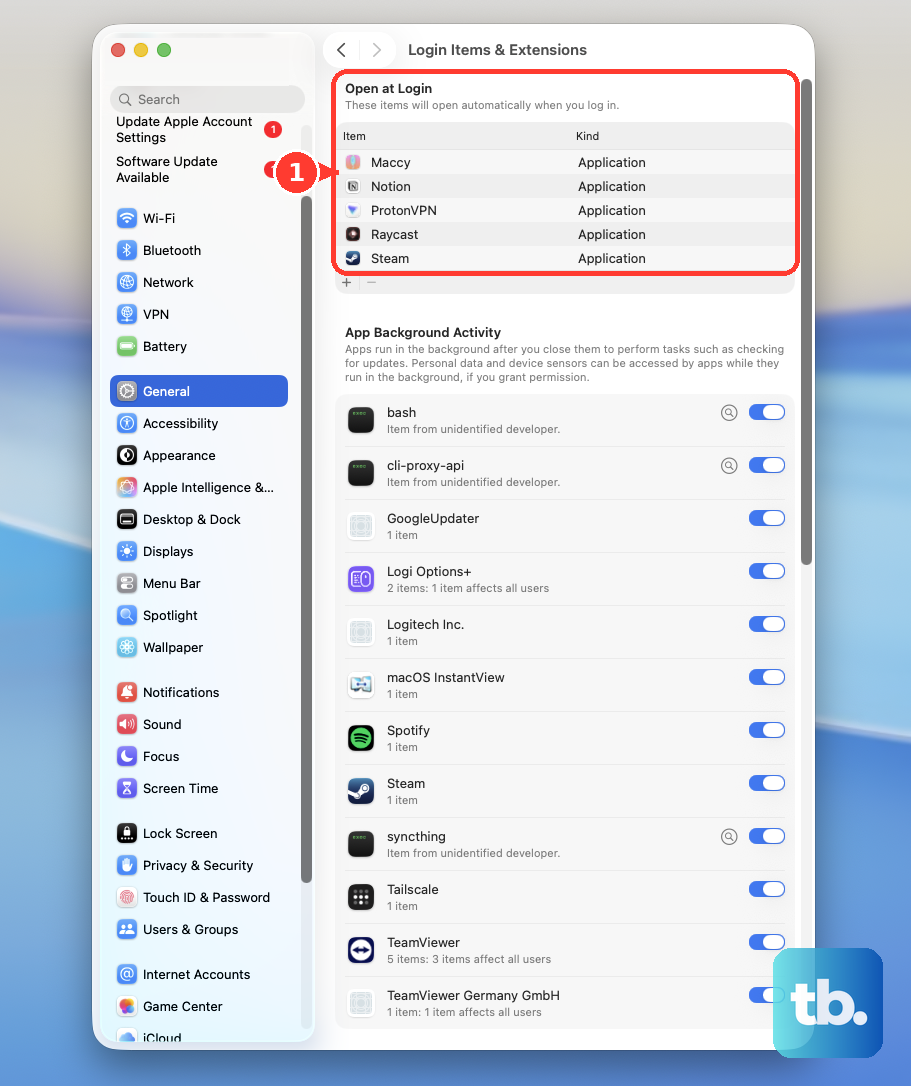
Record the items under Open at Login. Remove those items by selecting them and clicking Remove. Restart the Mac. Test Wi-Fi again.
If the problem disappears, add one recorded item back to Open at Login. Restart after each addition to identify the item that brings the problem back.
For installed VPN or security software, open its app through Finder > Applications. Temporarily turn off its VPN or filtering features using the app's controls; their names depend on the vendor. Restart after the change. Test Wi-Fi again.
On a work or school Mac, ask your administrator to handle restricted controls or required networking software.
Install a compatible macOS update
Back up your Mac before installing an update. If your MacBook has no Ethernet port, connect a compatible USB-C or Thunderbolt Ethernet adapter. Connect an Ethernet cable from your router or modem to the Mac's Ethernet port or adapter. Open Apple menu > System Settings > General > Software Update.
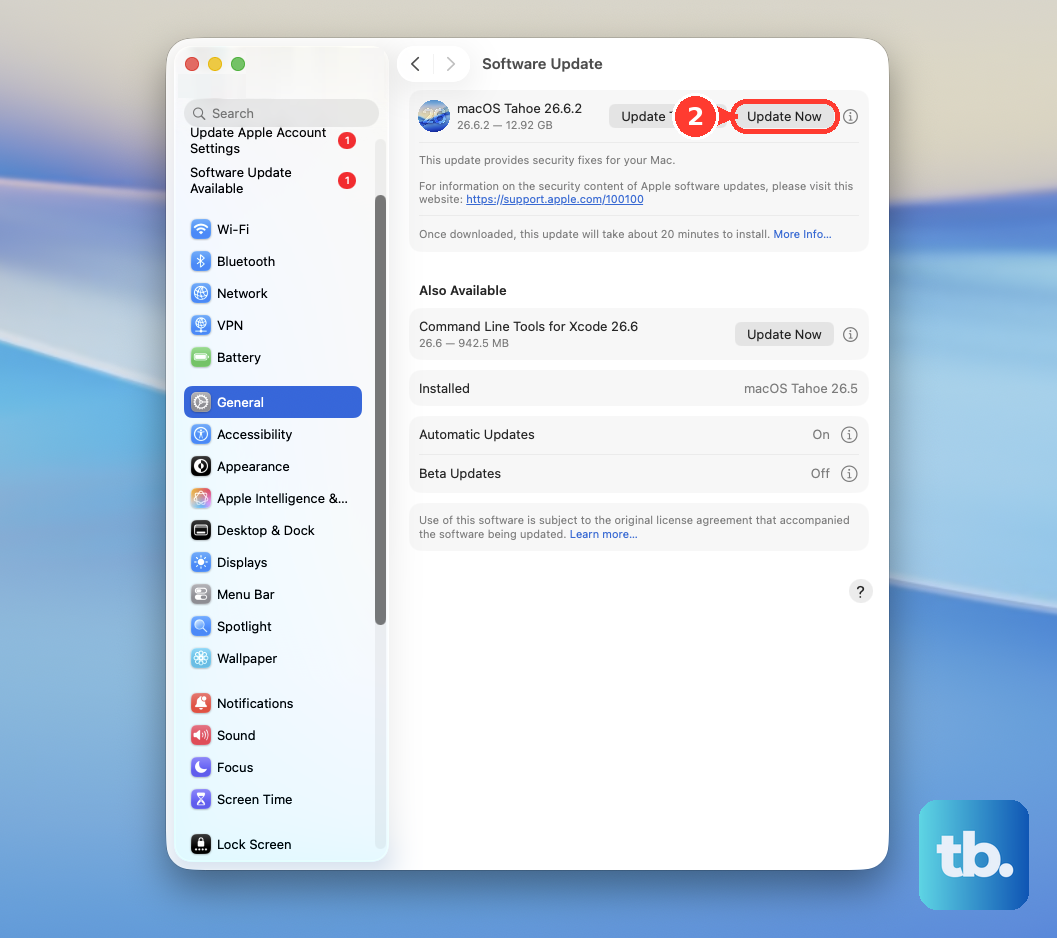
Start the offered compatible update using the update, upgrade, or restart button shown. Enter administrator credentials if requested. Allow installation to finish. Test Wi-Fi again.
Tip: USB Personal Hotspot from a compatible iPhone or cellular iPad also provides internet access while the Mac's Wi-Fi is unavailable.
Run Apple Diagnostics for persistent missing hardware
A hardware fault is another cause of Wi-Fi remaining unavailable after software troubleshooting.
Choose Apple menu > Shut Down. Disconnect external devices other than permitted essentials, Ethernet, and power. On Apple silicon, hold the power button until Options appears. Release the power button.
Hold Command-D until the Mac restarts. On Intel, start the Mac while holding D. Release D at the progress bar or language prompt. If that does not start diagnostics, try again using Option-D.
Follow the diagnostic instructions, including selecting a test if prompted on macOS Tahoe 26 or later. Select Run Offline if offered and appropriate. Record the reference codes.
Apple Diagnostics tests hardware; it does not automatically repair it. If you receive a Wi-Fi service code, use the repair section below before spending more time changing settings.
Reinstall macOS if software troubleshooting stalls
Reinstalling macOS addresses software problems while preserving apps and personal data; it cannot repair faulty hardware.
Back up your Mac if possible. Connect Ethernet if Wi-Fi is unavailable; Recovery installation requires broadband internet over supported Wi-Fi or Ethernet. Choose Apple menu > Shut Down. On Apple silicon, hold the power button until startup options appear.
Select Options. Click Continue. On Intel, turn on the Mac while immediately holding Command-R to enter local Recovery. Select the startup disk if requested.
Authenticate if requested. Select the macOS install or reinstall option. Click Continue. Follow the installer prompts.
Choose Macintosh HD rather than Macintosh HD - Data if both are offered. Let installation finish without closing the lid.
Arrange service when Wi-Fi stays undetected
Contact Apple or an Apple Authorized Service Provider for diagnostic codes CNW001, CNW003 through CNW006, or CNW009. For CNW007 or CNW008, repeat the test within range of Wi-Fi. Seek service if the code recurs.
Keep your model, serial number, symptom, and diagnostic results ready for support. Open Apple menu > About This Mac > More Info > System Report to view hardware and network information. Retain that information for support; the report is a diagnostic resource.
Use the Apple Support website or app, contact AppleCare by phone, or book a Genius Bar appointment. If Wi-Fi remains undetected after the software checks, contact support even without a listed diagnostic code.
Frequently Asked Questions
Will Wireless Diagnostics repair missing Wi-Fi hardware?
No. Wireless Diagnostics analyzes wireless and network problems without changing network settings or repairing failed hardware. When the Wi-Fi menu is available, hold Option while clicking Wi-Fi in the menu bar or Control Center, then select Open Wireless Diagnostics.
Should I reset the SMC or NVRAM on an Intel MacBook?
Apple documents both procedures for Intel Macs, but neither is an Apple-confirmed cure for missing Wi-Fi hardware. SMC instructions depend on whether the Mac has a T2 chip. NVRAM resets address stored settings. Neither keyboard reset applies to Apple silicon.
Will forgetting my Wi-Fi network or restarting the router fix missing hardware?
No. Those steps address connection problems after the Mac detects its Wi-Fi adapter. Renewing the DHCP lease also addresses network configuration, not missing hardware.
How do I use an iPhone's internet without working Mac Wi-Fi?
With a compatible iPhone and supported carrier plan, open Settings > Personal Hotspot on the iPhone. Enable Allow Others to Join. Connect the iPhone to the Mac by USB. Tap Trust at Trust This Computer? if prompted. On the Mac, click Allow at Allow accessory to connect? if prompted. Check System Settings > Network for iPhone USB.