USB ports not working in Windows 10 turn simple jobs into dead ends: no mouse, no keyboard, no flash drive, no printer, no dock. The fix starts with the checks that clear stuck power states, bad connections, wrong USB-C ports, and broken driver detection.
Save your work before changing drivers or power settings. Windows 10 reached end of support on October 14, 2025, and the paid Extended Security Updates program covers security updates only, not drivers or technical support. Windows Update can still offer drivers on Windows 10 version 22H2; when it has none, get the driver from your PC or device maker.
Restart Windows and reconnect the device
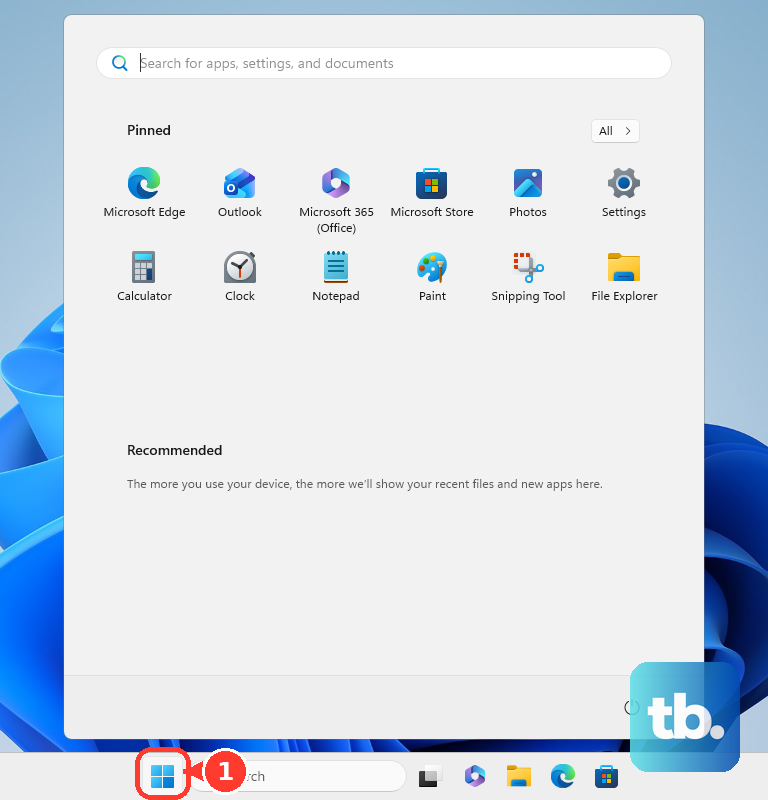
Save anything open, then select Start > Power > Restart. A restart clears temporary USB driver and power-state faults without changing your files.
After Windows loads again, connect the USB device directly to the PC. Leave hubs and docks unplugged for this first test so Windows talks only to the computer port and the device.
Plug the device into its own power adapter when it has one. External drives, docks, and USB-C accessories need external power when the USB port is not supplying enough.
Inspect the port, cable, and device
Use this check when the USB device feels loose, works only at an angle, disconnects randomly, or fails in one port while another port works. Physical connection trouble looks just like a Windows driver failure.
Disconnect the USB device and inspect the port and connector. Look for bent or broken pins, a loose fit, dust, or visible debris.
If you see dust or debris, use compressed air in short bursts. Keep water, liquid cleaning solutions, and damp cloths away from USB ports.
Test the same USB device on another computer when one is available. If it fails there too, the fault is in the device or cable rather than your PC ports: retest with a known-good cable, then replace the device if it still fails.
Try another port without a hub
This fixes wrong-port, damaged-port, and hub detection problems.
Unplug the USB device from the current port.
Plug it directly into another USB port on the PC.
For a USB-C, Thunderbolt, DisplayPort, or MHL device, connect it to the USB-C port that supports the feature the device needs.
Keep hubs and docking stations out of the test until the device works directly on the PC.
Fix low power and USB-C warnings
Plug the PC into AC power instead of running it on battery.
Disconnect USB devices you are not using so fewer devices draw power from the computer.
If the USB device supports external power, plug the device into its power source.
For USB-C charging problems, use the charger and cable that came with the PC or device, then connect it to the USB-C charging port.
If Windows shows a USB-C connection warning, follow the message first because it identifies the wrong port, a failing device, or an unsupported accessory.
Use the shortest direct connection that works before adding a hub or dock back into the setup.
Turn on USB-C connection notifications
Use this when USB-C devices connect inconsistently or Windows gives you no clear reason. The notification points to a different USB port, a device fault, or an unsupported USB audio adapter.
Open Start > Settings > Devices > USB. Select Notify me if there are issues connecting to USB devices.
Reconnect the USB-C device and read the notification that appears. If Windows says to use a different USB port, move the device to a feature-capable USB-C or Thunderbolt port.
If Windows reports an unsupported USB audio adapter, unplug the analog USB-C audio adapter and use a USB-C digital audio adapter instead.
Check Device Manager for USB errors
Right-click Start and select Device Manager. Look for the USB device, controller, hub, or related category, especially anything marked with a yellow exclamation point.
Press and hold or right-click the device, then select Properties. Read Device status; Windows displays Device Manager codes such as Code 10, Code 28, and Code 43 there.
If the device shows a down arrow or disabled status, right-click it and select Enable device. If this method fails, update or reinstall the affected USB driver next.
Update USB and chipset drivers
Right-click Start, select Device Manager, then expand Universal Serial Bus controllers or the category for the affected device. Right-click the USB Root Hub, USB Host Controller, USB Composite Device, chipset or Thunderbolt controller, or the affected peripheral, then select Update driver.
Select Search automatically for updated driver software. If Windows offers Search for updated drivers on Windows update, select it.
For optional driver updates, open Start > Settings > Update & Security > Windows Update > Advanced options, turn Receive updates for other Microsoft products when you update Windows on, then return to Windows Update and select Check for updates.
If View optional updates appears, open View optional updates > Driver updates, choose relevant USB, chipset, Thunderbolt, or manufacturer drivers, and select Download and install.
If Windows does not find the right driver, download the correct driver from your PC or device maker. In Device Manager, choose Update driver > Browse my computer for drivers, select the driver folder, then continue with OK and Next.
Stop Windows from powering off USB hubs
Right-click Start and select Device Manager.
Expand Universal Serial Bus controllers.
Right-click USB Root Hub and select Properties.
Open Power Management and clear Allow the computer to turn off this device to save power.
Repeat that change for each USB Root Hub, then restart the PC.
If the Power Management tab is missing for a hub or controller, use the active power plan setting next.
Disable USB selective suspend
Use this power-plan fix when USB ports stop working after sleep, idle time, or battery-saving behavior.
- 1.Search the Start menu for Edit Power Plan and open it.
- 2.Select Change advanced power settings.
- 3.Expand USB settings > USB selective suspend settings.
- 4.Set the option to Disabled.
- 5.Select OK or Apply, then restart the computer.
Dell documents this change as a fix for USB ports that stop working, while Microsoft's USB driver documentation recommends leaving selective suspend enabled because it saves power. Treat it as a test: if the ports still fail, set the option back to Enabled.
Reinstall drivers and use recovery options
When the device appears in Device Manager but still fails, save your work and rebuild the driver. Right-click Start, select Device Manager, expand the affected device category, right-click the USB device, and select Uninstall device.
In the uninstall window, select Uninstall. Restart by right-clicking Start and selecting Shut down or sign out > Restart, and Windows attempts to reinstall the driver after startup.
If several ports are failing, disconnect nonessential USB devices, open Universal Serial Bus controllers, and uninstall USB Root Hub or USB Host Controller entries. Restart the computer so Windows reinstalls them automatically.
For manufacturer updates, use the supported tool or download page for your exact PC model. On Dell PCs, open SupportAssist, go to Home, select Update software, then choose Start; Dell business PCs use Dell Command | Update, while ASUS PCs use MyASUS or the ASUS Download Center.
If USB ports were disabled in firmware, restart into BIOS or UEFI and check the USB settings. On many Dell PCs, press F2 at startup, open USB Configuration or USB Ports under Integrated Devices, enable USB ports, then save and exit.
Run the Windows troubleshooter through Get Help from Start and search for your device problem; Microsoft's current troubleshooters run there, although Get Help carries no general hardware or USB troubleshooter. The older Hardware and Devices troubleshooter still runs on Windows 10: press Windows + X, open Terminal (Admin) or an elevated command prompt, type msdt.exe -id DeviceDiagnostic, press Enter, then select Next. Microsoft has deprecated the MSDT troubleshooters, but states that Windows 10 devices are not affected by that retirement.
If USB failed right after a system change, use Control Panel > Recovery > Open System Restore and choose a restore point from before the problem started. System Restore does not restore personal files, but it undoes driver and system changes when System Protection was enabled.
On a work or school PC, removable USB storage is controlled by company policy when keyboards and mice still work but storage devices are blocked. Contact your IT team.
As a last resort, back up your files and use Settings > Update & Security > Recovery, then select Get started under Reset this PC. If the same port still fails after Windows has been reset, have the PC serviced.
Frequently Asked Questions
Why do my USB ports stop working after sleep in Windows 10?
Windows is turning off USB hubs to save power, or USB selective suspend is interrupting the port after idle time. Change both settings, then restart the PC.
Why does one USB-C port work but another one does not?
USB-C ports do not all support the same features. Displays, Thunderbolt devices, chargers, docks, and adapters need a port that supports their required mode.
Can Windows 10 still get USB driver updates?
Windows 10 reached end of support on October 14, 2025. Device Manager, OEM tools, and local driver installs still work; Windows Update can still offer drivers on version 22H2, and when it has none, the driver comes from your PC or device maker. Extended Security Updates cover security updates only, so ESU enrollment does not control driver availability.
Should I use a third-party driver updater for USB problems?
Use Device Manager, Windows Update, and the PC maker's official support tool or driver page. For Dell and ASUS systems, use their model-specific support paths.