You choose a movie or episode, but Apple TV gives you an “Unable to Play” error instead. Start with a few quick checks to separate a title problem from an app, account, or connection failure. Then follow the steps for your device, because an Apple TV box and the Apple TV app on another television use different menus.
Find out what is failing first
A service interruption prevents playback even when your device and internet connection are working.
Check Apple’s System Status page and the affected streaming provider’s status page. If an outage is reported, retry after service returns.
Try another movie or episode in the same app. If only one title fails, report that title to the content provider.
Open another streaming app. If playback works there, focus on the affected app.
Test the affected service on another device connected to the same network. If playback fails across devices and no outage is reported, use the network checks below. Contact your internet provider if those failures continue.
Give the app and device a fresh start
On Apple TV 4K, quickly press the remote’s TV button twice to open the app switcher.
Highlight the affected app.
Swipe upward on the clickpad or touch surface to close it.
Reopen the app from the Home Screen.
Try the video again.
If playback still fails, restart Apple TV HD or Apple TV 4K through Settings > System > Restart.
For an Apple TV 4K that is not responding, disconnect it from its power outlet.
Reconnect it after five seconds.
If you use the Apple TV app on a smart TV or streaming device, power-cycle that device instead. On an Apple device or Windows PC, restart the device hosting the app.
If restarting does not help, install the software updates next, then retry the same title.
Install software updates for your viewing device
On Apple TV HD or Apple TV 4K, open Settings > System > Software Updates > Update Software. If an update is offered, select Download and Install. Leave power and networking connected until installation finishes.
Enable Automatically Update under Software Updates to receive future updates automatically.
For the Apple TV app on an iPhone, iPad, or Mac, update the device’s operating system. On Windows, update Windows and drivers, then update Apple TV through Microsoft Store.
On Android, update Android itself, then update Apple TV through Google Play. Supported connected TVs and consoles normally update the Apple TV app automatically.
Ease the load on your connection
Weak cellular service and competing household internet activity reduce the bandwidth available for streaming.
Temporarily pause other household internet activity. Apple specifies at least 8 Mbps for HD streaming.
Retry playback.
If you are watching on a phone or tablet with weak cellular service, switch to Wi-Fi.
On Apple TV 4K using the tvOS 27 interface, open Settings > Apps > TV > Streaming Video Quality.
Choose Better for HD or Good for SD and reduced data usage.
On supported smart TVs and living-room streaming devices, open Settings from the Apple TV app’s sidebar.
Under General settings, enable Limit Playback to SD. This is separate from Limit Purchases and Rentals to SD.
For a supported TV or living-room device with the built-in video test, open Settings from the app’s sidebar. Under General settings, select Start for Video Troubleshooting.
Follow the network test and its suggested remedies.
Check your access to the title
Use these checks for a purchase, subscription, restricted title, or an account already streaming on other devices. An Apple TV subscription does not include every rental, purchase, or third-party subscription shown in the app.
Stop playback on other devices using your subscription. Most Apple TV subscription content allows six simultaneous streams, but some titles allow fewer; Apple Music student access allows one, and channel subscriptions have their own limits.
Retry the title.
On Apple TV 4K using the tvOS 27 interface, choose the profile associated with the content through Settings > Profiles and Accounts > Switch Current Profile.
Select your profile under Settings > Profiles and Accounts.
Open Subscriptions to check the relevant subscription.
To refresh purchase authentication, open Store under that profile. Refreshing purchase authentication does not guarantee that playback will resume.
Sign out.
Sign back in with the Apple Account that owns the content.
If a rating restriction blocks the title, open Settings > General > Restrictions.
Enter the authorized passcode.
Adjust the restriction that blocks the title. Third-party apps also have separate restrictions.
For Apple TV app profile restrictions on that tvOS interface, select your profile under Settings > Apps > TV.
Open Restrictions.
Complete account verification if prompted.
Adjust the permitted Movies or TV Shows ratings.
Reconnect Apple TV to the network
These checks address connection failures on Apple TV HD and Apple TV 4K.
Restart the router and modem by disconnecting and reconnecting their power.
Check that their connections and power are secure.
Place Apple TV and the router in the same room where possible, avoiding obstructions and keeping Apple TV more than one foot from the router.
On Apple TV, open Settings > Network > Wi-Fi.
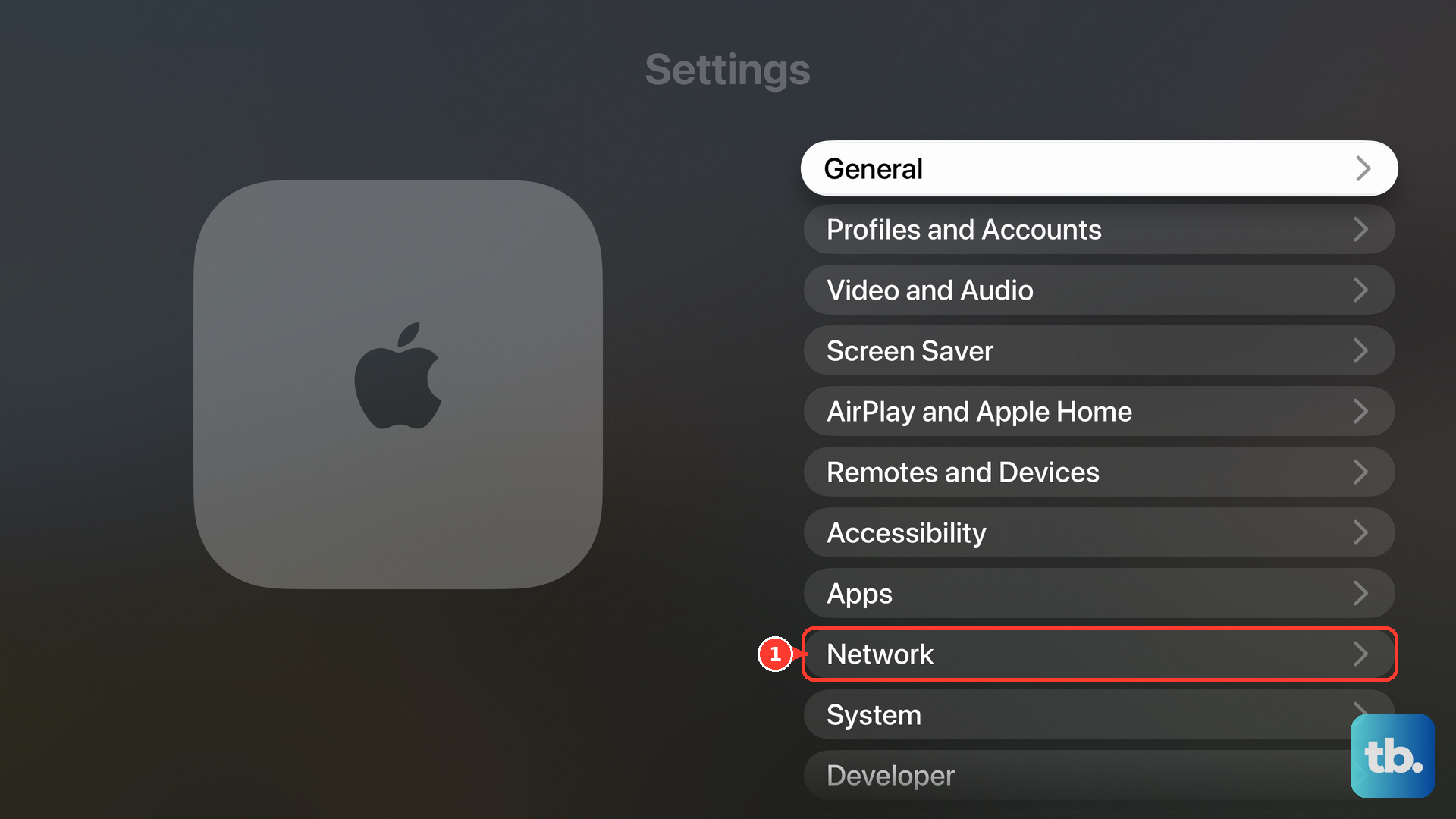
Select your current network.
Choose Forget Network.
Press Back or Menu to return to Network.
Select the network again.
Enter its password to reconnect.
On a model with an Ethernet port, connect Apple TV to the router or modem with an Ethernet cable. Apple TV uses the wired connection automatically.
Disconnect Ethernet before selecting a Wi-Fi network again.
On Apple TV 4K, test another network through Settings > Network > Wi-Fi.
For a hotel network that requests authentication, select Continue on iPhone or iPad when prompted.
Finish signing in on that device.
If an organization manages your VPN, firewall, parental-control, or filtering settings, ask its administrator to review the connection before changing them.
For settings you manage yourself, temporarily disable the relevant features in the app that controls them.
Restart your device.
Retry playback.
Check HDMI when playback leaves a black screen
Use these checks for display and HDMI failures on Apple TV hardware.
- 1.Reseat both ends of the HDMI cable.
- 2.Try another suitable HDMI cable.
- 3.Test another HDMI port on the television, then select the TV input that matches that port.
- 4.Bypass any HDMI switch or AV receiver by connecting Apple TV directly to the television.
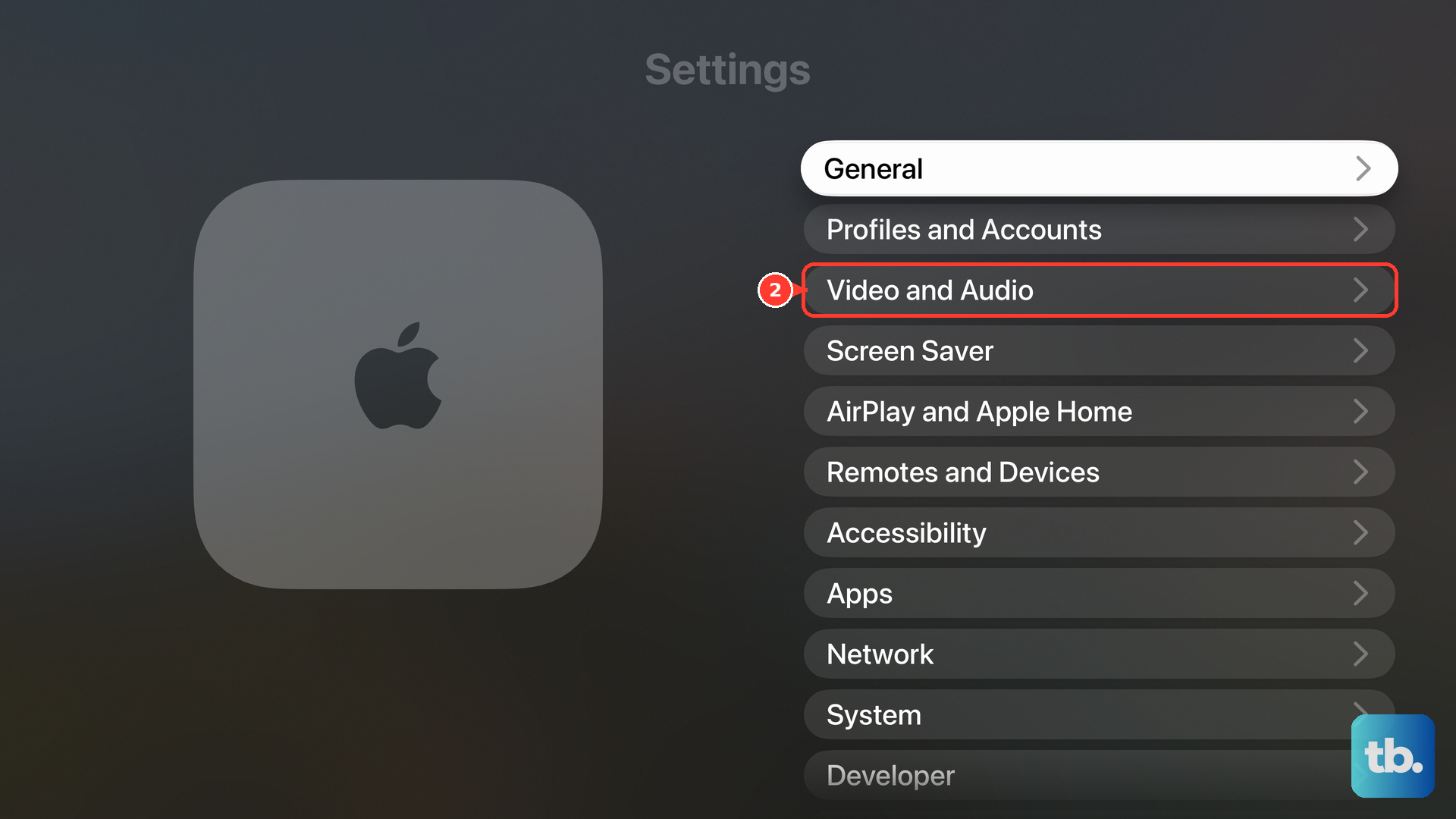
- 5.On Apple TV 4K, run Settings > Video and Audio > Check HDMI Connection.
- 6.If the screen goes black or flickers during format changes, open Settings > Video and Audio > Match Content. Temporarily disable Match Dynamic Range as a diagnostic test. If the transition problem continues, test with Match Frame Rate disabled separately.
Reset the app on a smart TV or streaming device
On a supported television or living-room streaming device, open Settings from the Apple TV app’s sidebar.
Choose Reset Apple TV.
Select Reset to clear the app’s local accounts, configuration, and data. Some devices present the shorter path Settings > Reset.
Choose Sign In On Mobile Device to begin signing in again.
Scan the displayed QR code.
If you use the browser option instead, visit link.apple.com.
Enter the code shown on your television.
Retry the affected movie or episode after signing in.
Keep your account credentials handy before starting, because an app reset removes the local sign-in.
Save a full reset for persistent device problems
A factory reset is a last resort for Apple TV HD or Apple TV 4K after narrower troubleshooting fails. It erases the device’s configuration and accounts, so reserve it for a continuing device problem rather than a single unplayable title.
Open Settings > System > Reset.
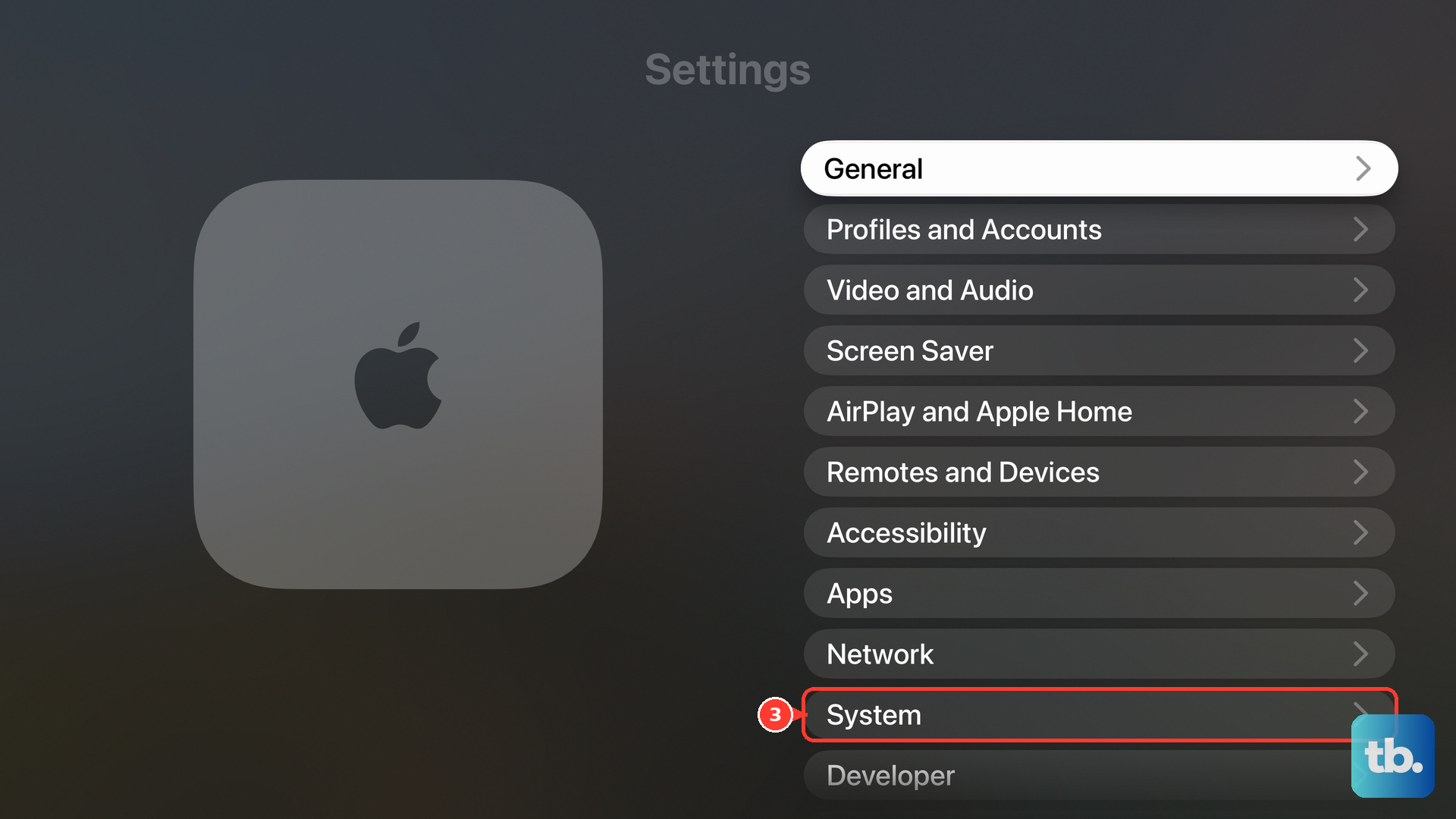
Select Reset, or choose Reset and Update to reset the device and update its software. The latter requires an internet connection.
Leave Apple TV connected to power until the process finishes.
Set up the device again.
Retry playback.
If the error persists, contact the app developer for a third-party streaming failure. For purchased Apple content that remains unplayable, request help or a refund through reportaproblem.apple.com. If Apple TV 4K remains on a warning screen, or shows a flashing indicator with a black screen after recovery checks, use Apple’s hardware service route.
Frequently Asked Questions
Can I download a movie to watch offline on my Apple TV box?
No. Downloads are unavailable on Apple TV hardware, smart TVs, streaming devices, and tv.apple.com. Eligible content can be downloaded on iPhone, iPad, Mac, Windows, and Vision Pro.
What should I try if playback fails only through AirPlay?
Keep both devices powered on and nearby. Update both devices, connect them to the same Wi-Fi network, and restart them before retrying. On Apple TV 4K using the tvOS 27 interface, enable Settings > AirPlay and Apple Home > AirPlay. Under Allow Access, choose the audience that includes your sending device, such as Anyone on the Same Network.
Can I watch in a browser while the Apple TV app is not working?
Yes. Visit tv.apple.com in a supported browser and sign in with the subscribed Apple Account. Complete any requested credit-card verification. Web playback supports Apple TV subscription content, but it does not replace every purchased-library or third-party-channel feature.
Does offloading an Apple TV app clear its data?
No. Offloading a downloaded app on Apple TV 4K retains its data. It frees storage for installation or updates without clearing malfunctioning app data.