You open a Facebook post, photo, video, Page, or group link and get “This content isn’t available right now” instead. Facebook either cannot load the item on your device, or your account does not have permission to see it.
Start with the fastest checks, then move through account access, privacy, group membership, blocks, Page restrictions, and removed content.
Refresh Facebook before changing settings
On a computer, refresh the Facebook page once. A temporary loading problem can make available content look missing for a moment.
Close the Facebook tab or window, then open the same link again. This gives Facebook a fresh page load without changing your account or device settings.
If the message still appears, open the same link in another browser or Facebook surface next.
Open the link somewhere else
Open the same Facebook link in a different browser, such as Chrome instead of Safari or Edge. Sign in to Facebook in that browser, then load the link again.
If you started in the mobile app, open facebook.com in a mobile browser and paste the link there. If the browser version works, return to the app after updating or reopening it. This separates a Facebook access problem from a browser or app problem.
Use the right Facebook account
This fixes links shared to a specific audience, private post, group, or account you can only see from one profile.
Open the Facebook app or facebook.com. Enter your email, phone number, or username, then enter your password. Select Log in.
If you are already in the wrong account, select Log Out. Sign in with the account that has permission to see the post.
Ask the owner to change the post audience
Sometimes nothing is broken on your end. The person who posted the content may have shared it with a narrow audience, such as friends only or another limited setting.
The poster can open the post menu, choose Options, choose Edit Privacy, select Public, Friends, or Only Me, then finish with Done. Viewers cannot override that audience setting.
If the owner says the audience is already correct, check private groups, blocks, and Page restrictions next.
Fix Facebook app problems on your phone
When the content opens elsewhere but not in the Facebook app, work through the app fixes in this order.
- 1.On iPhone X and later, swipe up from the bottom and pause, find Facebook, swipe up on its preview, then reopen Facebook. On iPhone SE, iPhone 8 and earlier, or iPod touch, double-click the Home button, find Facebook, swipe up on its preview, then reopen it.
- 2.On most Android phones, press the Power button for about 30 seconds until the phone restarts. If prompted, tap Restart, then tap Restart again.
- 3.On Android, open Settings, then Apps, then Facebook, tap Force stop, and reopen Facebook.
- 4.On Android, open Settings, then Apps, then Facebook, then Storage, and tap Clear cache. Use Clear data only if you accept being signed out and resetting local app data.
- 5.Update Facebook from the Google Play Store or the App Store. If the app still fails, delete Facebook and reinstall it from the official store.
Clear your browser cache and cookies
In Chrome on desktop, open More, then choose Delete browsing data and select a time range. Select the information you want to remove, choose Delete data, then reload Facebook.
In Microsoft Edge, open Settings and more, then Settings, then Privacy, search, and services, then Clear browsing data, then Choose what to clear, choose a Time range, select the data types, and choose Clear now.
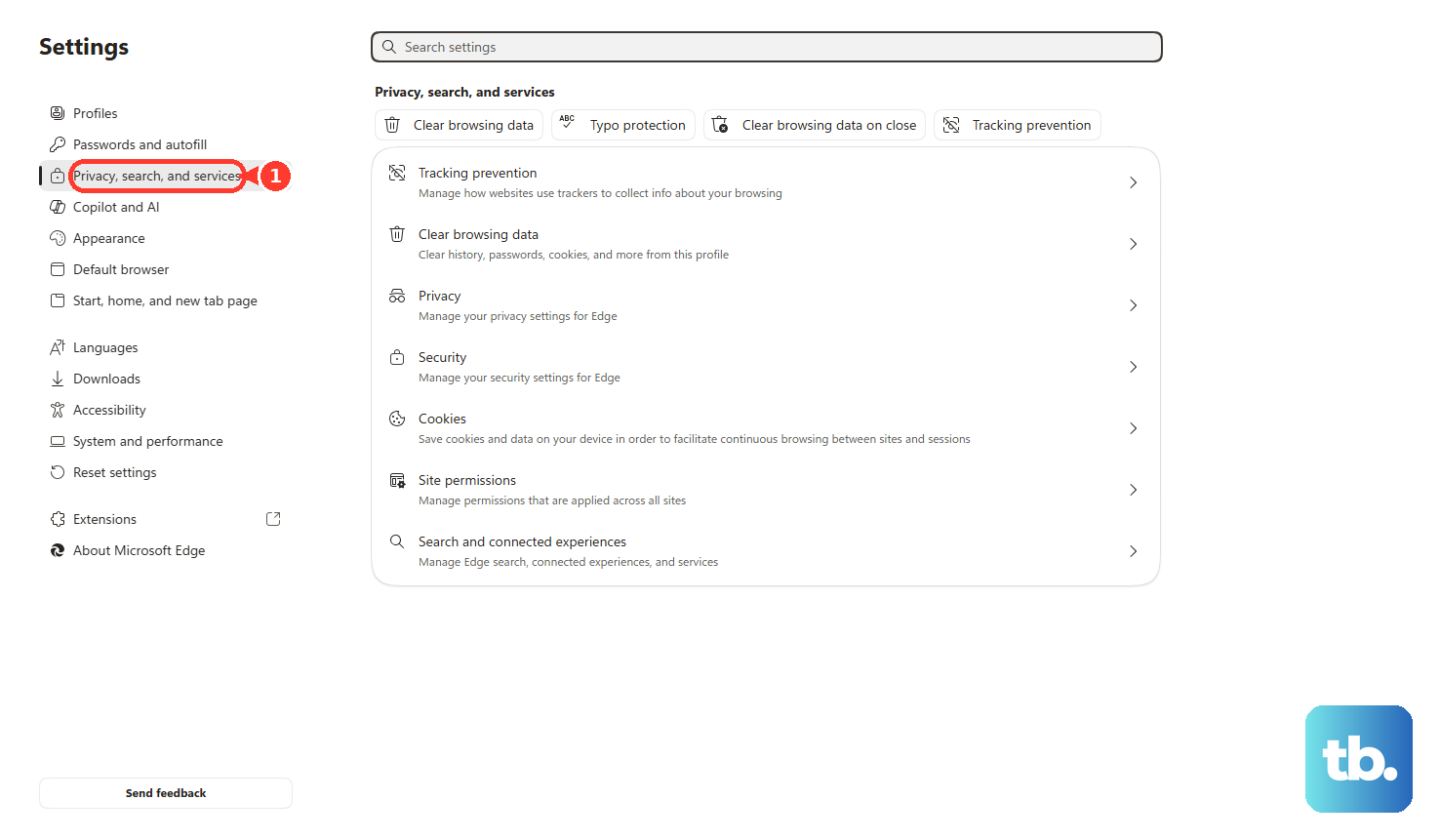
After clearing browser data, sign back in to Facebook and open the unavailable content again.
Check groups, blocks, and Page restrictions
For private group content, use Search, enter the group name, open the group result, and select Join Group. Complete any membership questions or approval steps shown, because group posts can stay unavailable until you are accepted.
If you lost access to a group post, the group may have been taken down, or you may have been removed or banned. Contact a group admin when that option is available.
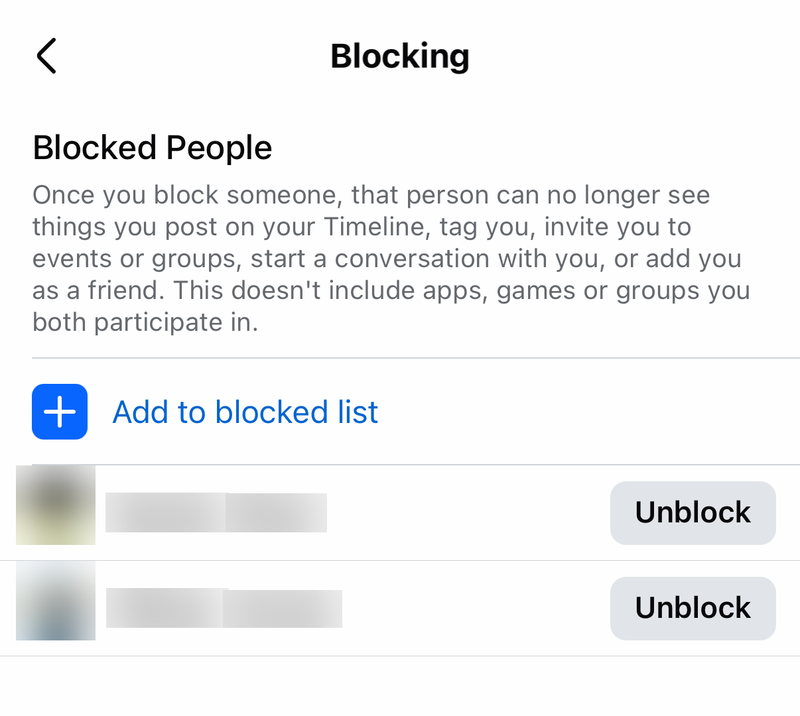
If you previously blocked a profile or Page, open Menu > Settings & Privacy > Settings > Audience and visibility > Blocking, choose Unblock next to the profile or Page, and confirm with Unblock. If the other person blocked you, only that person can unblock you.
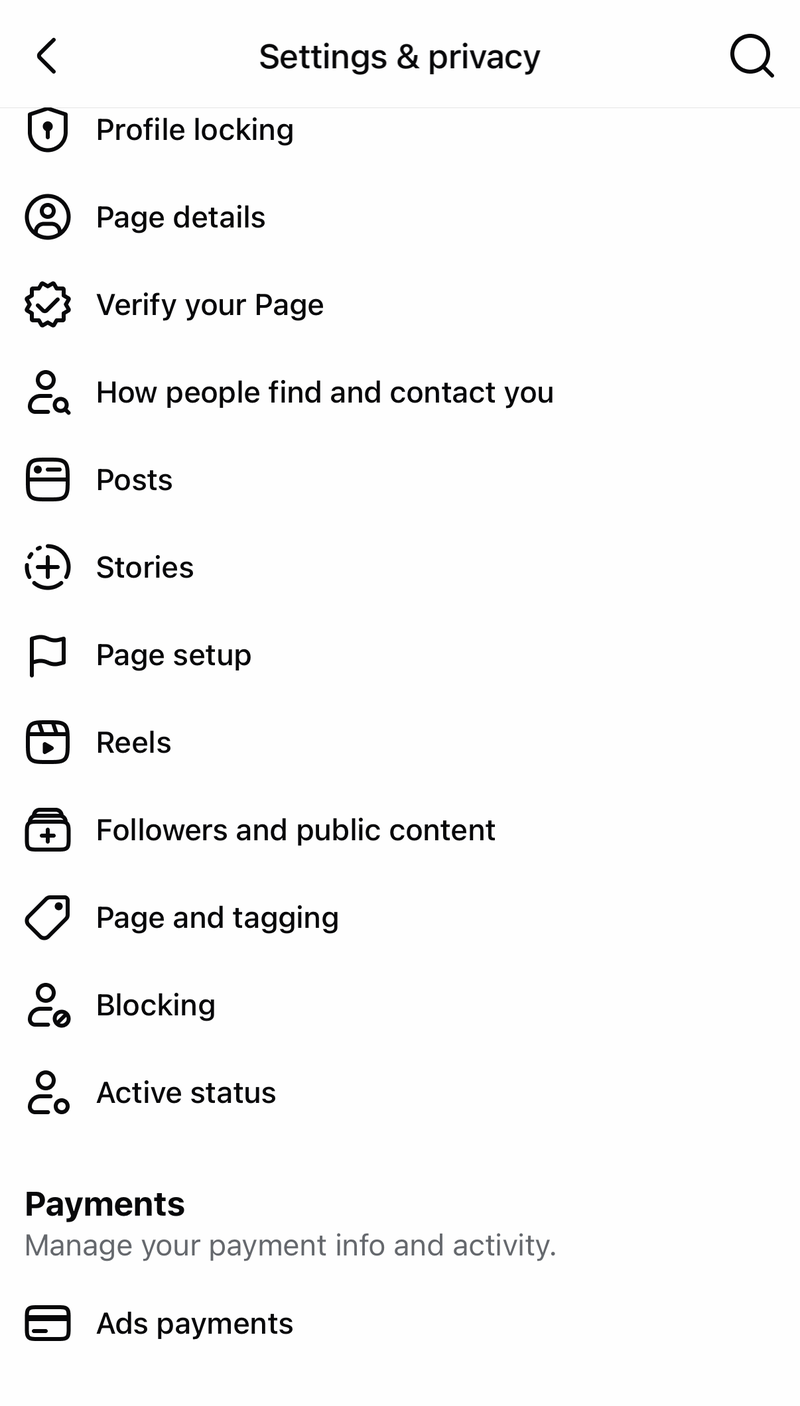
If a Page uses age or country restrictions, only someone with Facebook access with full control of that Page can change it. That person switches into the Page, opens Settings & privacy, then Settings, then Followers and public content, and edits Country restrictions or Age Restrictions so the Page is shown to your country and age group.
Restore or review your own removed content
When the missing item is your own post, photo, comment, or profile content, check whether it was deleted, moved to Trash, or removed by Facebook. Trash content is automatically deleted after 30 days unless restored or deleted sooner.
On desktop, open your profile picture, then Settings & Privacy, then Activity Log, then Trash, hover over the content, select Options, choose Restore to profile, and confirm with Restore. On mobile, Facebook’s restore path starts from Menu, your name, Options, and Activity Log.
For policy removals, open your profile name and go to Options, then Profile Status, or use your profile picture, then Help & support, then Account Status. Follow the review or appeal options shown for eligible content.
If Facebook removed the content and no review succeeds, or the owner permanently deleted it, there is no viewer-side fix.
Frequently Asked Questions
Why does Facebook say this content is not available right now?
Facebook shows that message when the item fails to load, the audience excludes you, the post is inside a private group, a block or Page restriction applies, the content was deleted, or Facebook removed it.
Can I bypass the message if the post is private?
No. Viewers cannot override a post’s audience. The owner has to change the audience, or you need to use an account that already has permission to see it.
Why can my friend see the Facebook post but I cannot?
Your friend may be in the allowed audience while you are not. Check that you are using the right account, that you belong to the group, and that no block or Page restriction affects you.
What should I do if Facebook says I am temporarily blocked?
Stop the activity that triggered the block and wait for the temporary block to expire. Do not keep rapidly posting or sharing while the block is active.