“There is a problem with this Windows Installer package” stops an app installation, update, or removal without explaining much. The rest of the message holds the useful details, including which installer action failed. Start with a restart and a fresh download, then work through the repair options that match your situation.
Restart Windows before trying again
Start here whether the error appeared while installing, updating, or removing an app. Microsoft recommends restarting Windows before retrying the failed operation.
Record the complete error message before closing it, including the error number, action name, and referenced file. Keep those details for app-specific troubleshooting.
Select Start > Power > Restart.
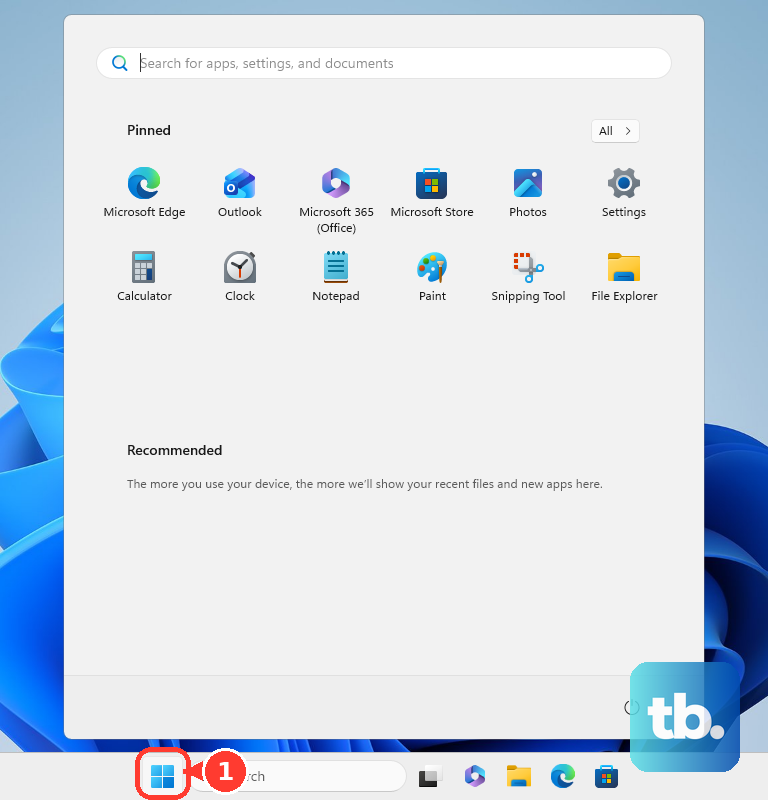
After signing in again, retry the installation, update, or removal.
Replace an incomplete or damaged installer
A damaged download gives setup a bad starting point. Visit the app publisher’s website and check for an updated release that supports your Windows version and PC architecture.
Download a fresh copy of the compatible installer. For Filteronme, the publisher specifically instructs you to delete the old installer and download it again completely.
For an older app with a compatibility problem, open Start > Settings > System > Troubleshoot > Other troubleshooters.
Select Program Compatibility Troubleshooter > Run and follow the prompts for the affected program. This tool handles compatibility problems and is separate from the older Program Install and Uninstall troubleshooter.
If the fresh installer still fails, try running the trusted setup file with administrator access.
Give the installer administrator access
For a trusted executable installer that offers the command, right-click the file and select Run as administrator.
Complete the administrator authorization prompt to continue setup.
For an MSI file without that command, press Windows+E to open File Explorer.
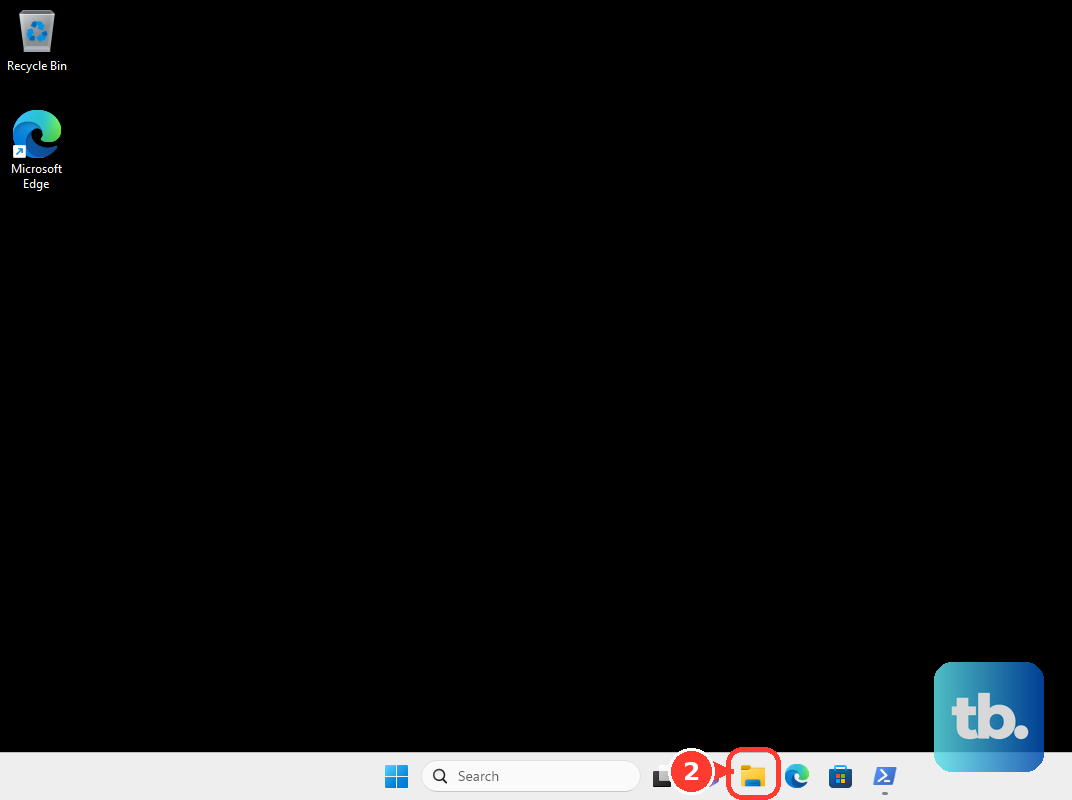
Locate the MSI installer.
Hold Shift, right-click the file, and select Copy as path.
Search for Command Prompt.
Right-click Command Prompt and select Run as administrator.
Complete the administrator authorization prompt.
Enter msiexec /i followed by a space and the copied path in quotation marks, then press Enter. For example, msiexec /i "C:\path\setup.msi" uses a placeholder path; replace it with your installer’s actual location.
Tip: Epic documents this elevated MSI method for its launcher; Windows component repairs do not fix faulty code inside a third-party installer.
Repair an app that is already installed
If an update or removal fails, try the app’s repair options.
- 1.Open Start > Settings > Apps > Installed apps on Windows 11.
- 2.Open the affected app’s More (…) menu and select Advanced options. If that option is absent, use the Control Panel route in this list.
- 3.Select Repair. If it fails or is unavailable, select Reset if offered. Review the confirmation before proceeding: resetting can remove app data and preferences.
- 4.For a desktop program without Settings repair options, search for and open Control Panel, then select Programs > Programs and Features.
- 5.Right-click the program and select Repair, or Change if Repair is absent. Complete the program’s maintenance wizard.
- 6.If repair does not resolve the error, return to Settings > Apps > Installed apps, open the affected app’s More (…) menu, and select Uninstall. Complete removal, then reinstall through the publisher’s official distribution channel.
Install the components your app requires
A missing prerequisite prevents an installer that depends on it from completing.
Check the affected app publisher’s requirements. Filteronme identifies WebView2 Runtime, Visual C++ Redistributable, and .NET Framework 4 among its prerequisites. Those requirements do not apply to every Windows Installer package.
For a required WebView2 Runtime, open Microsoft’s WebView2 download page and find Download the WebView2 Runtime.
Select Evergreen Bootstrapper > Download, or choose the appropriate Evergreen Standalone Installer architecture for offline installation.
For Visual C++, use Microsoft’s official redistributable downloads to install the runtime generation and application architecture specified by the publisher. Keep other required runtime generations installed; older versions can coexist.
Before downloading .NET Framework, check Microsoft’s Windows installation requirements. Windows 11 version 22H2 and later include .NET Framework 4.8.1. Installing obsolete .NET Framework 4.0 is not a general fix for this error.
If the application requires a separate supported .NET Framework version, use its runtime download on Microsoft’s .NET Framework download page.
Repair Windows components if the problem is broader
When multiple installations fail and you suspect damaged Windows components, run Windows Update followed by Microsoft’s repair commands.
Search for Windows Update, open it, and select Check for updates.
Install available updates.
Restart Windows before continuing.
Search for Command Prompt, right-click it, select Run as administrator, and choose Yes.
Enter DISM.exe /Online /Cleanup-image /Restorehealth and press Enter. Wait for it to complete successfully.
Enter sfc /scannow and press Enter. Wait for verification to finish before retrying setup.
Pinpoint why the same package keeps failing
Read the complete error: 1720 identifies a failed script, 1721 a program that could not run, 1722 a program that did not finish successfully, and 1723 a DLL that could not run. These details identify the failing action; they are not repairs.
For an MSI log, search for Command Prompt, right-click it, and select Run as administrator. Run msiexec.exe /i "C:\path\setup.msi" /L*V "C:\path\install.log", replacing both paths with valid locations, then reproduce the failure.
Follow troubleshooting offered in the error message or a Windows notification. Microsoft documents the older downloadable Program Install and Uninstall troubleshooter for Windows 10; its Windows 11 guidance does not provide a fixed entry with that name under Other troubleshooters.
If the package still fails, send its publisher the log, complete error message, action name, and referenced file. On a work or school PC, ask your administrator to review organizational installation restrictions.
Frequently Asked Questions
Should I download Windows Installer 4.5 to fix this?
No. Windows Installer 4.5 is for the older operating systems listed on its download page, including Windows XP and Windows Vista. It is not a repair download for Windows 11.
Will a command-line uninstall bypass the package error?
No. Removing an MSI with msiexec does not bypass a broken uninstall custom action. Ask the publisher for its app-specific recovery procedure if normal removal fails.
Can I install Epic Games Launcher another way?
Yes. Epic supports installation through Microsoft Store on compatible Windows PCs. Search for and open Microsoft Store, search for Epic Games Store, then select Install.
Should I turn off antivirus to fix this error?
Only when the publisher identifies an antivirus conflict with the installer. Epic specifically identifies interference involving 360 Total Security and recommends temporarily disabling the conflicting protection, running its official installer, and immediately re-enabling protection. This is not a general package-error fix.