The Salesforce Outlook plugin stops working when Outlook loads the wrong Salesforce tool, the add-in is switched off, or your Microsoft 365 account blocks it. Start with the current Salesforce Outlook Integration web add-in, then fix the Outlook pane, grayed-out icon, sign-in, and admin settings in that order. Keep troubleshooting on the supported web add-in path instead of the old Windows COM plugin.
Use the current Salesforce add-in
The current Salesforce Outlook Integration is a cloud-based Outlook web add-in, so there is no desktop Salesforce software to push, install, or maintain. Install it from Microsoft AppSource by opening the Salesforce listing, choosing Get it now, opening the Salesforce pane in Outlook, signing in to Salesforce, and accepting the requested permissions.
Outlook also installs it directly. Open Get Add-ins; in newer Outlook surfaces, use Home, then Apps or More apps, then Add Apps. Search for Salesforce, choose Salesforce, select Add, then open the Salesforce pane and sign in.
Use this path in new Outlook for Windows. New Outlook supports web add-ins and does not support old COM or VSTO add-ins.
Turn the Salesforce add-in back on
Use this when the Salesforce icon is missing, the pane does not open, or Outlook shows Salesforce as installed but inactive. Outlook switches add-ins from the Manage add-ins screen.
In classic Outlook for Windows, open File, then Manage Add-ins.
Under Manage add-ins, find Salesforce and select its checkbox in the Turned on column.
New Outlook for Windows has no File menu. From the ribbon or navigation bar, choose More apps, then Add apps, then Manage your apps, and confirm Salesforce is installed there.
In Outlook Web App, open Settings, then Manage add-ins. Select the Salesforce checkbox in the Turned on column, then reopen Outlook and test the pane.
Refresh a stuck add-in state
If Salesforce appears in Outlook but the pane hangs, disappears, or opens in a bad state, reset the add-in switch once. These steps use classic Outlook for Windows.
- 1.In classic Outlook, open File, then Manage Add-ins.
- 2.Under Manage add-ins, clear the Salesforce checkbox in the Turned on column.
- 3.Close Outlook completely, then open it again.
- 4.Return to File, then Manage Add-ins.
- 5.Select the Salesforce checkbox again, open an email, and test the Salesforce pane.
In new Outlook for Windows, reset it from More apps, then Add apps, then Manage your apps: find Salesforce, choose More options, then Remove, restart Outlook, and install the add-in again.
Select an email before opening Salesforce
Select or open an email message in Outlook before clicking Salesforce.
Use the Salesforce add-in icon from the message surface or ribbon after the message is selected.
If the icon is grayed out while composing, turn off other add-ins that handle email logging, email tracking, read-pane, or compose features. In classic Outlook for Windows, open File, then Manage Add-ins, and clear their checkboxes in the Turned on column. In new Outlook for Windows, open More apps, then Add apps, then Manage your apps, and remove the conflicting add-in.
Close and reopen Outlook, then test the Salesforce icon from the same message workflow.
Keep the conflicting add-in disabled or uninstall it when Salesforce works again.
Update Outlook and Office
Install Microsoft 365 or Office updates when Outlook opens but the Salesforce add-in fails to start. Open any Microsoft 365 app and choose File, then Account; in classic Outlook, choose File, then Office Account.
In Product Information, choose Update Options, then Update Now. If Enable Updates appears, choose Enable Updates first, then choose Update Now.
After the update finishes, close Outlook, reopen it, select an email, and try the Salesforce pane again.
Repair Office when Outlook stays broken
Use Windows repair when Outlook is unstable, add-ins fail to load, or the Salesforce pane still fails after updates.
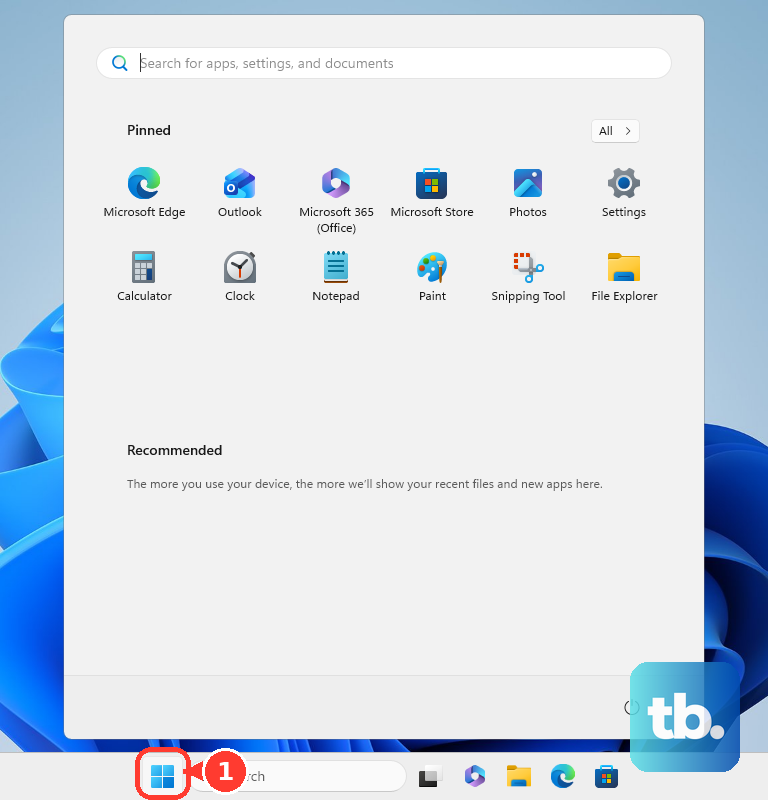
- 1.Open Start, then Settings.
- 2.Go to Apps, then Apps & features.
- 3.Select More next to Microsoft 365 or Office, then choose Advanced options.
- 4.Choose Repair and let Windows finish.
- 5.For a full repair, open Control Panel, then Programs, then Programs and Features, right-click Microsoft Office or Microsoft 365, choose Change or Repair, then select Online Repair and Repair.
Fix Office add-in platform errors
Use this section when Outlook shows Catalog could not be reached, This app could not be started, E_ACCESSDENIED, Error loading add-ins, or a dialog security-zone error. These messages come from the Office add-in platform.
For Catalog could not be reached, allow the computer through the firewall to reach Microsoft Marketplace.
For This app could not be started, install the latest Office updates from File, Account, Update Options, and Update Now.
For E_ACCESSDENIED, first add antivirus exclusions for the Office root folder, C:\Program Files\Microsoft Office\root\Office16. If the error continues, add an exclusion for the WebView2 process at C:\Program Files (x86)\Microsoft\EdgeWebView\Application\[latest installed version]\msedgewebview2.exe.
For Error loading add-ins, close Office, confirm the computer date and time are correct, restart, and install the Salesforce add-in again.
For a security-zone dialog, open Control Panel, then Internet options, then Security, then Trusted sites, then Sites, and add the domain shown in the error.
Hand work account fixes to your admin
On managed work or school accounts, Microsoft 365, Exchange, and Salesforce admins control add-in installation and permission consent. If Get Add-ins or Microsoft AppSource installation is blocked, ask your admin to deploy the Salesforce Outlook Integration centrally from Microsoft AppSource or the Salesforce manifest file path.
The Salesforce admin needs Outlook Integration enabled. In Salesforce, open the Gear icon, choose Setup, search Outlook Integration and Sync in Quick Find, open Settings, expand Let users access Salesforce records from Outlook, and turn on Let users access Salesforce records from Outlook.
When the pane signs in to the wrong Salesforce org or user, the admin opens Setup, then Email, then Outlook Integration and Sync, then Let users access Salesforce records from Outlook, then User Mapping. The admin forces sign-out for the affected user, then the user opens the Salesforce pane in Outlook and signs in again.
When Log Email, Log Email on Send, or email association features are missing, the admin enables Use Enhanced Email with Outlook and confirms Email Application Publisher Layouts include the assigned publisher actions. When Microsoft 365 permission prompts appear, a Microsoft 365 admin completes Salesforce's Admin Consent Flow.
Skip old Salesforce for Outlook fixes
Do not use fixes that tell you to open old Disabled Items, enable COM Add-ins, reinstall Salesforce for Outlook from Windows, or follow Outlook 2010, Outlook 2013, or Outlook 2016 menu paths.
Use the Salesforce Outlook Integration web add-in for the side panel in current Outlook troubleshooting.
Use Einstein Activity Capture when email, event, or contact capture is the broken piece, then retest capture after your Salesforce admin configures the Microsoft 365 or Exchange connection.
Move remaining Salesforce for Outlook users before Salesforce's full product retirement scheduled for December 2027.
Confirm legacy scope with your workplace admin before changing a user's current web add-in setup.
Frequently Asked Questions
Does the Salesforce Outlook Integration work on Outlook for Mac or mobile?
Yes on desktop and web. The Salesforce Outlook Integration runs on Outlook on the web, new Outlook for Windows, classic Outlook for Windows, and Outlook for Mac. It is not available in the Outlook mobile app, so use Einstein Activity Capture to capture email sent from mobile.
What is the difference between Outlook Integration and Einstein Activity Capture?
Outlook Integration is the Salesforce side panel inside Outlook. Einstein Activity Capture handles email, event, and contact capture when sync is the broken piece.
Who fixes Microsoft 365 permission prompts for Salesforce?
A Microsoft 365 admin completes the Salesforce Admin Consent Flow when Outlook asks for organization-level permission review.
Should I reinstall Salesforce for Outlook to fix the plugin?
No. Salesforce for Outlook is the legacy Windows COM plugin, and new Outlook for Windows does not support COM or VSTO add-ins. Use the Salesforce Outlook Integration web add-in.