You join a Discord voice call, but the connection stops at No Route. Start with service outages and your internet connection, then check the VPN, firewall, and voice settings that affect the call. Work through the steps below in order, retrying the call after each change.
Check whether Discord voice is down
Open Discord Status and look for active voice-service incidents. If an incident matches your problem, wait for service to recover.
Retry the call after recovery.
If there is no matching incident, or the error continues after recovery, restart your connection and device next.
Restart your connection and try another network
Discord recommends restarting your network equipment and device for No Route errors.
Restart your modem and router using their power controls. Do not press the router’s factory-reset button.
Restart your computer or phone.
Reconnect to the internet and retry the same Discord call.
If the error remains, connect to another Wi-Fi network or mobile data and retry that call. This test helps separate trouble with the original network from trouble with the client.
Check your internet provider’s outage service for your location, or contact the provider about an outage.
Test the call without your VPN
A VPN connection without UDP support interferes with Discord voice.
Disconnect your VPN using its app’s connection control.
Retry the same Discord call. If it connects, address the VPN connection before using it with Discord again.
If you need the VPN, ask its provider whether your selected connection supports UDP. The controls differ by provider.
Allow Discord through your firewall
Firewall and antivirus interference is another cause Discord identifies. Add Discord to your security product’s allowed-app list using that product’s controls.
On Windows, open Windows Security > Firewall & network protection > Allow an app through firewall > Change settings.
Approve administrator authorization if Windows requests it.
Select the check box next to Discord in the app list.
If Discord is missing, select Allow another app and locate Discord’s executable.
On a Mac, open the Apple menu > System Settings > Network > Firewall > Options.
If Options is unavailable, Firewall is turned off, so there is no Mac firewall exception to add; skip the remaining Mac steps.
Use Add (+) to add Discord.
Set Discord’s connection selector to permit connections.
For third-party security software, temporarily disable the product to test for interference, as Discord recommends.
Retry the call while the product is disabled.
Restore protection after the test.
If allowing Discord does not resolve the error, try rejoining the voice channel and changing its region next. On a school or work network, use the administrator checks below to address network restrictions.
Rejoin the channel or change its voice region
Start by rejoining, then use the region controls for your type of call.
- 1.Leave the affected voice channel and join again. With Region Override set to Automatic, Discord chooses a new region after the channel empties and someone joins.
- 2.For a server channel on desktop or web, right-click the channel and select Edit Channel > Overview > Region Override. Select another region. You need the Manage Channels permission, and the change applies to that channel.
- 3.For a server channel on Android or iPhone, long-press the channel and open Channel Settings > Region Override. Choose another region and tap the save icon. Channel-management permission is required here too.
- 4.For a private call on desktop or web, click the region name at the upper right of the call and select another region. This private-call control is not available on mobile.
- 5.To restore automatic region selection for a server voice channel, set Region Override back to Automatic.
Adjust Discord’s voice connection settings
On desktop or in the browser, open User Settings > Voice & Video > Debugging.
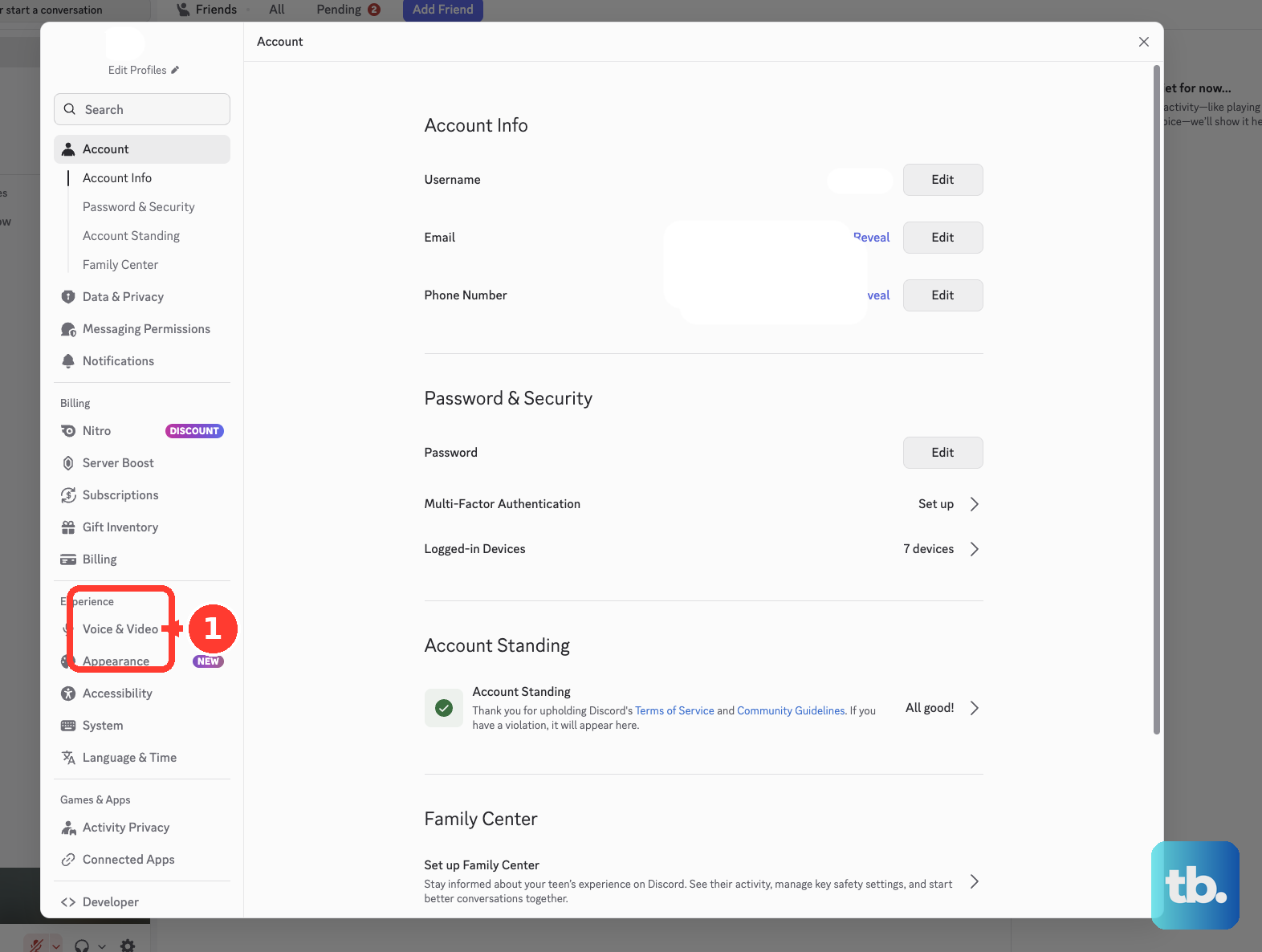
Select Reset Voice and Video Settings.
Tip: Retry the call after each change to identify which adjustment helps.
Refresh and update an app that still cannot connect
Use these checks when the earlier connection fixes have not helped. An outdated client also causes a separate call-joining failure: since March 2, 2026, Discord voice requires a version that supports its encryption requirements.
Refresh the desktop app with Ctrl+R on Windows or Command+R on Mac.
If refreshing does not help, completely quit Discord.
Reopen Discord.
On desktop, open User Settings.
Scroll to the bottom to check the version. The minimum voice-capable versions are Windows 1.0.9164, macOS 0.0.320, and Linux 0.0.69.
If your client is older, get the current installer for your platform from Discord’s download page.
On Android, open Google Play Store > profile icon > Manage apps & device > Updates available > See details > Discord.
Tap Update when an update is listed.
On iPhone or iPad, open App Store > My Account or your profile photo > App Updates.
Select Update beside Discord when an update is listed. Android and iOS require Discord version 247.0 or later for voice.
For a comparison with the installed app, open discord.com in a supported desktop browser. Discord does not support mobile browsers.
Sign in to Discord in the browser.
Retry the same call.
Resolve restrictions on a school or work network
A network-level Discord block needs the administrator’s help.
Ask your school, workplace, or managed-network administrator whether Discord voice is blocked.
If it is blocked, ask whether access can be permitted.
Ask IT for help if your managed device prevents changes to its firewall controls.
Send Discord the errors if nothing works
Get PTB or Canary from Discord’s testing-client page. Testing releases carry the risk of additional bugs, so use them for this diagnostic check.
Reproduce the failed call in the testing client.
Open the developer tools with Ctrl+Shift+I on Windows or Option+Command+I on Mac.
Select Console.
Take a screenshot of the entire Console page, making sure it includes any error messages.
Submit that screenshot through Discord Support.
Tip: Use PTB or Canary to collect these console errors, as specified in Discord’s No Route support procedure.
Frequently Asked Questions
Can changing DNS fix Discord No Route?
Discord recommends trying another DNS provider for connection problems, but a DNS change does not guarantee a repair for blocked UDP or routing failures. Record your existing DNS settings before changing them, and restore them if the change does not help.
Should I reset all my network settings?
Reserve a network reset for broader connection trouble after other checks fail. On iPhone and iPad, it removes saved Wi-Fi passwords and resets cellular, VPN, and APN settings. After a Windows network reset, check whether your VPN software needs reconfiguration.
Is reinstalling Discord worth trying?
Discord recommends reinstallation for general client trouble. Try the connection checks and a supported desktop browser first. Before reinstalling, check Discord’s operating-system requirements and get the installer from its official download page.