Your Google Calendar widget is blank, stuck on an old schedule, or missing events you know are there. Start by checking whether those events appear in the app, then follow the fixes for your device below. Keep app resets for last, after checking the widget, account, and sync settings.
Find out whether the widget or calendar sync is failing
Open Google Calendar to check for the missing events. Compare them with calendar.google.com while signed into the same Google account. If the app has your events but the widget does not, skip to the widget replacement steps for your device.
Test your internet connection by opening a page in a browser. Reconnect to Wi-Fi or mobile data if the page will not load.
If Calendar still will not synchronize, check Google Calendar on the Google Workspace Status Dashboard. Follow Google's recovery updates during an outage. If there is no incident affecting synchronization, check your account and visible calendars next.
Select the right account and calendars
With your phone in portrait orientation, tap Google Calendar's profile picture to select the account containing your events. If it is missing, choose Add another account and complete sign-in.
Open Menu to select the calendars you want to display. Check this before rebuilding a widget that is missing just one calendar.
For a supported non-Google account on Android, enable it under Menu > Settings > Manage accounts. Third-party accounts, such as Outlook, and local device calendars can be turned on, but some Google Calendar features might not work with them.
When creating an event, use the calendar selector at the top to choose a calendar associated with your intended Google account before saving. Events saved to a device-only calendar do not synchronize to Google Calendar on the web.
Rebuild the Android Home screen widget
Touch and hold the existing widget, then drag it to Remove. The removal control varies by launcher. Touch and hold an empty Home screen area, open Widgets > Calendar, and drag Calendar schedule or Calendar month view onto an empty area.
If the widget is clipped, hold and release it to reveal its outline. Drag the outline dots to resize it, then tap outside the widget to finish.
On Samsung phones that block layout changes, touch and hold an empty Home screen area. Open Settings and turn off Lock Home screen layout before retrying the widget changes.
Keep Calendar installed in your main profile, because Android Private space apps cannot add Home screen widgets even when that space is unlocked.
Replace a blank iPhone or iPad widget
Use this for a blank widget when the Calendar app still shows your events. Open the installed Google Calendar app at least once before looking for its widget.
Touch and hold the old widget, then tap Remove Widget. Confirm with Remove.
Touch and hold an empty Home screen area, then open Edit > Add Widget. Select Google's Calendar app in the widget list. Google's guide labels it Calendar.
Choose a widget size, then tap Add Widget. Tap Done.
Restore synchronization for missing Android events
If events are missing from the app too, start with Google Calendar's Menu > Refresh. This refresh command is available on Android.
Open Profile photo > Manage accounts on this device and select the affected account. Open Account sync, then turn on Calendar.
For a missing secondary Google calendar, open Google Calendar's Menu > Settings. Tap Show more if the calendar is not listed, then select the calendar and turn on Sync. The primary Events calendar has no separate Sync switch, so don't spend time hunting for one.
Check Settings > Storage. Full device storage stops Calendar synchronization. Remove unnecessary files or apps if storage is full.
Check that the system component is enabled under Settings > Apps > See all apps > More > Show system > Calendar storage. If events still do not synchronize, try the background access checks below, followed by the app update and reopening steps.
Remove restrictions on background updates
Use these checks when Calendar updates only after you open it or stops syncing away from Wi-Fi. They restore background access without guaranteeing a widget refresh.
On Android devices with these controls, open Settings > Network & internet > Data Saver > Unrestricted data.
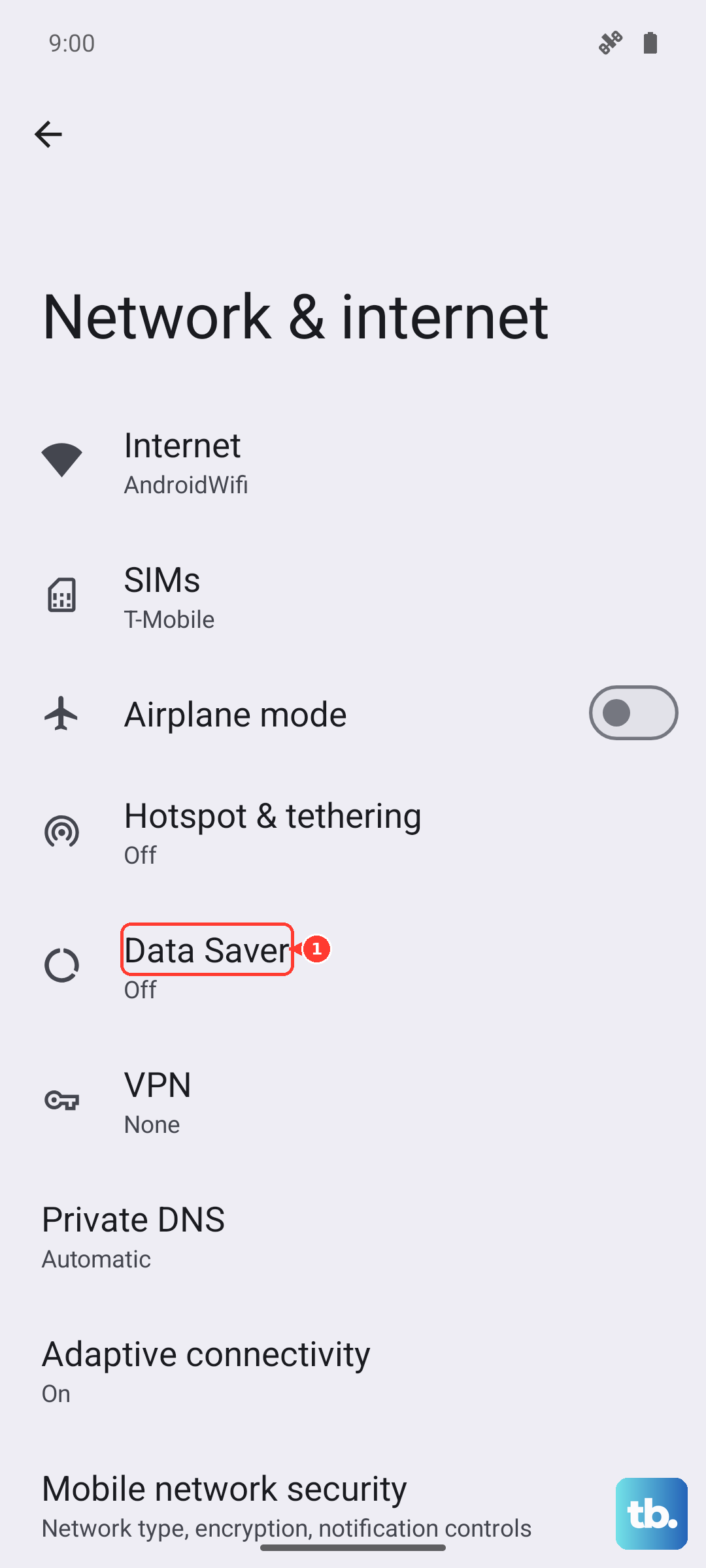
Enable Calendar. On Pixel, open Settings > Apps > See all apps > Calendar > App battery usage > Allow background usage and select Optimized. Turn off Battery Saver in Quick Settings while testing background synchronization.
On Samsung Galaxy, open Settings > Battery > Background usage limits > Sleeping apps or Deep sleeping apps. Choose More options > Remove, select Calendar, then tap Remove.
To prevent automatic sleeping, open Never auto sleeping apps > Add (+) under Background usage limits. Some versions call this list Never sleeping apps. Select Calendar, then tap Add.
On iPhone or iPad, open Settings > General > Background App Refresh > Background App Refresh. Choose Wi-Fi or Wi-Fi & Cellular Data. Reopen Google Calendar if you previously force-closed it.
On iPhone 15 and later, turn off Low Power Mode under Settings > Battery > Power Mode. This power setting disables Background App Refresh while active. On iPhone 14 and earlier, turn off Low Power Mode under Settings > Battery.
If syncing works on Wi-Fi but fails on mobile data, open Settings > Cellular on iPhone. Enable Cellular Data, then tap Show All if needed to find the full app list. Turn on cellular data for Google Calendar in that list.
Update Calendar and reopen a stalled app
Use these steps for an outdated or unresponsive Calendar app. On Android, open Play Store > profile icon > Manage apps & devices > Updates available, then tap Update for Google Calendar if offered.
On iPhone or iPad, open App Store > profile icon > App Updates. Tap Update for Google Calendar if offered.
To stop a frozen Android app, open Settings > Apps > See all apps > Calendar > Force stop. Android manufacturer labels vary. Confirm with OK, then reopen Google Calendar.
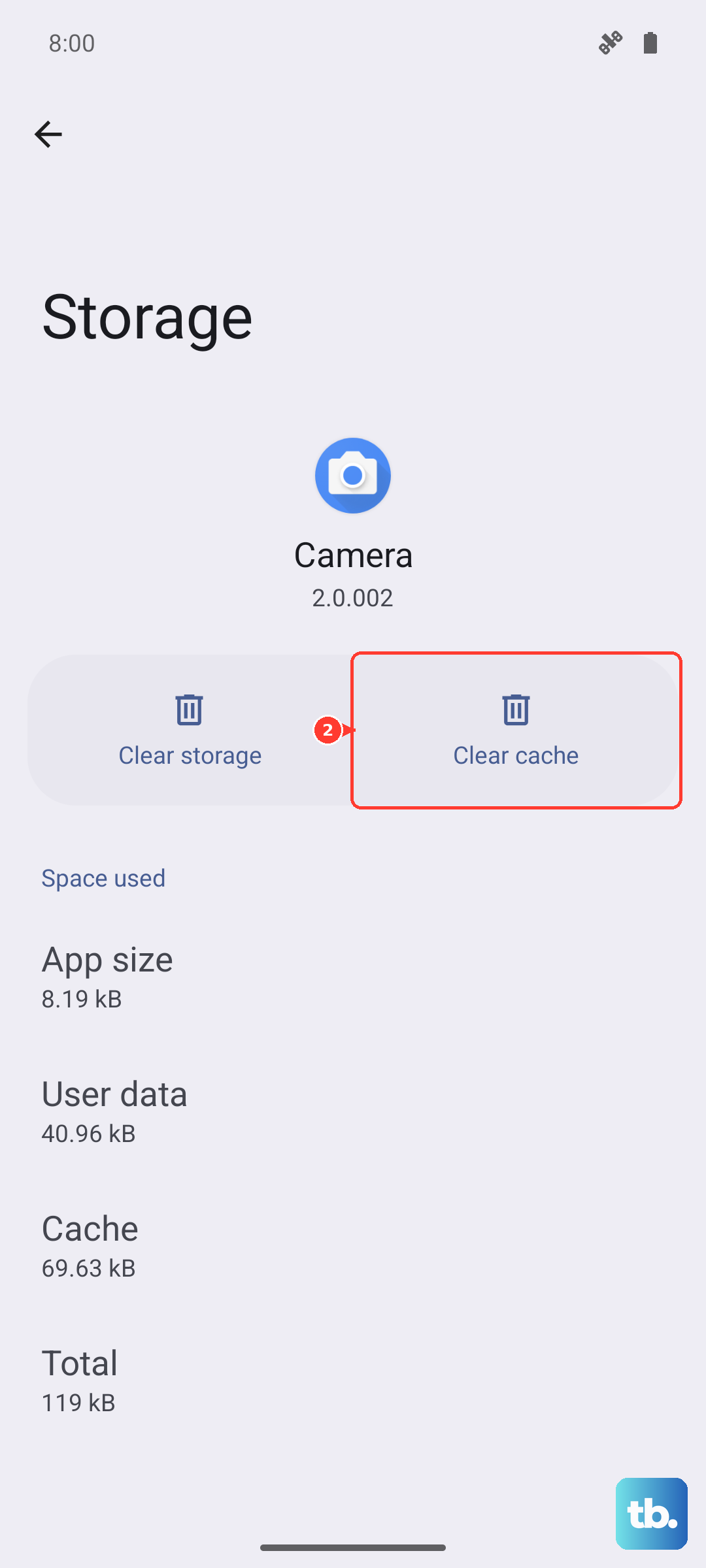
If the Android problem continues, select Settings > Apps > See all apps > Calendar > Storage & cache > Clear cache.
Open Google Calendar again. On iPhone or iPad without a Home button, swipe up from the bottom and pause to open the app switcher. On models with a Home button, double-click it instead. Swipe Calendar's preview up to close it, then reopen Google Calendar.
Save a full reset for last
Compare your events with calendar.google.com before resetting the app. Save a separate copy of any unsynchronized event details. Clearing app storage or deleting Calendar can remove locally stored data.
For an Android app reset, select Settings > Apps > See all apps > Calendar > Storage & cache > Clear storage. Confirm with Delete, then restart your Android device.
On iPhone or iPad, touch and hold the Google Calendar app, then tap Remove App. Tap Delete App and confirm with Delete. Download Google Calendar again from its official App Store listing.
Open the app and sign into your account. Recreate the widget using the iPhone or iPad Home screen steps above.
Keep the Android reset limited to the Google Calendar app; leave the system Calendar storage database intact.
Check widget access and report a persistent failure
If the problem survives the earlier fixes, check access settings for third-party widgets and work accounts. Use the Calendar app or calendar.google.com to reach your events while resolving the failure.
For an Android third-party widget that reads device calendar data, open Google Calendar's Menu > Settings > General. Turn on Share Google Calendar data with other apps. This switch does not affect Google apps and experiences you've signed into with your Google Account.
If the third-party app requests calendar permission, open Settings > Apps > See all apps. Select the affected widget app, then choose Permissions > Calendar > Allow.
For a paused Android work profile, open the app drawer's Work tab. Enable the work-app switch. Pausing a work profile stops its apps and widgets. Ask your administrator to review restrictions if widget availability, Calendar access, or app troubleshooting controls are blocked.
To report a persistent Android problem, open Google Calendar's Menu > Help & feedback > Send feedback. Describe the widget, device, version, and steps that reproduce the failure, then tap Send.
On iPhone or iPad, open Google Calendar's Menu > Send feedback. Describe the problem, then tap Send.
Frequently Asked Questions
Why does my Google Calendar widget show events on the wrong day or at the wrong time?
Check the app's time zone under Menu > Settings > General. Enable Use device time zone to follow your device. To use a different zone, disable that switch and select the intended Time zone.
How do I fix Apple's Calendar widget when it shows my Google calendar?
Open Settings > Apps > Calendar > Calendar Accounts. Select your Google account and enable Calendars. If the account is missing, choose Add Account > Google and complete sign-in. In Apple's Calendar app, open Calendars and select the Google calendars you want to display.
Why does Calendar disappear inside an iPhone Smart Stack?
A Smart Stack changes which widget it displays. Swipe through it to find Calendar. To control that behavior, hold the stack and select Edit Stack. Turn off Smart Rotate for automatic rotation or Widget Suggestions for suggested widgets, then tap Done.
Which iPhones and iPads support the current Google Calendar app?
The current Google Calendar App Store listing requires iOS 17.0 or later on iPhone and iPadOS 17.0 or later on iPad.