You finish an email, click Send, and Gmail does not send it. The fix depends on where the failure starts: the browser page, an attachment, the mobile app, account storage, an alias, or a Workspace rule. Start with the fastest send path, then move through the checks that match the device and account you use.
Send it with the keyboard shortcut first
This applies when the draft is ready and the visible Send button is the part that does not respond. In Gmail on a computer in Standard view, the keyboard shortcut sends the same draft without using that button click.
Open the compose or reply window.
Confirm that the recipient, subject, and message are complete.
Press Ctrl + Enter on a PC or Command + Enter on a Mac.
If the message sends, move next to the browser checks, because the account can send and the page controls need attention.
Use a current supported browser
Gmail on the web needs a supported browser with cookies and JavaScript turned on. Use the newest or last prior version of Google Chrome, Firefox, Safari, or Microsoft Edge, then go to gmail.com and sign in again.
In Chrome, open More, choose Help, then choose About Google Chrome. After the update finishes, choose Relaunch, reopen Gmail, and test Compose and Send.
If the button still does nothing, open Gmail in another supported browser and test Compose and Send there. A successful send in the second browser puts the problem in the first browser.
Rule out extensions and private windows
Extensions can break Gmail controls, including Compose and Send. Open an Incognito or private browsing window, go to Gmail, sign in, and test sending a short message.
If Gmail works in the private window, return to Chrome and open More, then Extensions, then Manage extensions. Turn one extension off, reopen Gmail, and test Send again.
Repeat that one extension at a time until Gmail works normally. When you find the extension causing the problem, choose Remove, then confirm with Remove.
Refresh Gmail’s saved browser data
Old cookies, cached files, or changed site permissions can leave Gmail loaded but unable to respond correctly.
- 1.In Chrome, open More, then choose Delete browsing data.
- 2.Choose a time range such as All time.
- 3.Select Cookies and other site data and Cached images and files.
- 4.Choose Delete data, then reopen Gmail and sign in.
- 5.If the issue remains, go to mail.google.com, open View site information, choose Site settings, and change blocked permissions or use Reset permissions.
Check attachments before blaming Gmail
This fixes send failures caused by unfinished uploads, oversized files, or blocked attachment types.
If Gmail says Gmail’s adding files, wait until the upload finishes before using Send.
To send the message right away, remove the attachments that are still uploading.
Use Send again.
Keep total attachments at 25 MB or less for a personal Gmail account.
When a file is larger than 25 MB, let Gmail add it as a Google Drive link.
Remove executable files such as .exe files, because Gmail blocks them for security.
Fix the Gmail app on your phone
The most common mobile cause is a connection or sync problem, especially when the message stays stuck instead of sending.
On Android, restart the phone or tablet, reopen Gmail, then pull down from the top of the inbox until the refresh icon appears.
If sending still fails on Android, open the Gmail app, go to Menu, then Settings, choose your account, and under Data usage, check Sync Gmail.
On iPhone or iPad, restart the device, then check the connection in Settings, then Wi-Fi, or in Settings, then Cellular.
Open Settings, then General, then Background App Refresh, turn Background App Refresh on, and make sure Gmail is allowed.
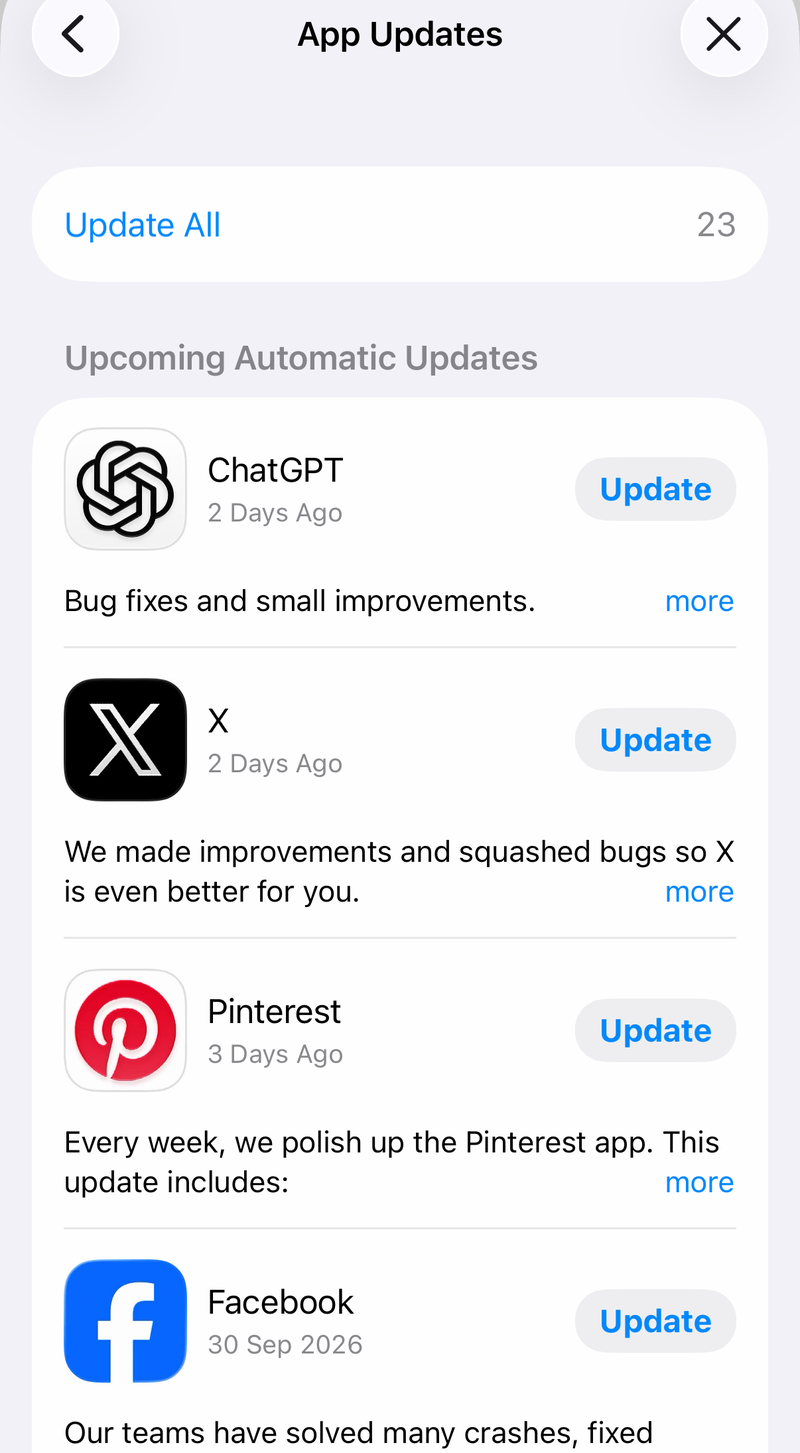
Update the app. On Android, open Google Play and choose Update on Gmail. On iPhone or iPad, open the App Store account page and choose Update next to Gmail, or choose Update All.
Free storage when Gmail cannot send
Open Gmail, Google Drive, or Google Photos, then choose Clean up space or Manage storage.
Pick Gmail, Google Drive, Google Photos, or Trash under Clean up by service.
Select items you no longer need, choose Review, then choose Delete.
Finish with Move to trash or Permanently delete, depending on what the page offers.
Go to Google One and upgrade storage to keep the files.
After freeing storage or upgrading storage, reopen Gmail and try sending the message again.
Check Trash during cleanup so deleted items do not keep using account storage.
Try another sending surface
If Gmail web is the only place where Send fails, use the Gmail app on Android, iPhone, or iPad. Install or open Gmail, sign in, choose Compose, and send the message from the app.
You can also use Gmail in a supported email client such as Outlook, Apple Mail, or Thunderbird. Open the client, look for Sign in with Google, and sign in to the Gmail account. IMAP access is always on for a personal Gmail account, so there is no Enable IMAP setting to turn on, and Gmail no longer supports clients that ask you to share your Google username and password.
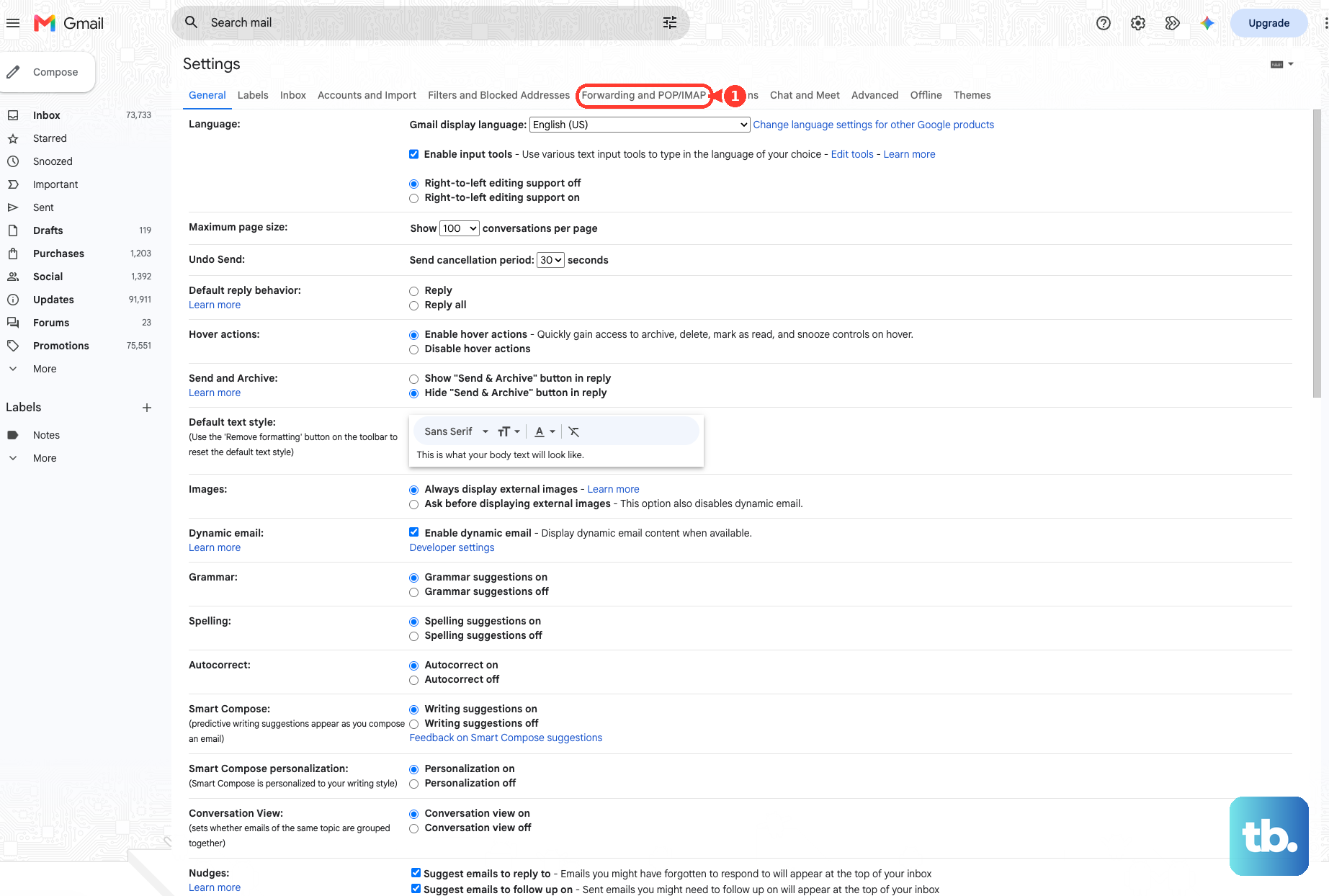
If the client needs POP instead, open Gmail on a computer, open Settings, then See all settings, then Forwarding and POP/IMAP, and under POP download choose Enable POP for all mail or Enable POP for mail that arrives from now on, then choose Save Changes.
Do not use Gmail Basic HTML view as a current fix. Google ended Basic HTML view after January 2024, and current Gmail changes to Standard view.
Do not follow old Labs directions. Current Gmail uses Settings, then See all settings, then Advanced for those features.
Account and work restrictions
This fixes cases where Gmail works until a specific account, sender address, recipient, or policy gets involved.
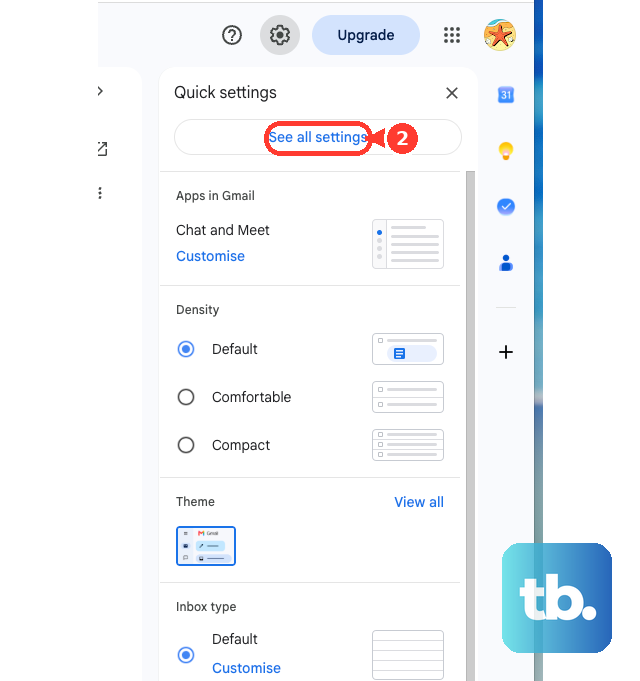
If sending fails only from a custom From address or alias, open Gmail on a computer and go to Settings, then See all settings, then Accounts and Import or Accounts.
Under Send mail as, choose Edit info next to the alias to correct it.
Choose Delete next to the alias and add it again when the existing alias settings cannot be corrected.
If Gmail says You have reached a limit for sending email, You reached a Gmail sending limit, or You exceeded the maximum recipients, stop sending and wait for the limit to reset.
For a school or work Google Workspace account, ask your administrator to check whether Gmail is turned on for your account and whether delivery, recipient, or content rules are blocking the message.
Frequently Asked Questions
Why is my Gmail Send button greyed out or not responding?
The causes to check first are the browser version, cookies, JavaScript, extensions, cached browser data, site permissions, unfinished attachments, sync, storage, aliases, and Workspace policy.
Can I send a Gmail message without clicking the Send button?
Yes. In Gmail on a computer in Standard view, press Ctrl + Enter on a PC or Command + Enter on a Mac while the compose or reply window is active.
Should I use Gmail Basic HTML to fix sending?
No. Basic HTML view ended after January 2024. Current Gmail uses Standard view, so use the current browser, cache, extension, attachment, app, storage, and account fixes instead.
Why does Gmail send from one device but not another?
That points to the device or browser where sending fails. Test a supported browser, Incognito or private browsing, browser extensions, app sync, connection, and storage on that device.