The EA app refuses to open, freezes on a blank window, or stops before you can sign in. Start with a full app restart, then work through cache recovery and updates before reinstalling. For an installation warning or connection error, jump to the section matching what you see.
Give the EA app a fresh start
When the app is running without a usable window, select EA app and press Command-Q to quit.
Reopen EA app from Applications.
If it does not respond, press Option-Command-Esc, select EA app, and click Force Quit. Force quitting can lose unsaved changes.
Try opening EA app again. If it still will not open, choose Apple menu > Restart.
Clear the cache when the menu still works
Use App Recovery when the EA app opens only partially but its menu bar remains accessible. EA documents cache clearing for an app stuck in offline mode or not updating itself, games that will not download, downloads stuck on a percentage or on Waiting for download, and games missing from your Library.
Choose Help > App Recovery > Clear cache.
If recovery requests permission for EALaunchHelper, enter the password you use to log in to your Mac.
If the menu is inaccessible, continue to updating or reinstalling. EA’s cache article sends anyone who cannot open the app to its Windows Start menu steps, which have no Mac equivalent.
Skip older instructions for Reset Origin or returning to Origin. The EA app replaced Origin on Mac; its cache recovery route is Help > App Recovery.
Restart the app to apply an update
Leaving the EA app running prevents it from applying a newly released update automatically.
With EA app selected, press Command-Q.
Reopen EA app from Applications to start updating. Reopening it in the first section already triggered this update check.
Sign in once the app reaches its login screen.
If settings open, choose EA app > Settings > Application and enable Application updates. This addresses disabled updating and requires accessible settings.
For macOS updates, open Apple menu > System Settings > General > Software Update. You can also search Spotlight for Software Update.
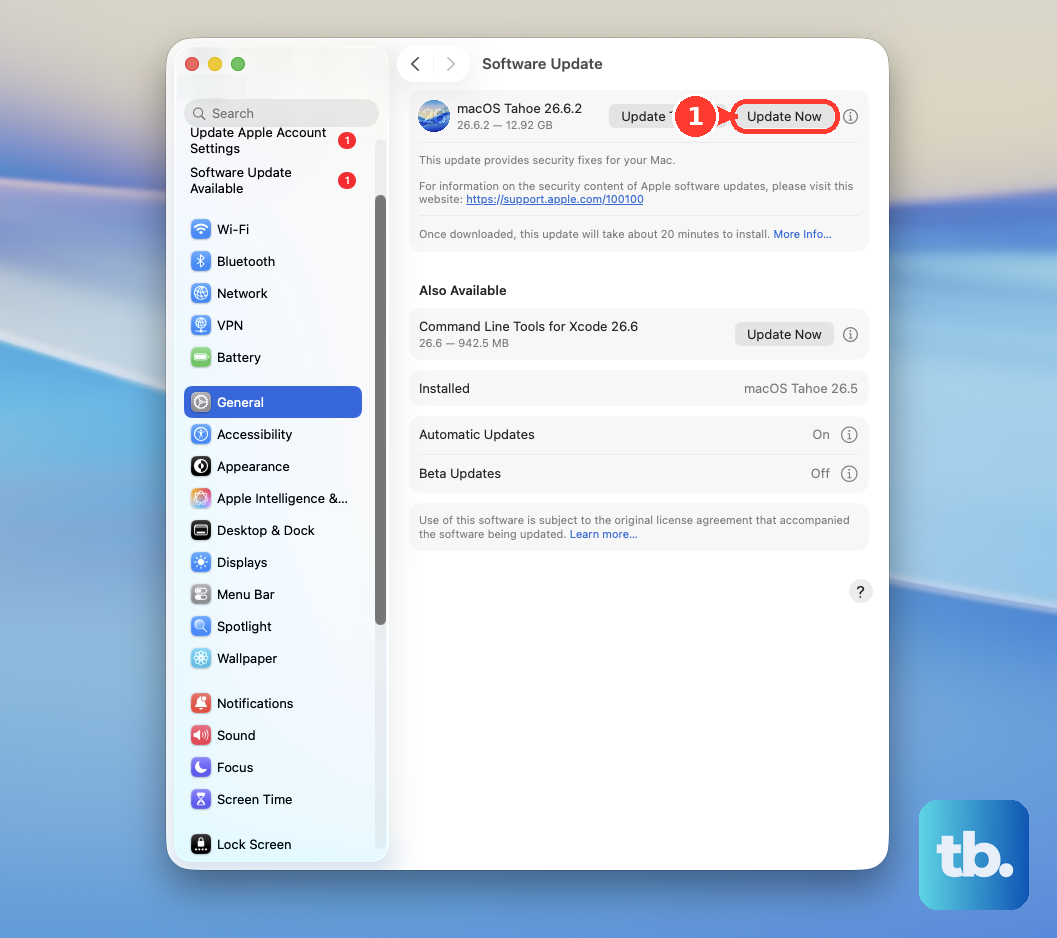
Install an offered update using Update, Upgrade, or Restart Now. Software Update only offers releases compatible with your Mac.
Check connectivity when startup stalls at sign-in
For a connection error during startup, check EA’s service status before changing your connection.
Open EA’s Server status page and check Services > EA app. If it reports an outage, retry after service is restored.
Connect your Mac to the internet through Wi-Fi or Ethernet.
If the connection needs restarting, turn your router off and unplug it for 15 seconds.
Reconnect power, wait for internet access, and retry EA app.
If you use a VPN, temporarily turn the active service off through Apple menu > System Settings > VPN, then retry EA app. EA includes VPN conflicts in its EC:10701 troubleshooting.
Replace the app with a current installation
If the app cannot open far enough to update, use the current installer from EA’s official download page. Under Download the EA app, select macOS.
For a reinstall, open Applications, right-click EA app, and select Move to Trash. Removing the app can remove patch-identification files, and games remain unavailable until you reinstall.
Open the downloaded installer and complete its prompts. If installation requests your Mac password, enter it and select OK or Allow as prompted.
Sign in after installation. The EA app attempts to discover your existing games.
Allow the official installer through macOS security
An App Store-only security setting blocks the official EA installer from opening.
Open System Settings > Privacy & Security.
Under Security > Allow apps downloaded from, select App Store and identified developers.
For a separate Gatekeeper warning, first attempt to open the official installer. Only proceed with an exception after confirming that the download is authentic and unmodified.
Go to System Settings > Privacy & Security and select Open Anyway when macOS offers that exception.
Confirm with Open.
On a managed Mac, administrators can make these controls unavailable. Ask your administrator or IT department to review the restriction and permit the official EA app where policy allows.
Match persistent failures to the error you see
For EC:10701, fully quit Origin if it remains installed and running.
Reopen EA app.
For an installer hash, signature, or installation error such as INST-18-4103, INST-21-577, or INST-14-1603, remove the failed installer.
Choose Apple menu > Restart.
Download a fresh installer from EA’s download page by selecting macOS under Download the EA app.
Open the fresh installer to run installation again.
If installation still fails, reset its leftover files. In Finder, press Command-Shift-G and enter /Library. Use /Library exactly, not ~/Library.
Navigate to Application Support > Electronic Arts > EA app.
Right-click that EA app folder and select Move to Bin.
Download the current macOS installer from EA again.
Open the installer to rerun installation.
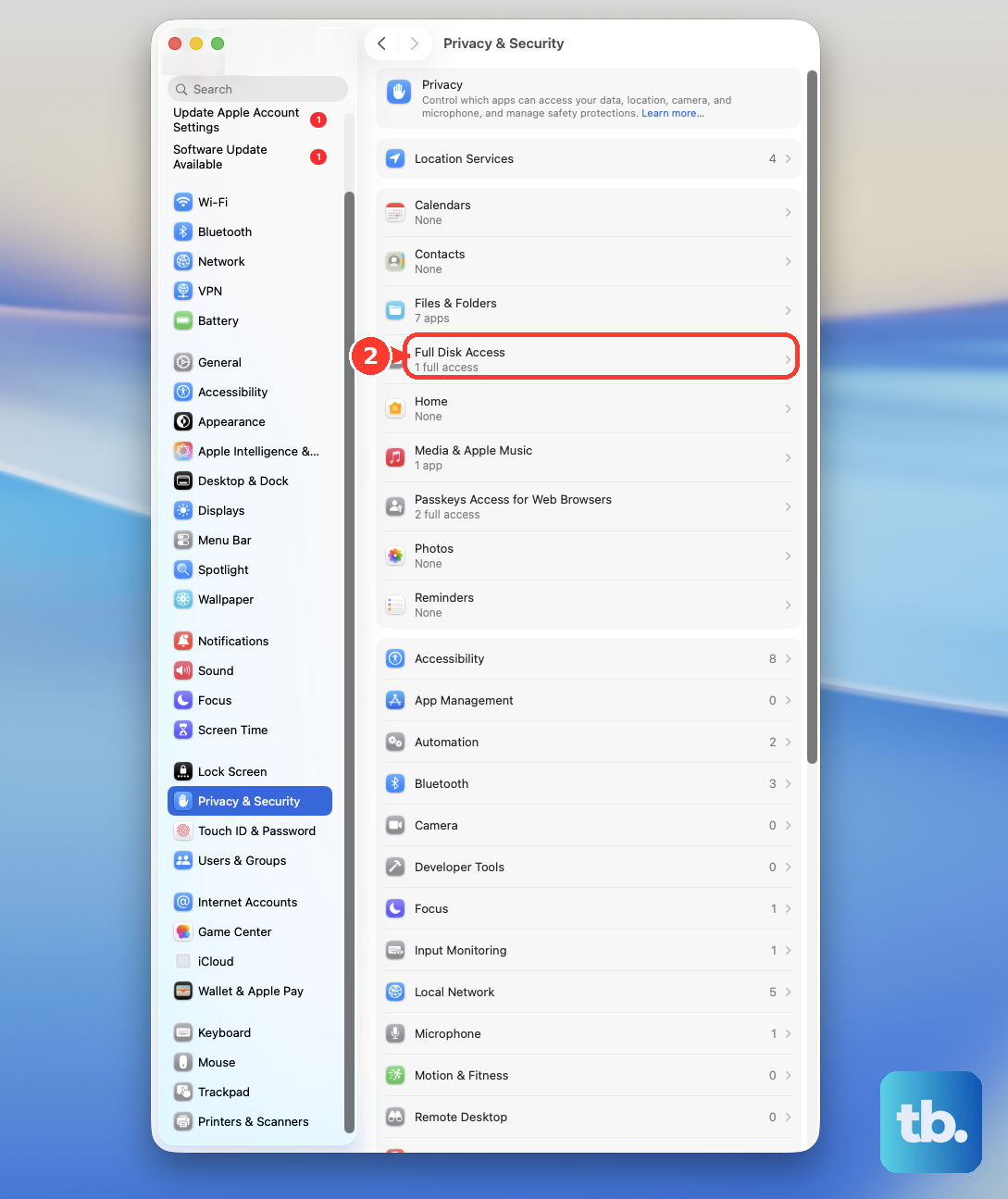
For continuing download, installation, or loading problems, enable EA app under Apple menu > System Settings > Privacy & Security > Full Disk Access. EA recommends this for broader Mac troubleshooting; it does not guarantee a launch repair.
If the matching fix fails, collect an error report and send it to EA Help using the steps below.
Send EA an error report without opening the app
Use EA Error Reporter to collect diagnostics even when the main app will not open.
- 1.In Finder, open Applications, right-click EA app, and select Show Package Contents.
- 2.Open the package’s Applications folder, then open ErrorReporter. If the EA app menu works, use Help > EA Error Reporter instead.
- 3.Complete Type of problem and Description of problem. If you already have an EA Help case, enter its case number in Support Ticket Number.
- 4.Grant diagnostic-sharing consent, select Submit report, and save the Report ID.
- 5.To collect launch logs, choose Go > Go to Folder in Finder and enter
/Users/<username>/Library/Application Support/Electronic Arts/EA app/UData/Logs, replacing<username>with your Mac username. Attach the logs to your EA Help case and include the Report ID.
Frequently Asked Questions
What if my Mac will not restart normally?
Hold the power button for up to 10 seconds until the Mac turns off. Then press and release it to turn the Mac on. On a Mac laptop with Touch ID, hold the Touch ID button. Use this only when the Mac cannot restart normally; a forced shutdown can lose unsaved work.
Which macOS version does the EA app require?
EA’s product page says macOS Catalina or newer. Its installation and update documentation lists macOS 10.15.8 instead. EA’s published requirements conflict.
What if the EA app opens but says my password has expired?
Open the EA web login. Select Forgot your password, or need to create a new one?. Enter your account email or EA ID. Follow the password-reset email, then sign in again. This addresses expired credentials.
Can Screen Time stop me from opening the EA app?
Yes. If Screen Time explicitly blocks access on macOS Tahoe 26, open System Settings > Screen Time. Select the relevant Family Member if applicable. Open App Limits. Turn off the limit covering EA app, or select Edit to adjust it. If the settings are locked, you need the four-digit Screen Time passcode; for a child’s account in a Family Sharing group, the parent or guardian who manages it makes the change.