You select Apple TV, but the connection fails before your screen, video, or remote appears. The right fix depends on whether you’re using AirPlay, opening the Apple TV app, or connecting a remote. Start with the checks below, then follow the section for the feature that’s failing, saving resets for last.
Start with the devices you’re connecting
For AirPlay, turn on your Apple TV or compatible television.
Turn on the iPhone, iPad, or Mac you’re sending from.
Bring the devices near each other. Retry the connection after each change.
If AirPlay still fails, check that both devices use the same Wi-Fi network. For an error inside the Apple TV app without AirPlay, skip to the app connection section below.
Connect both devices to the same network
A Wi-Fi network mismatch prevents the standard AirPlay connection between your device and Apple TV.
Connect your phone, tablet, or Mac to the same Wi-Fi network as Apple TV. Supported peer-to-peer connections are an exception to this requirement.
If Apple TV itself cannot connect to Wi-Fi, open Settings > Network > Wi-Fi.
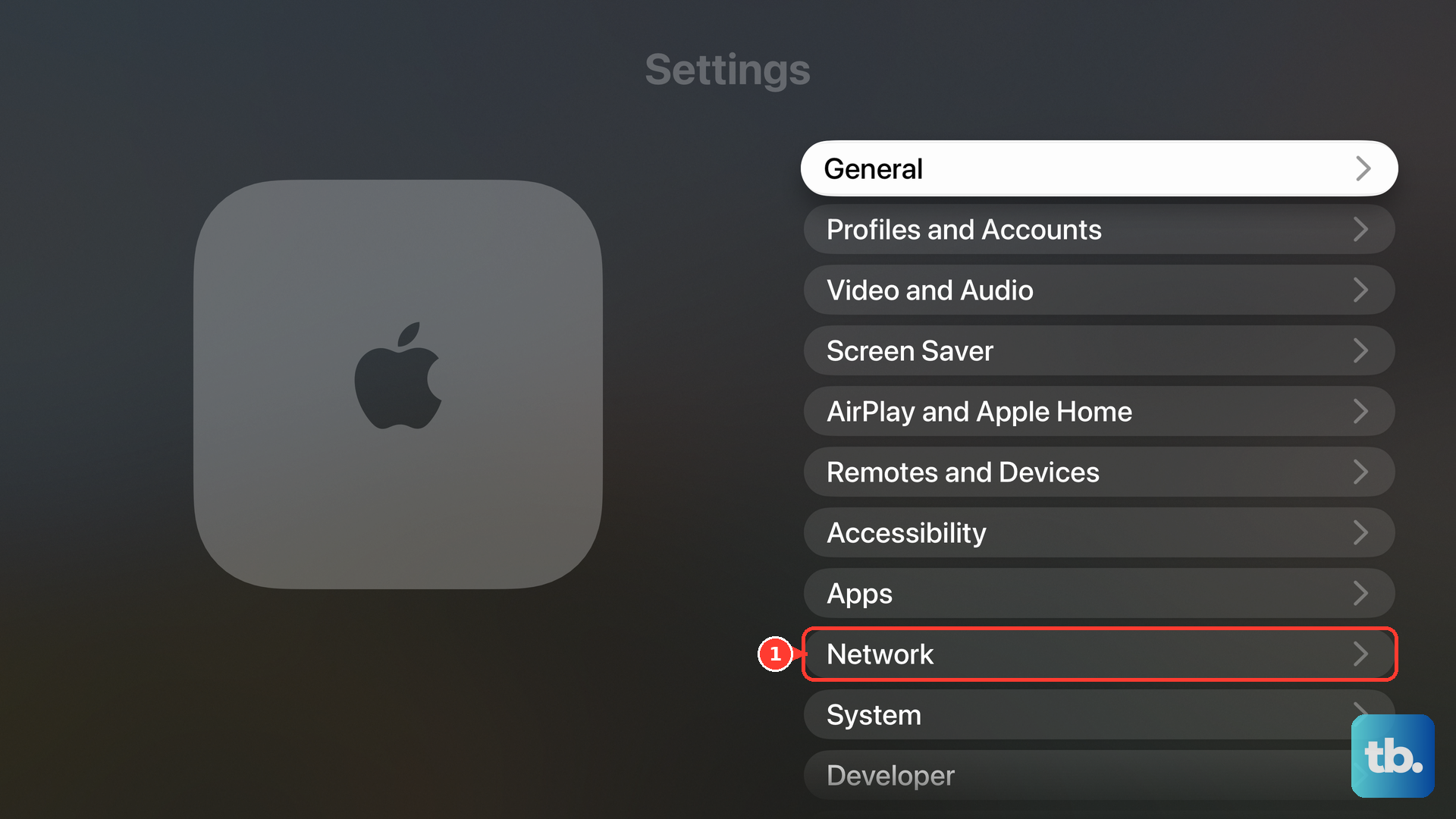
Select your network.
Choose Forget Network.
Press the remote’s Back or Menu button to return to Network.
Select your network again.
Enter its password to reconnect.
For a hotel or another network requiring an extra login, select the network under Settings > Network on an updated Apple TV.
Choose Continue on iPhone or iPad when prompted.
Complete authentication on that device.
Move Apple TV closer to the router, keeping it at least one foot away.
Reduce metal obstructions between Apple TV and the router.
Check the router and modem’s power and connections.
Unplug the router and modem from power.
Reconnect their power.
Retry once the network is available.
On an Apple TV with an Ethernet port, connect it to the router with an Ethernet cable to test a wired connection. Apple TV prioritizes Ethernet automatically.
To return to Wi-Fi, unplug the Ethernet cable. Allow several minutes for wireless networks to become available.
Check AirPlay access on Apple TV
On Apple TV 4K, enable Settings > AirPlay and Apple Home > AirPlay.
Under Settings > AirPlay and Apple Home > Allow Access, select the audience that includes you. The choices are Everyone, Anyone on the Same Network, and Only People Sharing This Home.
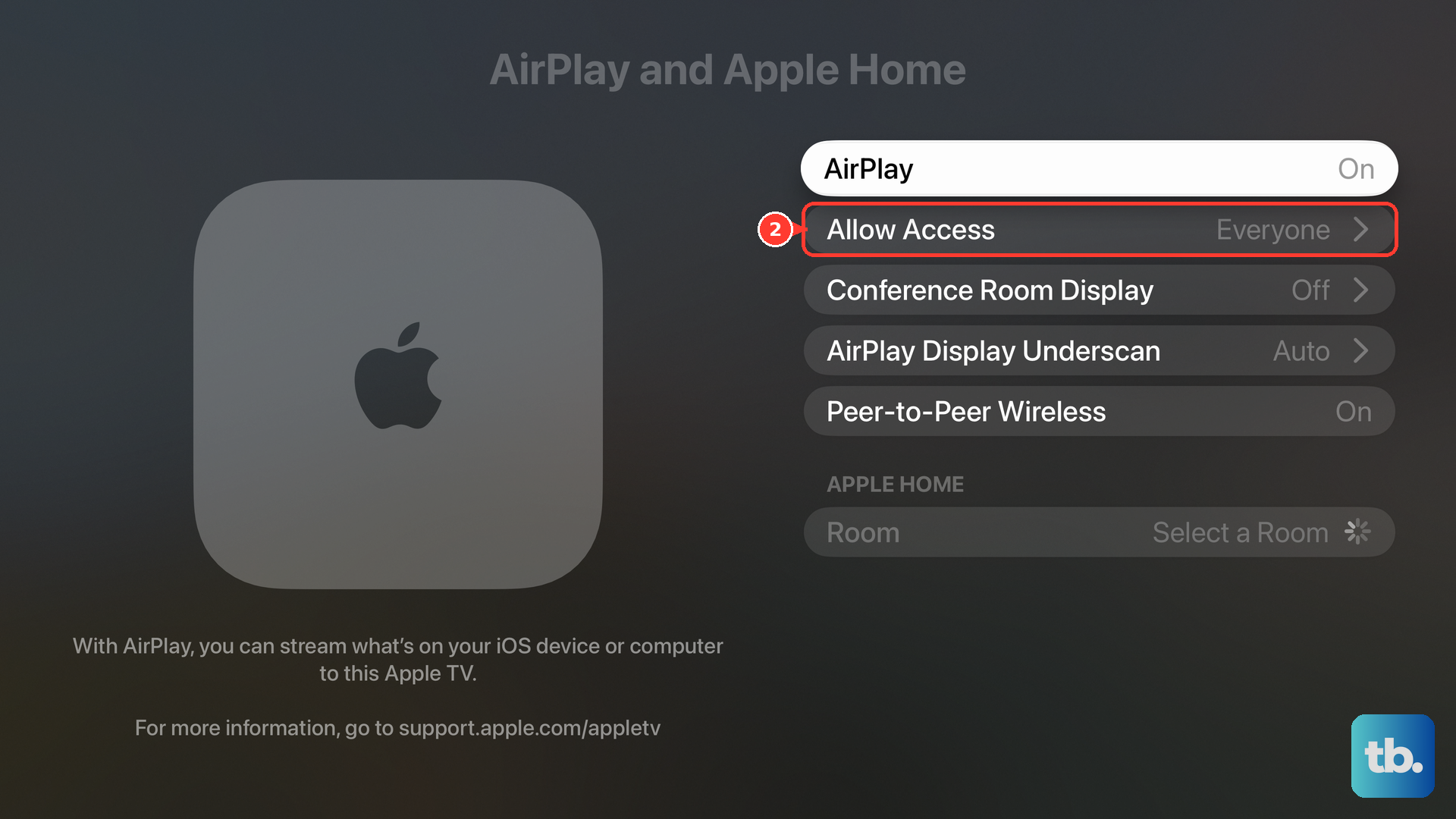
Review Require Password to check whether a password is required. The Password setting lets you change that password.
For a television configured in Apple Home, adjust access under Home > More > Home Settings > Speakers & TV on your controlling device. The intended person or device must be permitted there.
Reconnect the screen or stream manually
Use these steps when AirPlay is enabled but screen mirroring or an app’s stream still will not connect. Follow the path for the device and feature you’re using.
On iPhone or iPad with an existing mirroring session, select Control Center > Screen Mirroring > Stop Mirroring.
Select the intended Apple TV under Screen Mirroring.
Enter the AirPlay passcode displayed on the television when prompted.
For a stream started inside an app, select your iPhone or iPad through the app’s AirPlay control to stop streaming to the television.
Select Apple TV again through AirPlay. In Photos, use Share > AirPlay to reach that control.
On Mac, select the connected Apple TV’s name under Control Center > Screen Mirroring to disconnect.
Select Apple TV again to retry.
For Mac audio output, open Control Center > Sound and choose Apple TV, or choose it from the Sound menu-bar icon if you’ve added that icon.
If your iPhone or iPad keeps choosing the wrong receiver, open Settings > General > AirPlay & Continuity > Automatically AirPlay.
Choose Never for manual selection or Ask for confirmation.
Restart and update both devices
Restarting addresses temporary glitches; updating addresses outdated software.
Restart Apple TV through Settings > System > Restart.
If you cannot reach its settings, disconnect Apple TV from power for five seconds instead.
Reconnect its power.
Restart the iPhone, iPad, or Mac you’re connecting from.
Retry the connection before making further changes.
On Apple TV, check for an update through Settings > System > Software Updates > Update Software.
Select Download and Install when an update is offered. Apple TV needs power and networking throughout installation.
Install available software updates on the sending device.
Test AirPlay again after the updates finish.
Separate Apple TV app errors from AirPlay failures
Check Apple’s System Status page for an incident affecting your Apple TV service. For a listed incident, retry after recovery; for a persistent error without a listing, retry later because new outages do not always appear immediately. This check concerns Apple services, not local AirPlay discovery.
Test internet access by opening a website in a browser, testing another device on the same network, then testing a different network. A failure limited to one network belongs with that network’s administrator or internet provider.
Correct the clock and time zone, or enable automatic time, in the affected device’s settings. Use Settings > General > Date and Time on Apple TV, Settings > General > Date & Time on iPhone or iPad, or Apple menu > System Settings > General > Date & Time on Mac.
Update the operating system on Apple devices. On Windows, update Windows and drivers before updating Apple TV through Microsoft Store; on Android, update Android and Apple TV through Google Play. On compatible connected TVs, streaming devices, and consoles, the Apple TV app should update automatically.
Restore the remote connection
For the iPhone or iPad remote, connect both devices to the same Wi-Fi network.
Choose your television under Control Center > Apple TV Remote.
Enter the displayed four-digit code when requested.
If the remote control is missing, open Control Center > Add Controls > Add a Control.
Search for Remote.
Tap Remote to add it.
For a physical Siri Remote that will not pair, hold it about three inches from Apple TV.
Hold Back and Volume Up for five seconds, using Menu instead of Back on a remote with that button.
Place the remote on Apple TV if prompted.
If pairing fails, disconnect Apple TV from power for six seconds.
Reconnect Apple TV’s power.
Retry pairing.
Charge a physical remote for 30 minutes if it needs power.
Look for software blocking the connection
VPN, filtering, or security software that blocks communication between your devices interrupts the connection.
Temporarily disable the networking features inside your VPN, firewall, antivirus, parental-control, or content-blocking app.
Restart the device after changing those settings.
Retry the connection.
If an iPhone or iPad app needs its own local-device discovery, enable that app under Settings > Privacy & Security > Local Network. This permission is not required for every AirPlay connection: system AirPlay also works when an app’s local-network access is denied.
When Apple TV parental restrictions prevent content playback or AirPlay changes, open Settings > General > Restrictions.
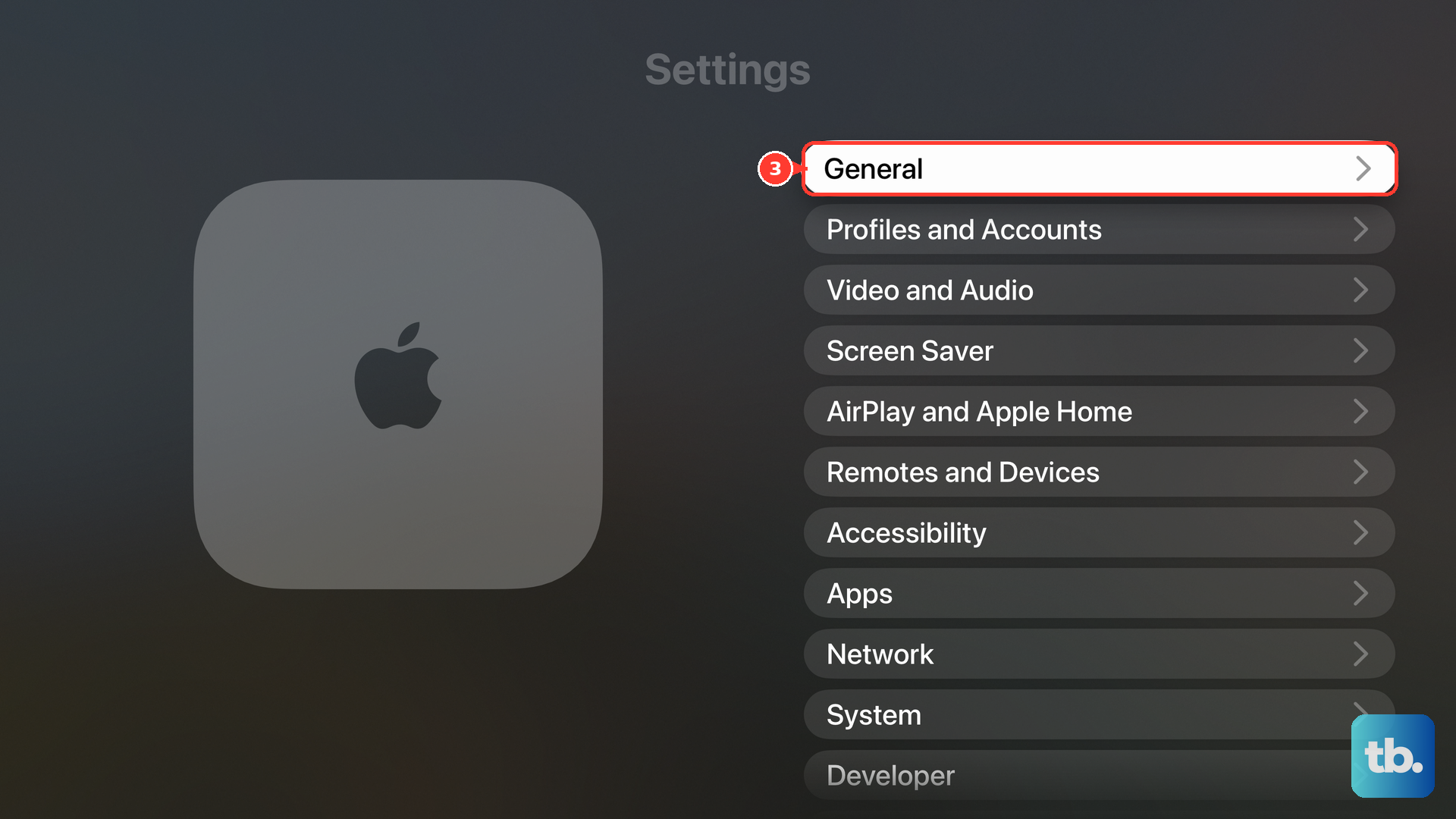
Enter the owner’s restrictions passcode. It is separate from the AirPlay connection code.
Review the restrictions affecting content or AirPlay changes.
For a work or school device, ask the administrator to check whether AirPlay and communication between the devices are allowed. Consult them before changing organization-required network configurations.
Use a reset only after the other fixes fail
Choose the reset that matches the problem. Resetting the Apple TV app on a smart TV is different from erasing an Apple TV box.
For the Apple TV app on a supported smart TV or streaming device, select Apple TV > Settings > Reset. This removes the app’s personal information and settings; on a smart TV that shares its sign-in with Apple Music, Apple Music is also reset.
Complete the app’s setup again.
Choose Sign In On Mobile Device during setup to sign in with your phone.
Scan the displayed QR code, or enter the displayed code at link.apple.com.
For persistent problems with an Apple TV HD or 4K box, open Settings > System > Reset only when you’re ready to set it up again. A factory reset erases accounts, settings, and other device information.
Choose Reset for an offline factory reset, or Reset and Update to erase the device and install updates using internet access. Keep Apple TV powered until the process finishes.
Set up Apple TV again after the reset completes.
If the connection still fails after setup, contact Apple TV Support. For internet or installation failures specific to a smart TV or streaming device, contact its manufacturer.
Frequently Asked Questions
Where do I enable direct peer-to-peer AirPlay?
On Apple TV 4K models with this option, enable Settings > AirPlay and Apple Home > Peer-to-Peer Wireless. Check Allow Access as well so the intended device is permitted. Enabling direct wireless discovery does not guarantee that a connection error is resolved.
Why does screen mirroring connect but one video app will not stream?
Some video apps do not support AirPlay. Check for the service’s native app in the Apple TV App Store. Changing AirPlay settings does not add support to an app that lacks it.
Can I watch my Apple TV subscription while troubleshooting?
Open tv.apple.com in a browser and sign in with the Apple Account tied to your subscription. Browser playback provides a separate way to watch while you troubleshoot the app or AirPlay.
Should I reset my iPhone’s network settings?
Save this for after ordinary network troubleshooting. Select Settings > General > Transfer or Reset iPhone > Reset > Reset Network Settings. This removes saved networks and unmanaged VPN settings, so rejoin Wi-Fi afterward. It does not remove network settings installed through device management.