You select eduroam, and Windows responds with “Can’t connect to this network.” That message gives you little to work with, but checking the connection, login, and institutional profile gives you a clear place to start. Follow these fixes from basic checks to a network reset; the Windows menu paths use Windows 11.
Check that eduroam is within reach
Start here to catch a disabled wireless connection, a coverage problem, or a campus outage. Open Settings > Network & internet. Turn on Wi-Fi, then turn off Airplane mode.
On a laptop with a physical wireless switch, move it to the enabled position. Select eduroam from the available networks, especially if your device keeps choosing another saved network. Turn Wi-Fi off, then turn Wi-Fi back on to reconnect to a nearby access point.
Try another campus location if eduroam is missing or still won’t connect. Check the institution’s service-status page using another internet connection. A reported campus outage needs to be resolved by the institution.
Replace the saved Windows connection
Forget the old connection, then rebuild it with your home institution’s current configuration.
- 1.Use another internet connection to open your home institution’s eduroam setup instructions.
- 2.Open Settings > Network & internet > Wi-Fi > Manage known networks.
- 3.Select eduroam, then choose Forget.
- 4.Follow your institution’s setup route. If it uses geteduroam, download the Windows version through the official geteduroam website.
- 5.Open geteduroam and select your home institution, including when you’re visiting another campus.
- 6.Complete the authentication flow with your institution-issued eduroam credentials or its website sign-in. Keep geteduroam installed: uninstalling it removes its eduroam configuration.
Use the login format your institution requires
Check your home institution’s instructions for the complete eduroam username. Include the institutional suffix whenever its instructions require one. Enter that full identity wherever your institution’s setup process asks for your username. If the setup tool sends you to your institution’s website sign-in instead, complete that flow.
Sussex, for example, requires [username]@sussex.ac.uk. That format applies specifically to Sussex. Enter the password specified by your institution. Sussex uses the university password; use your own institution’s instructions to identify the correct password.
Type your institution-issued credentials explicitly when prompted if saved credentials or Windows single sign-on fail. Contact your home institution’s IT helpdesk for password recovery or account eligibility problems. There is no universal eduroam password-reset menu.
Tip: Your home institution controls your credentials even when you’re connecting at another university.
Follow your institution’s alternative setup route
Use this route when your institution directs you to CAT or its own onboarding portal. geteduroam serves participating institutions; your institution’s instructions determine which tool to use.
For CAT setup, open the official CAT download portal. Select your home institution. An installer for another university is unsuitable.
Choose the appropriate user group or profile. Download the installer for your device. Follow the institution-specific installation instructions. Contact your IT department if your institution is missing from CAT.
For a University of Reading account, open Reading’s onboarding portal for its current setup process. Other institutions use their own chosen products.
Install the current institutional profile to supply the correct certificate trust settings and authentication-server names. Windows 11 applies stricter, consistent certificate validation across authentication methods. A profile that worked on Windows 10 still needs to meet those requirements.
Keep server-certificate validation enabled. Disabling it exposes your credentials to the risk of a rogue network. Ask IT to repair the profile if certificate errors persist.
On Android newer than 7.0, if your institution’s setup route uses CAT or geteduroam, use geteduroam instead of the old eduroamCAT app, whose development has stopped. Institutions with their own onboarding app, such as Reading, require you to follow their current instructions instead. The CAT website remains a current setup route.
Use your institution’s correct certificate configuration instead of the obsolete Do not validate workaround.
Restart and correct the device clock
This covers a fresh restart, an incorrect clock, and outstanding system updates. Select Start > Power > Restart.
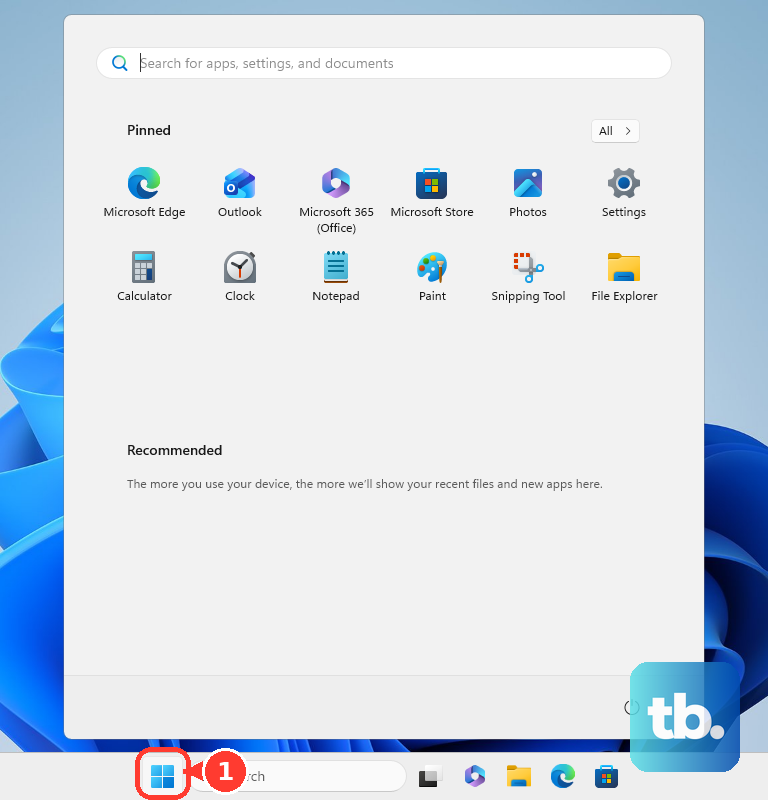
Open Settings > Time & language > Date & time after Windows starts. Reading identifies an incorrect clock as an eduroam connection problem. Correct the date if it is wrong. Correct the time if it is wrong.
Set the correct time zone. Connect through another working internet connection. Install outstanding operating-system and security updates. Select eduroam to try connecting again.
Run Windows diagnostics and repair the wireless driver
Open Microsoft’s Wi-Fi troubleshooting page. Select Run the troubleshooter in Get Help to launch Network and Internet diagnostics.
For a disabled adapter or a driver problem, right-click Start. Open Device Manager > Network adapters. Right-click your wireless adapter. Select Enable device if the adapter is disabled.
To update its driver, right-click the wireless adapter again. Select Update driver. A downloaded manufacturer driver must match your adapter and Windows architecture. For a downloaded driver, choose Browse my computer for drivers.
Select Browse.... Select the folder containing the driver. Select OK. Select Next to install it.
If the connection stopped working immediately after a driver change, use rollback instead. This requires an administrator account and an available previous driver. Right-click the wireless adapter in Device Manager > Network adapters. Select Properties > Driver > Roll Back Driver.
Select the reason for rolling back. Confirm with Yes. Restart when requested. If diagnostics and driver changes fail, try the Windows network reset below as a last resort.
Reset Windows networking as a last resort
Be ready to reconfigure eduroam and affected VPN software after the reset.
- 1.Save your institution’s setup instructions and arrange another internet connection for reconfiguration.
- 2.Open Settings > Network & internet > Advanced network settings > Network reset.
- 3.Select Reset now, then confirm with Yes.
- 4.Restart your computer.
- 5.Reconfigure eduroam using your institution’s current installer or onboarding instructions, and reconfigure affected VPN software.
Bring persistent connection failures to IT
If eduroam still rejects the connection after these fixes, contact institutional IT. Your home institution handles account and authentication problems; the institution operating the access point handles local coverage and availability.
Send the appropriate helpdesk the error and the steps you’ve already tried. IT can investigate certificate, authentication-server, and access-point problems that require administrative access.
On a work- or school-managed Windows device that receives eduroam profiles through Company Portal, connect through another working network. Open Company Portal > Settings > Sync to refresh the managed configuration. Ask IT to handle any profile that your organization prevents you from removing or changing.
Frequently Asked Questions
Does geteduroam work on phones and Linux?
Yes. geteduroam supports Android, iOS/iPadOS, Linux, and Windows, including Intel/AMD and ARM devices. Your institution must participate through CAT/geteduroam.
Will changing DNS fix an eduroam authentication error?
DNS changes address a different stage of connectivity. They do not correct rejected usernames, passwords, or certificate configurations. Resolve authentication before troubleshooting a connected-but-no-internet problem.
How do I collect Windows connection details for IT?
Run netsh wlan show wlanreport in an administrator terminal. Open the generated wireless report and send the relevant failure details to your institution’s IT helpdesk. The report diagnoses the connection; it does not repair it automatically.
What should I try if my Mac connects to eduroam but has no internet?
For an IP-address problem after authentication succeeds, open Apple menu > System Settings > Network > Wi-Fi > Details > TCP/IP. Select Renew DHCP Lease, then OK. Renewing the lease does not fix rejected eduroam authentication.