Steam will not always tell you why it refuses to open. Sometimes the client is already stuck in the background; other times Windows, damaged local files, security software, or the Steam Deck system itself is getting in the way.
Start with the quick checks, then use the repair steps that keep your installed games intact. Stop as soon as Steam opens normally.
Restart Steam and your computer first
A stuck Steam session is the most common cause, especially when nothing opens but Steam still shows as running in the background.
On Windows, open Start > Power > Restart.
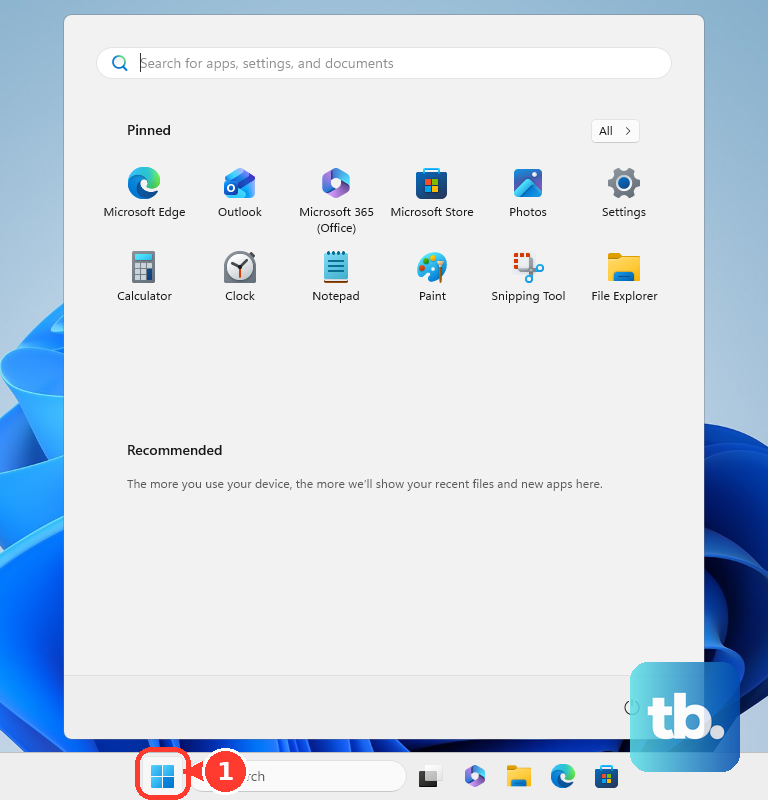
On macOS, open Apple menu > Restart. On Steam Deck, open Steam > Power > Restart.
After the restart, open Steam once and wait for it to finish loading. If it still does not appear, clear the background process before reinstalling anything.
Close the stuck Steam process
On Windows, right-click Start and open Task Manager. Select Steam or steam.exe under Processes. Click End task. Open Steam again from your normal shortcut.
On macOS, press Option-Command-Esc, or open Apple menu > Force Quit. Select Steam. Click Force Quit. Launch Steam again.
If Steam opens after this, the problem was a frozen background session.
Fix unsupported Windows before repairing Steam
This applies when Steam will not open on Windows 7, Windows 8, or Windows 8.1. Steam stopped supporting those Windows versions on January 1, 2024, and future Steam versions require Windows 10 or above.
Update the PC to Windows 10 or a newer supported Windows version. Open Steam again after the Windows upgrade finishes.
Reinstalling Steam on Windows 7, Windows 8, or Windows 8.1 will not fix this. Valve expects existing installs to keep running for some time, but it cannot guarantee continued functionality on those versions, and they no longer receive updates of any kind, including security updates. Upgrading Windows is the real solution.
Turn off Compatibility Mode on Windows
This fixes Steam opening only in the background or saying it is already running.
Open your Steam installation folder, usually C:\Program Files (x86)\Steam\. Right-click steam.exe. Choose Properties.
Open the Compatibility tab. Uncheck every checked box. Click Apply. Choose Change settings for all users.
Make sure no boxes are checked there either. Click OK. Click OK again.
Repeat the same Compatibility tab steps for steamwebhelper.exe, in the bin\ subfolder of your Steam folder (default C:\Program Files (x86)\Steam\bin\). Valve's instructions apply to both files, and a compatibility setting left on the web helper keeps the problem alive. Launch Steam from steam.exe or your regular shortcut.
Refresh Steam files without removing games
Damaged local Steam program files are a common cause after an update, crash, or failed launch.
Exit Steam completely. Open the Steam installation folder, usually C:\Program Files (x86)\Steam\. Delete everything in that folder except steamapps, userdata, and steam.exe.
Run steam.exe from that folder. Steam will rebuild its local program files and try to open normally.
Reinstall Steam in the same folder
Download the current Steam installer from store.steampowered.com/about. Use Steam's own install page, not a third-party download site.
Run the installer and choose the same location where Steam is already installed. Installing into the same location preserves installed games. If Steam still will not start, do a normal uninstall and reinstall after moving steamapps out of the Steam folder.
Reinstall cleanly on Windows
Use a clean reinstall only after the repair steps fail.
- 1.Exit Steam completely.
- 2.Move C:\Program Files (x86)\Steam\steamapps\ outside the Steam folder if you want to keep installed games.
- 3.Open Start > Settings > Apps > Installed apps.
- 4.Select Steam, open More, then choose Uninstall.
- 5.Download Steam again from store.steampowered.com/about and install it.
Check security tools and network blockers
This method applies when Steam starts to open, then fails during update or sign-in. Antivirus tools, firewalls, VPNs, anti-spyware apps, proxies, download managers, ad blockers, web optimizers, system cleaners, recording software, performance boosters, IP filtering tools, and file-sharing tools can interfere with Steam.
Temporarily disable the suspected app only for testing. Restart Steam. If Steam opens, add a Steam or game exception in that security app instead of leaving protection turned off.
For Microsoft Defender exclusions, open Start, type Security, then go to Windows Security > Virus & threat protection > Virus & threat protection settings > Manage settings, scroll to Exclusions, then choose Add or remove exclusions > Add an exclusion. Choose the file, folder, file type, or process you need to exclude only when you know it is safe.
For Windows Firewall, open Windows Security > Firewall & network protection. Select Domain network, Private network, or Public network and use the Microsoft Defender Firewall switch only for a short test. Use Additional settings > Allow an app through firewall to add an exception instead of leaving the firewall off.
Handle Mac, Linux, Steam Deck, and work devices
On macOS, quit Steam from Steam > Quit Steam, open Applications, and drag Steam to Trash. In Finder, open Go, hold Option until Library appears, then open Library > Application Support > Steam; delete everything except SteamApps if you want to keep game data, then use Finder > Empty Trash and reinstall Steam.
On Linux, Steam support is for the most recent Ubuntu LTS with Unity, Gnome, or KDE desktops. If Steam crashes at startup, install a 32-bit OpenGL test utility such as mesa-utils:i386 on Ubuntu, then run glxinfo from a console to confirm 32-bit OpenGL video driver support.
On Steam Deck, update through Steam > Settings > System > Software Updates, then restart from Software Updates or Steam > Power > Restart. If the device itself is unresponsive, hold the power button for 4 seconds on Steam Deck LCD or 7 seconds on Steam Deck OLED; if it still does not respond, hold it for 10 seconds on LCD or 16 seconds on OLED.
On work, school, or managed devices, organization policy can block Steam through firewall or network rules. Use another personal device or network, or contact the device administrator instead of changing policy tools yourself.
Frequently Asked Questions
Will reinstalling Steam delete my games?
Installing Steam into the same existing location preserves installed games. A normal uninstall can remove installed game content, so move the steamapps folder first if you want to keep it.
Is steam://flushconfig still a recommended fix?
No. For the current Steam client, use the supported file refresh method or reinstall Steam from Steam's install page.
Should I delete ClientRegistry.blob?
No. For current Steam versions, keep steamapps, userdata, and steam.exe, then let Steam rebuild the rest of the local files.
What should I do if Steam Deck will not start at all?
Plug in the provided power supply, confirm the LED is on, leave it charging for at least 15 minutes, then power it on. If it charges but will not boot normally, hold Volume + while powering on and choose Continue in BIOS.